
Microsoft To Do Kanban: How to Get a List Onto a Real Board
Updated at
The Answer
Microsoft’s To Do documentation describes lists, smart lists, steps inside a task and five sort options, and none of those pages describes a board or columns, so a Microsoft To Do kanban board means moving the tasks somewhere columns exist. Four routes get the work onto a board. Open the Planner app, where My Plans shows your To Do lists alongside your plans and a personal plan carries a Board view Microsoft calls a Kanban style board. Work private tasks and flagged mail from Planner’s My Tasks, which has a Board view of its own. Run a Power Automate flow that turns each new to-do into a Planner task in a bucket you name. Or read the tasks through Microsoft Graph and draw the board yourself. Which one fits depends on who else has to see the work.
Does Microsoft To Do Have a Kanban Board View?
No Microsoft page cited in this guide describes a kanban board view for To Do. The organising controls those pages do describe include lists, steps, smart lists and sorting, a set short enough to check yourself. Lists hold tasks. Steps break a task down, and smart lists gather tasks from across your lists. Microsoft’s To Do in Outlook page covers both, describing steps as a way to break down your larger tasks into more manageable pieces and naming the smart lists as My Day, Important, Planned, All, Completed, Assigned to me, Flagged Email and Due Today.
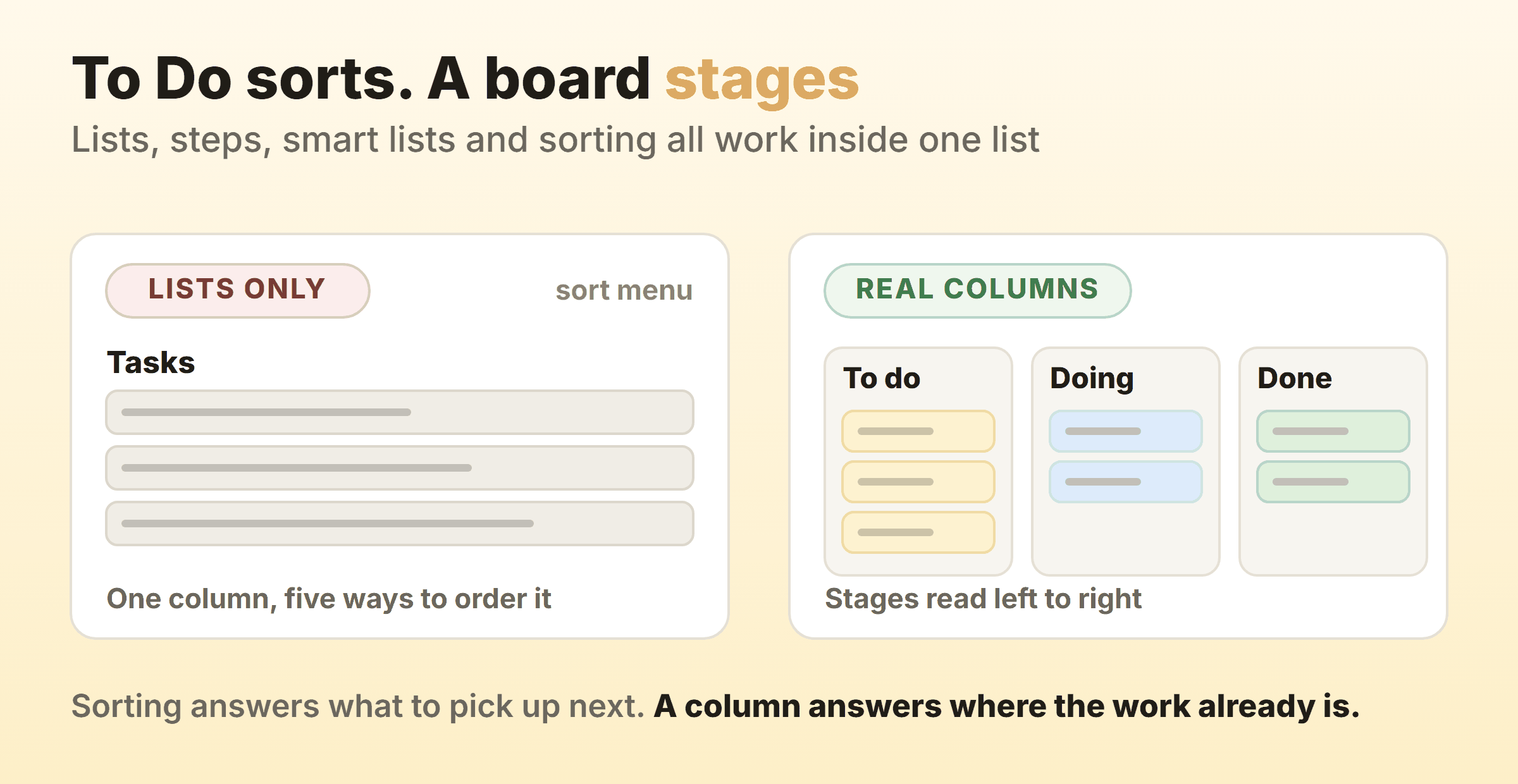
Sorting is the control people hope will do it. Open the three dots at the top right of a list, choose Sort by, and To Do will sort that list by Importance, Due date, Added to My Day, Alphabetically or Creation date. Five keys, one list, top to bottom.
Why Sorting Is Not the Same as Staging
A sort answers what to pick up next. A column answers where a piece of work currently is, which is the question a board exists to answer. Sort by due date and a task somebody finished the design for sits directly above one nobody has opened, because the date says nothing about the state. None of the five sort keys is the state the work is in.
Stages laid side by side as columns turn a queue into a picture you read left to right, and the kanban view in any tool that has one is doing that with a field it stacks by. The field To Do would need does exist underneath, as the Graph section below shows, but none of the sort keys above uses it.
Where Does a Microsoft To Do Kanban Board Actually Live?
A Microsoft To Do kanban board lives in Planner, in a flow, or in something you wrote. Four routes cover every version of it I have watched teams try, and they differ mostly in how much of the moving you do by hand.
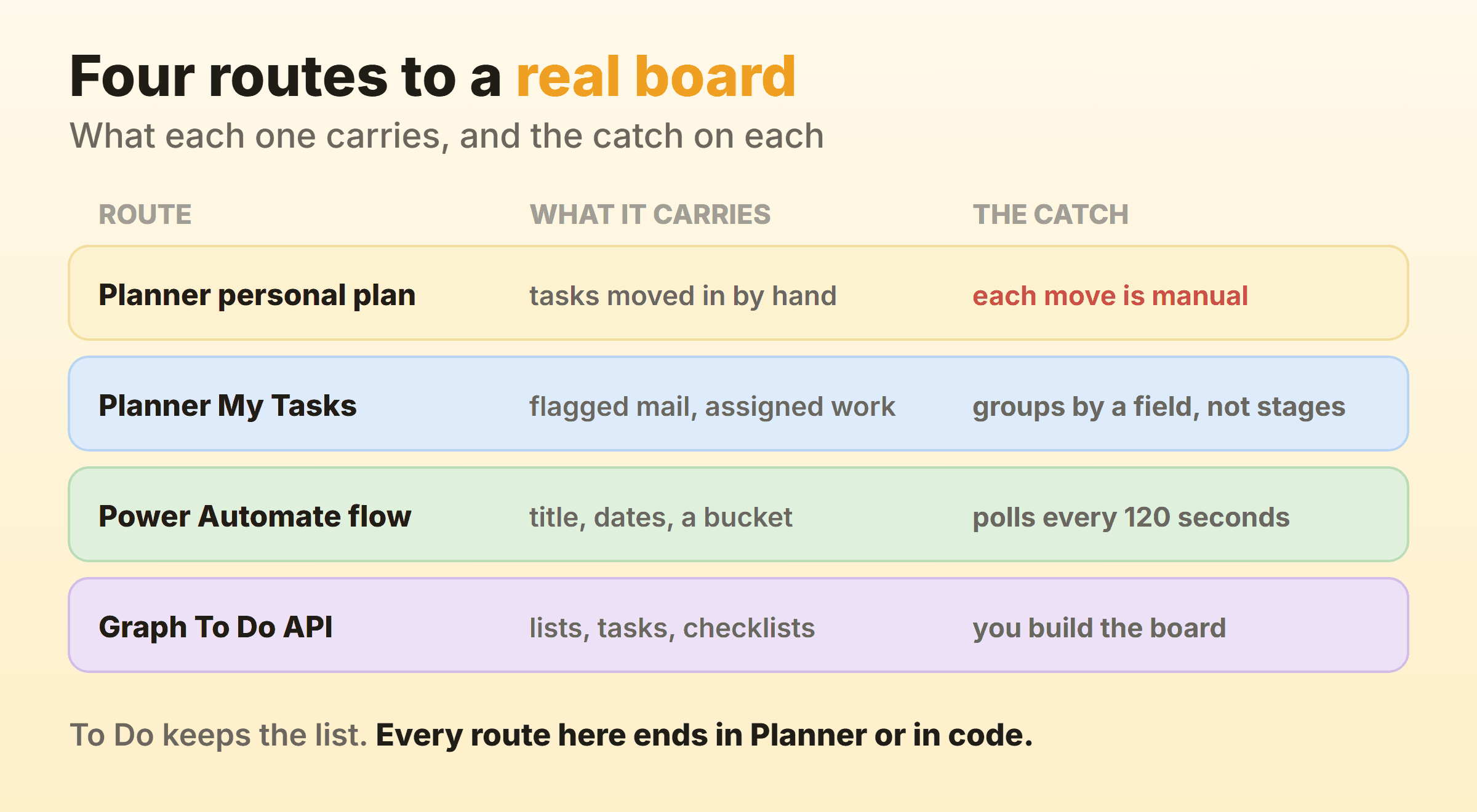
The first two keep you inside Microsoft 365, and Microsoft’s Planner FAQ says customers with an eligible Microsoft 365 subscription can use Planner with no additional licence. Automating the copying adds a component somebody has to own, and the Graph route is a small build. Every Board view on these four routes is a Planner one, documented for plans and for My Tasks.
How Do You Put To Do Tasks on a Planner Board?
You put To Do tasks on a Planner board by creating a plan and using its Board view, which is the view that holds columns. The Planner app shows both objects in one place, so the move is short.
- Open the Planner app in Teams or on the web. My Plans shows, in Microsoft’s words, all of your plans created across Planner, Project for the web, To Do, Loop, Teams and Outlook, and Microsoft’s Teams admin documentation says it shows a user’s To Do lists alongside basic and premium plans.
- Create a personal plan if the work is yours alone, or a shared plan if other people need it. Microsoft describes a personal plan as accessible only by you.
- Switch the plan to Board view. Microsoft’s page on personal tasks in Planner calls it a Kanban style board and lists Grid, Board, Schedule and Charts as the views of a basic personal plan.
- Name your stages. On the board, Add new bucket creates a bucket, which is a column, and you drag tasks into it. If the button is missing, Microsoft says the board may be grouped by something else, so set Group by to Buckets.
- Bring the tasks across. Microsoft’s My Tasks page says tasks in the Private tasks tab can be organised into plans from each task’s More options menu.
Board view groups by bucket, progress, due date, priority or labels on a basic personal plan, so the columns can be re-cut without editing a single task. Grouping by progress is the quickest board you can get out of Planner, since those columns come from a field the tasks already carry. Buckets are the version worth keeping, because the names are yours. The walkthrough of buckets, labels and where that board runs out lives in the Planner kanban guide.
Why the Board Is a Plan and Not Your List
A plan and a To Do list are two different objects stored in two different places, which helps explain why neither one has the other’s features. Microsoft’s admin documentation for the Planner app in Teams says private tasks and their attachments are stored in Microsoft Exchange, while basic plans and their tasks are stored in Azure and managed by the Planner service. The same page sends private tasks to the To Do documentation for Power Automate support, and Planner tasks to their own Graph API and Power Automate connector.
To Do is the personal end of a two-product split, and the board half lives in the other product. The same page notes that prior to March 2024 the Planner app in Teams was named Tasks by Planner and To Do, and it still tells admins who cannot find Planner in the admin centre to search for that older name.
What Does Planner’s My Tasks Give You?
My Tasks in Planner gathers the tasks relevant to you in one place, split into tabs. Microsoft’s My Tasks and My Day guide describes Private tasks as a tab for tasks that do not belong to a plan yet, Assigned to me as everything assigned to you across Teams meeting notes, basic plans, premium plans, Loop task lists and shared lists in To Do, and Flagged emails as where your flagged Outlook mail appears. The same page describes Board view as a way to group tasks visually by plan, progress, due date or priority.
Flagged mail is the route worth knowing about here. Turn on To Do’s Flagged email list and a message you flag in Outlook turns up there as a task, where Microsoft says the task takes the subject of the message as its name and shows a preview of the email text. The account has to be hosted by Microsoft, only mail flagged in your primary mailbox syncs, and Microsoft states that flagged emails from shared folders and shared mailboxes are not supported. Any team triaging from a shared mailbox loses the whole mechanism right there, and the Outlook kanban routes are the ones to read instead.
Check the licence and the phone before anyone builds a habit on this. My Tasks is visible to users licensed for Exchange Online, and Microsoft says removing that licence is how an admin hides it. The Planner app also has limited functionality on Teams mobile, where Microsoft states that users will only see plans added to a tab in a channel within a team.
What Syncs Between Microsoft To Do and Planner?
What syncs between Microsoft To Do and Planner is Planner work assigned to you, and it starts on the Planner side. Microsoft’s page on Planner tasks in To Do says the Assigned to me list shows all of the tasks that are assigned to you in Planner, and that from To Do you can change the task name, add or complete checklist items, change the due date and add a note. For anything else it sends you to open the task in Planner. The documented setup is to turn Assigned to me On under Smart lists, then set Planner to On under Connected apps.
Read the direction carefully, because it runs the opposite way to what most people are hoping for. Assignment brings a plan task into your personal list. A to-do you create in your own list is not part of that setting, so getting it onto a board is a separate step, such as organising a private task into a plan from My Tasks or running a flow.
That asymmetry is workable once you name it. Use To Do for capture, put status on the board, and decide out loud which of the two holds it.
Can a Flow Turn To Do Tasks Into Board Cards?
A flow can turn To Do tasks into board cards, and both connectors it needs are Standard rather than premium. The Microsoft To-Do (Business) connector offers the triggers When a new to-do in a specific folder is created (V2) and When a to-do in a specific folder is updated (V2), both of which take a To-do List parameter. The Planner connector supplies the other half with Create a task, which requires a Group Id, a Plan Id and a Title of 255 characters or fewer, and takes an optional Bucket Id. Set Bucket Id and the card lands in the column you chose.
Read the fine print on both connectors before you build on them:
- The To Do connector polls. Its documented frequency of trigger polls is one every 120 seconds, so a to-do can sit for up to two minutes before a card exists.
- The Planner connector page states plainly that it currently supports basic plans only.
Both connectors also cap API calls per connection at 100 per 60 seconds, which a single personal list is unlikely to reach and a busy flow shared across a team might.
Mapping the To Do Status Field to Columns
Every To Do task already carries a status. The Graph todoTask resource documents a status property whose possible values are notStarted, inProgress, completed, waitingOnOthers and deferred. The Power Automate connector exposes the same field on Add a to-do (V3) and Update to-do (V2), described there as not started, in progress, completed, waiting on others or deferred.
Five values, and four of them are columns teams end up drawing by hand anyway. Have the flow switch on status and pick the matching Bucket Id, and each new card lands in the column that matches the field instead of somebody’s memory. Waiting on others is the one I would not skip, because delay caused outside the team stays invisible until it has a column of its own.
What Should the Board Look Like When To Do Feeds It?
A board fed from To Do needs a capture column at the front, because a personal list collects anything and a board should not. Triage, Doing, Waiting and Done is enough to start. Triage is where a to-do lands before anyone has agreed it is real work, so it should be close to empty by the end of most days.
Then cap Doing. None of the To Do controls above asks whether you have capacity, which makes a board fed by a list fill up quietly. In Kanbanee the limit sits per column and stays off until you switch it on, and the badge counting cards against the limit turns red the moment you go past, though the drag itself still completes. There is no API yet either, so every card gets typed by a person.
Keep the queue of agreed work short as well. A backlog behind Triage is a healthier place for the forty things you might do than the front of a board, where they read as commitments.
Where Does This Leave Microsoft To Do?
To Do stays useful as the place work arrives, a job a board does badly. Microsoft’s Planner FAQ says there is no impact on existing user scenarios or functionality of To Do, so nobody has to migrate anything in a hurry.
Know how sharing reaches the board before you plan a team around it. Shared lists exist in To Do, and Planner’s My Tasks page counts tasks assigned to you in shared lists in To Do among the work Assigned to me collects. A shared list is still one list, read top to bottom.
If what you want is columns inside something you already own, a table works. The OneNote route is three cells across a page and cut and paste instead of drag, which is unglamorous and holds up fine for a personal board. For which Microsoft apps ship a board at all, the guide to a Microsoft kanban board maps them.
FAQ
Can Microsoft To Do be a kanban board?
Not in any Microsoft To Do page cited here. Those pages describe lists, steps, smart lists and five sort options, and each of them works inside a vertical list. The closest thing to a kanban view over your To Do work is Planner, where a plan has a Board view and the buckets are your columns.
Does Microsoft have a kanban tool?
Yes, and the boards live in Planner and Azure Boards rather than in To Do. Planner Board view is the one most people land on, and Microsoft says users with a Microsoft 365 licence are entitled to the Planner app. Azure Boards will put a number on a column, where Microsoft documents work in progress limits as soft constraints on the number of items allowed in each board column, set per column in board settings, with the board highlighting the column count when a column goes over. If a cap on a stage is what sent you looking, that is where Microsoft documents one. The kanban guide covers why that cap matters more than the columns do.
Is Planner replacing To Do?
No. Microsoft’s Planner FAQ says To Do capabilities such as My Day, My Tasks and Flagged email are now available in Planner in Teams, and that there is no impact on existing user scenarios or functionality of To Do. The apps keep working, and Planner gives the same tasks a second surface with more views.
Is there a Microsoft To Do kanban view on a phone?
Not in any To Do page cited here, and Planner on a phone is narrower than on a desktop. Microsoft’s admin documentation says there is limited functionality when using the Planner app on Teams mobile, and that on mobile users will only see plans added to a tab in a channel within a team. Treat the board as a desktop habit.
Can you build your own kanban view over Microsoft To Do?
Yes, through Microsoft Graph. The todoTask resource covered above documents a List tasks method that gets all the tasks in a specified list, relationships for checklist items and linked resources, and delta query for tracking incremental additions, deletions and updates. Group the tasks by the status property and you have columns. You are then maintaining a small app, which is the reason to try the Planner route first.
Does a To Do fed board work for a team?
It works once the board, not the list, is where status lives. Two people working from two copies of the same queue is the failure mode, and it shows up as work done twice or not at all. Put the shared board on a channel tab so the team sees one surface, which the guide to kanban in Microsoft Teams walks through. Personal to-dos can stay where they are.