
Microsoft Project Kanban: The Task Board and the Licence It Needs
Updated at
The Answer
Microsoft Project kanban lives in a view called Task Board, and only one Project product has it. Microsoft’s own pricing FAQ says the core features of Project Professional 2024 and the Project Online Desktop Client are nearly identical with one exception, and the exception is Kanban task boards. So the $1,129.99 perpetual licence buys a Gantt chart with no board attached. The board belongs to the subscription desktop client, which Microsoft says requires an active Planner and Project Plan 3, listed at $30.00 per user per month paid yearly. Open it from the View tab, in the Task View section, and your schedule redraws itself as cards. Dragging one changes the task’s status, held in a field called Board Status, and Microsoft says the board and the Gantt chart track the same tasks without affecting either view. A per-column work in progress limit is nowhere in what Microsoft documents for the view, which is the line between a board and a kanban system.
Does Microsoft Project Have a Kanban Board?
Microsoft Project has a kanban board, filed under the name Task Board. Microsoft’s task board documentation tells Project Online subscribers they can work in a more agile way, through task board views and sprints-based projects, in a shape familiar to anyone who has used Kanban or Scrum. The word kanban survives in the docs, while the view itself is labelled Task Board.
The board side comes in more than one view. Task Board and Task Board Sheet cover the whole plan. The Sprints tab adds a Sprint Planning Board, where tasks move out of a No Sprint column into the sprint you pick, plus a Current Sprint Board and a Current Sprint Sheet for the sprint under way. Sheet views are the underrated ones, since that is where you edit the underlying field by typing instead of dragging. Cards and columns are only where a kanban system starts, though, and Project shows how far they get on their own.
What Microsoft Project Calls Each Kanban Part
Project renames three kanban parts and leaves two without a documented equivalent.
| Kanban term | What Project calls it | Worth knowing |
|---|---|---|
| Column | Task Board column | Stored on the task as Board Status, editable in the Task Board Sheet view |
| Card | Task | Appears only when Show on Board is Yes, the default |
| Card front | Base Fields | Plus up to five custom fields, configured per project |
| Swimlane | No documented equivalent | The task board article never mentions one |
| WIP limit | No documented equivalent | Absent from the documented column settings |
Sit with that last row. It is why people hunting for a Microsoft Project kanban board find the Task Board and feel let down.
Which Microsoft Project Licence Includes the Kanban Board?
The licence that includes the kanban board, by Microsoft’s own account, is Planner and Project Plan 3, because that is what pays for the Project Online Desktop Client. Microsoft’s Project plans and pricing page buries the answer in an FAQ nobody expands: “The core features of the two products are nearly identical with one exception. The Project Online Desktop client includes Kanban task boards.” The same answer adds that Project Professional carries a perpetual licence, while use of the Project Online Desktop client requires an active Planner and Project Plan 3 subscription.
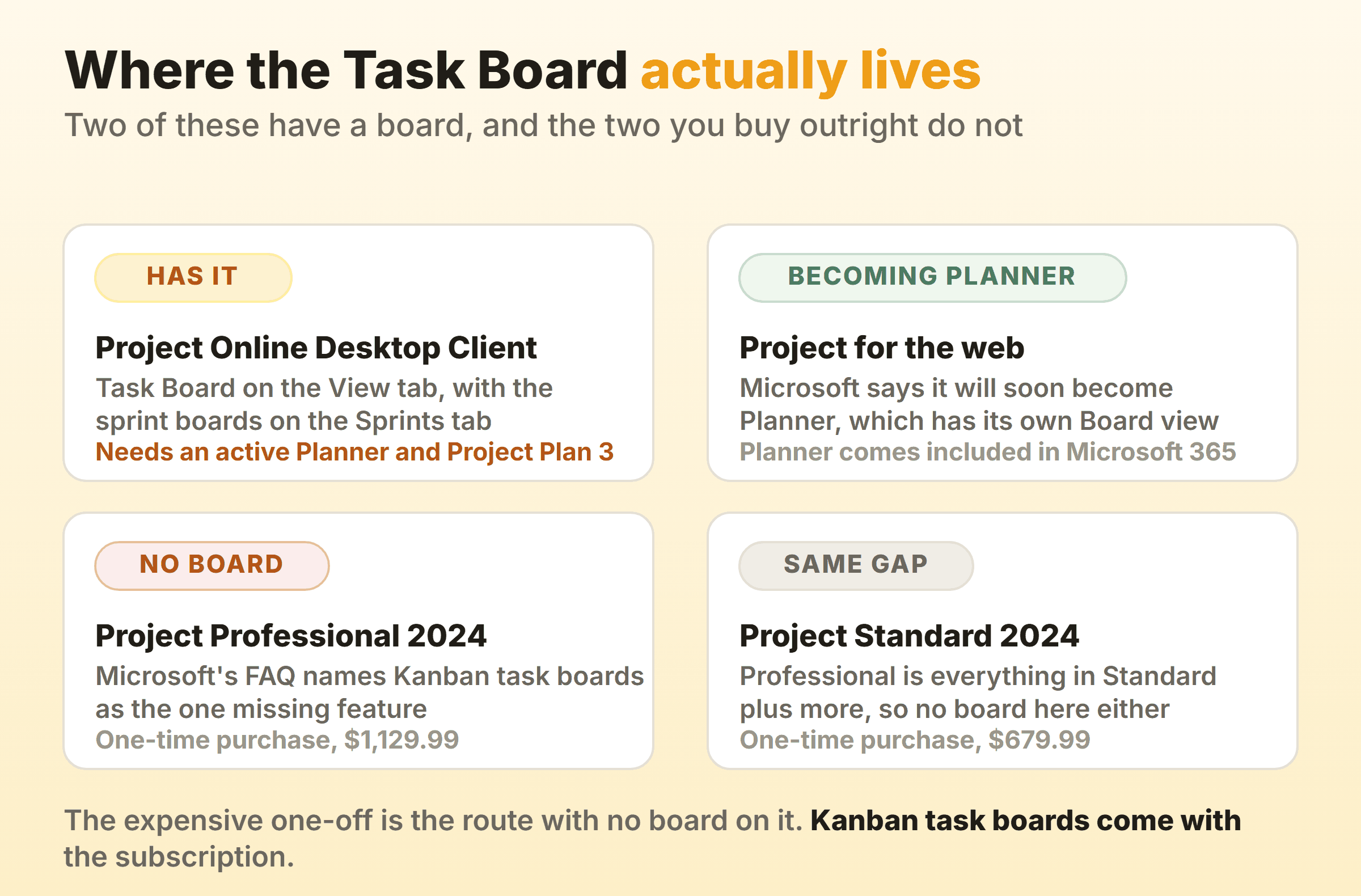
The money runs backwards. Project Professional 2024 is listed at $1,129.99 as a one-time purchase and Project Standard 2024 at $679.99, and the expensive one-off is the one with no board. Professional’s product highlights describe it as everything in Project Standard 2024 plus resource management, timesheets and a connection to Project Server Subscription Edition. No board in the list.
On the subscription side, Planner and Project Plan 3 is listed at $30.00 per user per month paid yearly, with an app versions row reading “Planner in Microsoft Teams, Planner web app, Project desktop app, and Project Online”. That Project desktop app is the subscription client the pricing FAQ still calls the Project Online Desktop client. Planner Plan 1 costs $10.00 per user per month paid yearly and lists only Planner in Teams plus the Planner web app. Plan 1 adds backlogs, sprints and a Timeline (Gantt) view over the Planner included in Microsoft 365, and Project desktop sits outside it, which puts the Task Board out of reach.
What Project Online Retiring Means for the Task Board
Project Online retires on 30 September 2026, and Microsoft says Project desktop, where the Task Board lives, is not affected. Microsoft’s retirement announcement states that the update “is exclusive to Project Online and does not affect Project desktop, Project Server, or Planner”, then repeats it in the FAQ: “Project desktop is not impacted by this change and will continue to be available.”
Two earlier dates matter for anyone still on the service. Sales of Project Online-only SKUs to new customers stopped on 1 October 2025, and existing customers lost the ability to create new tenants on 1 April 2026. Microsoft is blunt about the cost of leaving it late, saying you will no longer be able to access your projects or any associated data within the service.
How Do You Set Up a Kanban Board in MS Project?
You set up an MS Project kanban board by switching view, since it draws itself from a schedule that already exists.
- Check which client you have, under File, then Account, then Product Information. Microsoft’s task board article is explicit that its features need the subscription version of Project.
- Open the plan, then the View tab, then Task Board in the Task View section.
- Rename the starter columns. Right-click one, choose Rename, type, Enter.
- Add whatever is missing with Add New Column.
- Pick the card fields, on the Format tab, under Customize Cards.
- Drag one task the full width of the board before you tell anybody the board exists.
Column names carry the workflow, so the time belongs there and not in the card fields. Every rule in the guide to naming columns carries across. Name the state the work is in, and add a waiting column early, because delay caused outside the team has nowhere else to become visible.
Expect one inconsistency. Microsoft’s documentation says a new task, whether you add it on a board, in the Gantt Chart view or in a Task Board sheet view, lands in a column called Not Started, then says a few paragraphs later that Project gives you three columns to start you off, named Next up, In progress and Done. Both sentences live in the same article, so trust your own copy.
Why Some Tasks Never Appear on the Board
Tasks stay off the Task Board when Show on Board is set to No. The default is Yes, and because it is a task field and not a board control, you surface it by opening the Gantt Chart view, selecting Add a New Column and picking Show on Board. Microsoft documents the No setting as a way to run sprints over one slice of a large plan while the rest stays off the board.
What Can a Task Board Card Show?
A Task Board card shows the task name plus base fields you choose, and up to five custom fields on top. Out of the box that is the name, the resource assigned, and a checkmark once the work is done. Customize Cards on the Format tab splits in two, with Base Fields for the standard ones and Additional Fields for the five custom slots, which is where a stage gate or a cost code goes.
Now the part that costs somebody an afternoon. Microsoft says card customization settings are specific to the project in which they were set, so five fields configured here mean five to configure again in the next plan. I have never watched a team do that twice.
How Do Sprints Work on the Microsoft Project Task Board?
Sprints sit on top of the Task Board as a second axis, and Project keeps the two apart. Choose Manage Sprints on the Project tab, set the length and start of Sprint 1, then add the others one at a time with a start date and a duration. A Sprints tab appears in the ribbon once more than one sprint exists.
Allocation happens on the Sprint Planning Board, where a No Sprint column holds everything unassigned and you drag items into the sprint you want them finished in. The Current Sprint Board is then your working board. Editing the Sprint column in a sheet view does the same job faster past twenty items, and there is a Sprints Project template under File, then New.
Timeboxes plus a board is Scrum’s shape. Project’s agile documentation introduces the sprint and the board together, which is why the difference between kanban and Scrum is worth reading first.
Does Moving a Card Change the Project Schedule?
Moving a card changes the task’s status, and Microsoft’s documentation does not describe the drag rescheduling anything. The status sits in a field called Board Status, which the same documentation says you can also change in a sheet view by editing the Board Status column.
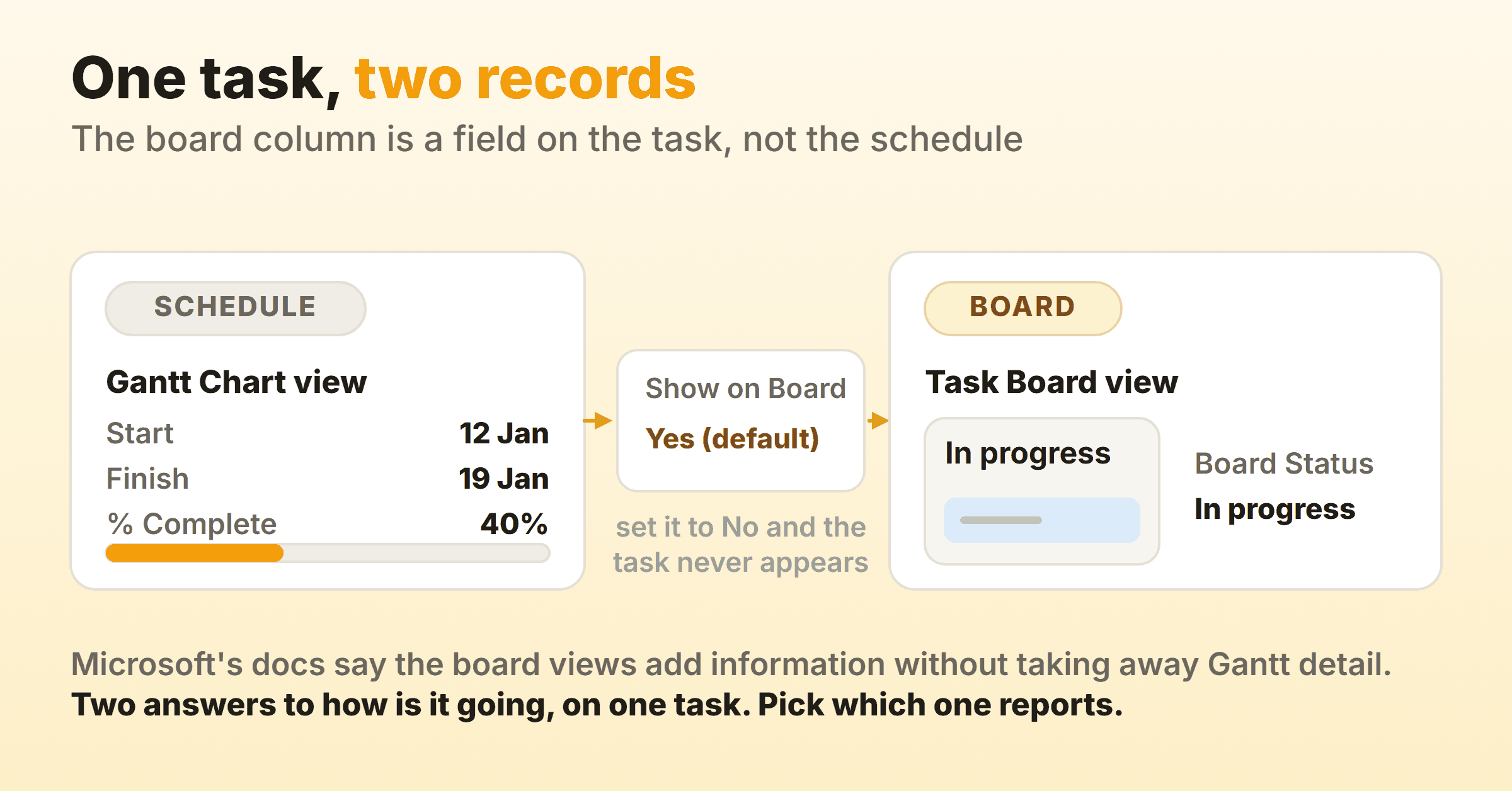
Microsoft frames the separation as a feature, and on its own terms it is one: “You can track your Project tasks in the traditional waterfall view and task boards at the same time, without affecting either view. The task boards views add information to tasks, but don’t take away Gantt chart task details.”
So one task carries a board status next to its schedule fields, and the documentation offers no rule for keeping the two in step. Somebody has to pick which record reports status and say so out loud, and on a dated plan that should be the schedule, which leaves the board as the daily conversation. The split is the honest version of the kanban and Gantt comparison, with both models parked on one task and the choice left to you.
Can You Set WIP Limits on a Microsoft Project Kanban Board?
A per-column work in progress limit is absent from Microsoft’s task board documentation. The documented settings cover renaming a column and adding one, choosing which fields a card shows, and whether a task shows on the board at all. A cap is not among them, and the article describes no warning for when one column swells to fourteen cards.
A Microsoft board that does carry a cap is Azure Boards, over in Azure DevOps. Its WIP limits article is precise about how the cap behaves: “WIP limits set soft constraints on the number of items allowed in each board column. You can exceed these limits, but the board highlights the column count so your team can take action.” It suggests two to three items per team member in a stage, so three people at two items each gives you six.
Inside Project the workaround is the one every capless board gets. Put the number in the column name. In progress (max 4). It costs nothing and it is visible the moment somebody drags a fifth card in, which holds up on a disciplined team of five.
Kanbanee takes the opposite bet. Limits go on per column, stay off until you switch them on, and show as a badge of count against limit that turns red the moment you cross it. The drag is never blocked, so the board objects and then lets you do it anyway. It is also a much smaller product, with no scheduling engine and no realtime sync.
What Does Project Measure Instead?
Project measures work and schedule. Microsoft says the product provides built-in Task Board reports on task, work and sprint status, reached from the Report ribbon under View Reports.
Cycle time and throughput are not named among them, and the reason sits upstream of the reports. The flow metrics a kanban board produces need timestamps for when a card entered and left a column, and Board Status holds one current value.
Is the Project for the Web Board the Same Board?
No. Microsoft’s product overview describes Project for the web as the web-based member of the Project family, and it opens with the note that matters most here: “Microsoft Project for the web will soon become Microsoft Planner. You can continue using most of the Project for the web capabilities in the new Planner once it’s rolled out to your organization.” Further down, its comparison table ticks Board view separately for Planner, for Project for the web and for Project Online with its desktop client.
Instructions for a Microsoft Project kanban board rarely say which of those boards they mean. Steps that start in a browser describe the Project for the web or Planner board, and the desktop Task Board is the one you open from the View tab.
The same overview documents the licence renames, listing Planner and Project Plan 3 as the former Project Online Professional and Plan 5 as the former Project Online Premium. The Project Online retirement announcement describes Planner as bringing together the simplicity of To Do, the collaboration of Planner and the power of Project for the web, so the Planner board is where the browser side of this ends up.
Which Microsoft Board Should You Use for Kanban?
Start from what the board has to be truthful about, and treat the licence you already hold as the second question.
| If you need | Use | Because |
|---|---|---|
| A board over a dated plan, with or without sprints | Project Online Desktop Client | Task Board and the sprint boards sit beside the Gantt chart |
| A board in a browser, with no schedule behind it | Planner | Board view comes included in Microsoft 365, and Project for the web is becoming Planner |
| WIP limits and flow reports | Azure Boards | A Microsoft board with a documented per-column cap |
A plan with real dependencies, resource levelling and a baseline earns the Project licence, and the Task Board is a pleasant extra on top. Without those, $30.00 per user per month buys a scheduling engine you did not want to reach a board, and the wider survey of Microsoft kanban boards lists cheaper places to find one.
FAQ
Is there a Microsoft Project kanban board template?
Sprints Project is the one Microsoft documents, under File, then New, and it opens on the Sprint Planning Board. For a board without sprints, copy a plan whose column names already match how the team works, since those names are the only part of a board carrying real information.
Does Project Standard 2024 have a kanban board?
Microsoft’s plans and pricing FAQ names Kanban task boards as the one exception between the Project Online Desktop Client and Project Professional 2024, and Professional is described as everything in Project Standard 2024 plus more. So neither perpetual edition is where the board lives. It arrives with the subscription client.
Can you open the Microsoft Project task board in a browser or on a phone?
The Task Board views Microsoft documents belong to the Project desktop client. A board in a browser means Planner, which sorts tasks into buckets and which Microsoft says Project for the web will soon become. Column dragging on a phone is fiddly in every tool I have used, and changing a card’s column from inside the card is quicker.