
Kanban for Outlook: How to Get a Board Out of Your Inbox
Updated at
The Answer
None of the view types Microsoft documents for classic Outlook is a kanban board, so kanban for Outlook in practice means moving the work onto a board that lives somewhere else. The seven are Table, Timeline, Card, Business card, People, Day/Week/Month and Icon, and none of them lays work out as stage columns. Four routes do the moving: a flag plus a Power Automate flow that creates a Planner task, an Outlook add-in that files the open message to a vendor’s board, a forward to an address the board listens on, or you reading the mail and writing the card yourself. A board that draws inside classic Outlook does exist, but it runs on folder home pages, which Microsoft is switching off in Outlook for Microsoft 365. Pick by how much of your inbox turns into real work.
Does Outlook Have a Kanban Board View?
Outlook has no kanban board view among the view types Microsoft documents, and the list is short enough to check for yourself. Microsoft’s view documentation, written for classic Outlook, names seven: Table, Timeline, Card, Business card, People, Day/Week/Month and Icon. Table shows items in rows and columns. Card and Business card are typically used for contact folders, and Icon suits notes folders.
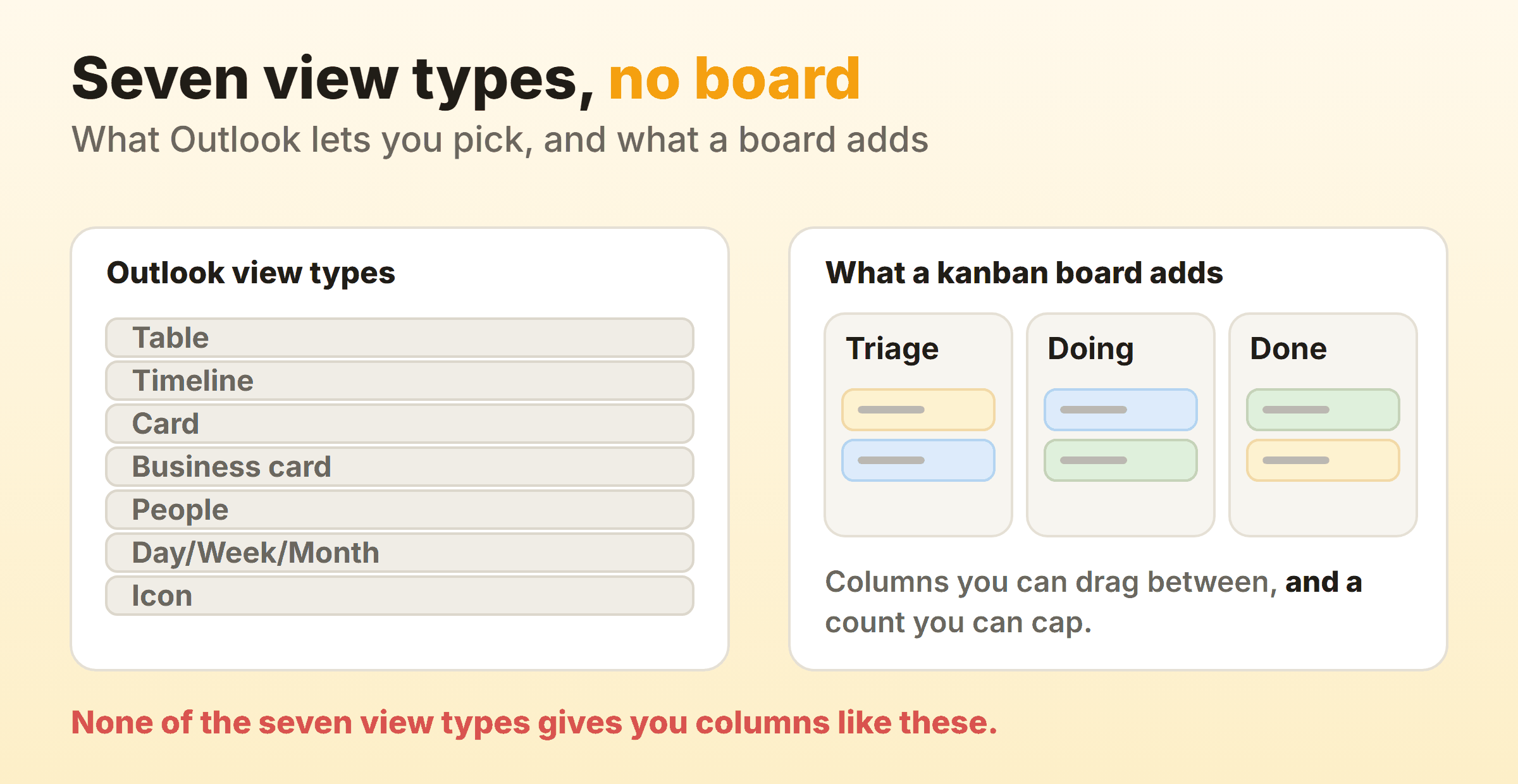
Card view sounds promising until you read what it is for. Microsoft points it at contact folders, so the word card there means something closer to an address book entry than to anything you would move across a board.
What Categories and Grouping Get You
Grouping is the native approximation people reach for, and it stacks work instead of spreading it. Arrange By includes Categories, Size, Subject and Importance, Show in Groups turns the arrangement into collapsible bands, and for a custom grouping, View Settings then Group By gives you a Group items by box once you clear Automatically group according to arrangement. Colour a category per stage, group by category, and your messages sort themselves into In progress, Waiting and Done.
Then you look at it. Everything is still one vertical list with headers in it. A board lays the stages side by side as columns, so the whole flow reads left to right at a glance. Collapse a band here and the work inside it vanishes from the screen, which is roughly the opposite of what a board is for.
Where Do Outlook Tasks Actually Live?
In new Outlook and Outlook on the web, tasks live in Microsoft To Do, and To Do is a list app. The To Do page carries the lists you make plus a set of smart lists: My Day, Important, Planned, All, Completed, Assigned to me, Flagged Email and Due Today.
Flagging is the quick way in. Switch the Flagged email list on, from the list menu or in To Do’s settings, then flag a message and it turns up there, where Microsoft says the task takes the subject of the flagged message as its name and shows a preview of the email text in its detail view. Two conditions ride along. The account has to be hosted by Microsoft, such as an Outlook.com, Hotmail.com or Live.com account, and that includes a custom domain hosted by Microsoft. And only mail flagged in your primary mailbox syncs, because Microsoft states that flagged emails from shared folders and shared mailboxes are not supported. Any support desk triaging from a shared mailbox loses the whole mechanism at that second condition.
Dragging works too. With the My Day pane open in new Outlook you can drag a message onto the To Do tab and it becomes a task, which then sits in a list like everything else in To Do.
Which is why kanban for Outlook To Do lists is the same trip as kanban for Outlook mail. The tasks exist, and the stages they should pass through have nowhere to live.
How Does Kanban for Outlook Actually Work?
Kanban for Outlook usually works by getting the mail onto a board that lives outside Outlook, and four routes do that job. What most people mean by an Outlook kanban board is a board somewhere else with a feed running into it from the mailbox.
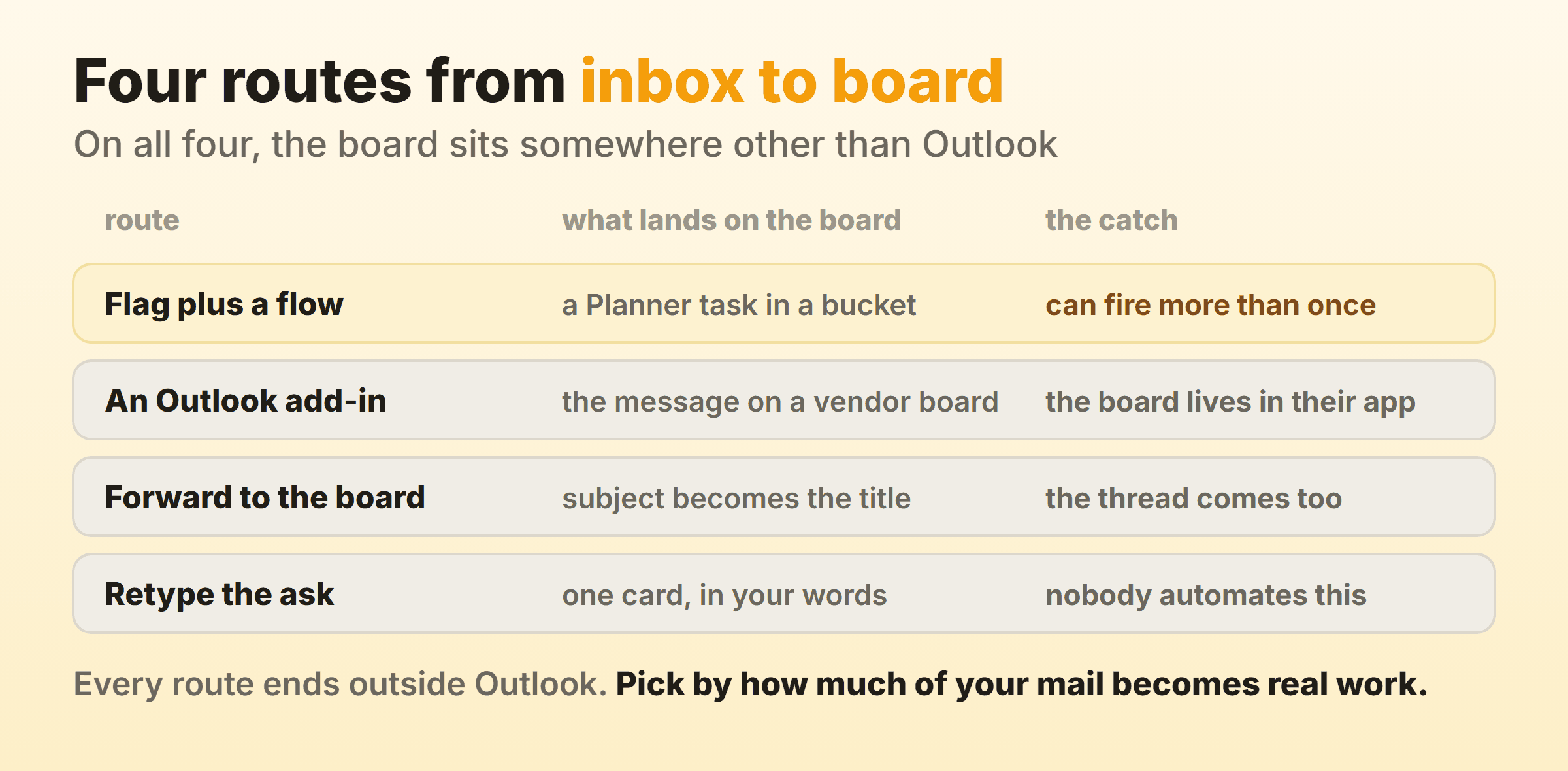
One route keeps everything inside Microsoft: flag the mail, let a flow create the task, work the board in Planner. An Outlook kanban add-in takes a different tack, dropping a pane beside the open message so you can file it to a board you already keep elsewhere. Forwarding needs no software at all, just an address the board listens on. Then there is reading the mail and typing the card, which is the route nobody sells you.
Each hands the board a different amount of the email. The flow route copies across whatever fields you map, such as the subject into the task title. A forward brings the lot, quoted replies included. Retype it and the card holds the ask alone.
How Do You Turn Flagged Mail into a Planner Board?
You turn flagged mail into a Planner board with two pieces: a plan whose buckets are your columns, and a flow that fires when you flag a message.
- Build the board first. In Planner, Board view holds tasks in buckets, you add columns with Add new bucket, and you drag tasks from one to the next. If Add new bucket is missing, the board is probably grouped by something else, so set Group by to Buckets.
- Name the buckets after states. Triage, Doing, Waiting on reply, Done covers most inbox-fed work.
- Build the flow. The trigger comes from the Office 365 Outlook connector, which lists When an email is flagged in four versions. Two are marked deprecated and point you to When an email is flagged (V4), which still carries a Preview label. The action comes from the Planner connector: Create a task takes a Group Id, a Plan Id and a Title of 255 characters or fewer, with Bucket Id optional. Set Bucket Id to Triage.
- Test on one flagged message before you aim it at a busy mailbox.
Microsoft’s own connector references carry two warnings worth reading first. The Planner connector page states plainly that it currently supports basic plans only. And the flagged-email trigger fires more often than anyone expects: Microsoft documents that it fires when an email is flagged or a flagged email arrives, fires again if an already flagged email is modified in any way including a category change or a reply, and can run several times when you flag a batch of messages at once. That behaviour is where duplicate cards come from.
Shared mailboxes need a different trigger. The V3 and V4 flagged-email triggers list no mailbox address among their parameters, which is the field the connector’s other operations use to reach a shared mailbox. For a shared queue the same reference offers When a new email arrives in a shared mailbox (V2), which fires on new mail rather than on a flag and needs your account to have permission to access that mailbox.
What Does an Outlook Kanban Add-In Actually Do?
A Microsoft Outlook kanban add-in gives you a pane beside the message you have open, and the board it files to lives in the vendor’s app rather than in Outlook. Installation runs through the same place as everything else: in new Outlook, More apps then Add apps, and in classic Outlook, Home then All Apps, then Add Apps or Get Add-ins depending on your version. Microsoft’s add-in page has tabs for new Outlook, classic Outlook and Outlook on the web, documents removal in new Outlook under Manage your apps, and sends Mac users to a separate article.
Search for a kanban task manager for Outlook and an integration with Outlook in its name can still point the wrong way. Two I checked while writing this both say Outlook on the tin:
- Kanban Tool’s Outlook integration page describes exactly one thing: exporting task due dates from the board to your Outlook calendar through iCal. Dates travel out of the board. Mail travelling in is not what that page is offering.
- Atlassian’s page on using Trello with Microsoft Outlook is also a calendar feed. You generate an iCalendar URL from a board’s Calendar view and subscribe to it in Outlook, it needs a Premium or Enterprise Workspace, and Atlassian notes that Outlook for Mac does not currently support adding iCal subscriptions.
So an Outlook integration can turn out to mean the board sending dates to your calendar, which is the opposite direction from the one you were shopping for. Check which way the arrow points before anyone signs anything.
Can You Put a Kanban Board in Outlook 2016?
You can put a kanban board in Outlook 2016 through folder home pages, the mechanism Microsoft is now switching off in Outlook for Microsoft 365. Anyone hunting for a kanban plugin for Outlook that keeps columns inside the client ends up here. Folder home pages let a folder show a web page instead of its usual contents, and outlook-taskboard, an MIT-licensed project, uses exactly that to draw a board over Outlook tasks. You create five subfolders under Tasks named InProgress, Next, Focus, Waiting and Completed, then point another folder’s home page at the project’s kanban.html. The main Tasks folder becomes the backlog, tasks drag between lanes, and four of the lanes take limits set in a config file. Its README says it was only tested with Outlook 2013 and 2016 on Windows 8.1 and 10, and warns that newer versions of Outlook usually hide the Home Page tab until you add a registry value.
That is the honest state of an Outlook kanban plugin that runs inside Outlook, and Microsoft has published an end date for the mechanism it depends on. The company is deprecating Outlook Today and folder home pages in Outlook for Microsoft 365, following the Windows deprecation of the MSHTML (Trident) engine. That timeline starts the deprecation in August 2026 with Version 2608 and has Version 2708, in August 2027, permanently disable both. Microsoft promised a new registry key ahead of the first date to keep the feature enabled for people using it, and the page still had not published that key when I checked in September 2026.
Anyone standing a team workflow up on it in Outlook for Microsoft 365 this autumn has about eleven months before Version 2708 lands.
How Do You Get an Email onto a Board Without Installing Anything?
Forward it. Plenty of boards listen on an email address, and the card gets built out of whatever you send. Trello documents the mechanics precisely: each board has a unique address for each member, the subject of the email becomes the card’s title, the body becomes the description, and the whole message including attachments has to fit inside a 10 MB limit. Your address is visible only to you, anyone you share it with can create cards as you, and Atlassian keeps a copy of what you send for 90 days.
Fast, and the sloppiest card you will ever create. A forwarded thread arrives carrying two signatures, four quoted replies, and a subject line reading FW: RE: RE: quick question. Nothing in it says what has to happen next.
What Should the Board Look Like for Email-Driven Work?
Start with Triage, Doing and Done, then add the column that inbox-fed work always needs: Waiting on reply.
Mail-driven work spends a lot of its life waiting on somebody outside the team. Leave those cards in Doing and Doing lies to you every day. Give them a column and the answer to why nothing is moving becomes readable in three seconds. Nine cards waiting on clients, two being worked.
Triage earns its place for a different reason. Every flagged email becomes a card there, and Triage is where you decide whether the mail counts as work at all, which means it should be empty by the end of most days. A backlog is a separate thing and it sits behind Triage rather than inside it.
Then cap Doing. Email arrives whether or not anyone has capacity, which makes an inbox-fed board the easiest place on earth to end up with fourteen things started and nothing shipped. In Kanbanee the limit is per column and off until you switch it on, and the badge counting cards against it turns red the moment you go past, though it still lets the card drop. There is no email intake and no API yet either, so every card gets typed by a person, which is a real cost when the queue is fed by mail.
If some mail really does jump the queue, give it a swimlane rather than a column. The interruption stays visible without reshaping the flow underneath it.
What Goes Wrong When the Inbox Feeds the Board?
An inbox that feeds a board goes wrong first at the mailbox, which keeps its own copy of every request and leaves two places both looking authoritative. One person works from the mailbox, another from the board, and something gets done twice or not at all. Decide out loud which one holds status.
Threads as cards. A forwarded conversation rarely carries the ask in its subject line, so the board fills with titles nobody can act on without opening the email underneath. Rewrite the title to the next action before the card moves anywhere. Two minutes now saves a fortnight of people reopening the thread to work out what was meant.
Duplicates, which come straight from the trigger behaviour above. Reply to an already flagged thread and the flow can fire again, so an active conversation quietly spawns a small family of identical cards. Have the flow run the Planner connector’s List tasks action and skip any title that already exists, or accept that Triage needs a human every morning.
The shared mailbox gap catches the exact teams most likely to want this. Microsoft does not support syncing flagged mail from a shared mailbox to To Do, and the V3 and V4 flagged-email triggers take no mailbox address. Those teams need a flow on the shared-mailbox trigger or the forward route, and no amount of flagging will fix it.
FAQ
Is there a free way to run kanban in Outlook?
Free depends on what your organisation already licenses, so check the tenancy rather than a blog post. Forwarding adds nothing on the Outlook side, so its price is whatever the receiving board charges. The MIT-licensed outlook-taskboard project costs nothing, though the folder home pages it runs on are on Microsoft’s deprecation path.
Can an email become a card automatically?
Yes, through a flow or a forward. A Power Automate flow on the flagged-email trigger creates a Planner task once you flag the message, and a forwarding rule aimed at a board’s email address can do the same for boards that accept mail, provided your admin allows automatic external forwarding, which Microsoft 365 switched off by default for new organisations in 2021. Both hand you a card built from the email, and somebody still has to read that card and write down what the job is.
Is kanban for Outlook 365 different from older versions?
Somewhat, because the pieces live in different clients. Microsoft documents the My Day drag into To Do for new Outlook and Outlook on the web, gives add-in install steps for new Outlook, classic Outlook and Outlook on the web, and the flow and forward routes do their work outside the client. Folder home pages are the classic Outlook for Windows piece, which is how outlook-taskboard draws columns inside Outlook itself. That project was only tested on Outlook 2013 and 2016, and Microsoft is retiring folder home pages in Outlook for Microsoft 365.
What is the closest thing to a kanban board inside Outlook itself?
With Outlook’s own views, a folder grouped by category, one category per stage. You get bands stacked down the screen instead of columns side by side, and the grouping controls Microsoft documents decide how items are banded, not how many a band may hold. The outlook-taskboard project does draw real columns inside the client, on the folder home pages Microsoft is retiring.
Does this work from a shared mailbox?
Flagging does not, since Microsoft excludes shared folders and shared mailboxes from Flagged email sync. A Power Automate flow can watch a shared mailbox through the When a new email arrives in a shared mailbox (V2) trigger, and forwarding a message by hand does not depend on flags at all. Teams running a queue out of a shared mailbox should skip the flag route entirely.
Should the board live in Planner or somewhere else?
Planner if the mail and the team are both already inside Microsoft 365, because the flow route uses connectors Microsoft publishes and nobody has to be sold on a new account. Start looking elsewhere once you need a limit on a column, or a cycle time you did not assemble in a spreadsheet, and check what Planner buckets do today before assuming either comes for free.