
Pipedrive Kanban: How the Pipeline View Works as a Board
Updated at
The Answer
Pipedrive kanban is the pipeline view. Each stage is a column, each deal is a card, and a deal’s progress shows as its position across those columns, so there is nothing extra to switch on. Pipedrive’s guide to the pipeline view describes deals moving through the pipeline stages from initial contact to a final outcome. It leaves out the half of kanban that changes what people do next. The stage settings Pipedrive documents are the stage name, a probability and Rotting in (days), so none of them caps a column or objects when a stage fills up. Rotting comes closest to an ageing signal. It shades an idle deal red, and Pipedrive’s rotting article bases the count on the deal’s last updated time, which is a different clock from time spent in the stage. So the Pipedrive kanban pipeline earns its keep as a deal board, and Pipedrive points the work that happens after a deal is won at Projects instead.
What Is the Pipedrive Kanban Board?
The Pipedrive kanban board is the pipeline view, which Pipedrive’s guide describes as the place you manage your deals from start to finish. A deal can only exist in one pipeline at a time, and its progress is shown visually across the stages in that pipeline. Stages run as columns. Deals sit inside them as cards. Move a card one column to the right and the deal has moved a stage, with no second copy of it to reconcile afterwards.
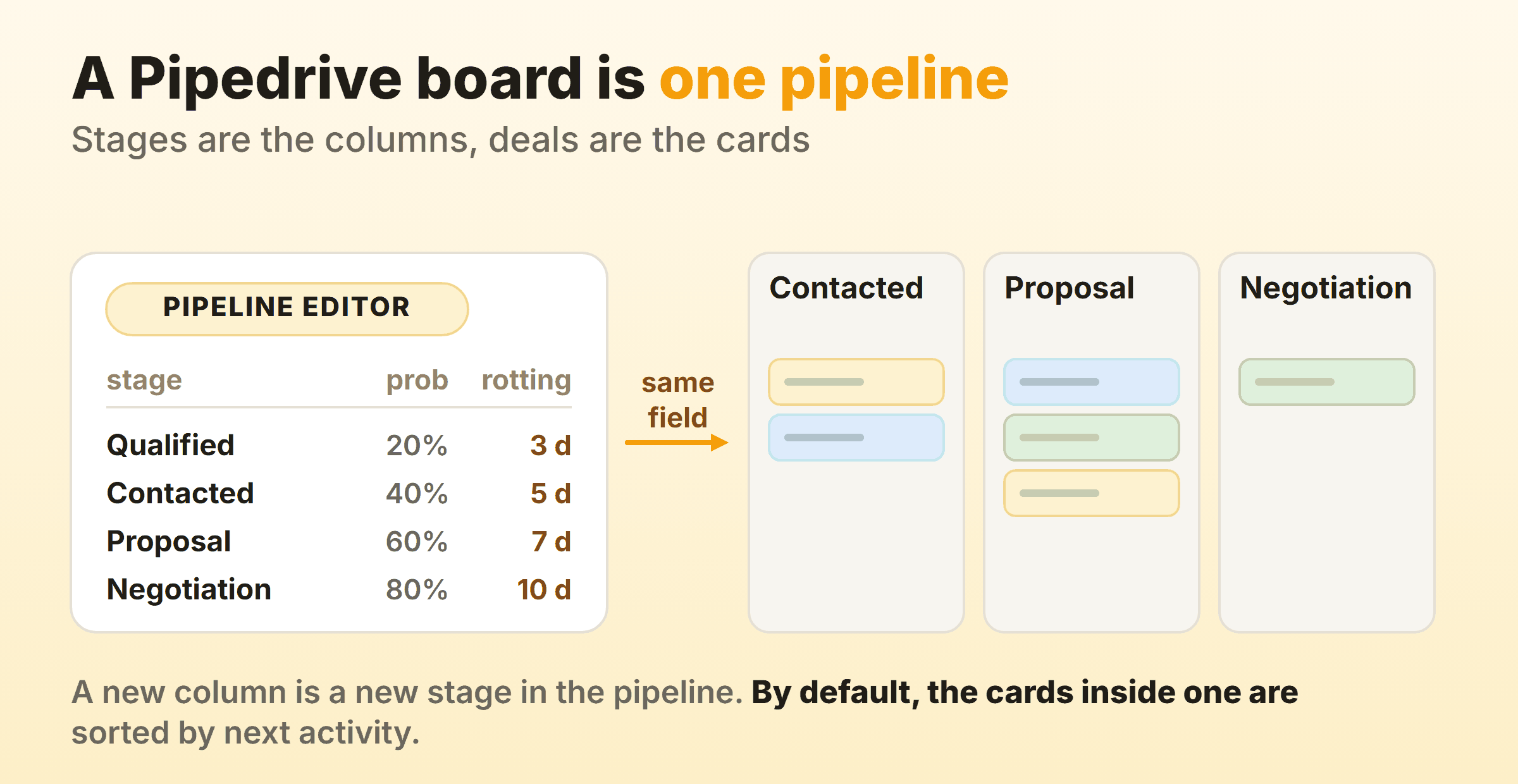
One field is doing all the work here, and saying that plainly saves people an afternoon. The columns are the stages of whichever pipeline you are looking at, so a new column means a new stage in that pipeline, and only users with deal admin permissions can set up and edit a pipeline.
Two things separate it from a general kanban view in a work tool. Marking a deal Won or Lost takes it out of the active pipeline view, and a filter for won or lost deals is how you see it again. And the order of cards inside a column comes from a sort. The same guide says deals are sorted by next activity by default, with newer deals first when several share the same activity status, and a Sort by dropdown switches to fields such as deal value, expected close date or owner.
I ended up liking the second one. Deals that need immediate attention rise to the top of every column on their own, which on most boards takes somebody re-ranking the sales pipeline every morning.
What Does a Pipedrive Deal Card Show?
A Pipedrive deal card shows the deal title, the linked contact person and organization, the deal value, the deal label and the deal owner by default. To change that, Pipedrive’s guide to deal card customization has you open the pipeline selection dropdown, choose Customize deal cards, and add up to seven deal, person or organization fields. Large text, multiple options and date range fields are not supported, and the customization applies per user and pipeline.
Seven is more than a tile can carry legibly. Two or three extras keep it scannable at a glance, which is the whole point of looking at a board instead of a list. Past that you have rebuilt the list view in tile form, and the guide to kanban cards covers where that line sits.
How Do You Set Up a Pipedrive Kanban Pipeline?
To set up a Pipedrive kanban pipeline, open the pipeline dropdown menu, click the pencil icon next to the pipeline, then name the stages, set a probability if you want one, switch on Rotting in (days) and click Save changes. Pipedrive’s guide to designing your sales process takes the same route.
Name the Stages After the State of the Work
Hover over a stage and click ”+” to insert a new stage between existing ones, and rename stages to match your sales process.
Name the state the deal is in rather than the person holding it. “With Dave” stops meaning anything the week Dave changes team, while “Waiting on security review” still tells you who to chase two quarters later. Pipedrive’s guide pushes the same way, recommending stages aligned with real actions, such as “Meeting scheduled” or “Proposal sent”, over broad labels like “In progress”. Same rule as any board, and the reasoning is in the guide to kanban columns.
One warning before anybody tidies up a pipeline they inherited: deleting a stage also deletes the deals in that stage. Move them first.
Choose Stage Probability or Deal Probability
Stage probability estimates how likely the deals in that stage are to close, and Pipedrive suggests it if you have historical performance data. Deal probability does the same job per deal, and Pipedrive notes that when both are enabled the deal probability overrides the stage probability.
That number serves forecasting more than flow. The same guide says a well-structured pipeline helps you track progress, forecast revenue and identify bottlenecks, and probability is the forecasting part of that. Bottlenecks are the part a kanban board is for, which is where the next two sections go.
Add a Second Pipeline Only When the Process Differs
Click the name of your pipeline to open the dropdown menu and select ”+ New pipeline”, and Pipedrive gives you a sample five-stage pipeline to edit. Its design guide suggests multiple pipelines when teams work differently, and it warns against moving a deal through multiple pipelines, as this can affect reporting in Insights.
So every extra pipeline is another board somebody has to remember to open, switched from the pipeline selection dropdown at the top of the view. Two pipelines with genuinely different stages beat six that differ by one column each.
What Does the Pipedrive Rotting Feature Actually Measure?
The Pipedrive rotting feature measures how long a deal has gone without an update. Pipedrive’s article on rotting says the feature provides visibility into deals that have been idle for too long, and states that the rotting period is based on the deal’s last updated time. You set it per stage with the “Rotting in (days)” toggle in the pipeline editor, and Pipedrive says you can define the rotting time for as many stages as you need. A rotten deal turns red on its deal tile.
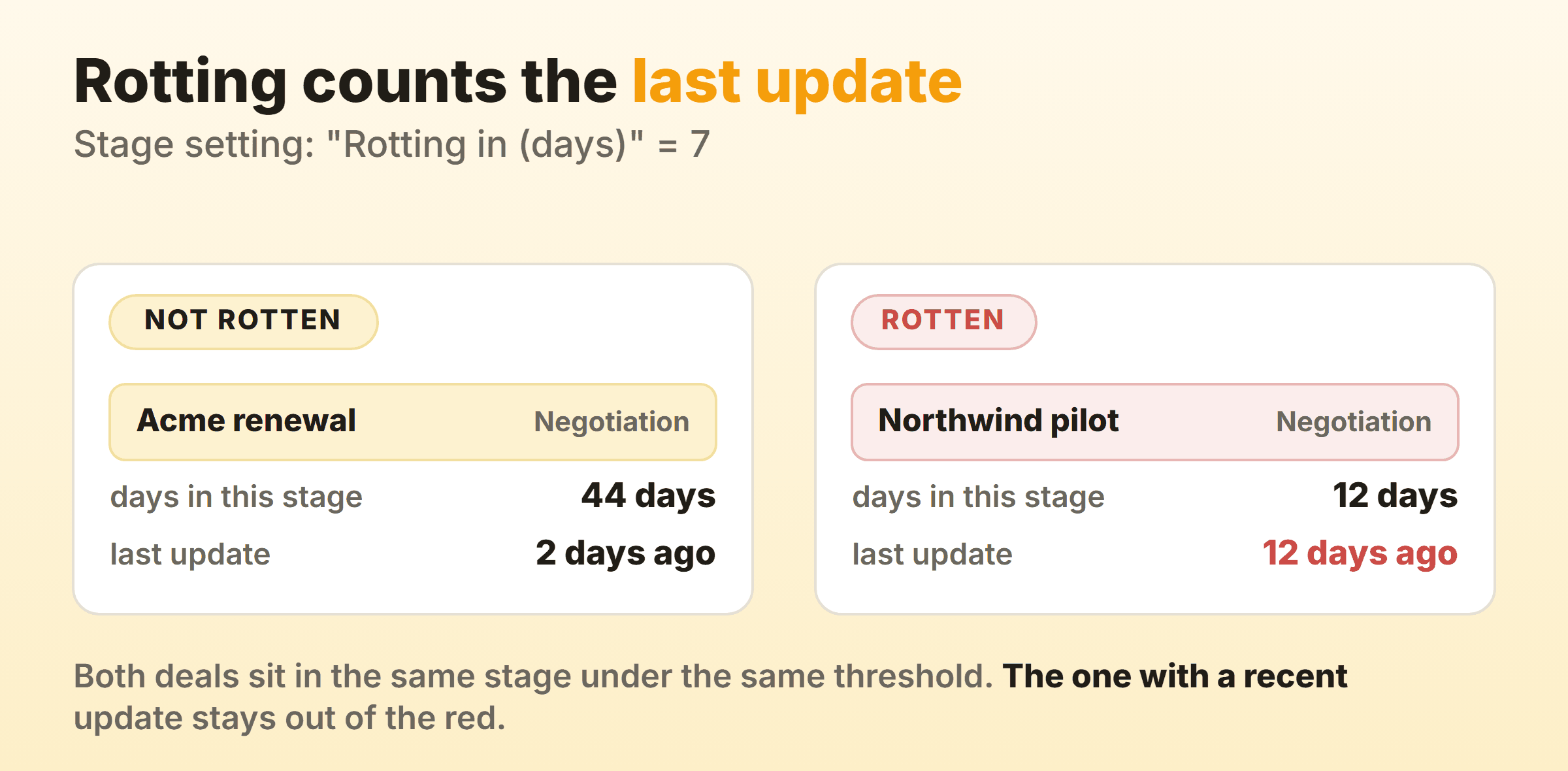
The distinction matters more than it sounds. Kanban’s ageing signal asks how long a card has been sitting where it is. Rotting watches updates to the record instead, and the article lists what resets the count: marking activities as done, adding notes and files to a deal, and sending, receiving, unlinking or deleting linked emails. Scheduling a new activity or editing deal details such as the value restores a rotten deal, and the feature disregards the next activity date, so a deal with an activity booked far ahead can still rot.
One caveat on the documentation. Pipedrive’s pipeline design guide describes the same setting more loosely, as highlighting deals that stay in a stage for too long. The rotting article is the specific one, so try it on a test deal before a pipeline review leans on either reading.
A deal parked in Negotiation for weeks stays pale as long as a diligent rep keeps marking activities done against it. Activity is not progress. Meanwhile the deal nobody has followed up at all goes red first, and that one is easier to handle, because at least nobody is pretending.
Set the threshold per stage rather than uniformly. Seven days in a stage that should take two is a useful nudge. Seven days in a stage that legitimately waits on a client’s legal team just teaches people to skim past red tiles, and then the red tile that mattered gets skimmed past too.
Can You Set WIP Limits in Pipedrive?
The stage settings in Pipedrive’s pipeline design guide are the stage name, a stage or deal probability, and Rotting in (days). None of those three caps a stage, and the guide lists no setting for how full a stage may get.
Here the pipeline board and kanban as a working method part company. A work in progress limit makes somebody finish a deal before starting another, which is what turns a board into a pull system instead of a status display. Without one you get a board that is accurate about where every deal sits and silent about one rep pushing eleven live negotiations, each getting an eleventh of their attention and a slower reply than the buyer expected.
Two substitutes circulate, ranked by how long they survive a real pipeline:
- Write the number into the stage name. “Negotiation (max 4)” costs nothing and holds on a small team that wanted the constraint anyway. It has no opinion at the moment somebody moves a deal in.
- Keep a deal duration report with open deals in it. Pipedrive’s Insights report can include open deals, and hovering a stage’s column shows the number of deals behind that stage’s average time. This one survives, because it sits where Pipedrive is strong and can go on a dashboard people already open.
Neither argues back at the moment a deal moves, which is the only moment a limit does any work. On a team of four the stage-name trick holds fine. I have not seen it survive a sales floor. Kanban for sales goes into which stages deserve a cap and which should never get one.
Can You Measure Cycle Time on a Pipedrive Board?
Yes, per stage, through the deal duration report in Insights. Go to Insights and click ”+ Create” > Report > Deal > Duration, and you get a report that is always measured in days. The average sales cycle at the top is calculated by dividing the total amount of time your deals have spent in all stages by the total number of deals your filter returns, and the default view by field is Stage entered, so the columns break that average down by stage. You get time per stage instead of one number for the whole pipeline.
The default filters cover deals created this year, in your default pipeline, with a status of won or lost. Add open deals and Pipedrive says the graph shows the average time in the stage, which is the closer match to a kanban question about work still in flight.
Two details decide whether the numbers mean what you think. A deal marked as won before reaching the end of the pipeline counts toward every stage in the report, and the calculation leaves out time spent in stages that have since been deleted.
A cumulative flow diagram is a different shape again. It wants a count per stage per day, and the deal duration report is built around the time deals spend in stages, so look further into Insights before you promise one to anybody. The guide to kanban metrics covers what to do with the numbers once you have them.
Where Does the Pipedrive Kanban Board Stop?
It stops at deals, mostly, which is worth knowing before anybody tries to run a whole team’s work in here.
Projects are the exception, on the right plan. Pipedrive says Projects helps you manage the work that happens after a deal is won, and its own wording is that “just like deals move through stages in the pipeline view, projects move through phases on your board view”. The documentation on Projects states that Projects is included on Premium and higher plans, while on Growth and lower plans it is available as a paid user-based add-on. A general work board does exist, then. It sits beside the pipeline rather than inside it, and on the cheaper tiers it costs extra.
| What you might expect | What Pipedrive does |
|---|---|
| Name your own columns | The columns are one pipeline’s stages, editable by a deal admin |
| Drag cards into a priority order | Sorted by next activity, or by a Sort by field |
| Delete a column safely | Deleting a stage deletes the deals in it |
| Cap a column | No cap among the documented stage settings |
| Card ageing | Rotting, counted from the last update |
| One deal on two boards | A deal can only exist in one pipeline at a time |
| Keep finished work visible | Closed deals leave the active pipeline view until you filter for them |
Pipedrive Kanban or a Dedicated Kanban Board?
Keep the pipeline in Pipedrive. Deals belong where the activities, the linked emails and the Insights reports already live, and a nicer board is a poor reason to move them somewhere else.
Cost is the reason people ask, so here are the numbers. Pipedrive’s pricing page, as it showed in euros on 15 September 2026, lists four tiers billed per seat: Lite at 14 EUR per seat per month, Growth at 39, Premium at 59 and Ultimate at 79, each of those on annual billing and quoted exclusive of VAT, which works out at 168, 468, 708 and 948 EUR per seat per year. There is a free 14-day trial with no credit card required. Per seat is the phrase to read twice, because a board that also needs two delivery people and a designer on it is a board you are paying CRM rates to look at.
| Pipedrive pipeline view | Dedicated kanban board | |
|---|---|---|
| What it holds | Deals, with a CRM behind them | Whatever work you name |
| Columns | Pipeline stages | Whatever you name them |
| Order inside a column | Next activity or a sort field | Usually manual rank |
| Column caps | Not among the stage settings | Often built in |
| Ageing signal | Rotting, from the last update | Often time in column |
| Stage-level timing | Deal duration report in Insights | Varies by tool |
| Pricing shape | Per seat, from 14 EUR a month billed annually | Varies, often free at small scale |
Kanbanee makes the opposite trade. Caps are per column and stay off until somebody switches one on, the header badge shows count against limit and turns red over the cap, and the drag still goes through, because a cap that refuses the drag gets switched off the first time it is inconvenient. Cycle time, throughput and a cumulative flow diagram are built-in reports on Pro, which is 6 dollars a month or 48 a year, and the free plan covers two boards you own with unlimited members. It gives up everything a CRM does, contacts and linked emails and forecasting included, and column drag works on desktop only.
Most teams I have worked with end up running two boards. Pipeline in Pipedrive, and the delivery work that starts the day a deal closes on a board of its own. The Salesforce kanban view lands in the same place for much the same reason.
FAQ
Is Pipedrive a kanban board?
Pipedrive is a CRM whose pipeline view works as a kanban board. Its pipeline view guide describes deals moving through the pipeline stages from initial contact to a final outcome, with each deal’s progress shown visually across the stages, which is the shape of a board with stages as columns and deals as cards. General kanban work is a different question. The board holds deals, the columns are one pipeline’s stages, and projects get a board view of their own.
Why has my Pipedrive deal not gone red after weeks in the same stage?
Because rotting, going by Pipedrive’s rotting article, runs from the deal’s last updated time. The article lists actions that reset the count, among them marking activities as done, adding notes and files, and sending or receiving linked emails. A deal that somebody updates more often than its stage’s rotting threshold stays out of the red, however long it sits in Negotiation.
Can you limit the number of deals in a Pipedrive stage?
The settings Pipedrive’s pipeline design guide lists for a stage are the stage name, a stage or deal probability, and Rotting in (days). None of them caps a stage or blocks a move. The closest readout is a deal duration report in Insights with open deals added to its filter, where hovering a stage’s column shows how many deals sit behind that stage’s average time. That tells you after the fact rather than at the moment somebody adds a twelfth deal.
Does Pipedrive have a kanban board for projects?
Yes, through Projects. Pipedrive’s documentation says projects move through phases on a board view the way deals move through stages in the pipeline view, and that Projects is included on Premium and higher plans while it is a paid user-based add-on on Growth and lower plans. Project cards are customizable from the ”…” menu.
Can a Pipedrive deal sit in two pipelines at once?
No. Pipedrive’s pipeline view guide says a deal can only exist in one pipeline at a time, with its progress shown across the stages of that pipeline. You can move a deal to another pipeline, but the guide notes that this affects reporting in Insights, because deal progress reports only reflect movements within the current pipeline.