
Salesforce Kanban View: Setup, Group By and Where It Runs Out
Updated at
The Answer
Kanban in Salesforce lives inside the list view. You open a list you already use, switch its display to Kanban, and the rows become cards stacked into columns, with nothing new created along the way. Salesforce Help documents the feature for Lightning Experience and for most objects, with tasks named as an exception. Kanban Settings then hands you two dropdowns. Group By picks the field whose values become the columns, and Summarize By picks the total that sits in each column heading. That is the entire board. Salesforce documents a ceiling of 200 cards per kanban view, drops any record whose Group By field is empty, and puts no cap setting in Kanban Settings at all, so a Salesforce kanban view shows you where work is piling up and stays quiet about the fact that too much of it is piled there.
What Is Kanban View in Salesforce?
Kanban view in Salesforce is a display option on a list view, sitting next to the ordinary table. The records underneath do not change, and neither do the filters or sharing rules. Rows stand up as cards and stack into columns, and Salesforce Help’s guide to setting up a kanban view notes that kanban settings apply separately to each list view, so switching one list to Kanban leaves the rest of that object alone.
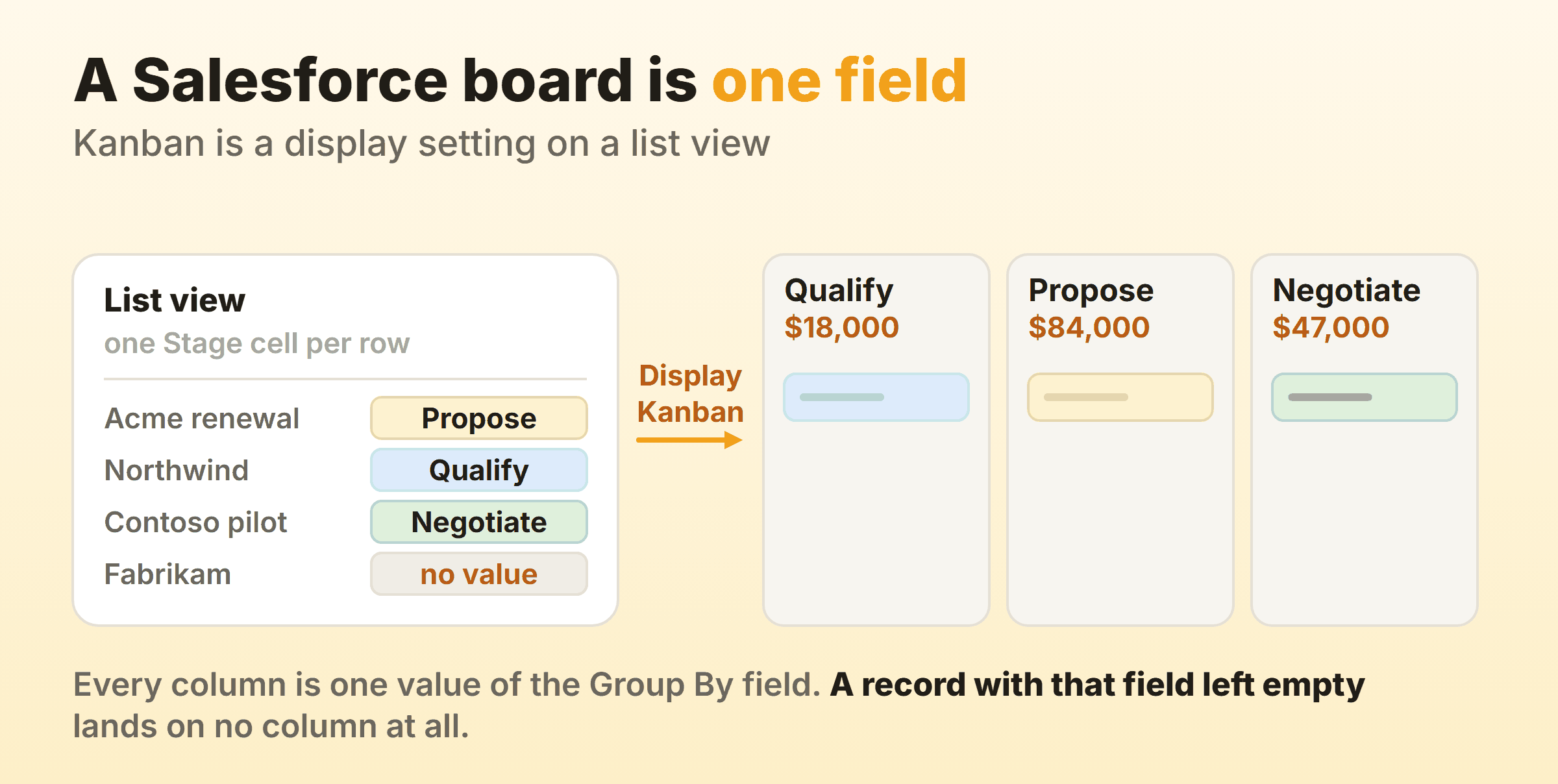
Building a board therefore means building a list view first, and the filter on that list decides what reaches the board.
Moving a card into the next column writes the Group By field on that record, and that is the whole mechanic. Each kanban view is based on a list view, so there is no separate board data to reconcile. The board draws one field sideways, and each card you move is an inline edit to a single cell.
People arrive expecting Jira or Trello and find something narrower that happens to be wired in properly. Nobody syncs anything. Change a stage on the record page and the card has already moved.
Salesforce Help’s availability box for kanban names Lightning Experience, across the Essentials, Group, Professional, Enterprise, Performance, Unlimited and Developer editions. Salesforce Classic is not named there, so plan any kanban view around people who work in Lightning Experience.
Which Objects Get a Kanban View?
Salesforce Help’s overview of kanban views says kanban is available for most objects, with exceptions such as tasks, and stops short of publishing a supported-object list. Open a list view on the object and check whether Kanban is offered under the table icon above the list.
Object-specific bends are documented, and each one has caught somebody out:
- Opportunities. Forecast Category cannot be the grouping field, and Closed Lost opportunities are hidden from kanban views.
- Leads. Lead conversion is unavailable from the board, and leads that were already converted stay out of sight.
- Contracts. Contracts cannot be activated from a kanban view, the Activated status never shows up as a column, and Owner Expiration Notice cannot be the grouping field.
- Knowledge. Grouping is limited to owner, so the standard Knowledge fields are out.
All of that comes from Salesforce’s considerations for using kanban views, the page to read before promising anyone a board on an untested object.
How Do You Create a Kanban Board in Salesforce?
To create a kanban board in Salesforce, open a list view on the object, click the table icon and choose Kanban, then open the list view controls menu, select Kanban Settings, pick a Group By field and click Save. A Salesforce Help walkthrough written for the Outbound Funds Module, Create a Kanban View, takes the same path on funding requests, starting from a fresh list view with a filter on it.
Step 1: Start From the List View You Want
Pick the list view that already narrows things to the work in question, or build one that does. A list scoped to your own records covers a rep. A team lead usually wants a filter on owner or close date, because the alternative is every open record in the org queuing up for 200 card slots.
Filter harder than feels necessary. A board gets glanced at between calls, and the eighty-card version gets glanced at for as long as it takes to give up. I have never regretted starting one smaller than it needed to be.
Step 2: Switch the Display to Kanban
Click the small table icon above the list and choose Kanban. Kanban settings live on the list view itself, so one list can be a board while every other list on that object stays a table. Nothing is created and nothing is copied, so flipping back to the table for bulk work costs nothing.
Step 3: Set Group By and Summarize By
Open the list view controls menu and choose Kanban Settings. Two dropdowns.
Group By takes the field whose values become the columns. Salesforce’s documentation offers Stage and Opportunity Owner as examples and rules out the Currency field. Pick the field that describes what state the work is in. A column named after a job survives the week somebody changes jobs, which is the lesson every inherited board has taught me, and there is more on it in the guide to kanban columns.
The columns are the values of that field, so on a picklist such as Stage, adding a column means adding a value in Setup. That is a real constraint when the admin queue runs two weeks long, and a quiet relief the first time somebody tries to invent a stage on a Tuesday afternoon.
Summarize By takes a numeric or currency field and puts the total in each column heading. Set it to None and the headings carry no total. Roll-up summary fields and formula fields cannot be summarized here, which catches out anyone who built a nice calculated value and expected to see it at the top of a column.
Kanban views do not show records with no value in the Group By field. This causes more confusion than the rest of the feature combined. A record with that field blank does not land in an unassigned column. It is simply absent from the board.
Step 4: Decide What the Cards Show
Kanban cards show up to four fields, according to Salesforce’s administrator considerations. Trailhead’s unit on list views says the cards carry the same fields you chose to display in the list view, so changing the list’s displayed fields is how you edit the card. The compact layout does a different job, and its first four fields fill the top of the details panel.
Four is more than most boards need. Owner and one date carries a simple board. A pipeline earns a third slot for value. Past that you have rebuilt the list view inside the board and given up the thing you switched for.
The details panel opens beside the columns and lets you edit key fields inline without leaving the view. It will not change a record’s record type or transfer it to a different owner. Record type means a trip to the record, and Salesforce Help points ownership transfers at the kanban card instead. Where records carry multiple record types, subtabs appear so you can work one type at a time.
What Does the Salesforce Opportunity Kanban View Add?
The Salesforce opportunity kanban view adds activity alerts, which Salesforce Help documents under opportunities. It describes them firing on overdue tasks, on opportunities with no open activities, and on opportunities with no activity in the last 30 days. Hover over one for a tip on moving the deal ahead, such as creating a task. Switch on Einstein Activity Capture and, where no overdue tasks exist, the alerts stop appearing.
The alerts watch activity on the record, which is as close as the feature comes to saying something is wrong, and Salesforce Help says they are not customizable. None of the three alert types looks at how long that record has sat in the column or how crowded the column is. A stalled deal with a diligent rep logging calls against it looks perfectly healthy.
Path configurations surface too, and not only on opportunities. Where a Path exists for the object, record type and picklist, its key fields, guidance for success and celebrations all appear in the kanban view. The celebration animation fires once per page reload whatever frequency you set.
Closed Lost opportunities are hidden in kanban views, which quietly changes what the board means. Whatever it says about the shape of the pipeline, it says with the losses stripped out, and losses are exactly the population a pipeline review needs in front of it. Kanban for sales goes further into running a pipeline as a board.
Can You Set WIP Limits in a Salesforce Kanban View?
No. Salesforce’s own setup steps for Kanban Settings cover exactly two dropdowns, Group By and Summarize By, and neither one caps a column, warns at a threshold, or reacts in any way to a column filling up.
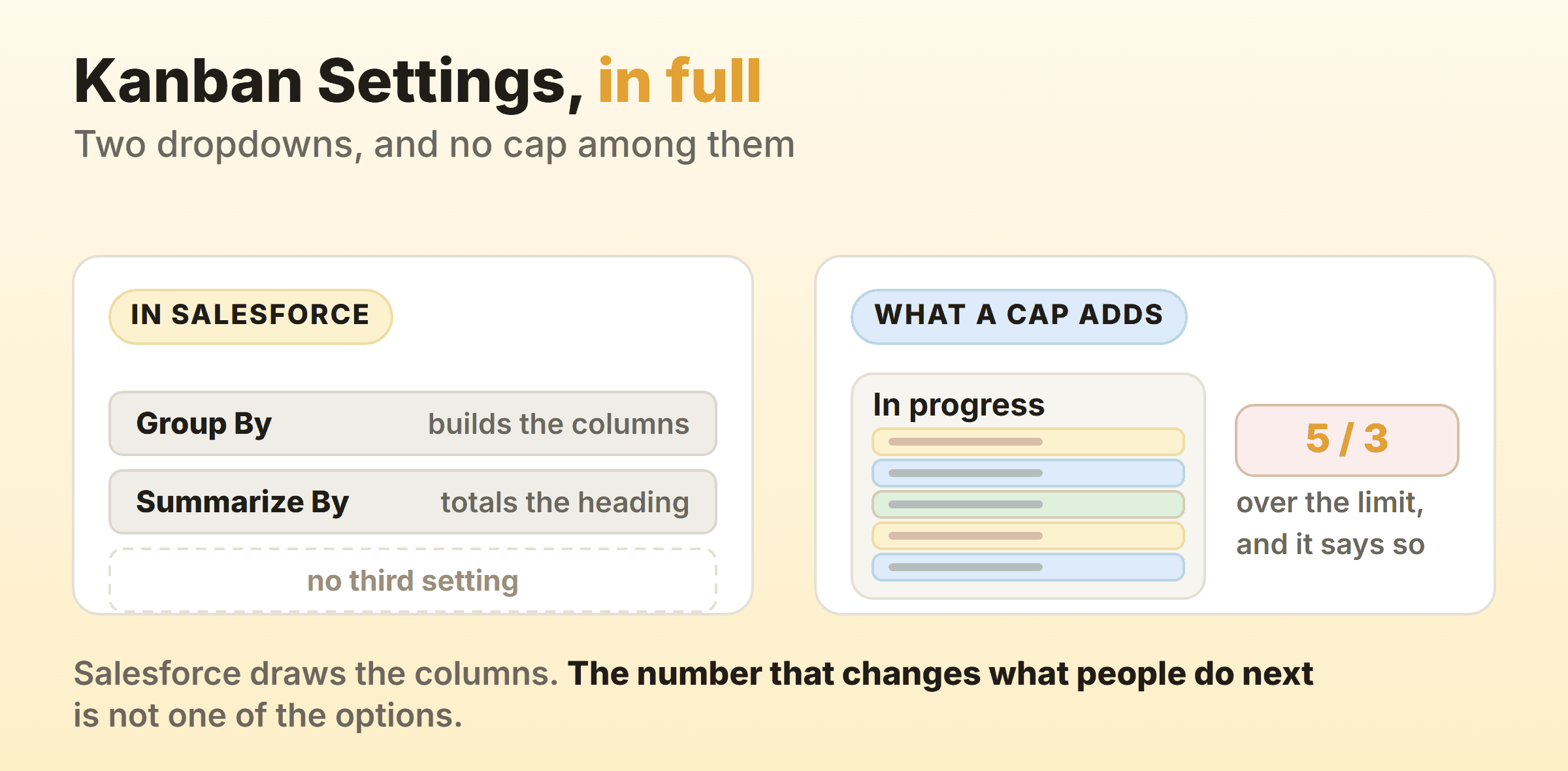
That gap sits between a kanban view and kanban as a working method. A WIP limit makes somebody finish a thing before starting the next thing. Without one you have a status display, which records decisions people already made. I cap my own Doing column at two, and that number only does anything because the board argues back when I ignore it.
Three workarounds circulate, ranked by how long they survive a real team.
- Write the number into the picklist value. “In progress (max 3)” costs nothing and holds on a small team that wanted the constraint anyway. It has no opinion at the moment somebody is mid-drag, which is the moment that counts.
- Summarize by a numeric field so the pile-up carries a total. Summing Amount by stage will not count records, though it does make a bloated column loud instead of merely tall.
- Put a report beside the board. A record count grouped by stage, pinned to a dashboard people already open. This one survives, because it lives where Salesforce is strong.
All three leave the decision with whoever is breaking the limit, at the moment they are least inclined to respect it. On a team of five the picklist trick holds for a month or two. Past ten people I have not seen one hold.
Where Does the Salesforce Kanban Board Run Out?
The 200-Card Ceiling
Salesforce Help’s administrator considerations say kanban views show up to 200 cards, in a sentence that names no object. The considerations for using kanban views repeat the figure for opportunities and add that hidden Closed Lost records push the count of visible cards below that maximum, so an opportunity board shows fewer than 200 cards whenever losses sit in the list.
A list view holding 600 open opportunities still gets 200 cards at most. Most missing-record complaints I have chased trace back to this, and the record is always fine in the table, which is why the filter in step one deserves more thought than the fun part in step three.
Because that figure is stated for kanban views in general, a board on leads or contracts meets the same ceiling. Count the list in the table view before you trust the board.
What the Board Will Not Let You Do
Beyond the card count, six smaller refusals, none of them tied to a single object.
| Limit | What happens |
|---|---|
| Mass actions | Unavailable in a kanban view. Go back to the table. |
| Record type and owner | Cannot be changed in the details panel. Ownership can still be transferred from the card. |
| Edit access | Without Edit on the record, you cannot drag its card. |
| Inactive picklist values | No column appears, and records sitting on those values stay hidden. |
| Multiple currencies | Amounts display in your personal currency. |
| Blank grouping field | The record is left off the board entirely. |
Inactive picklist values are the quiet one. An admin retires a stage, everything on that stage vanishes from every kanban view reading that field, and the records themselves sit untouched in the table.
Can You Measure Cycle Time on a Salesforce Kanban Board?
Not from the board itself. Kanban Settings offers a grouping field and a column total, and neither one is a chart, a timer or a throughput number.
The raw material exists on opportunities, at least. Salesforce Help’s page on opportunity history describes a Stage History related list that gains an entry whenever somebody changes the Amount, Probability, Stage or Close Date, and it notes that opportunity stage history is not deleted automatically the way field history on other objects is. So the stage changes it has logged are still there to report on long after a deal closes.
Getting flow metrics out of that takes reporting work. Stage-to-stage movement comes out reasonably easily. A cumulative flow diagram means a report, a dashboard component and somebody who enjoys this sort of thing, and most teams I have worked with get as far as scoping that and then quietly do not.
Other objects give you less. Salesforce Help notes on that same page that field history data elsewhere is kept for a limited time while opportunity stage history survives, which leaves a board on a custom object with a shorter memory behind it.
Salesforce Kanban or a Dedicated Kanban Tool?
Keep the board in Salesforce when the records are the point. Deals, leads, cases and contracts belong where the reporting, the sharing rules and the audit trail already live. Moving them somewhere prettier is a trade almost nobody wins.
| Salesforce kanban view | Dedicated kanban board | |
|---|---|---|
| Where the data lives | The record, already governed | A separate tool to reconcile |
| Columns | Values of one field | Whatever you name them |
| Cards visible | Up to 200 per view | Varies by tool |
| Column caps | No setting | Often built in |
| Flow metrics | Build them in reports | Often built in |
| Bulk edits | Table view only | Varies by tool |
Kanbanee sits on the other side of that trade. Caps are per column and stay off until somebody switches one on, the badge shows count against limit and turns red when the column goes over, and the drag still goes through, because a limit that physically blocks people gets switched off by Friday. Cycle time, throughput and a cumulative flow diagram are built-in reports on the Pro plan. What it gives up is everything a CRM does, accounts and contacts and forecasting included, and column drag works on desktop only.
Plenty of teams run both, with the pipeline in Salesforce and the delivery work that follows a closed deal on a board that can hold a cap of three.
FAQ
Is the Salesforce kanban view available in Salesforce Classic?
Salesforce Help documents it for Lightning Experience. The availability box on its kanban pages names Lightning Experience, across the Essentials, Group, Professional, Enterprise, Performance, Unlimited and Developer editions, and does not name Salesforce Classic, so plan on Lightning Experience for anyone who needs the board.
Why are records missing from my Salesforce kanban board?
Four causes, worth checking in this order. The record has no value in the Group By field, so it never appears. The list holds more records than the 200 cards a kanban view shows. The value the record sits on has been made inactive. Or the object has a rule of its own, like Closed Lost opportunities and already-converted leads, both hidden by design.
Can you group a Salesforce kanban view by any field?
Not any field. The documentation names Stage and Opportunity Owner as the sort of thing to pick and excludes the Currency field outright, with Forecast Category ruled out on opportunities and Owner Expiration Notice ruled out on contracts. Knowledge groups by owner only. Summarize By carries its own restriction to numeric and currency fields, and it rejects roll-up summary and formula fields.
What is “Scrum and Kanban at Salesforce”?
A free Trailhead module, with nothing to do with the list view feature. Scrum and Kanban at Salesforce runs about 30 minutes across five units covering scrum, the scrum workflow, implementing scrum, kanban, and how to choose between them. It teaches the methods rather than the list view, so it will not walk you through building a board.
Can two people have different kanban views over the same records?
Yes, and it is one of the better arguments for using the feature. Kanban settings apply per list view, so one list can group by Stage for the daily standup while another groups a wider list by owner for a workload conversation. Drag a card on either board and the field has changed for both, because only one record exists underneath.