
Wrike Kanban Boards: Columns, Swimlanes and WIP Limits
Updated at
The Answer
Wrike has a kanban board and files it under the name Board view, a layout every plan can open, where each column is a status in the workflow behind the work and dragging a card onto a column sets that status. Free and Team accounts live with the statuses Wrike hands them. From Business upward, admins can rename statuses, add their own and pull a report on how long work sat in each column, and the board can show projects instead of tasks. Wrike’s Board view documentation describes no work in progress limit on any plan, though, so a Wrike kanban board will show you where the work is sitting without warning you that too much of it is open at the same time.
Does Wrike Have a Kanban Board?
Wrike has a kanban board, and the product calls it Board view. The help centre is unusually blunt about who gets it: “All users on all account types can use Board view.” Free plan included.
Board view is a lens over work you already have. Open a space, folder or project, switch to board view, and your tasks arrange themselves into columns by status. Nothing gets copied and nothing new is created, so you can go back to Table view on Friday and find the same work sitting in rows.
Each card carries the item name, its assignees and a due date. Subitems expand in place. Click a card and Item View opens on the right-hand side of the screen, with the description, comments, sharing, approvals and files. The Wrike kanban board interface is plain, and I mean that as praise.
The board can show projects as cards instead of tasks, one item level at a time, though the help centre gates that: “Board view Project Display is available only on Business and higher plans.” On Free and Team the board carries tasks.
A quirk of vocabulary before we go further. Wrike markets kanban hard and maintains a large kanban guide, yet its help centre files the feature itself under Board view. Look for Board, not kanban.
The Wrike kanban features people ask about are columns you can name, lanes to group by, and a cap. Columns are the place to start, because they do not behave the way boards elsewhere have trained you to expect.
Where Do Wrike Kanban Board Columns Come From?
Wrike kanban board columns come from a workflow, not from the board. A workflow in Wrike is a named list of statuses living at account or space level, and Board view draws one column for every status in whichever workflow the view is pointed at.
So adding a column means adding a status to a workflow, and that workflow is shared by everything using it. Most of the confusion about Wrike boards traces back to this one mechanic.
Every status sits in one of four groups: Active, Completed, Deferred and Cancelled. On the unedited default workflow, new tasks arrive with the status New. Those groups are what tell the rest of Wrike whether an item counts as open, finished or parked, so a status filed in the wrong group quietly poisons every report downstream.
Editing statuses is where your plan starts to matter. Custom workflows, and edits to the default one, are a Business and higher feature, so on Free and Team you get the default workflow and you keep it, which leaves your kanban columns carrying Wrike’s words instead of your team’s.
On Business and above the whole thing is editable from the board, by an account admin for account workflows or a space admin for space workflows. Click the Columns icon, hover the workflow name, and you can switch workflows, create one, or choose Edit this workflow to change status names, colours, auto-assignment, transition restrictions and approvals. Wrike lists that as available to “Business, Legacy Enterprise, Pinnacle and Apex users”. There is room to spread out, at 200 workflows per account and 20 per space.
Two behaviours are worth knowing before you build anything. Items belonging to a different workflow collect in a separate From other workflows column, each card carrying a badge with its workflow name. Any column can also be collapsed from its three-dot menu, and Collapse empty columns handles the ones that are permanently empty and permanently in the way.
Building Columns From a Custom Field Instead
Board view can organise columns by a custom field instead of by status, using single-select or multi-select fields only. Click Columns, pick the field, and its options become your columns.
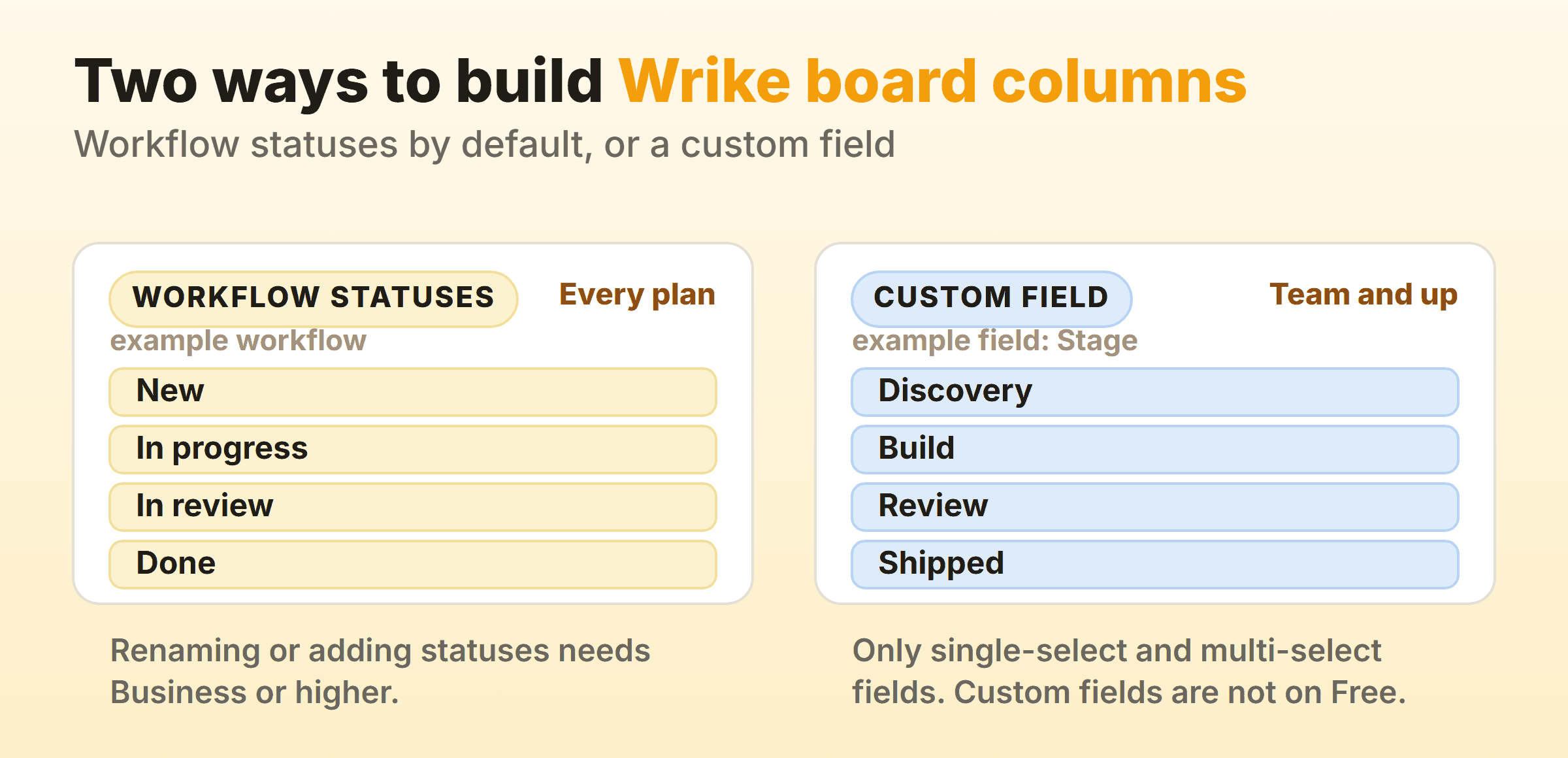
Custom fields are available on Team, Business, Pinnacle and Apex and not on Free, and Wrike says there is no cap on how many you create.
This is the escape hatch for when the workflow belongs to somebody else. A marketing team inside a large Wrike account rarely gets to redesign an account-wide workflow, because a dozen other teams depend on it. Give them a field called Stage, owned by their own space. They get the board they wanted without filing a change request. The cost is that status and Stage can now disagree, and somebody has to care which one is true.
Either route gives you columns. Lanes come from a different control on the same toolbar.
How Do Wrike Kanban Swimlanes Work?
Wrike kanban swimlanes are built with the Group button on the Board view toolbar, which slices the board into horizontal lanes by assignee or by a custom field while the columns stay exactly where they were. Wrike’s own documentation calls the feature swimlanes, so the vocabulary matches what you already know. Grouping by assignee needs nothing beyond Board view, so it works on Free, while the custom field version starts on Team along with custom fields themselves.
Assignee grouping is the one I see switched on most. I use it sparingly. A board grouped by person answers a narrow question well: who is carrying six things at once. Leave it on permanently and it changes what the board is for, because everyone starts reading their own lane, work gets pulled to keep individual rows busy, and the flow of the whole column stops being anybody’s problem. Ninety seconds during a standup, then off again.
Custom field lanes survive daily use better. Group by a custom field holding Expedite, Standard and Fixed date and you get class of service swimlanes, which is the version of the idea that changes what people pull next. Most weeks the expedite lane should be empty, and a lane that is never empty is telling you something about how work arrives. Lanes and columns both come without a documented limit, though, which is the largest hole in the product.
Does Wrike Have WIP Limits?
Wrike’s Board view documentation does not list WIP limits on any plan. The main Board view article, last updated in July 2026, covers columns, swimlanes, sorting, filters and card settings, and neither a work in progress limit nor a warning for a full column appears in it.
A Wrike community request for column WIP limits has been open for years, and in May 2024 a member of the Wrike Community Team answered it: “I checked with our team and for now, this feature is not on their roadmap.”
The gap is a strange one, because Wrike publishes a thorough page on kanban WIP limits that opens with a definition: “Kanban WIP (Work In Progress) limits define how many tasks can be worked on at any given time.” The advice is sound, and the same page says the simplest way to carry a limit on an online board is to include it as you name each stage, which is where the list below starts.
If you are staying on Wrike, the cap has to live somewhere other than a board setting. Three places work, in the order I would try them.
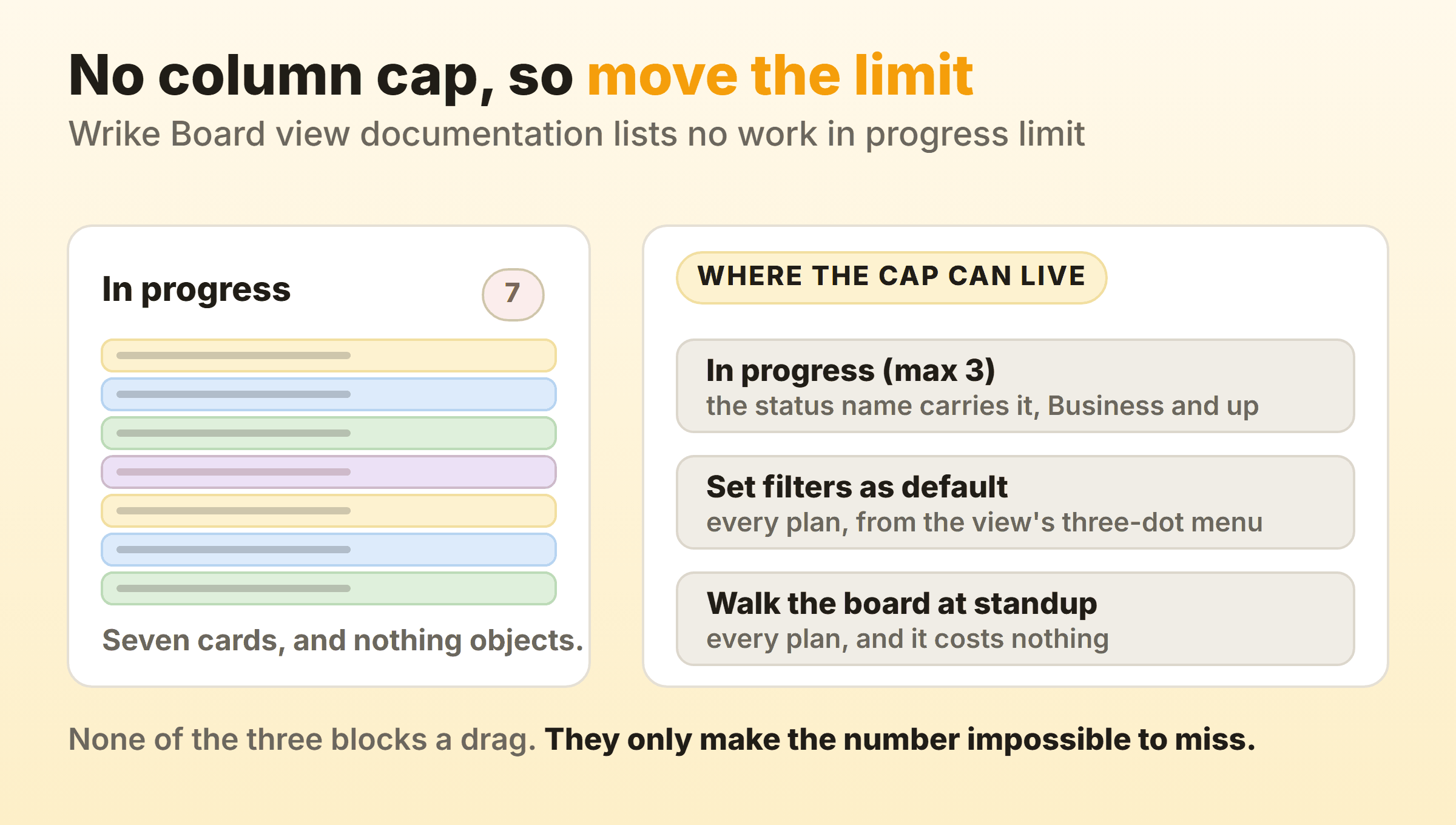
- Put the number in the status name. A status called In progress (max 3) puts the cap in the column header, and in every view that shows status, for everyone who opens it. Renaming a status means editing a workflow, so Business and up.
- Save a filter as the default. Filter the board down to the statuses you are capping, then open the three-dot menu beside the view name and choose Set filters as default. Wrike applies saved defaults for all users opening that view, and filtering works on every plan.
- Count it out loud. Walk the board right to left at standup and say the number in the middle column before anybody reports on anything.
None of the three stops a drag. They put the number in front of people, which gets you most of the way, though a team willing to ignore a red badge will ignore a status name too. If you came here for a real constraint, that is as close to a pull system as Wrike’s documented features get today.
Can You Measure Cycle Time on a Wrike Board?
You can get close on a Wrike board, using the Workflow Report, which deserves to be better known than it is. It reports the percentage of tasks moving from one status to another and the average amount of time tasks spend in a particular status, over a period you choose.
That is per-column dwell time, the useful half of kanban metrics, and it will tell you where work goes to die. It comes with conditions.
- It is a Business, Pinnacle and Apex feature.
- An account admin has to switch it on in Wrike Labs before anybody can run one.
- Account owners, admins and space admins generate it. Not the team.
- Wrike calls it experimental, and warns about bugs and possible discontinuation.
- The finished report arrives by email as a download.
Time tracking is the other number people reach for, and the one most often misread. Wrike’s timer and manual timelog entries are available on Business, Pinnacle and Apex and not on Free or Team. They record effort, meaning the hours somebody was working on a task. Cycle time is elapsed time, meaning the days a card spent on the board including every hour it sat waiting for someone. A task with four logged hours can be eleven days old, and the eleven days are usually where your problem is.
What Does a Working Wrike Kanban Board Look Like?
A working Wrike kanban board has four or five status columns named after states, one of them a small queue in front of the doing column, and a filter saved as the default so everybody opens the same picture. On a Business account, concretely:
- Build a workflow shaped like this: New, Ready, In progress (max 3), In review, Done. Keep the first four in the Active group and Done in Completed.
- Switch the board’s sort from the Priority default to Due date, so the earliest due date sits at the top of each column and not whatever somebody dragged there. Importance and Name are the other two options.
- Filter to your team’s work, then Set filters as default.
- Leave grouping off. Switch on assignee lanes only when you are hunting for overload.
- On Team or Business, spend an automation action on a rule that assigns or notifies when a card enters review. Automation runs on Team and above, at 50 actions per paid seat per month on Team and 200 on Business.
The Ready column is the one I see skipped most. Leaving it out is why the rest of the board stops working by week three. Keep it short, refill it from the backlog once a week, and let it absorb every prioritisation argument you have. Everything to the left of it can stay as messy as it likes.
Card hygiene has to do the job a cap would do elsewhere. One owner per card. A due date only when the date is real. And know that Board view only considers the first layer of subtasks, so work buried two levels down stays invisible on the board no matter how carefully you filter.
When Is Wrike the Wrong Tool for a Kanban Board?
Wrike is the wrong tool for a kanban board when the board is the only reason you are there. Wrike is project management software with a kanban view attached, and the pricing reflects that.
Wrike’s plans start at Free for $0. Team is $10 per user per month for 2 to 15 users and Business is $25 per user per month for 5 to 200 users, both priced per month and billed on an annual per-user basis, with Pinnacle and Apex quoted on request. Board view sits on every one of them. Custom statuses, the Workflow Report and time tracking all begin at Business, which puts a board carrying your own status names at $25 per person per month before anyone has touched a Gantt chart or an approval.
For an organisation already running on Wrike, none of that argues against it. The board comes with the platform, the teamwork features around a Wrike kanban board are strong, and bolting on a second tool for one view is usually a worse trade than living without a cap.
On kanban alone the shortfall is specific. There are no documented column limits, flow data sits behind an admin-only experimental report on a paid tier, and your column structure belongs to a workflow somebody else may control.
Kanbanee was built for the opposite situation. WIP limits are set per column from the column menu, ship off by default, show a count against the limit, and turn the badge red once you go over, and the cap never blocks the drag. Cycle time, weekly throughput and a cumulative flow diagram come built in on Pro, which is $6 a month or $48 a year. Free covers two boards you own with unlimited members. The honest trade is that you get a board and very little else: no realtime sync, no API, and column dragging that works on desktop only. If you are weighing a move off Wrike, Wrike alternatives compares what the same budget buys elsewhere.
Some teams run both. One commenter on that Wrike community request says they track projects in Wrike and keep kanban in another application because of the missing limit. In that split, programme structure and reporting stay in Wrike, the daily board lives somewhere that can hold a cap of three, and the handover between the two is a link pasted into the Wrike task description.
FAQ
Does Wrike have a kanban board?
Yes. It is called Board view, and Wrike’s help centre states that all users on all account types can use it, so it is there on the free plan. Columns are the statuses of the workflow attached to the work, and dragging a card between columns updates its status.
Is the Wrike kanban board free?
The board itself is free. Wrike’s Free plan lists Board view and Table view among its features at $0 per user per month. Most of what makes the board yours costs money. Custom fields start on Team. Custom statuses, time tracking and the Workflow Report all wait until Business.
How do you add columns to a Wrike kanban board?
You add a status to the workflow the board is showing, because Board view renders one column per status. From the board, click the Columns icon and choose Edit this workflow, then add the status. Editing workflows, the default one included, starts on Business, and only admins can do it.
Does the Wrike kanban board have WIP limits?
Not in Wrike’s Board view documentation, which describes no per-column work in progress limit on any plan. A community request has been open for years, and in May 2024 the Wrike Community Team replied that the feature is not on their roadmap. The simplest workaround, and the one Wrike’s own kanban guide suggests, is writing the cap into the status name, such as In progress (max 3), which needs Business or higher.
How do you turn on swimlanes in a Wrike kanban board?
Open the board, click Group on the toolbar, and choose Assignee or a custom field. Assignee lanes work on any plan that has Board view, and custom field lanes need custom fields, so they start on Team.
Can projects appear on a Wrike kanban board?
Yes, on Business and higher plans. Use the Display menu on the Board view toolbar and switch from Tasks to Projects. Project cards follow the same column logic as task cards and can be moved between columns to update their status. In project mode the board shows project-level subitems and not subtasks.