
Azure DevOps Kanban Board: Columns, WIP Limits and Split Columns
Updated at
The Answer
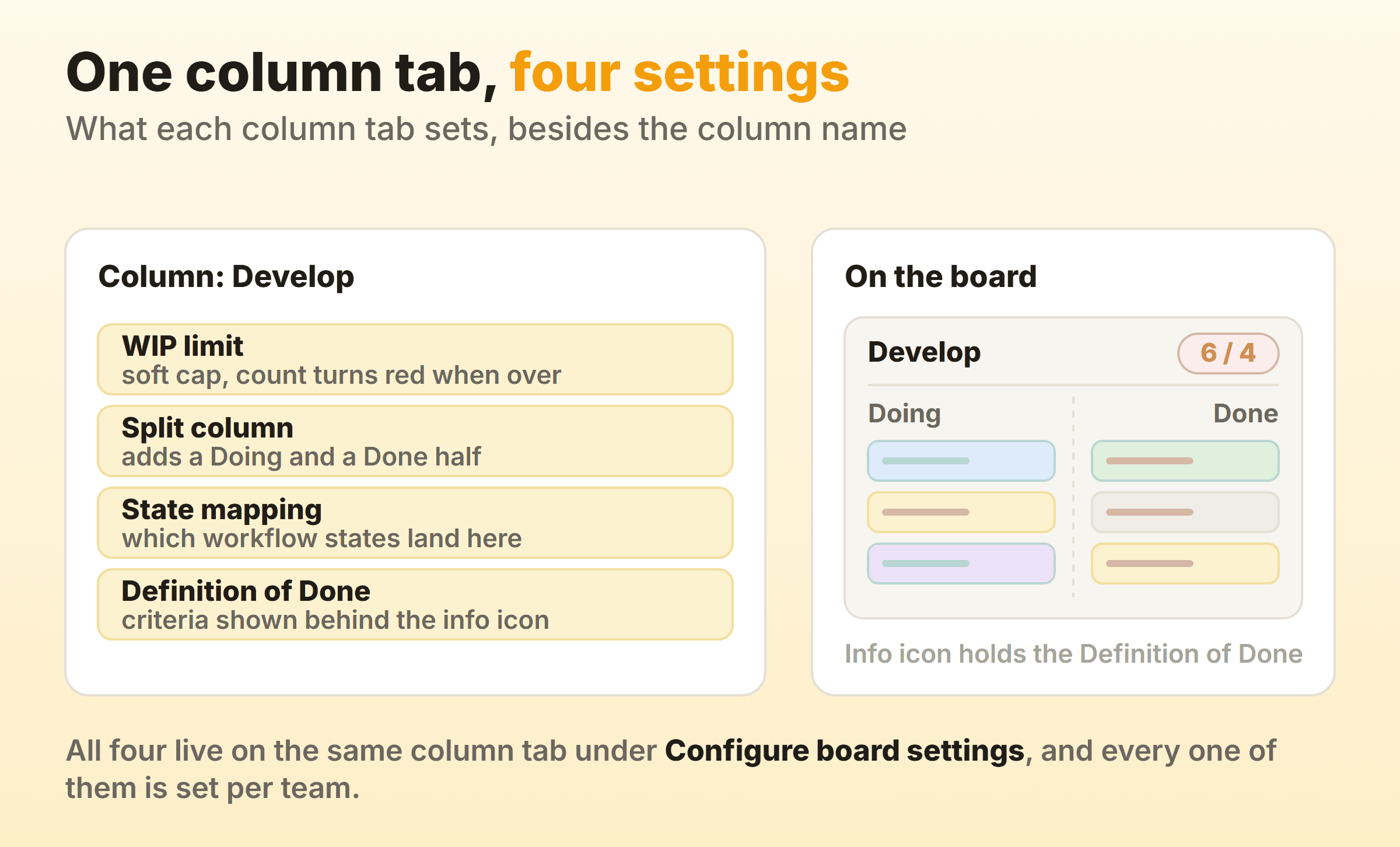
An Azure DevOps kanban board is the board view of one backlog level inside Azure Boards, and each team gets its boards automatically when the project is created or the team is added. Columns map to the workflow states of the work item types on that backlog, so dragging a card into a column mapped to a different state writes that state onto the work item underneath it. Everything you tune afterwards lives behind the gear at Boards > Boards > Configure board settings, where each column tab carries, under the column name, a WIP limit, a checkbox that splits the column into Doing and Done, the states mapped to it, and a Definition of Done that surfaces behind an info icon. Microsoft describes those WIP limits as soft constraints, so the count turns red and the drag still goes through. Measurement runs off the Analytics tab, where an in-context cumulative flow diagram charts a rolling period of up to 180 days, and off Cycle Time and Lead Time widgets you add to a dashboard yourself.
What Is a Kanban Board in Azure DevOps?
A kanban board in Azure DevOps is a view over one backlog rather than an object you create. Microsoft’s Kanban board overview says it directly: each product and portfolio backlog corresponds to a board. A team running the Agile process therefore has a Stories board, a Features board and an Epics board, three views of one hierarchy of work at different altitudes.
Azure DevOps is the suite, Azure Boards is the work tracking service inside it, and every board lives there. So an Azure DevOps kanban board, an Azure Boards kanban board, an Azure kanban board and an ADO kanban board all point at one object. Four names, one screen. In the product the menu just says Boards, hence ADO Boards and Azure DevOps Boards as well.
You do not create these boards. The kanban board Azure DevOps hands you arrives with the project, and the quickstart states that each team gets one automatically, and that adding another board means adding another team. That is the first thing that trips people coming from Trello or Jira, where a board is a thing you make and name and delete.
What the default columns say depends on the process the project was created with. Basic gives Issues To Do, Doing and Done. User Stories on Agile run New, Active, Resolved and Closed, Scrum’s Product Backlog Items run New, Approved, Committed and Done, and CMMI runs Proposed through Closed. Basic is the thinner one in a second way. Its only portfolio backlog is Epics, so a Basic project gives you two board levels where Agile, Scrum and CMMI each give three. Get this right the first time. Microsoft does document switching an existing project’s process, Basic to Agile for example, but if the project already holds work items, its walkthrough has you convert them to the new types and states by hand and fix the column-to-state mapping on every team board before those boards display again.
Boards and taskboards are not the same board
A kanban board tracks requirement-level items independent of any sprint, and it is the one that gets a cumulative flow diagram. Sprint tasks live on the taskboard instead, measured with capacity charts and the sprint burndown. Two menu entries, and a fair share of the “our kanban board has no burndown” confusion comes from landing on the wrong one. Teams delivering continuously rather than in sprints live on the board, and our guide to kanban for software teams covers what that changes about the process around it.
How Do You Open and Set Up an Azure DevOps Kanban Board?
Open your Azure DevOps kanban board from Boards > Boards, pick your team in the team selector, then pick the backlog level. That level is labelled Issues on Basic, Backlog items on Scrum, Stories on Agile and Requirements on CMMI, a small naming inconsistency that catches new people out. Everything below assumes a kanban board in Azure DevOps Services. On Azure DevOps Server one or two numbers differ.
Access matters more here than in most tools, and full board features need at least Basic access. Stakeholders on a private project can add work items and drag cards to change status but cannot edit the other fields shown on those cards, while on a public project the quickstart gives them full access to board features, similar to Basic. Changing any of the settings below needs Basic access plus the Project Administrators group or the Team Administrator role, so a developer who wants a WIP limit has to go and ask somebody.
Then spend twenty minutes on setup, in this order.
- Map the columns to the handoffs your team actually has, because the defaults are the workflow states and those are a different thing.
- Cap one column. Not all of them.
- Split the columns where work genuinely waits for the next person to pick it up.
- Write a Definition of Done for the two columns where the handoff keeps going wrong.
How Do Columns and Workflow States Map on an Azure Boards Kanban Board?
Columns on an Azure Boards kanban board are containers for workflow states, and that mapping is the entire mechanism behind a drag. Two fields are in play rather than one. The work item keeps its own State, and the board writes a separate Board Column field recording which column the card is sitting in. Open a column tab in board settings and the state mapping sits below the name, the WIP limit and the split checkbox, with one dropdown per work item type on the board.
The column documentation puts the rule that catches most people in a tip box: unmapped states do not appear on the board at all. The first board column maps automatically to each work item type’s default state. And states in the Completed category can only map to the last board column, which is why a Closed state parked halfway along the board will not stick.
Renaming is easier than people expect. Click the column name on the board and type. Moving a column is a drag of its tab, and removing one needs the column empty first, so shuffle the cards before you go hunting for the delete option.
Column configuration belongs to the team rather than the project, and Microsoft states plainly that one board configuration cannot be shared across multiple teams. Worse, when a work item shows on two teams’ boards, the Board Column, Board Column Done and Board Lane values can shift under you when the other team moves it. Run fifteen teams and you have fifteen column setups drifting apart. Our kanban columns guide covers how to pick them.
Definition of Done, per column
Azure Boards lets you attach a Definition of Done to each column, typed into a box at the bottom of that column’s tab, and Microsoft’s Markdown guidance lists it among the places where lists, links and emphasis work. Readers get at it through the info icon on the column, and Microsoft frames the feature as implementing the kanban tenet of making process policies explicit.
Keep it to the checks that block the handoff. “Tests written, PR merged, feature flag off by default” works as a column policy, and a twelve-line quality manifesto gets opened once.
How Do You Set WIP Limits on an Azure DevOps Kanban Board?
Set WIP limits on an Azure DevOps kanban board per column, from Configure board settings, by selecting Columns, opening the tab of the column you want capped and typing a number into WIP limit, where 0 means no limit. Save, and the column header starts showing its count against the limit.
The limit is soft by design. Microsoft’s WIP limits page says WIP limits set soft constraints that you can exceed, with the board highlighting the column count so the team can act, and the quickstart names the signal exactly: the count goes red. Nothing blocks the drag. Correct behaviour for a cap meant to start a conversation rather than fight you at 4pm on a Thursday.
Microsoft also publishes starting numbers, which is unusual and useful. The WIP limits page says to allow two to three items per team member in a stage and gives the arithmetic, three developers times two items each being a limit of six. The cumulative flow guidance argues the tighter end, calling two items per team member a good rule of thumb, with the second item there so a blocked person has somewhere to go rather than a licence to start a third. Start low either way. Low limits surface bottlenecks faster.
On tolerance the docs are unfussy, and going over by one or two is normal. Consistently three or more over is the signal to look again at the process, or at the number you picked. Our WIP limits guide covers picking that number.
What Do Split Columns Do?
Split columns divide a board column into a Doing half and a Done half, which is how Azure Boards turns a push into a pull. Tick the box on the column tab and the column splits.
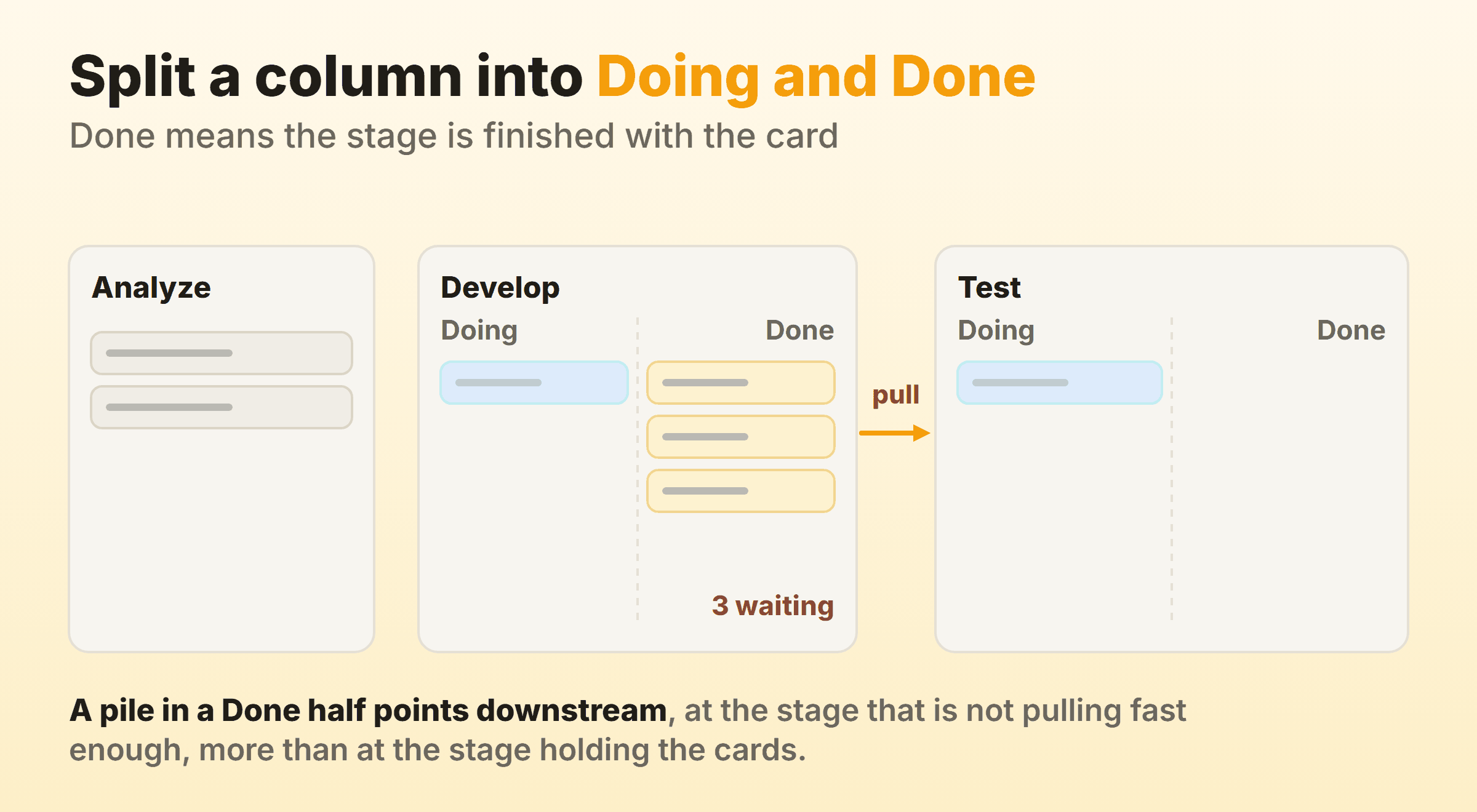
Done here means the stage has finished with the card and the next stage has yet to pick it up. Microsoft’s example walks it through. Finish a coding task, move it to Done under Develop, and the tester pulls it into Doing under Test when ready. Without the split, a card untouched for four days looks identical to one somebody is working on, which is the problem a pull system exists to solve.
The docs advise splitting only where clear handoffs exist, and I would go further. Split two columns, not six, or the board turns into a spreadsheet. The split is also queryable, because the Board Column Done field takes False in the Doing half and True in the Done half, so a query or a chart can pick out work that is finished at a stage and still waiting.
Items stacking up in a Done half are waiting on the next stage to pull them, and the cumulative flow guidance makes the matching point about bulges, which indicate that a succeeding step is having a problem, not necessarily the step where the bulge appears. Three cards parked in Develop Done are a question to put to Test first.
How Do Swimlanes Work on an Azure DevOps Kanban Board?
Swimlanes are horizontal rows on the board, added from Configure board settings under Swimlanes, and Microsoft’s swimlane documentation puts the ceiling at 50 per board. Each lane gets a name and a colour. Reorder with the up and down selector, and delete only after moving every card out. The default lane behaves differently from the ones you add: it appears unlabeled on the board, you can rename it, and you cannot delete it or apply rules to it.
A swimlane rule routes items into a lane on field criteria, so an expedite lane driven by Priority equals 1 maintains itself and is worth the ten minutes. The limits are published: five rules per lane, 25 per board, AND conditions only, evaluated in order until one matches. Manual moves into a rule-managed lane can be restricted, so the item has to meet that lane’s criteria.
Dragging can slow down with many lanes or many cards, and the docs suggest placing a crowded default lane lower on the board so drags into the other lanes go faster. Press o to expand every lane and u to collapse them. The Board Lane field tells a query which lane an item landed in. Our swimlanes guide covers when a lane earns its place.
Which Flow Metrics Does an Azure DevOps Kanban Board Give You?
An Azure DevOps kanban board gives you an in-context cumulative flow diagram, and Azure DevOps dashboards add Cycle Time and Lead Time widgets. The split between the two matters. The CFD sits on the board’s Analytics tab and opens into a full report where, according to Microsoft’s CFD tutorial, you pick the swimlanes, the workflow states or board columns, and a rolling period of anywhere from 14 to 180 days.
The widgets are a separate step. You add them to a dashboard by hand. Microsoft is explicit that neither the in-context CFD nor the CFD widget provides discrete lead time and cycle time values, and that the Lead Time and Cycle Time widgets do. So the board alone shows you where work is piling up, and the number you can say out loud in a planning meeting comes off a dashboard somebody has to build first.
The definitions run off state categories rather than column names.
| Metric | Starts when the item enters | Ends when the item enters |
|---|---|---|
| Lead time | A Proposed category state | A Completed category state |
| Cycle time | An In Progress or Resolved category state | A Completed category state |
Reactivated items inflate the number. For one that goes New, Active, Resolved, Closed, then back to New, Active, Closed, cycle time runs from the first transition into Active to the final transition into Closed, including the stretch it spent sitting in Closed in between. Worth knowing before you go hunting for a bug in the scatter plot.
Microsoft’s worked example on the Cycle Time widget shows an average of eight days with a standard deviation of six, read as about 2 to 14 days after work begins. That spread is what an honest flow measurement looks like, and it is why we argue for percentiles over averages in our kanban metrics guide.
When Azure DevOps Is More Board Than You Need
Azure Boards earns its weight when the board is one link in a chain running through repos, pipelines, test plans and releases, and when a portfolio of Epics and Features has to roll up across a dozen teams. That is the job it exists for. Fifty swimlanes with routing rules is a feature built for a platform group with four intake streams.
Every board setting is per team, board configuration needs Project Administrator or Team Administrator rights, a later process change means converting work items by hand, and the cycle time and lead time numbers live on a dashboard rather than on the board. A team of five running one board carries all of that and collects roughly none of it. Jira makes a similar trade, and GitHub Projects sits somewhere in between.
Which is roughly why we built Kanbanee at the lighter end. A WIP limit is a checkbox and a number on the column menu, off until you tick it and soft like Microsoft’s, with a badge that shows count against limit and goes red over the cap. Timers and a full time log sit on the card, and cycle time plus a cumulative flow diagram come with Pro at $6 a month or $48 a year. Free is two boards you own, unlimited members. Real gaps too: no realtime sync, no API, column reordering on desktop only. If your delivery runs on pipelines and release gates, stay in Azure Boards and put the effort into column mapping instead.
FAQ
Is the Azure DevOps kanban board free?
For small teams, yes. Microsoft’s pricing page lists the first five Basic users as free, then $6 per user per month. Stakeholder access costs nothing, and Microsoft’s access levels page says you can assign it to an unlimited number of users, but it buys limited access on a private project and nearly full access on a public one. On a private project, using all of the board features takes Basic.
What is the difference between Scrum and Kanban in Azure DevOps?
Scrum in Azure DevOps is a process you pick when creating the project. Kanban is a board that exists on every process. Choose Scrum and you get Product Backlog Items moving through New, Approved, Committed and Done. Sprints, capacity planning and the taskboard come with Agile, Basic and CMMI projects too, and so does the same board. Running kanban means working the board, capping columns and leaving the sprint machinery alone, and our kanban vs scrum comparison settles the delivery question underneath it.
Does Microsoft have a kanban board tool?
More than one. Azure Boards is the Microsoft kanban board built for software delivery, with state mapping, per-column WIP limits, split columns and swimlane rules. Microsoft Planner is the other one people mean, where the Board sorts tasks into buckets you drag them between. We cover that one separately in our guide to kanban in Planner.
Why did my closed work items disappear from the board?
Azure DevOps Services hides completed or closed work items from backlogs and boards once their Changed Date is older than 183 days, roughly six months. On Azure DevOps Server the cutoff is one year. Nothing is deleted. Run a query to find them, and any small edit refreshes the Changed Date and puts the item back on the board.
Can one kanban board in Azure DevOps span several projects?
Only with an extension, going by Microsoft’s own answer. Its cross-project FAQ says yes and names the Query Based Boards Marketplace extension, which shows a flat-list query as a board, and the quickstart recommends the same extension whenever one board view has to span multiple work item types or multiple projects. A team’s own board draws on the area paths that team picked from its project, so it stays inside that project. For cross-project visibility without an extension, work item queries and Delivery Plans both reach across projects.
How many swimlanes can an Azure DevOps board have?
Up to 50 per board. Swimlane rules that route items automatically are capped at five per lane and 25 across the whole board, and they support AND conditions only. The default lane is the exception, because it takes no rules at all.