
Kanban in Microsoft Teams: Getting a Board Onto a Channel Tab
Updated at
The Answer
Kanban in Microsoft Teams runs on a board that Teams does not own. Teams supplies the tab and Planner supplies the board, so you open a standard channel, select Add a tab, then Apps, then Planner, and that channel gains Board view with buckets for columns and tasks for cards. Private and shared channels cannot take that tab at all, which Microsoft states in its own channel feature comparison, and the Planner app pinned in the Teams left rail is a different animal from the tab, since it opens on your own tasks instead of the team’s board. Both of those catch people out. Anyone with a Microsoft 365 licence already has the app and the tab, so the setup bill for a Teams kanban board is ten minutes of arguing about bucket names.
Does Microsoft Teams Have a Kanban Board?
Microsoft Teams does not ship a kanban board of its own, and hunting for one inside the app is how most people find that out. Teams is a chat client with tabs. Every board you have seen inside it came from elsewhere and got hung on a tab. MS Teams and Microsoft Teams are two spellings of one product, so an MS Teams kanban board is the same board.
That somewhere else is nearly always Planner. Microsoft’s admin documentation for the Planner app in Teams describes it as one experience joining Microsoft To Do, Planner and Project for the web. The same page mentions, almost in passing, that before March 2024 the app was called Tasks by Planner and To Do. Half the guides online still use the old name. So if a colleague tells you to add Tasks and the search comes back empty, you are looking for Planner.
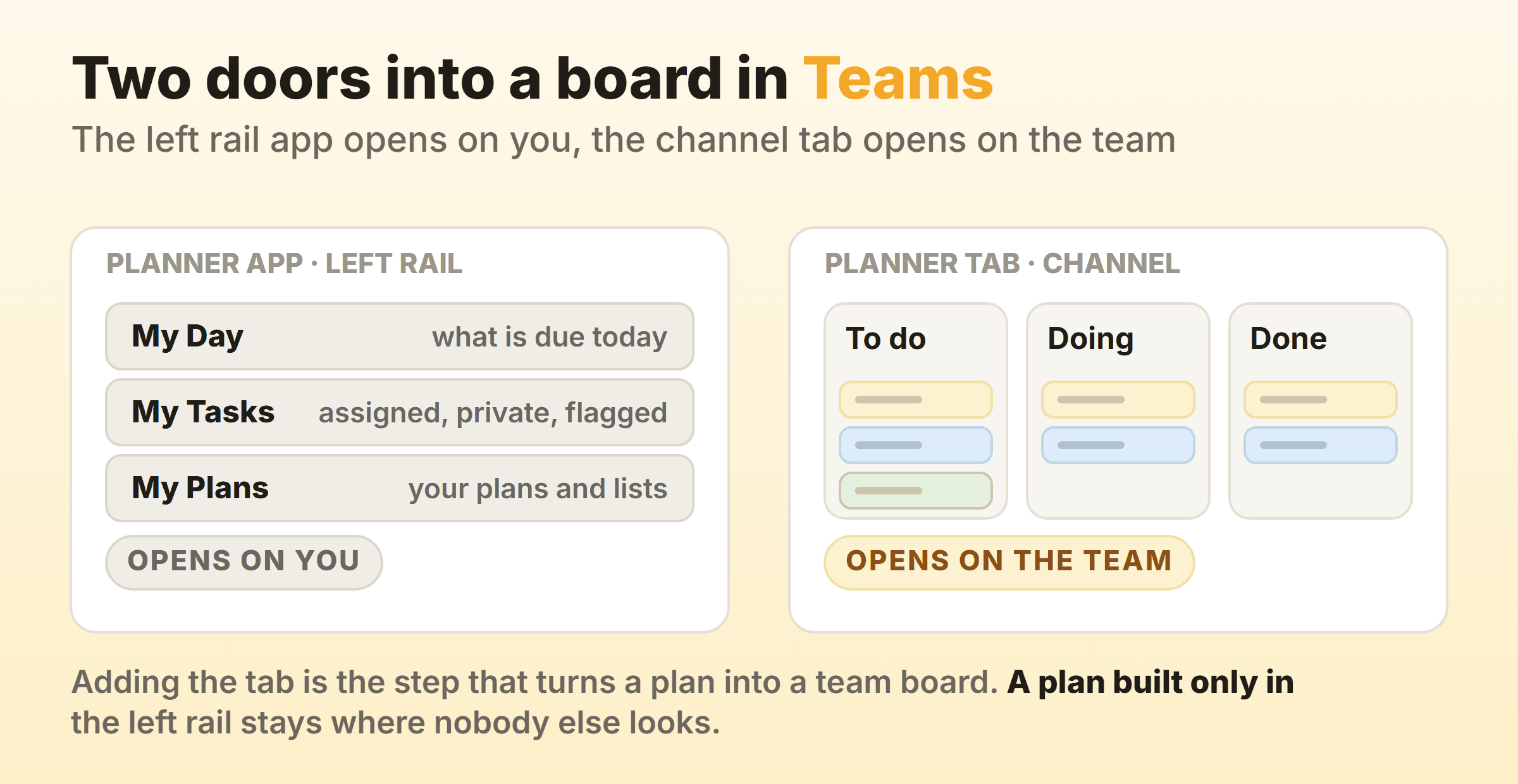
The Left Rail App and the Channel Tab Do Different Jobs
The Planner app in the Teams left rail opens on you. My Day holds what is due today. My Tasks splits into private tasks, everything assigned to you, and the emails you flagged in Outlook. Underneath sits My Plans. All of it stays personal until you deliberately share something.
A Planner tab in a channel opens on one plan instead, and shows everybody who can see the channel the same buckets in the same order.
I have watched more than one team build a careful plan in the left rail, wonder why nobody else touched it, then discover it had never been tabbed anywhere. Adding the tab is the step that turns a plan into a team board.
How Do You Create a Kanban Board in Microsoft Teams?
Creating a kanban board in Microsoft Teams starts with four clicks. Step three is the only one that needs any thought.
- Open the standard channel that should own the board. Standard matters, for reasons in the next section.
- Select Add a tab at the top of the channel, then Apps, then Planner, then Save. Microsoft’s instructions for adding Planner as a tab stop there.
- Choose Create a new plan or Add an existing plan. New builds from scratch or from one of Microsoft’s out-of-the-box templates. Existing points the tab at a plan already shared to the channel or its group.
- Switch the tab to Board view. Microsoft’s guidance on team plans in Teams calls Board view a kanban style board, and lists grouping by bucket, progress, due date, priority and labels, with Assigned to available as well.
- Rename the starter bucket to whatever your first real stage is called, then add the others with Add new bucket. Order them the way work actually moves, not the way the org chart reads.
- Check that Group by is set to Buckets. It is the only grouping where the columns are your workflow, and Microsoft’s bucket documentation answers the missing Add new bucket button with exactly that: the board is grouped by something else.
Name each bucket after the state the work is sitting in, not the person holding it. Waiting on legal survives a reorganisation. A bucket named after whoever owns that step today does not survive their next job. The rules for naming columns apply to a whiteboard just as well, and none of them bend because the board sits inside Teams.
Which Plan Should the Tab Point At?
Point the tab at a new plan unless the team already has one they open unprompted. A plan created from the tab belongs to the channel’s Microsoft 365 Group, so membership is settled before the first card exists. Recycling a dead plan imports every stale card in it, and those cards are why nobody trusted it.
One tab shows one plan. A second channel needs its own tab, which can point at the same plan or at a different one. Sharing a plan across two channels works when the two channels share a queue, and turns into a mess when they do not, because a board with two audiences ends up half-read by everyone.
Why Can You Not Add a Planner Tab to a Private Channel?
You cannot add a Planner tab to a private channel because Microsoft does not support it there, and shared channels are in the same position. The channel feature comparison has a Planner row reading Yes for standard channels, No for private, No for shared. The private channel documentation repeats it under limitations, naming both Planner and Tasks by Planner and To Do alongside Stream and Forms.
The plumbing explains the gap. A standard channel sits on the team’s Microsoft 365 Group, which is what a Planner plan attaches to. Every private channel instead gets its own SharePoint site so file access stays restricted to its members, which protects the files and leaves a Planner plan with nothing to attach to.
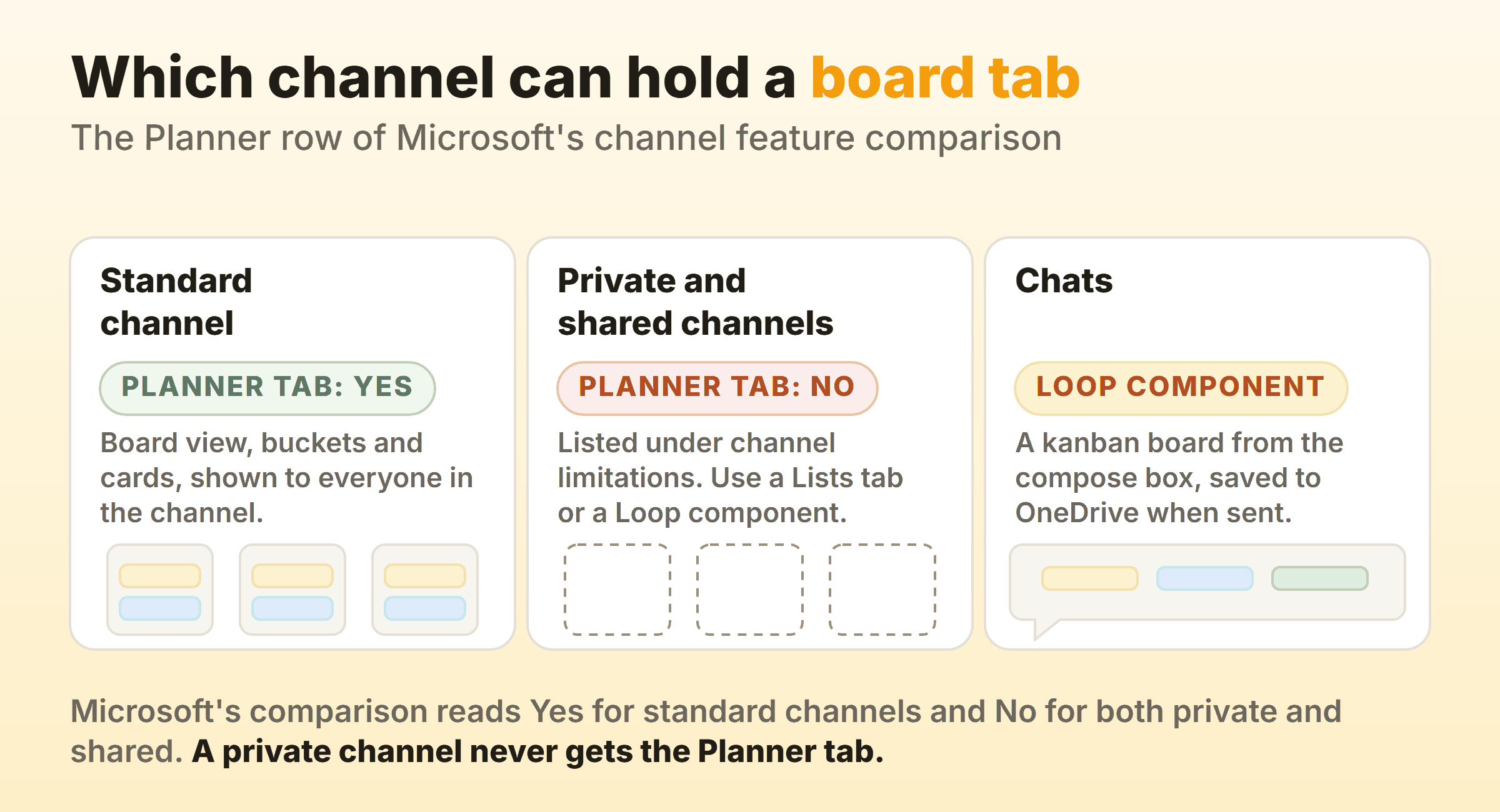
A private channel gets consolation prizes instead.
- A Lists tab. Microsoft’s Lists admin documentation says the app is preinstalled for all Teams users and sits in the tab gallery of every team and channel. Its board view builds columns out of a Choice or Yes/No column, and the Microsoft kanban board guide has the detail on where that trips up.
- A Loop component in the channel conversation. Microsoft’s guide to pages and Loop components in channels covers private, public and shared channels alike.
- The plan stays on a standard channel and somebody posts the link into the private one. Which means the membership no longer matches, and matching membership was the entire point of the private channel.
None of the three is as good as the tab you came for. Work that needs both a board and restricted membership is usually asking for its own team.
Where Else Does a Kanban Board Show Up Inside Teams?
Beyond the Planner tab, a kanban board shows up inside Teams in two more places, and neither one depends on that tab.
A Loop Kanban Board in a Chat
A chat does not take a Planner tab, which a Microsoft community moderator confirmed on Microsoft Q&A, but a chat does take a Loop component. Open the compose box, select Loop components, and pick the type you want. Microsoft’s walkthrough of Loop components in a Teams chat names a kanban board among the choices, next to a table and a bulleted list. Everyone in the chat edits it inline, and Microsoft’s guide to sending one says the component saves to OneDrive once sent.
Good for a launch checklist that lives beside the conversation about it. Whether those cards ever reach a Planner plan is the part people get wrong, and the Planner kanban board guide takes the components one at a time.
Third-Party Board Apps From the Teams Store
The Teams app store carries board apps from other vendors, installed into a channel much the way Planner is, and it is where most searches for kanban tools for teams end up. Judge them on the two things Planner leaves out: a cap per column, and a record of when each card moved. Read the vendor’s pricing page, not the store listing, since free to install and free to use are separate claims.
What Changes When the Board Lives in a Teams Tab?
Putting a kanban board on a Teams tab changes how often it gets read, for a boring reason. It is already open. Nobody has to remember a second address.
Notifications from a Teams kanban board land in the same place as everything else. Microsoft’s getting started guide for Planner in Teams says task notifications appear in your Teams activity feed on desktop and in the Teams mobile app, so an assignment lands beside your @mentions and not in a mail folder you triage on Fridays.
Mobile is the sharp one, and a real reason to add the tab even for a plan you built somewhere else. The Planner admin documentation warns that functionality is limited on Teams mobile, and that on mobile a user sees only plans added to a tab in a channel within a team. So an untabbed plan will not open for the person checking in from a client site, usually discovered on the worst possible afternoon.
The conversation now sits a click from the card, which sounds ideal and quietly creates a second place for status to live. Somebody explains a blocker in the channel, three people react to it, and the card sits untouched in Doing for another week. I have yet to use a tool that fixes this, and I doubt one exists. Moving the card has to be how you tell people. Saying it in the channel and updating later comes to the same thing as never updating.
How Many Kanban Boards Should a Team Have in Microsoft Teams?
One board per channel, and one channel per flow of work. Every clever alternative I have watched a team try ended up back here.
Support teams and content teams often sit in one Microsoft 365 group, and their work still does not belong on one board, because columns that fit a support queue fit a publishing calendar badly. Give them their own channels and their own tabs. A second board costs one tab. Sharing one board teaches both halves of the team to skip half the cards, and that habit does not come off.
Scaling kanban across multiple teams inside Teams is harder, for a structural reason. Each team carries its own Microsoft 365 Group, its own channels and its own plans, so nothing stitches them into one view beyond My Plans in the Planner app. Teams that need a portfolio picture build it in Power BI or Excel, and somebody owns that report forever.
Resist the mega-board. When multiple teams have to be visible at once, kanban swimlanes on a shared board are the pattern to try first, and Planner’s Group by control is the nearest thing it offers. Past three teams the board stops being readable at a glance, which was the only reason to draw a kanban board at all.
Is the Kanban Board in Microsoft Teams Free?
The kanban board in Microsoft Teams is free in the sense a finance team cares about, which is that you have already paid for it. Microsoft’s admin documentation says users with a Microsoft 365 licence are entitled to the Planner app, and that Planner is enabled by default for every Teams user in an organisation. Board view sits in the basic experience, and Microsoft’s comparison of the basic and premium plans lists Board view on both sides of the line.
Premium is a separate licence. The admin doc names Planner Plan 1, Project Plan 3 and Project Plan 5 as the ones that unlock it, and what they buy is project machinery: a timeline of Gantt bars, dependencies, custom fields, sprints, goals, task history and a Copilot layer. The board itself picks up coloured buckets and conditional colouring, both listed on the premium side. What it does not pick up is a cap on a column or a clock on a card.
A free kanban board in Microsoft Teams is a harder ask for anybody without a Microsoft 365 licence, because the entitlement travels with the licence and not with Teams. Their route is a third-party app from the store, or a board hosted elsewhere in another window.
Where Does Kanban in Microsoft Teams Stop Short?
Kanban in Microsoft Teams stops short at the two habits that make a board change behaviour instead of just recording it: a cap on how many cards a column may hold, and a record of how long each card took to cross. Neither shows up in Planner’s documented feature set, the basic and premium comparison above included. Teams is showing you Planner, so Teams inherits the gap.
The rest of the suite is no better, with one exception. Azure Boards caps a column and draws a cumulative flow diagram, and it lives in Azure DevOps rather than your Microsoft 365 subscription. The Microsoft kanban board guide compares all five, and the Azure DevOps board guide covers the flow features properly.
Most Teams shops end up writing the cap into the bucket name. Doing (max 3). A convention and not a control, so it lasts as long as the team’s discipline does, which on a group of four or five is longer than you would guess.
Kanbanee trades the other way. Each column carries its own limit, switched on one at a time and off until you do, and the badge counting cards against that limit goes red the moment you cross it. Dragging the card is still allowed, so the limit nags without ever standing in the way. Cycle time, weekly throughput and a cumulative flow diagram ship with the Pro plan at $6 a month, so nobody reconstructs them from a CSV. The trade is scope. A board and very little else, with no realtime sync and no API yet, which for a Microsoft 365 tenant means work living outside the tenancy.
FAQ
Is there a kanban board in Microsoft Teams without Planner?
Yes. A Lists tab switched to board view builds columns from a Choice column, and a Loop kanban board component gives you columns inside a chat message. Both are real boards with cards you can drag. Neither is a Planner plan, so neither inherits Planner’s views or its activity-feed notifications.
Can you add a kanban board to a Microsoft Teams chat?
Through a Loop component, yes. Select Loop components in the compose box and choose a kanban board, and everyone in the chat can edit it inline. Microsoft documents the Planner tab as a channel tab, so a chat is Loop territory.
Why is Planner missing from my Teams channel tab gallery?
Almost always one of three things. The channel is private or shared, where the tab is not supported. An admin has blocked Planner on the Manage apps page in the Teams admin center or restricted it with an app permission policy, since it ships on by default but can be turned off. Or the tenant is still mid-rename, in which case Microsoft’s own advice is to search for Tasks by Planner and To Do.
Does the Teams mobile app show kanban boards?
Yes, with a limit worth planning around. Microsoft’s admin documentation says functionality is limited in the Planner app on Teams mobile, and that on mobile a user sees only plans added to a tab in a channel within a team. So tab the plan even if the team lives on the desktop app, or the person checking on a train cannot reach it. Dragging a card across a phone screen is a nuisance anyway. Open the card and change its bucket from inside.
Can two Teams channels use the same kanban board?
Yes. Add a Planner tab to the second channel and choose Add an existing plan instead of creating a new one. Same plan, two doors into it. Do it when the channels genuinely share a queue.
Where do tasks assigned in a Teams meeting end up?
In the assignee’s Assigned to me list inside the Planner app, which also gathers tasks from Loop and from Planner itself. Flagged Outlook emails sit in their own section of My Tasks beside it. Both lists are personal. Neither is your channel board, so a standup that hands out actions through meeting notes quietly builds a second backlog nobody can see. Paste them onto the board or stop assigning work in notes. The flagged-email half of this is covered in the guide to kanban in Outlook.
Is there a kanban board template for Microsoft Teams?
Planner offers out-of-the-box templates when you create a plan from the tab, and one of those beats an empty board. Whether you want a kanban template for marketing teams or for a support rota, rename the buckets on day one. Whatever ships in a template was built around somebody else’s workflow, and bucket names are the one part of a board that has to match reality.