
Miro Kanban Template and Board: What Miro Actually Ships
Updated at
The Answer
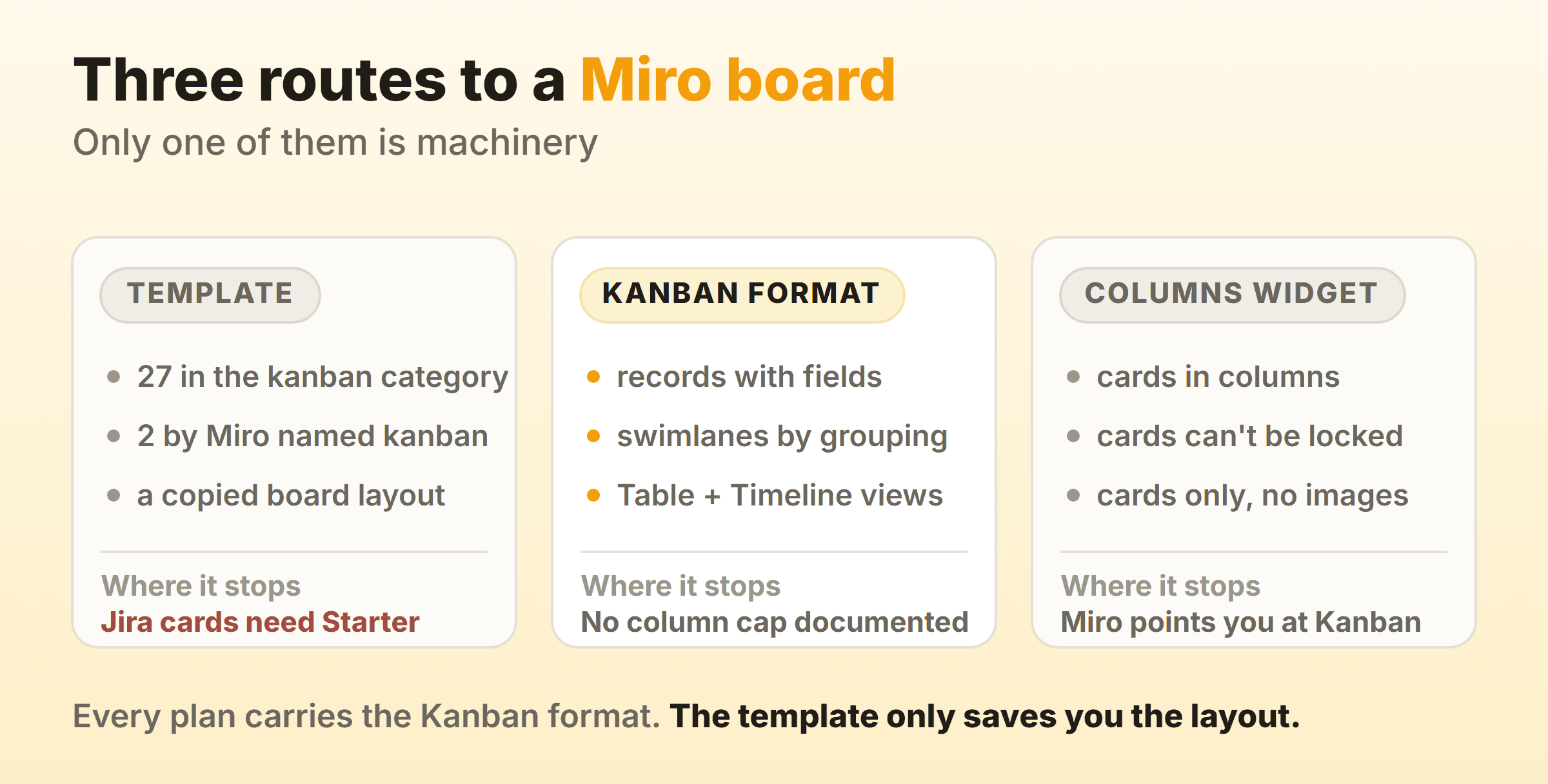
A Miro kanban template is a board you copy out of a gallery. Of the 27 templates in Miro’s kanban category, Miro made nine, and only two of those have kanban in the name: the Kanban Framework Template and the Kanban Framework AI Template. Community authors made the other eighteen. The real machinery sits elsewhere. Miro’s Kanban format, which the Miro Help Center lists as available on all plans, builds its columns out of the values of a single-select field instead of out of shapes you draw, and its records carry whatever fields you add, Assignee and Estimate types included. That same help article lists its column actions, and a cap on how many cards a column may hold is not among them.
Which Miro Kanban Template Should You Start From?
Start from the Kanban Framework Template if you want a kanban template Miro publishes itself. Miro’s kanban category holds 27 templates, and the author line under each thumbnail is worth reading first, because community authors wrote two thirds of them.
The Two Miro Templates With Kanban in the Name
The Kanban Framework Template has instructions that run in three steps: label rows and columns for your own process, add task cards and assign owners, then move each card along as steps complete. The Kanban Framework AI Template is its sibling, tagged AI Accelerated in the gallery, which gives both templates the same description.
Step two of the Kanban Framework Template tells you to populate the board by adding Jira cards, and the Free plan does not include Jira Cards. Miro’s own Free plan comparison marks Jira Cards and Asana Cards as missing on Free and included on Starter. Follow those instructions on a free account and the product stops matching them at step two.
The Other 25 Templates
Seven further entries are Miro’s without kanban in the name, running from Meeting Minutes to three Jira templates for sprint planning, backlog refinement and daily standups. The category is loose. The remaining eighteen are community submissions, and a few beat the official pair for a specific job. The Kanban Pizza Game by Flowana simulates a pizza delivery process so a team can learn and apply the kanban method. 121 Kanban by Chris Chadwick describes limiting work in progress, which the description of Miro’s own pair never mentions. STATIK by Artem Prudenko and Enhanced Kanban with tagging by Boyan Vakarelov are two more worth opening.
None of that makes them Miro features. A community template is a board somebody else built, so judge it as you would a spreadsheet a colleague sent you.
Our board layouts cover software, content, support and sales work, and any of them can be drawn on a Miro canvas without a template.
What Does Miro’s Kanban Format Do?
Miro’s Kanban format turns part of a board into a structured widget with records, fields and columns, and it is what to use for a Miro kanban board that behaves like a tool rather than a drawing. The Kanban help article lists it as available to all logged-in users on all plans, across browser, desktop, mobile and interactive displays.
You reach it from the Creation bar under Formats and Flows. Click Kanban and the Sidekick panel opens, ready to generate a board from a prompt with Miro AI. Skip the prompt and click anywhere on the canvas to place one manually.
Inside the widget:
- Cards added with a plus sign in any column, dragged between columns
- Fields you add, edit, reorder, show, hide and delete from the Fields icon
- Swimlanes, created by grouping cards on a field of your choice
- Filter, sort and group controls in the header, plus a full-screen focus mode
- A switch to Table or Timeline layout over the same records
- More than one Kanban widget per board, each with its own data source
Guest editors cannot add or edit a Kanban, per that same article. Columns also move from a menu, with Move left and Move right sitting in the three dots beside each column name, while the article notes drag and drop is coming soon.
Where the Columns Come From
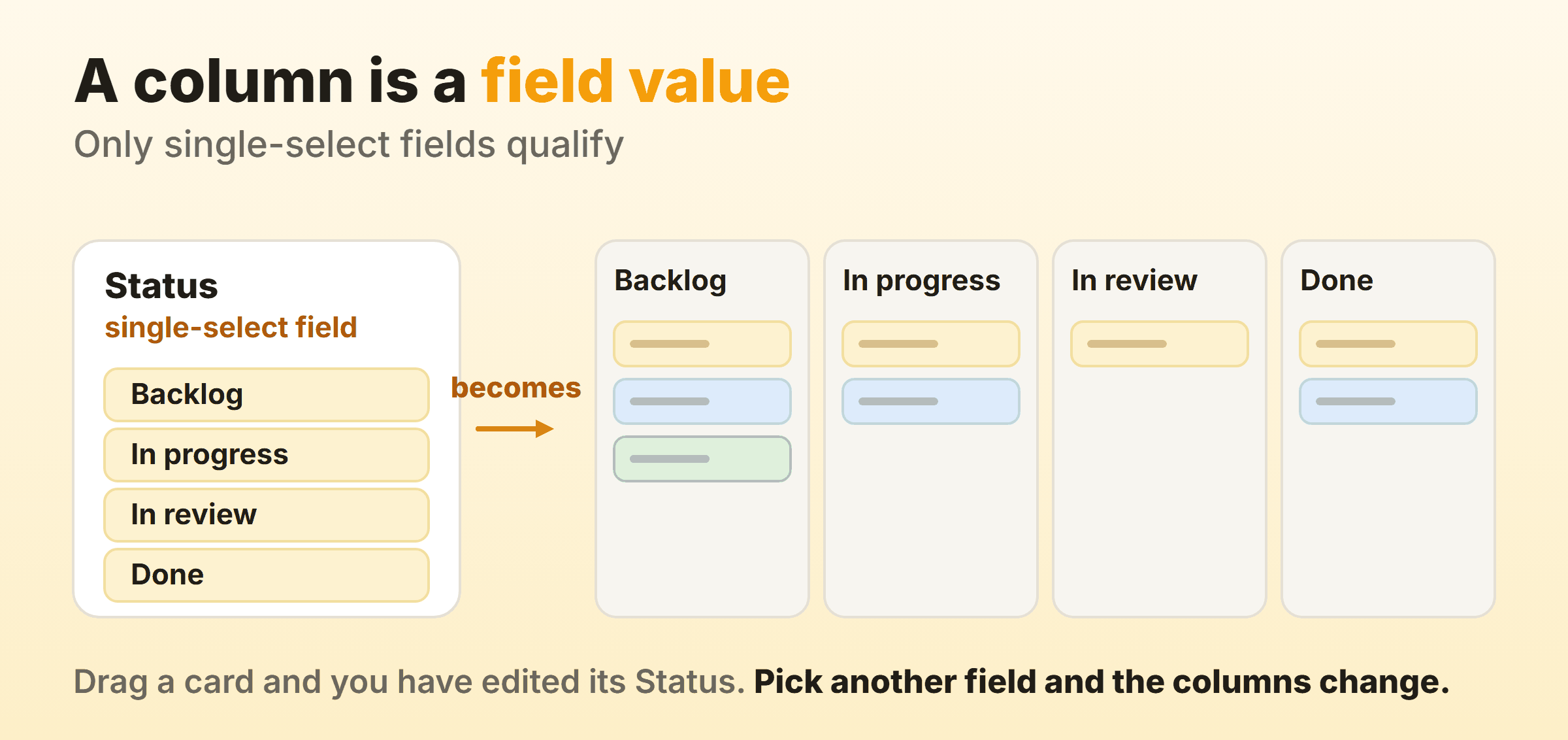
Kanban columns in Miro are the values of one field, and only a single-select field will do. The help article is blunt. Currently only single-select fields are available as columns, so you click the Column field icon in the header, pick one, and its options become your columns.
Which has a consequence the article spells out. Drag a card to another column and the card’s column field changes with it, so the same record shows the new value when you switch the widget to Table layout. Pick a different single-select field and the board regroups around that field’s options instead.
So your first real decision is about field design, and the layout falls out of it. Our guide to naming and sequencing columns applies unchanged, because the constraint is the one every board has: a column should describe a state the work is in.
Columns, the Widget That Used to Be Called Kanban
Miro has an older widget for this, now called Columns, and its help page is titled Columns (formerly Kanban). You add it from Tools, Media and Integrations by searching for Columns, and it is listed for Free, Starter, Business, Enterprise and Education.
Columns is the shallower of the two. Miro’s own note at the top of that page points at the newer Kanban feature, listing auto-updating fields and colors, easy switching to Tables or Timeline, and filtering and sorting. Keyboard work is quick, with Enter for a new card and Tab for the next one. The help page is candid about the edges. Cards inside Columns cannot be locked or grouped, you can only add cards and not images, and there are no automatic reminders based on a card’s due date. Start new boards on Kanban. I still open inherited boards built on the old widget most months.
How Do You Build a Kanban Board in Miro?
Building a kanban board in Miro takes three steps, and the first is deciding what kind of board this is.
A workshop wants sticky notes and a template. A working board wants the Kanban format, because the rest of this depends on fields existing.
Then design the column field before you touch the canvas. Write the option list out somewhere: Backlog, Ready, In progress, In review, Done. Five is plenty for a first pass, and the step-by-step board build we use for any tool covers how to find the states work actually passes through, rarely the ones you assume.
Last, add the fields you will genuinely filter and group on, then group into swimlanes once the columns are stable. Assignee and an estimate pay for themselves fast, and Miro’s help article describes dragging People avatars and Story point widgets onto synced cards, which pair with Assignee-type and Estimate-type fields.
What Fields Does a Miro Kanban Card Carry?
A Miro card, one of the objects you can drag into a Kanban widget, carries a title, a description, an assignee, tags, a start date, a due date and a status, plus colour and size as visual properties. The Cards help article sets out each one. Records created inside the widget carry whichever fields you add from its Fields icon.
| What you want | What Miro gives you |
|---|---|
| Owner | Assignee, picked from people with board access |
| Priority or type | Tags, with a colour, searchable and filterable |
| Dates | A start date and a due date in the card panel |
| Status | To do, In progress or Done from the status control |
| Detail | Title and description, up to 20,000 text symbols |
| A way out | Select cards and export to spreadsheet as CSV |
Cards go to users with board access through an email invitation, a team share or a project, and they cannot be assigned to visitors at all. On a free team the boundary barely appears, since everyone you invite joins the team anyway.
Any sticky note, text box or shape converts into a card through Switch type, in bulk after a brainstorm, which is how a workshop board becomes a working board. The D hotkey plus a click drops a card wherever you point.
Nothing in that list records when a card entered a column, and that timestamp is what cycle time and a cumulative flow diagram are built from. Without it a board can only ever tell you where things sit today. Our breakdown of what belongs on a card covers which fields earn their place.
Can You Set WIP Limits on a Miro Kanban Board?
Miro’s Kanban documentation does not describe a work-in-progress limit on a column. The help article lists its column actions, and they read add, rename, recolour, hide, move left, move right, delete and change which field supplies the columns. No count, no cap, no badge.
Miro’s template gallery does talk about limiting work in progress, which is where the confusion starts. The Kanban Pizza Game and 121 Kanban both mention it in their descriptions, as a practice to learn and not as a setting you can click.
So you enforce a cap by hand. Write the number into the column name, as in “In progress (3)”, and count. That works for a while. Then it fails quietly, because the number lives in a string anyone can rename and nothing checks it. I have watched a team carry a stale cap in a column title for two months after they agreed to change it.
If the cap is the point of your board, use a tool where it is a setting. In Kanbanee a work-in-progress limit is a checkbox and a number in the column menu, off until you switch it on, and the badge shows count against limit and turns red once you go over. The drag still goes through, deliberately, because a blocked drag teaches people to lie to the board.
What Does the Free Plan Allow?
A free Miro team gets three active boards and unlimited team members. The Free plan help page spells out the mechanics. Once your team has three boards you cannot create another until you delete one or upgrade, and anything beyond your three most recent stays locked in view-only mode.
The member count really is unlimited, which is Miro’s best free-plan feature by a distance. It arrives with a condition. Every board in a free team is shared with the whole team. No private boards at all. And each person you invite by email is added to the team. Board privacy inside a team starts on paid plans.
Four things a kanban team reaches for are missing from Free, by Miro’s comparison table. Jira Cards, the timer, board versions, and saving your own board as a custom template. Kanban itself is there. The pricing page lists the Free formats as Docs, Tables, Slides and Kanban.
Above that, Miro’s pricing puts Starter at $8 per member per month billed yearly, which buys unlimited and private boards plus Jira and Asana cards, and Business at $20 per member per month billed yearly. For a board or two and a wall of sticky notes, Free is fine. For a fourth board the price per head arrives all at once, which is the calculation behind our list of free kanban boards worth using.
Can You Measure Flow on a Miro Kanban Board?
Not from inside the widget, going by Miro’s documentation. The Kanban help article documents grouping, sorting, filtering, field management and layout switching, and no flow measurement appears among them. Cards hold a start date and a due date, which describe intent, and neither help article describes a record of the moment a card crossed from one column to the next.
The export is your route. Select the cards, export to spreadsheet as CSV, and compute outside Miro. That hands you a snapshot of the cards as they stand today and nothing about how long they took. Repeat it weekly and you can approximate throughput.
The gap stays invisible until somebody asks something the board cannot answer. Cycle time, throughput and a cumulative flow diagram all read from transition history, and Miro’s card documentation describes none.
When Is a Miro Kanban Board the Right Tool?
A Miro kanban board is the right tool while the board is still a thinking surface. Ask it to be the system of record and the seams start showing, because that is a different job from the one a canvas does best.
Use it for the work that lives around the board. Mapping a process with the team in the room, or running STATIK before anyone commits to columns. A two-week board for a project that ends before anyone asks for a report fits too. The Kanban format handles all of that, and the switch to Table and Timeline over the same records is a genuine extra.
Move when the questions change. Somebody asks why this took three weeks, or a cap has to hold without a person policing it. Maybe three separate teams all need to trust the same board. That is the point to reach for a tracker, whether a lighter board like Trello or, if your engineers already live there, a board in Jira with the Miro canvas linked beside it. Plenty of teams run both. They map the process on the canvas once, then live in the tracker.
FAQ
Is there a free Miro kanban template?
Yes. The Free plan includes templates outright, with the pricing page counting 7000+ Miro and community-made templates. The catch is the board it lands on, because a free team is limited to three active boards.
Where is the Kanban format in Miro?
On the Creation bar, under Formats and Flows, then Kanban. The Sidekick panel opens ready to generate one from a prompt, or you can click anywhere on the canvas to place a Kanban manually.
Does a Miro kanban board sync with Jira?
Jira cards can be dragged into a Kanban widget, in a section of the help article labelled BETA, and Miro lists Title, Description, Estimation, Start date, End date, Assignee and Status as the fields that sync. Jira Cards are not on the Free plan.
Can you use a Miro kanban board on a phone?
The Kanban format is listed for browser, desktop, mobile and interactive displays. Cards are different. Miro’s documentation describes limited functionality on the tablet and mobile apps, so treat a phone as a way to read a board and not restructure one.
How many boards can a free Miro team have?
Three active boards per team, not per person. Try for a fourth and Miro returns an error until you delete one or upgrade.
Can a Miro kanban board template be reused across projects?
Copying any template into a new board works on every plan, Free included. Saving a board of your own as a reusable custom template does not, since custom templates start on Starter.