
SharePoint Kanban Board: Build One From a List in Board View
Updated at
The Answer
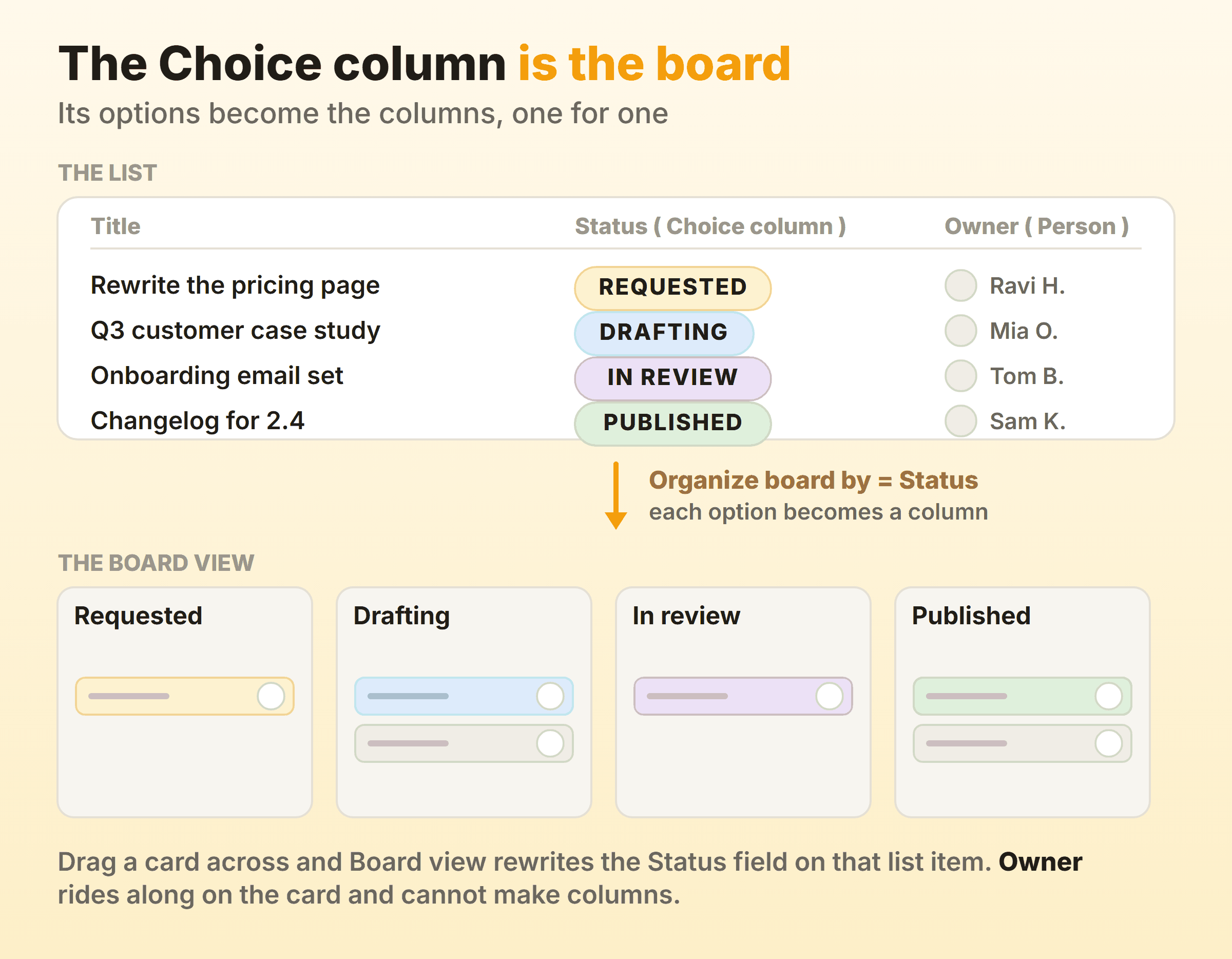
A SharePoint kanban board is an ordinary list with a Board view on it, so nothing gets installed and the view you pick is labelled Board rather than kanban. You create the list, add a Choice column for the stage work is in, create a new view, pick Board, then set Organize board by to that column. The options inside that column become the columns across the board, and dragging a card between them rewrites the field on the list item. Microsoft’s rollout notice says the board can be organised by any choice or Boolean column in the list, which explains the two things everybody gets stuck on. A Person column is not offered in that dropdown, and on a list whose columns do not qualify, the dropdown offers nothing but create new column to organize by. Cards show whichever columns you pick, in the order you set, and a WIP limit is not among the settings Microsoft describes.
Does SharePoint Have a Kanban Board?
SharePoint has a kanban board and refuses to use the word. It is called Board view, a list can wear it, and the option you are hunting for when you create a view reads Board, which is how most people arrive at this question.
Microsoft announced it in message centre post MC312481, Microsoft 365 Roadmap ID 85634, with rollout starting in mid-January 2022 and expected to finish in late February. The announcement text is worth one read, because three sentences in it answer most of what follows. Board view lets you work with list data in a board format. Moving items through stages is as easy as dragging and dropping. Users can configure which columns from the list are displayed in the cards and in what order.
Microsoft Lists and SharePoint lists muddy this more than they need to. They are two front doors onto the same data. Microsoft’s guide to creating a list has the Lists app saving to My lists or to one of your SharePoint sites, and the rollout notice files Board view under Microsoft Lists. So a SharePoint list kanban view and a Microsoft Lists board view are one feature under two names. Which of the Microsoft kanban boards to reach for is settled elsewhere.
Kanban in SharePoint is a view setting, then, and a board view over a list keeps every rule the list already had. Permissions, column types, the item threshold.
How Do You Create a Kanban Board in SharePoint?
Creating a kanban board in SharePoint takes six steps, and step two decides whether the other five work.
- Create the list. On the site, select + New then List, then Blank list, From existing list, From Excel, From CSV or Templates. Name it and select Create.
- Add a Choice column. This is the stage column the board gets organised by. Type one option per stage, and leave multiple selections switched off.
- Add a person column, a date, and whatever else the work needs. These become card fields, not board columns.
- Add the view. Open View options on the right of the list’s command bar and select Create new view, which is where the rollout notice put Board. A Microsoft community moderator on Microsoft Q&A, answering somebody who could not find a kanban option at all, reached it through the + at the right-hand side instead, then Board view.
- Set Organize board by to the Choice column. Where two candidates exist, this dropdown is how you pick between them.
- Drag one item the whole way across. Any stage that feels wrong on the way past is wrong, and renaming it today costs nothing.
Templates are a fair shortcut for step one. Microsoft’s list templates arrive with layouts that include columns, colour formatting and data structure, and Issue tracker comes with a Status choice column already built, Work tracker with a Progress one. No template description mentions a board, so you borrow the columns and add the view yourself.
Which Column Should the Board Be Organized By?
Organize the board by the one column that answers where is this right now, and let it mean only that.
The trap is a column that means two things at once. A field holding Not started, In progress, Blocked and Done mixes a stage with a reason, so a blocked item loses the stage it was blocked in the second somebody selects Blocked. Keep the reason in a second column that shows on the card face.
Name the options after states rather than people, because options named after colleagues survive until somebody changes team. The rules for naming columns carry over here unchanged. Keep the list short too, since every option becomes a column across the board.
Why Is Board View Missing From Your SharePoint List?
Board view goes missing when the view menu itself is hidden or your lists have not received the latest updates, and it looks broken when the list has no column the board can be organised by. Microsoft’s article on creating a view says View options is not visible while you are editing the list or have items selected, or when you lack permission, and that a missing Create new view means the latest updates have not reached you yet. The same article still names only List, Calendar and Gallery under Show as, so do not read that list as proof Board has gone. The rollout notice adds the column rule. Presently, the board can be organised by any choice or Boolean column that exists in the list.
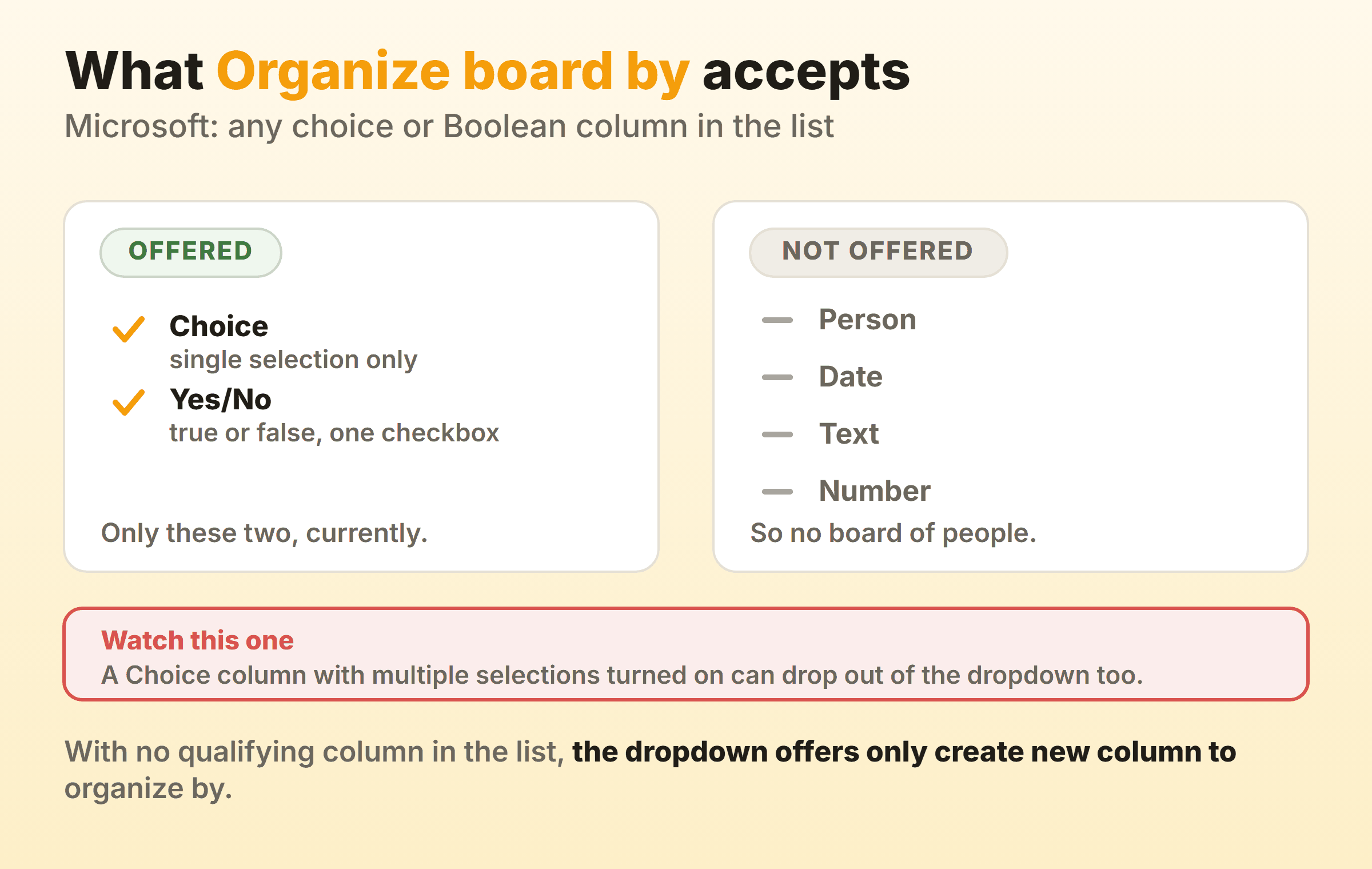
A user on Microsoft Q&A put the column problem more bluntly than the documentation does, reporting that the Organize board by dropdown offered only create new column to organize by and none of their existing columns. The reply on that thread says board views only support Choice and yes/no columns currently. That puts the fix upstream of the view. Add a Choice column, then go back for the board.
The Multiple Selections Trap
A Choice column with multiple selections turned on can drop out of the Organize board by dropdown too, and this one costs people an afternoon, because the column sits right there looking correct. Whoever solved it on that same Microsoft Q&A thread described toggling off allow multiple selections in the column settings before the column would show as a choice in the board view.
Microsoft’s reference on column types and options describes a Choice column as a list of options you provide for people to choose from. Let people pick several and one item can sit in three stages at once, which leaves it no single column to sit in.
Why You Cannot Build a Board of People
A board organised by assignee is out of reach, because a Person column is neither a choice column nor a Boolean one. Somebody asked on a Microsoft Tech Community thread about Board view in 2022 whether People columns were on the roadmap for grouping, and the MVP who started the thread replied that they did not expect people columns to be supported in the near future, with Choice columns supported for now.
Yes/No is the odd one out among what does work. Microsoft describes it as storing true or false information and appearing as a single checkbox, so a board organised by one splits the list into yes and no with nothing in between. Occasionally perfect for a review queue.
What Can a Card on a SharePoint Kanban Board Show?
A card on a SharePoint kanban board shows whichever list columns you put on it, in the order you choose. Microsoft’s rollout notice promised exactly that, and it is the part of Board view that has aged best.
This is where the Person column you could not group by earns its place. It cannot make columns, and it can sit on the card face, which for most teams was the real requirement. Dates, priority, a reference number, one short text field. What belongs on the front of a kanban card is a shorter list than anybody’s first attempt.
Board view also accepts a JSON formatter, which is how you get a card with a real layout on it. Microsoft’s board view formatting reference documents three properties. The formatter object defines the card layout using the same schema as column formatting, hideSelection controls whether cards can be selected, and commandBarProps groups the command bar options. I would spend that time on a board a hundred people read and skip it on a board of four.
Where Can a SharePoint Kanban Board Appear?
A SharePoint kanban board can appear beyond the list itself, and wherever it appears it reads the same list, so there is nothing to keep in sync.
- On a SharePoint page, through the List web part. Microsoft’s List web part documentation says Edit properties changes the title, the list, the view of your list and the size, so the view you built is one of the choices.
- In Microsoft Teams, where Microsoft’s guide to creating a list points people to its own Get started with Lists in Teams page. How a board reaches a Microsoft Teams channel is its own subject.
A view is a setting on the list itself, which is why both of those stay in step. Rename an option in the Choice column and every place the list shows up changes with it.
The Planner web part is the other route onto a SharePoint page, and what it puts there is a different board. Microsoft’s Planner web part page says you can show board or charts and work with your plan right on your SharePoint page, that the web part is available only on group-connected Team sites, and that it is not available in SharePoint Server 2019. Under Display you choose Boards or Charts. What lands on the page is a Planner board carrying Planner’s buckets, with your list nowhere in it.
The Community Kanban Board Web Part
There is also a community Kanban Board web part, published as a sample in the PnP sp-dev-fx-webparts repository rather than shipped as a Microsoft product. Its sample readme lists SPFx 1.22.1 and Node.js v22, marks it compatible with SharePoint Online and not working with SharePoint 2019 or SharePoint 2016, and reads a Tasks list using the out-of-the-box Task Name, Assigned To, % Complete, Description, Priority and Task Status columns.
That is a genuine board, and a project to own. The readme says samples are not supported and warns that each SPFx version works only with specific Node.js versions, so somebody has to build it, deploy it and keep it working when SPFx moves on, which is heavier going than picking a view type off a menu.
Can You Set WIP Limits on a SharePoint Kanban Board?
Not through any control Microsoft describes for Board view. Its description of the feature runs to three controls, the organising column, the drag between stages and the card fields, and a cap is not among them.
The workaround that gets used writes the number into the Choice option, so the column header reads In progress (max 3). It costs nothing and holds up on a small team, because the number is at least on screen while somebody drags a fourth card in. A real count takes a Power Automate flow, and every flow like that I have watched a team build ended up belonging to whoever built it.
Kanbanee sits at the other end of that trade. Limits go on per column, off until you switch one on, and the badge showing count against limit turns red the moment you cross it. The drag is never blocked, so the board objects and then lets you do it anyway. What it gives up is everything SharePoint is for. No document library, no site, no inherited permissions, no realtime sync, no API.
Where the Flow Data Actually Hides
Board view comes with no flow reports in anything Microsoft describes, and the list underneath it may already be recording the raw material. Version history is the reason.
Microsoft’s article on how versioning works says versioning is turned on by default when a Microsoft 365 customer creates a new list, and that a change to an item’s properties lands in the history, using a changed due date as its example. Every drag of a card is a write to the Choice column, and the history shows when the item changed and who changed it.
Getting flow metrics out of that is manual. You read versions one item at a time, or pull the list through Power Automate or Power BI and do the arithmetic yourself. Real work, in other words, on data that actually exists, which puts SharePoint a step ahead of a board whose history was never written down.
When Is a SharePoint List the Wrong Place for the Board?
A SharePoint list is the wrong place for the board when the list is big, when order inside a column matters, or when the work was never list-shaped.
Start with size, since it is the one constraint with a number attached. Microsoft’s List View Threshold guidance puts the threshold at 5,000 items, notes that a list can store up to 30 million, and says the limit cannot be changed in SharePoint, with indexing and filtering among the documented ways to stay under it. A board of 5,000 cards stopped being readable long before the threshold noticed, so read it as a sign the list has two jobs and one of them is not a board.
Card order catches teams out later. On that Tech Community thread about Board view, contributors asked in 2022 and again in 2023 for a way to reorder cards within a column, and one asked for a way to remove or move the Unassigned items section. The reply marked as the solution to an ordering question points to a sort order in the classic list view settings instead. If your team pulls the top card off a queue, give that queue a sort column rather than counting on drag order.
Then there is work that is not a list at all. Meeting notes with three actions in them, a half-formed plan, a research page. Forcing that into columns and choice values is how a board ends up abandoned, and a hand-drawn board in OneNote or a grid in Excel is the honest answer for something that small. Every kanban board is a bet that the work repeats, and where it does not, somebody stops updating the list by the third week.
FAQ
Is there a kanban view in SharePoint?
Yes, under another name. The view type is Board, which Microsoft’s rollout notice added to the options you get when you create a new view, and which it describes as a way to work with list data in a board format.
Can you add a Planner board to a SharePoint site?
Yes, through the Planner web part, which Microsoft documents as available only on group-connected Team sites and not available in SharePoint Server 2019. Choose Boards under Display. That board belongs to Planner, so you get Planner’s buckets and none of your list’s columns.
Is there a SharePoint kanban board template?
Not as a board. Issue tracker includes a Status choice column and Work tracker a Progress one, either of which a board can be organised by, and no template description on Microsoft’s list templates page mentions a board view. Copying a list your own team already uses beats both, since your choice options encode how the work actually runs.
Can you reorder cards inside a column on a SharePoint kanban board?
Community reports say not by dragging them up and down. Contributors on a Microsoft Tech Community thread about Board view asked for drag reordering inside a column in 2022 and again in 2023, and the reply marked as the solution to an ordering question sets a sort order instead. The workaround is a number or priority column with the view sorted on it.
Does the SharePoint kanban board work on a phone?
Microsoft’s rollout notice for Board view says the feature rolled out on desktop and web, and nothing in it promises the mobile apps. Dragging cards across a phone screen is a nuisance in every tool I have used, so on mobile I open the item and change the Choice value from inside. Same field, less swearing.