
Smartsheet Kanban: How Board View Works and Where It Stops
Updated at
The Answer
A Smartsheet kanban board is board view, one of the ways to look at a sheet you already have, so nothing gets migrated and no second tool appears. Board view replaces the older card view, which Smartsheet is removing from sheets on Pro plans on September 13, 2026, on Business plans on September 25 and on Enterprise plans on October 25. Lanes come from one column, and only three types qualify: a single select dropdown, a single select contact list or a symbol column. Dragging a card across lanes rewrites that column’s value, which is the whole mechanic. Where it stops is flow control. Smartsheet documents no setting that caps how many cards a lane holds, and cycle time has to be built out of automations and date columns.
Does Smartsheet Have a Kanban Board?
Smartsheet has a kanban board, built into the product as a sheet view rather than sold as a separate app. The board view setup article gives the one click. “In any sheet, navigate to the view switcher in the top toolbar and select Board.” Your rows stand up as cards, and the grid is still sitting there when you switch back.
Smartsheet has shipped two boards, which is why its help centre can read as if it contradicts itself. Card view is the original, and board view is its replacement. New boards created from the workspace panel have defaulted to board view since July 30, 2024, and Smartsheet’s deprecation announcement retires card view on Pro plans on September 13, 2026, Business plans on September 25 and Enterprise plans on October 25. Board view becomes the default on any load 30 days before each of those dates. Free plan users already lost card view on June 8, 2026.
Card view does not vanish entirely. The board view introduction says you can keep using it “in reports, dashboards, WorkApps, and published links, even after it’s removed from individual sheets.” Everything below is board view unless it says card view.
One more thing to settle before planning around it. Smartsheet’s pricing page lists board view against all four plans it shows, which are Pro, Business, Enterprise and Advanced Work Management, and no free tier appears among them. Only a 30 day trial. For a team signing up today it is a paid board, which shapes who gets to drag cards.
How Do You Set Up a Smartsheet Kanban Board?
To set up a Smartsheet kanban board, add a single select dropdown column to the sheet that already holds the work, select Board in the view switcher, open Group by and choose that column, then pick which fields appear on a card. Five minutes, most of it spent naming lanes.
Step 1: Start From the Sheet That Already Holds the Work
Build the board on the sheet the work already lives in. Board view is a lens rather than a copy, and Smartsheet’s guide to sheet views says “All views are synchronized from the same data source,” so the card you drag and the row your colleague is editing in grid view are the same row.
I have inherited the alternative more than once. A grid for the plan, a separate sheet for the board, and somebody retyping one into the other on Fridays.
Step 2: Add a Column Board View Will Read
Board view needs a column it can turn into lanes, and the setup article puts the requirement plainly. Board view “is available in any sheet that includes at least one” single select dropdown list, single select contact list or symbol column.
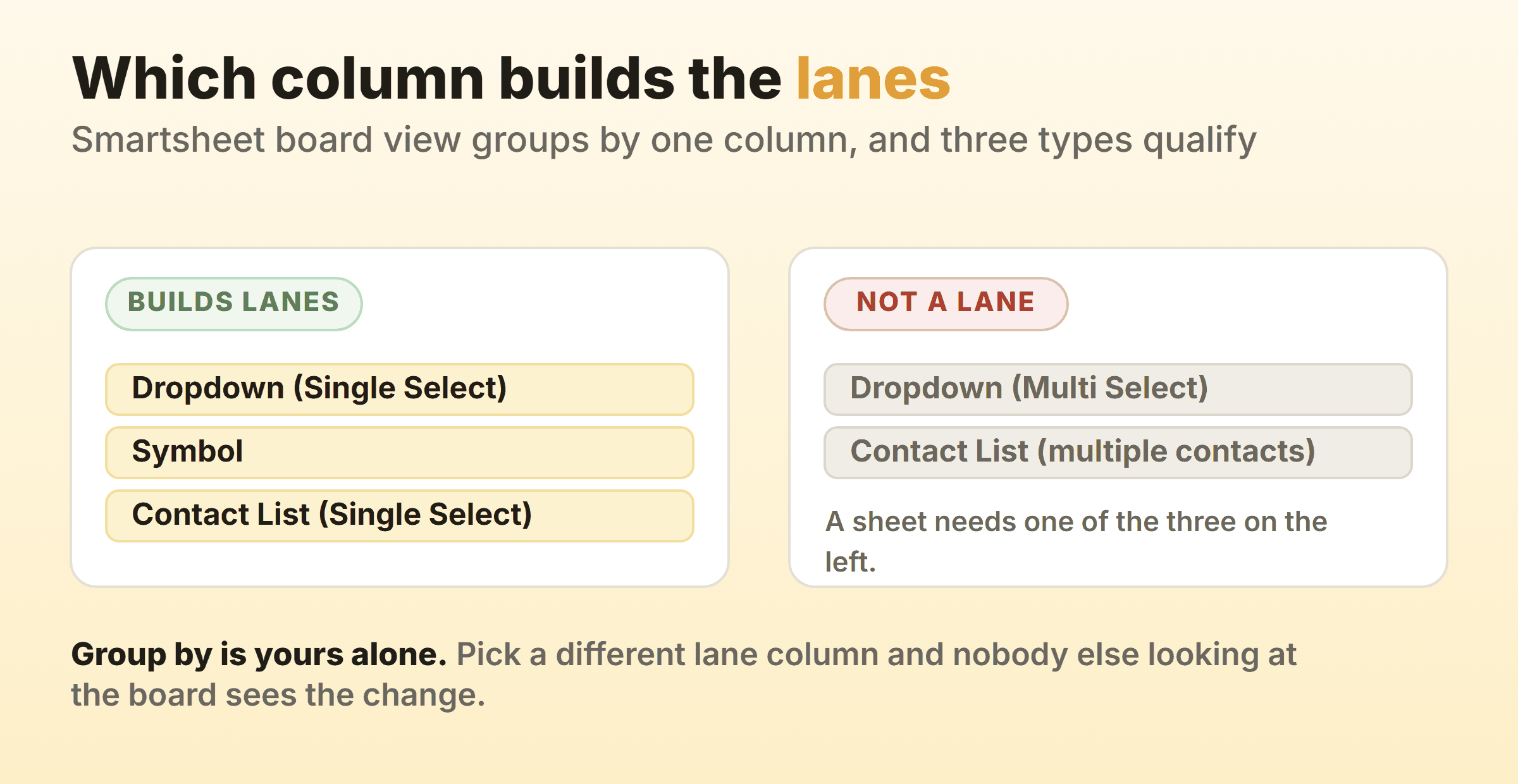
Two types are left out. Board view groups cards “using the dropdown (single-select), contact (single-select), or symbol columns,” and the older card view documentation spelled out the exclusions: no Dropdown (Multi Select) columns and no contact list columns that allow for multiple contacts. Both make sense once you picture the drag, because a card sitting in two lanes at once has nowhere to land.
So a single select dropdown named Status carries most boards, and it is where I would start. Each value becomes a lane heading, and “The lane order matches the order of the values in the column’s properties,” which means naming your columns here is tied to the dropdown list behind them.
Step 3: Switch the View and Set Group By
Select Board in the view switcher, then open Group by in the toolbar and choose the column that should build the lanes. The setup article buries something worth a lot in this step. “Grouping is a user-specific, board-specific preference. Smartsheet remembers each user’s applied grouping for each board.”
Lane grouping is personal, then. Look at the board by Assigned To for a workload conversation while everyone else keeps it on Status, and nobody’s screen changes but yours. When a shared link needs a starting point, the board view data article shows how to set a default grouping from Share, under Default view.
Step 4: Decide What a Card Shows
Board view puts this under Fields in the toolbar. By default “the first four fields show up on the card,” sheet admins choose which fields appear, and a density setting switches between Condensed, Comfortable and Wide.
Two fields is usually right. Owner and due date. I have never watched anyone thank a card carrying nine of them, and a card stuffed with columns has quietly rebuilt the grid inside the board.
What Can a Smartsheet Kanban Board Actually Do?
The Smartsheet kanban features lean on one fact: every card is a real row with its own history.
| Feature | What it does |
|---|---|
| Drag between lanes | Rewrites the Group by column, and the change shows in every other view |
| Drag within a lane | Sets the card’s position, which persists and is the same for everyone on the sheet |
| Edit on the card | Checkbox, dropdown, text, contact, symbol and date fields change without opening the card |
| Details panel | A double-click opens every field on the sheet for that card |
| Card colour | Set with Set item color, unless a format rule already defines it |
| Nested cards | Shows up to five levels of child cards beneath their parent |
| Checklist | A checkbox field adds a checklist count to parent cards |
| Real-time changes | Collaborators’ edits appear while you look at the board |
| Filters | Saved filters, plus temporary extra ones stacked on top |
Grouping has one hard limit. The setup article says “You can only group cards by one level,” so there is no second grouping to split lanes into swimlanes, and nested child cards are the nearest thing to a second dimension.
Format rules are the closest thing board view has to a signal. The conditional formatting article for board view has Owners and Admins build them from Format rules in the toolbar, and a rule that sets the item colour on overdue rows colours those cards too.
Reports are one place card view lives on. The board view introduction marks board view as not available in reports, so a board that spans several sheets is still card view inside a report. Smartsheet’s report documentation says card view “works only with row reports” and “can display reports that have up to 2,500 rows,” and it does not render parent-child hierarchy. That route needs Business or above in practice, since the report article lists Business, Enterprise and Advanced Work Management, and the pricing page caps Pro at one sheet per report.
The mobile app still runs card view too. Smartsheet’s mobile card view article has cards moving by long press onto another lane or into the Lane Index, with a double tap to edit. Lane values are less portable there, since dropdown and symbol lanes must be edited from grid or gantt view in the mobile app, and contact list lanes only from the desktop application.
Where Does a Smartsheet Kanban Board Stop?
Board view stops where the sheet does. Smartsheet’s system requirements page puts a sheet at 20,000 rows and 400 columns with a hard stop of 500,000 cells, so a wide sheet runs out of rows long before 20,000. The same page says table view “lets you create and manage larger sheets, with up to 1,000,000 cells.”
The 64 lane ceiling you may have read about belongs to card view. Its documentation says “Card View displays a maximum of 64 lanes,” and the overflow goes to the Uncategorized lane.
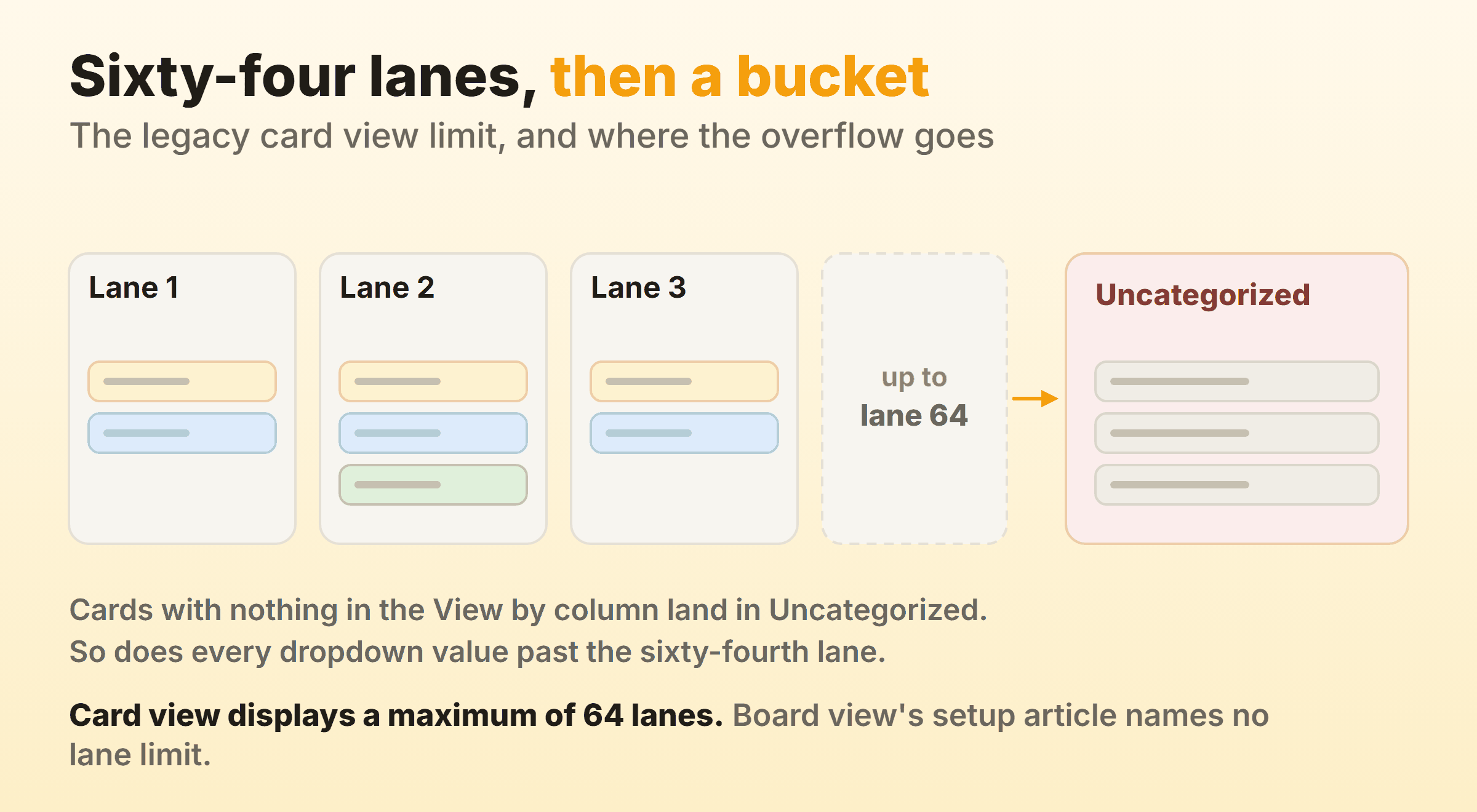
Card view sends three kinds of card there. Cards with no value in the View by column, which is the common one and easy to fix by dragging them somewhere. Cards in a contact lane after someone swaps that contact for a different one. And cards whose value would need a sixty-fifth lane, where dragging only overwrites the value with one that has a lane on screen. For a Status column with five values none of this matters. Group card view by a contact column in a 90 person department and it matters a great deal, because the failure is quiet. The board looks complete. Twenty-six people sit in a bucket at the end.
Board view’s setup article names no lane limit. Its Uncategorized lane is documented for one case, since deleting a lane moves all of its cards there.
Card fields cap out differently in the two views, which is easy to misread as the help centre disagreeing with itself. The card creation article says a card view card can “display a total of 10 fields: the title field and up to nine additional fields.” Board view lets you “display up to 14 fields on your cards.” Neither number bites in practice, since two or three fields is the readable answer.
Those are ceilings you can plan around. The one that actually changes how a team works is an absence rather than a cap.
Can You Set WIP Limits on a Smartsheet Kanban Board?
Smartsheet’s board view documentation describes no work in progress limit. The settings it covers are which column groups the lanes, which fields land on a card and how dense they sit, lane names and order, nesting, filters and card colour. A cap on cards per lane is not among them, and a Smartsheet Community idea titled “Add support for WIP limits in card/board view (maximum cards allowed per column or lane)” has sat at Idea Submitted since March 2025, asking for exactly that.
People skip this part, and it is the one that decides whether the board is worth having. WIP limits are what turn a board into something that changes behaviour. Without one you have a status display, with no moment where anyone has to finish a thing before starting the next thing.
Three workarounds circulate, and I rank them honestly:
- Put the number in the lane name. “In progress (max 3)”. Free, takes ten seconds, works on a team that wanted the constraint anyway. It has no opinion in the moment somebody is in a hurry, which is the only moment a limit exists for.
- Count with a formula, colour with a format rule. COUNTIF “counts the number of cells within a range that meet a criterion,” so a helper column can hold a live count per status, and a format rule can “automatically update the formatting of individual cells or entire rows when specific criteria are met” once that count goes over. Best of the three by a distance. A COUNTIF with the status typed into it also goes quietly wrong the day somebody renames that dropdown value.
- Watch it from a dashboard. A metric widget displays content from one or more cells, so the count per lane can sit where a manager sees it every morning. Nowhere near the card at the moment of the drag, so it reports a breach rather than preventing one.
All three leave the decision with the person who wants to exceed the limit, at the moment they are least inclined to respect it. A number typed into a lane heading cannot stop a drag.
Can You Measure Cycle Time in Smartsheet Board View?
Not from board view itself. Nothing in its documentation puts cycle time on a card, draws a throughput chart or builds a cumulative flow diagram.
The raw material exists elsewhere in Smartsheet. The column type reference lists a Modified date system column recording “When each row was last modified,” so the age of the last touch is free. Anything sharper you build. The Record a date action sets the date when a workflow is triggered and “only sets dates into date columns,” which makes the standard build one date column per transition you care about, one automation each, and a formula subtracting them.
There is a trap in it. Each time a Record a date workflow triggers, “it overwrites any previously recorded date value,” so a card kicked back from Review to In progress loses its original start date and reports a shorter cycle time than it earned.
You now own that plumbing and you will maintain it. Three automations, three date columns and a formula column buy the age of a card. Throughput means counting rows in a filtered report every week, and a cumulative flow diagram means an export.
A team of five who can already see that review is backed up will not miss any of it. The question gets urgent the week somebody senior asks how long work takes here, because flow metrics are the only answer with a number in it. That is also the week the gantt crowd shows up.
Can Smartsheet Run a Kanban Inventory Management System?
A Smartsheet kanban inventory management system is a sheet of parts with a dropdown for replenishment state, and it works because the signalling is the easy half. Rows are SKUs or bins. Lanes are states like In stock, Reorder point, Ordered and Received. Somebody drags a bin card into Reorder point, an automation notifies purchasing, and the card moves on when stock lands. That covers the signalling half of kanban inventory properly, because Smartsheet automation runs on change-based triggers like rows added or rows changed and can send an alert or request an approval.
Board view will not touch the calculation half. Bin sizing, reorder quantities and takt-driven card counts are formula work in the grid, and no lane knows how many cards it should be holding. With only one grouping level, keep lanes as states and put part categories in a column you filter by.
How Do Wrike and Smartsheet Compare on Kanban Features?
On kanban features, Wrike and Smartsheet differ first on what a column is allowed to be. Wrike’s kanban boards page says you can “Build columns out of any workflow status, single-select or multi-select custom field,” and the same page says you can “add WIP limits.” Smartsheet’s board view groups lanes only by single select dropdown, single select contact or symbol columns, and documents no cap at all.
That is the honest summary of wrike vs smartsheet on kanban. Smartsheet is a sheet that can show a board, and Wrike lets its board take columns straight from workflow statuses and custom fields, multi select ones included. If your data already lives in rows and formulas the argument is settled before it starts, and our Wrike board guide covers its side in detail.
When Is a Smartsheet Kanban Board Not Enough?
A Smartsheet kanban board runs out when you need the board to change what the team does rather than record what it did. The symptoms arrive together:
- A lane has been full for a month and nobody has mentioned it.
- Someone asks how long work takes and the answer starts with “let me export”.
- The sheet has more reports hanging off it than people using it.
None of that is a reason to leave. Sheets with formulas, automated workflows and dashboards behind them do things no focused kanban board view will touch, and the same goes for Airtable’s kanban view or a board built in Excel. They are data tools first and boards about fifth, which is the right ordering for what they are.
Kanbanee takes the other trade. Caps sit per column and stay off until you switch them on, and the badge shows count against limit and turns red when you go past it. The drag still goes through, because a soft limit that argues beats a hard one people route around. Cycle time, throughput and a cumulative flow diagram arrive as reports on the Pro plan rather than a stack of automations and a CSV. You give up everything Smartsheet is good at in exchange. There is no API yet, and the board polls rather than pushing, so nothing lands on your screen live. If you are weighing a move off Smartsheet, Smartsheet alternatives works through the options and what the grid takes with it.
Running both is a sensible split, with the system of record in Smartsheet and the daily board somewhere that can hold a limit of three.
FAQ
Can Smartsheet do Kanban?
Yes. Board view turns any sheet with a single select dropdown, single select contact list or symbol column into a kanban board, and dragging a card across lanes writes the new value back to the row. The practice around the board is where it stops. Smartsheet documents no lane cap and no timer on a card.
When is card view removed from Smartsheet sheets?
Smartsheet’s deprecation announcement sets the dates by plan. Pro plans lose card view on September 13, 2026, Business plans on September 25 and Enterprise plans on October 25, and Free plan users lost it on June 8, 2026. Smartsheet’s Free plan notice says your underlying data “remains unchanged and fully accessible,” and card view stays available in reports, dashboards, WorkApps and published links.
Is board view the same as Smartsheet’s free kanban board template?
No, and the confusion is understandable. Smartsheet’s kanban board templates page offers four, from a Basic Kanban Board Template to an Agile Sprint with Kanban Board Template, downloadable as Excel, Word, PDF, Google Sheets, Google Docs, PowerPoint and Google Slides files. None of the downloads is a Smartsheet file. Board view is the Smartsheet kanban board, and it needs no template at all.
Why are all my cards in the Uncategorized lane?
In board view, the documented cause is a deleted lane, because deleting one moves all of its cards to the uncategorized lane. Drag them into a lane that still exists, which writes the value for you. In card view, rows with no value in the View by column land there too, and so do cards past the 64 lane limit, where dragging only swaps the value for one that has a lane on screen.
Smartsheet kanban vs scrum: which one does board view support?
Both, in the sense that a Smartsheet board view stays out of the argument. Nothing in its documentation covers sprints, burndown charts or velocity, so kanban against scrum is a question you answer with your process rather than with the view. A team running sprints here can add a sprint dropdown column and filter the board by it.
Does Smartsheet’s kanban board work on mobile?
Yes, through card view. Smartsheet’s mobile card view article says long press and drag moves a card between lanes or into the Lane Index, and a double tap opens the card’s fields. Dropdown and symbol lane values have to be edited from grid or gantt view on mobile, and contact list lanes only on the desktop application.