
How to Create a Kanban Board: Setup in Seven Steps
Updated at
The Answer
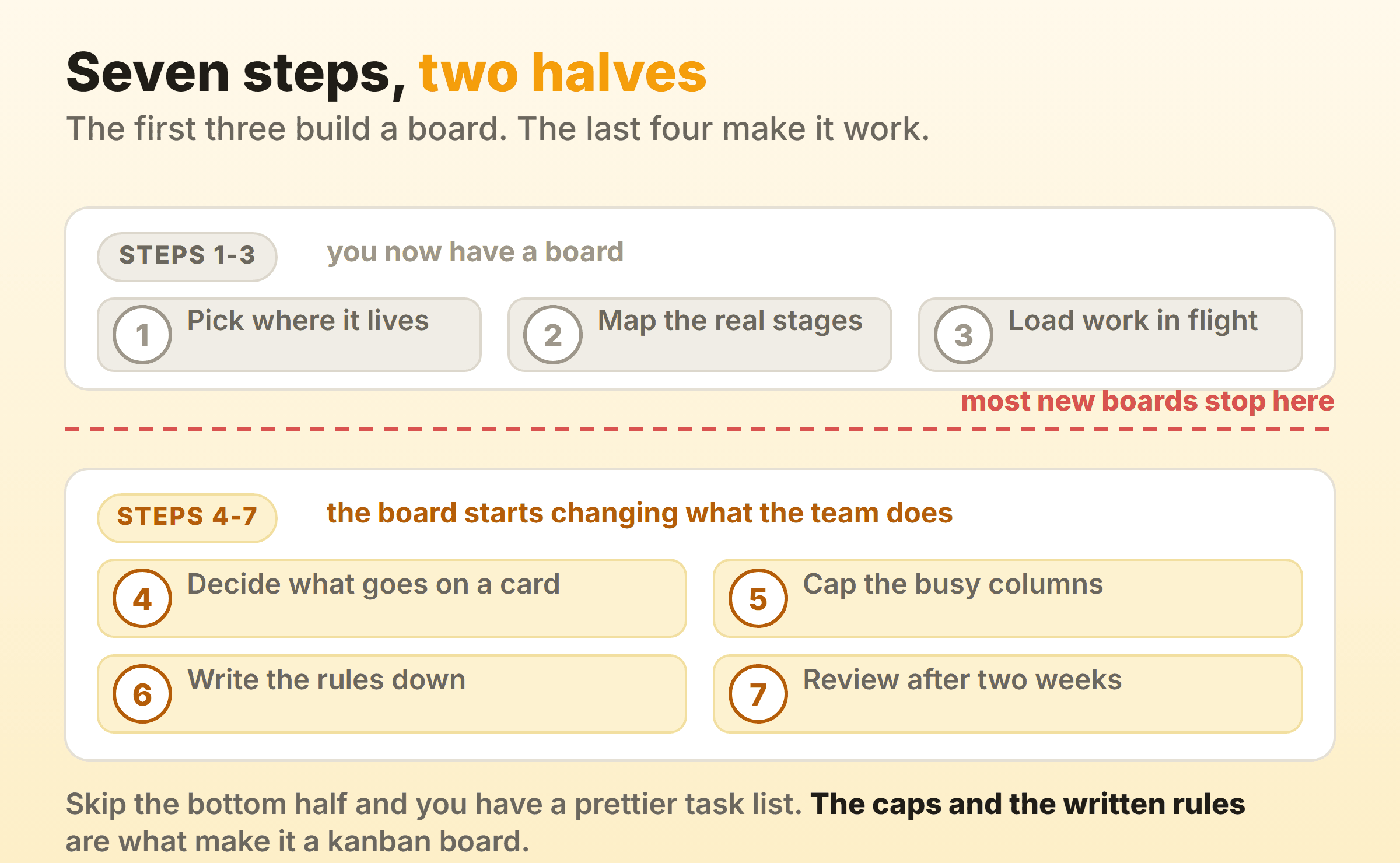
People asking how to create a kanban board expect three steps. There are seven. Pick where it will live, map the stages your work really passes through into columns, put every item already in flight onto cards, decide what each card has to show, cap the columns where work collects, write down the rules the board enforces, then leave it alone for two weeks before you change anything. Steps one to three hand you a board. Skip four to seven and what you have is a task list with better spacing. Getting a kanban board set up takes about an hour for a small team, and the column mapping eats most of that hour, which is the part everyone rushes and everyone redoes a fortnight later.
What Do You Need Before You Start?
None of what you need is software. A list of the work currently in flight, rough agreement on the stages that work passes through, and one person willing to own the board for a fortnight while it settles.
Ask a team of six to name everything in flight and you will get four answers, none of them complete. Pull from wherever the work hides, including the issue tracker, the shared inbox, and the chat thread where somebody said they would “look at it”.
The stages you can sketch on paper in five minutes. Write the ones you have, awkward ones included, like the state where work sits waiting on somebody who is on holiday. Most guides on how to make a kanban board open with the software, which is the wrong end to start from.
Step 1: Choose Where the Kanban Board Will Live
Pick between a wall, a spreadsheet and a kanban tool, based on whether anyone on the team works remotely. Answer that before you look at a single feature list.
| Where the board lives | Works well when | What you give up |
|---|---|---|
| Wall or whiteboard | Everyone sits in one room. Sticky notes cost nothing and the board is impossible to ignore. | No history, no metrics, and a DIY kanban board is invisible to anyone not in the room. |
| Spreadsheet | You need something free today and Excel or Google Sheets is already open. | Cards are rows, so detail is thin, and counting cycle time means building the formulas yourself. |
| Kanban tool | You want limits that actually show, plus the history flow metrics are calculated from. | One more login and a little setup up front. |
A kanban whiteboard is genuinely good for a co-located team of five. I have watched sticky notes beat software twice, both times because the wall stood in the corridor everyone walked down. The trouble arrives around month three, when somebody asks how long a typical job takes and the wall has no answer. A printable kanban board template will not tell you either.
People asking where to set up customizable kanban boards want to rename columns, add and remove them, and put a limit on one. Most free kanban board options handle the renaming and the reordering. Limits are where they thin out, which is a shame, because the limit is the feature that changes how anybody works.
Step 2: Map the Stages Your Work Really Passes Through
Write down every state a piece of work is in between “somebody asked for it” and “the customer has it”, then turn each state into a column. Everything else in this guide is mechanics. This is the decision, and it explains why creating a kanban board from a template disappoints so reliably.
A template shows you somebody else’s workflow, authoritative-looking and quietly hiding your queues. Use a kanban board template as a sketch, then change two columns before anyone else touches it.
These rules have held up across every team I have set a board up for.
- Name the state the work is in. “In review” survives a reorganisation. “With Dave” stops meaning anything the week Dave takes leave.
- Give waiting its own column. If work regularly finishes one stage and sits before the next, that gap is a real state. Bury it inside a single In progress column and a two-day job becomes a two-week job with nobody able to say where the time went.
- Stop between three and seven. Three columns is a legitimate finished answer for a personal board. Past seven, nobody can scan it and people start moving cards in increments nobody cares about.
Kanban board columns covers naming, counting and queue columns properly. For a first setup, draw the columns you think you have, then ask the team where a card most often gets stuck. They will usually name a column nobody drew.
Step 3: Put Every Item Already in Flight on the Board
Load the work that exists right now, before you add anything new. One card per deliverable, written so somebody other than the author could pick it up.
Anything longer than about a week gets split, because a card that sits in one column for three weeks tells you nothing and occupies the column while it does. Vague commitments are the other snag. “Look into the reporting thing” is not a card. Make it concrete or leave it off.
Count the cards that end up in the active columns and write the number down. It is the only clean baseline you get, and in two weeks it justifies your first limit.
Step 4: Decide What Goes on a Card
Agree what your kanban cards must carry before anyone starts making them, otherwise you get forty cards in forty formats. On day one a card needs a title that names a deliverable, one owner, and the date the work started.
Everything else stays optional until somebody misses it. Add due dates where a real deadline exists, because a board on which every card is urgent has no priority at all. Labels earn their place when they carry meaning you would act on. Estimates come last, if they come at all, since a plain count of items forecasts about as well as story points.
A blocked marker is the exception worth adding early. Without one, blocked work looks identical to work in progress, and a blocked card nobody can see is the most expensive thing on the board.
Richer cards earn their keep later. Subtasks, attachments, threaded comments and a time log all find a use once the board has been running a while. Week one, none of it matters. By month three somebody will ask where the time went.
Step 5: Cap the Columns Where Work Collects
Put a number on every column where work actively happens, and leave the backlog and the Done column uncapped. Capping the busy columns is how you set up a kanban system. Without caps you have a wall of cards, and most setup guides stop before this point.
Start with the number of people who pull from that column, plus one. A team of four sharing an In progress column starts at five. That is generous on purpose, since on day one most teams are running at two or three times the number they would defend out loud. I have set a first limit too tight exactly once, and it taught the whole team to ignore the badge for a month.
Whatever the board runs on, find out whether the cap is soft or hard before you set one. A soft limit shows the count against the number and turns the column header red when it goes over, but still lets the card drop. A hard limit refuses the drop outright, which teaches people to work around the board instead of fixing the queue. On a new board, soft wins every time.
WIP limits goes into choosing the number and what to do when the cap starts hurting, which it will, around week three.
Step 6: Write Down the Rules the Board Enforces
Write the board’s rules where the board is, three sentences or fewer each. Unwritten rules get interpreted differently by every person who touches them, and a rule nobody agreed on cannot be improved. These are the ones worth having on day one.
- What done means for each column. Done can mean merged, or deployed, or in the customer’s hands. Teams argue about which one they mean for years without writing it down once.
- Who pulls next, and from where. Whoever has capacity takes the top item. Nobody gets work pushed at them for looking quiet.
- What happens when something urgent lands. Decide it now, while everyone is calm. 4pm on a Friday is a bad moment to invent a rule.
- When the board gets updated. Continuously beats “before the standup”. A board updated once a day is a report, and a report does not stop anybody starting a ninth thing.
Making policies explicit is one of the core practices in kanban principles, and the cheapest one to adopt.
Step 7: Run It for Two Weeks Before You Change Anything
Resist redesigning the board until you have watched it for a fortnight. The urge to fix it arrives around day three, when all you have to go on is opinion.
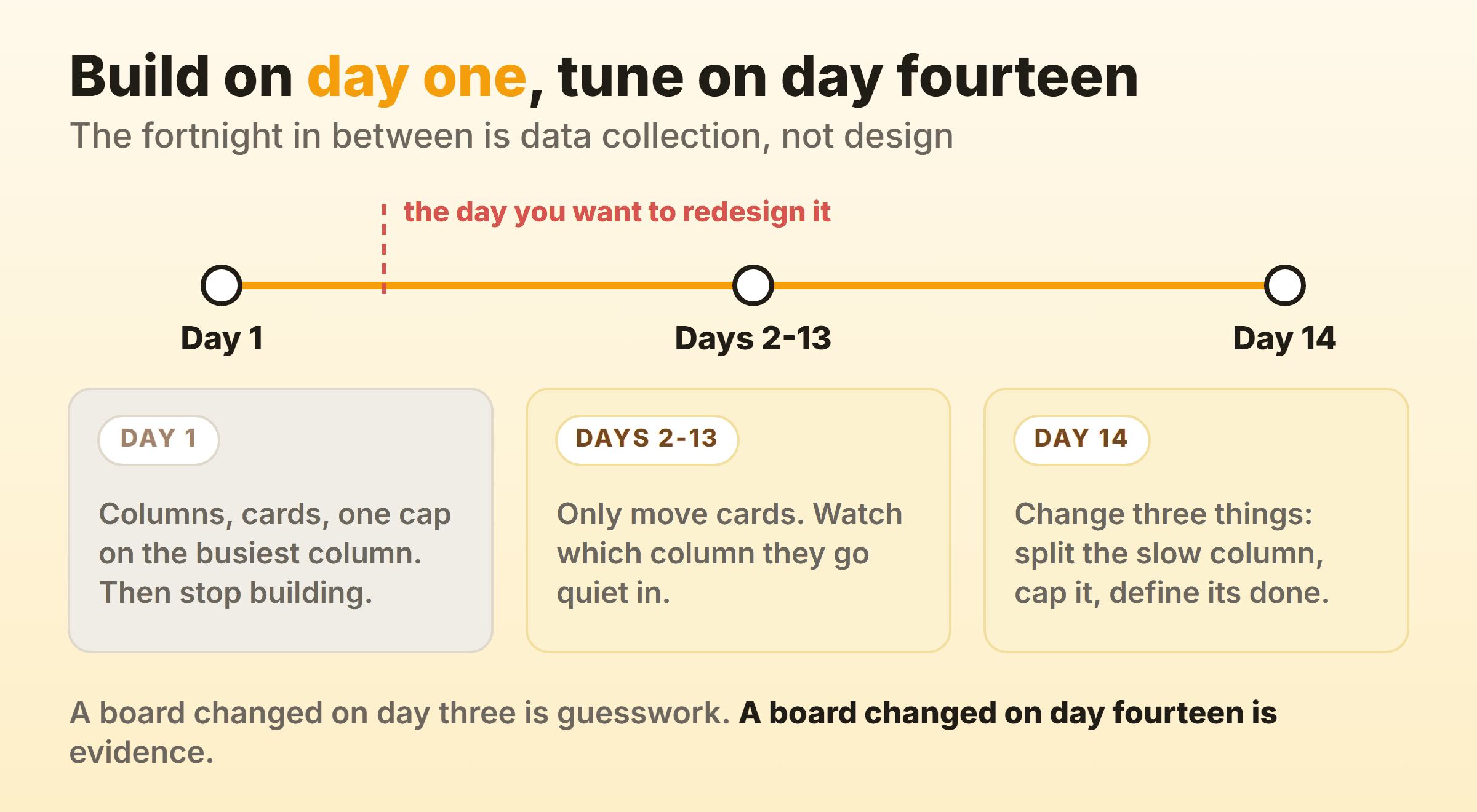
Very little happens in those two weeks, by design. Move cards honestly, including the awkward move backwards when something gets sent back, and watch which column cards go quiet in. At day fourteen, change three things.
- Split the column where cards went quiet into an active half and a waiting half. That split alone surfaces most hidden delay.
- Cap the new waiting column. It is usually the real bottleneck, and hardly ever the one anyone predicted.
- Write down what done means for that column, since what made cards sit there is nearly always confusion over the definition, and no amount of extra hands clears that up.
Then leave it another fortnight. A board rebuilt every week never accumulates enough history to tell you anything.
Kanban Board Design: The Layout Decisions That Matter
Judge a kanban board design by how fast a stranger can find the bottleneck in it. Search for kanban board designs and you get colour schemes. Most kanban boards for project management get judged on how well they photograph.
- Fit the columns on one screen. A visual kanban board that scrolls sideways is two boards, and people only ever look at the first one.
- Give colour exactly one job. By work type, or by urgency, or by team. Pick one. Three colour meanings on one board means none of them get read.
- Keep Done short. Archive weekly. Two hundred finished cards push everything useful off the screen, and the reports can still reach the archive.
- Skip swimlanes at first. Horizontal lanes earn their place once you run two kinds of work at different speeds. On a new board they add rows to scan.
The kanban layout most teams land on after a month has four columns, one colour rule, and a Done column somebody clears on Fridays.
How to Create a Kanban Board in Kanbanee
Create a board, rename the three default columns to your real stages, add cards for the work already in flight, then set a limit on the busiest column. That takes about ten minutes once the mapping from step 2 is done.
A few specifics that come up on a first board.
- Press
nto add a task and/to search. Escape closes whatever is open. - Column limits live in the column menu, off by default, pre-filled with 3 when you enable one.
- Share a board by email invite or link, with each person set as Editor or Viewer. Google sign-in works.
- Deleted cards go to a recycle bin anyone on the board can restore from for 30 days.
- The free plan covers two boards you own, with unlimited members. Pro is $6 per month or $48 per year and adds unlimited boards plus the reports suite: time by member and label, weekly throughput, cumulative flow and cycle time.
Before you commit a team, the gaps. There is no realtime sync yet, so the board polls and a colleague’s move shows up a beat late. Reordering columns is desktop only, though cards drag fine on mobile with a long press.
Where Kanban Board Setups Go Wrong
Advice on how to set up a kanban board stops at the columns, and advice on how to use a kanban board assumes the setup was sound. The boards I have watched get abandoned failed at setup, and rarely because anybody lacked discipline.
Columns copied from a template. The board describes a workflow nobody has, so cards get parked in whichever column is least wrong.
No limits anywhere. The board shows the work and changes nothing about what gets started next.
A board only the manager updates. A kanban setup that lags reality by a day stops being trusted inside a month.
Everything is a priority. Sixty unordered cards in To do means the top of the column is not a queue, so people go back to picking work by whoever asked loudest.
FAQ
How do you initially set up a kanban board when nobody has used one before?
Three columns, the real work on it, nothing else for two weeks. Skip the limits on day one if the team is nervous about them, because a middle column holding eleven cards argues the case on its own. The usual first-time mistake is designing an elaborate board before anyone has moved a card across it.
How do you make a kanban board in Excel?
Make each stage a spreadsheet column and each card a row, then move text between them by hand. Conditional formatting colours cards by type, and a countif per column gives a rough work-in-progress count. A sheet in kanban format works as a personal kanban tracker and gets painful with two people, since editors overwrite each other and no card history exists to calculate cycle time from. Some templates call the result a kanban chart, the same board renamed.
What are the five key elements of a kanban board?
Visual signals (the cards), columns, work in progress limits, a commitment point where work is accepted onto the board, and a delivery point where it counts as finished. Some versions swap the last two for swimlanes or explicit policies.
What are the four rules of kanban?
The four foundational principles of the Kanban Method are: start with what you do now, pursue change incrementally, respect current roles and responsibilities, and encourage leadership at every level. They govern how you introduce the change. Nothing in them tells you what to draw on the board, which is why a kanban rollout rarely needs a reorganisation to begin.
Does Microsoft have a kanban board tool?
Two of them. Microsoft Planner gives you a basic board inside Microsoft 365, and Azure DevOps has fuller kanban boards aimed at software teams, with limits and cumulative flow. Planner is quicker if you already run on Microsoft 365 and only need columns and cards.
Can you build a kanban board in a no-code tool like Softr or Notion?
You can, and what you get is a database with a board view stapled on. Softr, Airtable and Notion all render records as cards in columns, which covers visualising the work. None of them ship with a per-column limit that shows a breach. Any tool that can create kanban boards handles the columns, and the cap is the part you end up building yourself, usually as a rollup field nobody looks at.