
ClickUp Kanban Board: Board View, Columns, Cards and WIP Limits
Updated at
The Answer
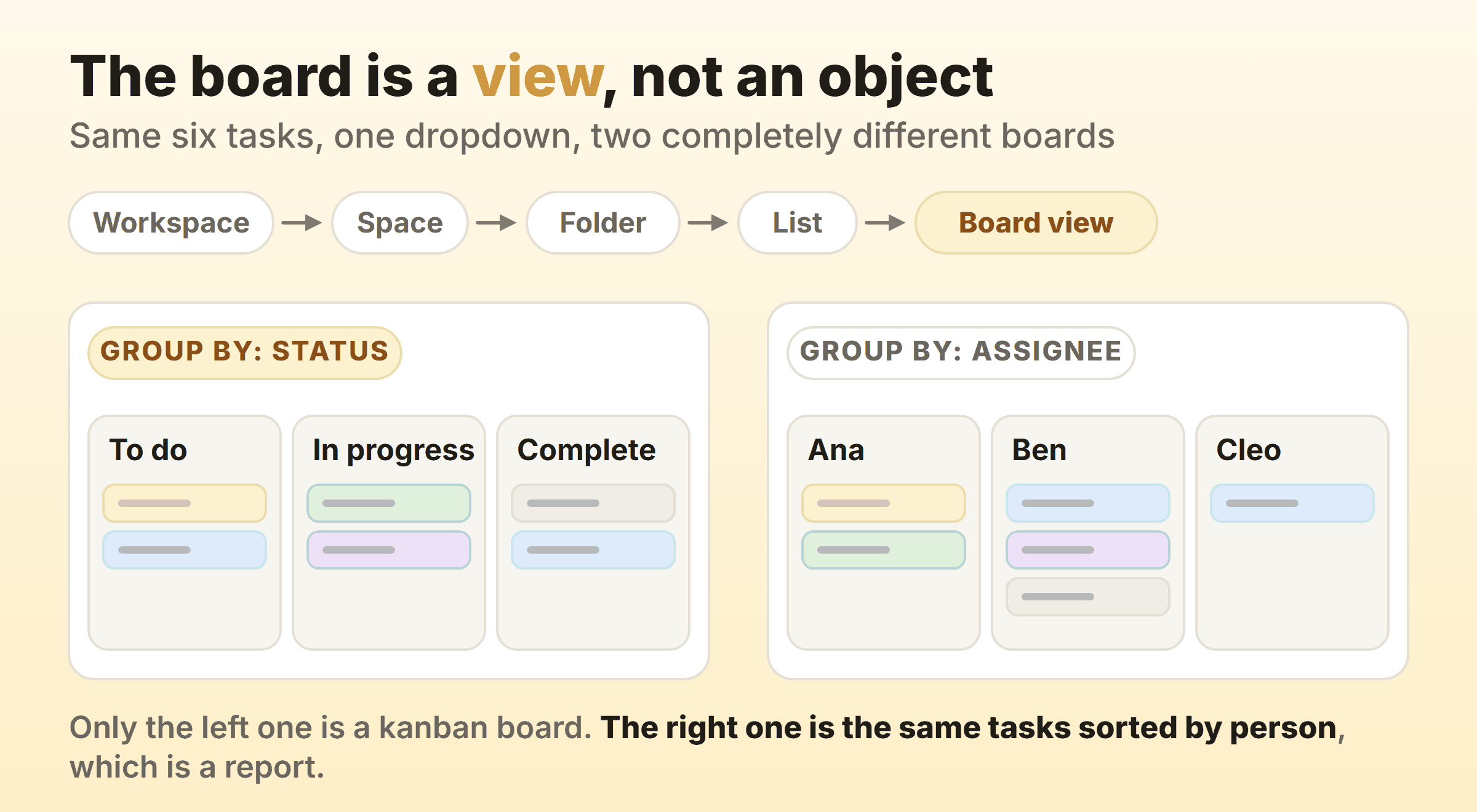
A ClickUp kanban board is Board view, one of the view types you can add to any level of ClickUp’s Hierarchy, and its columns are whatever field the view happens to be grouped by. Group by Status and you get a real kanban board where every column is one of your custom statuses. Group by Assignee and the same tasks re-column themselves by person, which is a useful report and not a kanban board at all. Cards are tasks, dragging one sideways rewrites that field on the task itself, and work in progress limits exist on the Business plan and above, where an owner or admin still has to switch them on before there is a number to click. Once those three ideas are straight, the rest of the ClickUp kanban board interface stops being confusing.
Does ClickUp Have a Kanban Board?
ClickUp has a kanban board and calls it Board view. It is a view you add to something that already holds tasks, and they show up as cards the moment it loads.
That sounds like a pedantic distinction right up until it saves you an hour. ClickUp’s Hierarchy runs Workspace, then Space, then an optional Folder, then List, then task, and views attach to those containers. A Board view added to a List shows one project. The same view added at Folder level shows every List inside that Folder on a single canvas. Nothing was copied and no task moved. You changed where you were standing.
Anyone arriving from Trello needs a minute with that, because a Trello board owns its cards. In ClickUp the tasks own themselves and the board is a lens pointed at them. One task can sit on four boards at four different levels and be the same task in all four, so renaming it on one renames it everywhere.
What Does the ClickUp Kanban Board Interface Look Like?
The ClickUp kanban board interface is a row of vertical columns holding cards, with a view bar across the top and a Group control in the upper left. Columns run left to right in workflow order. Cards stack inside them. Drag a card into the next column and ClickUp writes the new value straight onto the task.
That view bar is the part most ClickUp kanban board screenshots crop out, and it is the part that explains the product. List, Board, Calendar and Gantt sit as tabs over the same data. Board is one tab among them.
Where the columns on a ClickUp kanban board come from
Columns come from the Group by setting. Nothing about them is stored on the board itself. ClickUp will group a view by Status, Assignees, Priority, Tags, Due date, Task type or a Custom Field, and whichever field you pick becomes the column headers.
Group by Status is the kanban one. Every other option hands you a board that looks like kanban and behaves like a pivot table.
Hardly any guide mentions this, and it is the first thing worth knowing about ClickUp kanban boards. If your board suddenly has columns called Urgent, High and Normal, nobody broke anything. Somebody grouped by Priority. Change the dropdown and the columns you expected come straight back.
What sits on a ClickUp kanban board card
Cards are tasks. Open one and you get the description, assignees, priority, due dates, tags, custom fields, nested subtasks, checklists, attachments, comments and a full activity log. The card front shows a subset you choose, so two ClickUp kanban boards in the same Workspace can look nothing alike.
One card should be one piece of work that can cross the board on its own. ClickUp makes that rule unusually easy to break, since subtasks nest and can be surfaced as cards in their own right. A card carrying nineteen subtasks is a project in a card costume, and it will sit in your In progress column quietly ruining every number you try to read later.
How Do You Set Up a Kanban Board in ClickUp?
You set up a kanban board in ClickUp by picking the level you want to see, adding a Board view to it, grouping by Status, and then fixing the statuses until they describe the work you actually do. ClickUp’s own walkthrough for setting up a Kanban board covers the clicks. That order is what stops it becoming a to-do list in four piles.
- Choose the level before you choose the view. List level for a single project, Folder level for a team running several at once. Adding the board at the wrong level is why a ClickUp kanban board shows either almost nothing or a wall of unrelated work.
- Add the Board view and set Group by to Status. ClickUp’s guide to adding and sharing a Board view covers who else can see it.
- Throw away the default statuses. To Do, In Progress and Complete are a fine first sketch and a terrible permanent home, because a single In Progress column hides every handoff you have.
- Name statuses after states, not people. In design, In review and Waiting on client all survive somebody taking a week off. With Sarah does not.
- Add a Ready status. A short, agreed queue between the backlog and the work is where you get to say no. Cheapest change on this list by a distance.
- Use tags for work type and Priority for priority. Bug, feature, chore, support. Then leave the columns alone.
Everything in the general rules for naming and sizing columns transfers to ClickUp unchanged, with one wrinkle no board tool prepares you for.
Your columns are statuses, and statuses are shared
Editing a column on a ClickUp kanban board edits a status, and statuses live on the container the view is pointed at. ClickUp lets you manage task statuses at Space, Folder, Subfolder or List level, with lower levels either inheriting the parent’s set or overriding it.
The consequence catches people out constantly. Rename a column on a board that inherits its statuses from the Space and you have just renamed that column on every other List in the Space. Add one and it turns up everywhere too. If you want a status set that belongs to one board, override the inheritance at that List first, then edit.
This is the real price of ClickUp’s flexibility, and it buys back an afternoon if you spend ten minutes on the status set before anybody drags a card.
How Do You Set WIP Limits on a ClickUp Kanban Board?
You set a work in progress limit on a ClickUp kanban board by clicking the task count in a column header and typing a number, though two things have to be true before that number exists. Work in Progress Limits are available on the Business plan and above, and even there a Workspace owner or admin has to enable the ClickApp, either across the whole Workspace or for individual Spaces. Until both are done there is nothing to click and no obvious sign of why.
Worth knowing before you plan a board around them. The board itself, its columns and its subgroups all work on Free. Column caps do not, so this is one part of a ClickUp kanban board you cannot try before you pay.
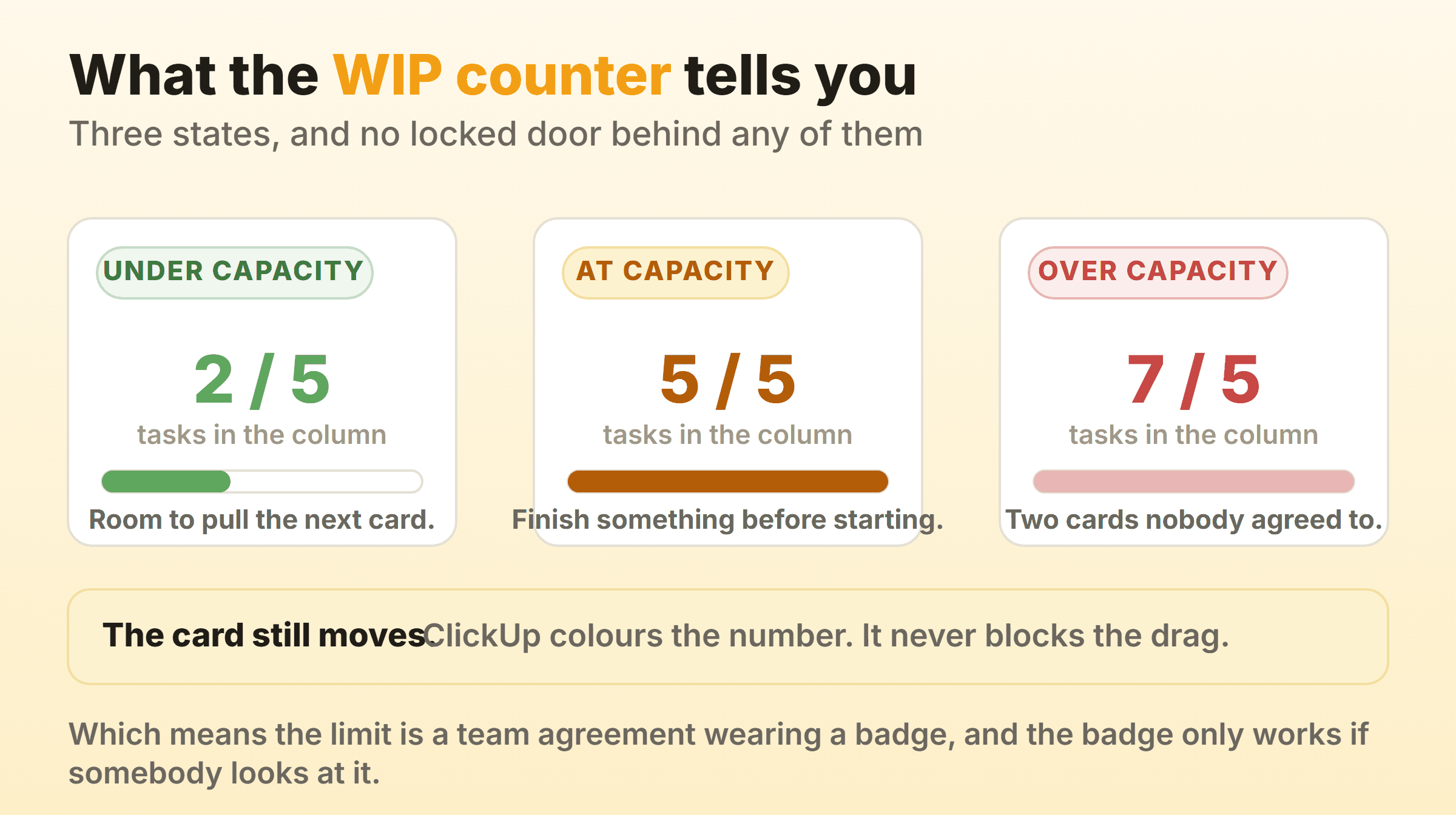
After that, the counter in each column header colours itself. Green below the limit. At or near it the number turns yellow and picks up an exclamation mark, and over the limit it goes red with the same mark.
Then it stops. ClickUp will not stop you dragging an eighth card into a column capped at five. That red counter is the entire enforcement mechanism.
Which I think is the right call. A hard block just teaches people to park work in the column before it, and hidden work is worse than visible overload. But it does mean the cap only functions if your team treats red as a stop sign, and no setting will have that conversation for you. Choosing the number itself is a separate problem. Start somewhere near the count of people who work on that stage. You will move it twice in the first month anyway.
What Does a Good ClickUp Kanban Board Example Look Like?
A good ClickUp kanban board example has five or six columns, a limit on every column between the queue and the finish, and nothing anywhere in it named after a person. Something like this for a small delivery team.
| Column | Status type | WIP limit |
|---|---|---|
| Backlog | Not started | none |
| Ready | Not started | 4 |
| In progress | Active | 3 |
| In review | Active | 2 |
| Waiting on client | Active | none, but watched |
| Done | Done | none |
One setup note on that middle column. Not started is a fourth status group in ClickUp rather than one of the three defaults, and it arrives through a ClickApp, so switch it on before you expect Backlog and Ready to sit in it.
Both ends stay uncapped deliberately. Nothing in the backlog has started yet, and capping Done achieves nothing except giving somebody a chore.
Waiting on client is the column that earns its keep fastest. Work stuck outside the team is invisible while it hides inside In progress, and pulling it into its own column makes the size of that pile impossible to argue with at a standup.
For a busier board, ClickUp’s subgroups add horizontal rows to the same set of columns, which is its version of swimlanes. Columns by Status with rows by Assignee shows every person’s work across every stage at once. Genuinely useful, though I would keep it as a second view. The board people stare at every day should stay grouped by status, because rows by person turns a flow conversation into a workload conversation without anyone deciding to.
What ClickUp Kanban Features Go Beyond the Board?
The ClickUp kanban features worth your setup time are the ones that read the board back to you.
Filters and sorting. Every view carries its own filters, so one Board view shows only bugs while another shows only this quarter, both sitting over the same tasks. The filter lives on the view, so changing it touches nobody else’s board.
Automations. A status change can trigger an action, which is how a card landing in In review assigns itself to whoever reviews. Useful, and very easy to overdo. An automation nobody remembers writing is a bug with a pleasant interface.
Dashboards. This is where the flow numbers live. ClickUp publishes dedicated card types for cycle time and lead time along with a cumulative flow card. Availability shifts by plan, so check the card availability page against your own subscription before you count on any of it.
Build the dashboard on day one. None of these cards can reconstruct history from before the board existed, which is the most annoying thing to discover three months in.
What Does ClickUp’s Free Plan Give a Kanban Board?
ClickUp’s Free Forever plan caps containers and storage, which leaves a single kanban board comfortably inside it. ClickUp’s pricing page currently lists Free Forever with 60MB of storage, 5 Spaces, 100 Folders per Space, 40 Lists per Space and 3 Whiteboards.
Board view itself is on every plan, and so are subgroups, so the board works. WIP limits and the flow cards are not, which is the gap most likely to catch a team that came to ClickUp for exactly those two things.
Paid tiers are priced per user per month. On annual billing that is $7 for Unlimited, $12 for Business and a custom quote for Enterprise, rising to $10 and $19 if you pay monthly. Business is the tier the pricing page attaches to unlimited Dashboards with advanced cards, which is the line to check if flow reporting is why you are here.
Per seat is the number that decides this for most teams. A ClickUp kanban board for eight people on Business is $96 a month, and that is before anybody argues about whether the eighth person needs a login. Plans move often enough that every figure above is a pointer to that pricing page and not a quote you can hold anyone to.
When ClickUp Stops Being the Right Kanban Tool
ClickUp stops being the right kanban tool at the point where the board is the only part of it you use. If nobody opens a Doc, nobody builds a Dashboard, and the Hierarchy is one Space holding one List, you are paying per seat for a platform to render four columns.
It earns the money the other way round. A team that needs the same tasks as a board, a Gantt chart, a calendar and a set of automations between them will not find that combination in a board tool. Nothing else does breadth this well, and the Hierarchy that felt like overhead in week one is exactly what keeps things coherent at forty people.
The trade cuts both ways. Kanbanee sits at the light end of it. A WIP limit is a checkbox and a number in the column menu with no admin step in front of it, the badge turns red over the cap without ever blocking the drag, timers and a full time log live on the card, and cycle time, throughput and a cumulative flow diagram come with Pro at $6 a month or $48 a year. Free is two boards you own with unlimited members. The gaps are honest ones: no realtime sync yet, no API, and column reordering works on desktop only. If your work genuinely needs Docs, Goals, Forms and a Gantt view hanging off the same tasks, none of that is a reason to leave ClickUp. If the answer is to leave rather than to configure, ClickUp alternatives compares the lighter options.
FAQ
Where can you find an official ClickUp kanban board screenshot?
ClickUp’s help centre carries current screenshots on its Board view and Work in Progress Limits articles, and the kanban board feature page shows the interface in marketing form. Prefer the help centre. The interface changes often enough that any ClickUp kanban board screenshot in a third-party article is a picture of a version that has probably already moved.
Is a ClickUp kanban board better than a scrum board?
The kanban vs scrum question only bites once you say which one you are actually running, because ClickUp supports both and the whole difference lives in how you configure it. Kanban means a continuous board, limits on the columns, no timebox, and cycle time as the number you watch. Turn Sprints on and you are in scrum instead, committing work into a fixed window and watching velocity. Teams get stuck running half of each, keeping a two-week ceremony calendar, then wondering why neither set of numbers means anything.
Can one task appear on more than one ClickUp kanban board?
Yes, and it stays a single task. A task shows up on any Board view whose level contains it, so a task in a List appears on that List’s board, on its Folder’s board, and on the Space board above that. Edit it in one place and all three update. This is the sharpest difference between ClickUp kanban boards and Trello, where a card has one home board and putting it on a second one means creating a Mirror card, which needs a paid Workspace.
How many columns should a ClickUp kanban board have?
Five or six for most teams. Fewer than four and a whole stage of work is hiding inside another column, usually a review or a handoff nobody wanted to admit was a queue. More than seven and the board stops fitting on a laptop screen, which matters more than it sounds like it should, because cards age invisibly in the parts of a board nobody scrolls to.
Does ClickUp Board view work on a phone?
It does, and ClickUp lists mobile board view among its board features. A phone fits roughly one column at a time whatever the app does, which is the real constraint and another quiet argument for keeping the column count down. Moving a card on a train works fine, and redesigning a board is a desktop job in every tool I have used.