
GitHub Kanban Board: Setup, Columns, WIP Limits and Insights
Updated at
The Answer
A GitHub kanban board is one layout of a view inside a GitHub project, and its columns are the options of whichever single select or iteration field the view is pointed at. Status is the default, so a new board arrives as Todo, In Progress and Done. Drag a card sideways and GitHub rewrites that field on the issue or pull request underneath, which is the whole mechanism. Everything after that is view configuration: the column field, hidden columns, a Group by setting that splits the board into horizontal lanes, and a per-column limit that turns the header count red when you go over it without ever blocking the drag. Built-in workflows close the loop by setting status to Done when an issue closes or a pull request merges. Measurement is where the board stops short. Insights ships a burn up chart plus current and historical charts over any field, and no cycle time, no cumulative flow diagram and no throughput chart, so flow metrics are the one part of running kanban in GitHub you assemble somewhere else.
What Is a GitHub Kanban Board?
A GitHub kanban board is a rendering of a project rather than an object you create in its own right. You make a project, add a view, set that view’s layout to board, and GitHub calls the result a kanban board in its own documentation. The Projects docs list three layouts a view can take: a high-density table, a kanban board, and a timeline-style roadmap. Identical items underneath all three.
Items are issues, pull requests and draft issues. One project can pull from many repositories at once, and that is the reason to bother with a project at all, because a team shipping across six repos gets one board instead of six issue lists. Projects belong to a user account or to an organisation. The repositories they draw from do not have to belong to the same owner.
Fields carry everything a card displays. Status, assignees, labels and milestone arrive built in, and you add your own on top, up to fifty per project counting the built-in ones. Iteration is not one of the built-ins. You create it like any other custom field, which matters the moment you want a board whose columns are iterations.
Projects and Projects (classic)
Projects (classic) was the old column-based board, and it is gone. GitHub’s sunset notice set the date at 23 August 2024, with unmigrated boards moved across automatically and only cards touched in the preceding year carried over. So if a tutorial tells you to open a repository’s Projects tab and click Add column, it was written before that migration and the buttons it names are not there any more. Worth checking the date on anything you find, because the classic board and the current one work nothing alike.
How Do You Create a Kanban Board in GitHub?
You create a kanban board in GitHub by making a project and switching one of its views to the board layout. Six steps, and two of them carry all the weight.
- Open the Projects tab on your account or organisation and create a project.
- Switch the view’s layout to Board. The layout control sits in the view options menu.
- Add items. Paste issue URLs into the add-item row, or type
#there to open the repository list and pick from that repository’s issues and pull requests. - Set the column field. It defaults to Status, and this is the decision everything else hangs off.
- Rewrite the Status options so they name the states your work actually passes through.
- Rename the view. Boards multiply fast, and “View 1” tells nobody anything.
Steps four and five are the ones that matter. The rest takes about ninety seconds and can be undone. Getting the column field wrong produces a board that looks right in a screenshot and answers no useful question at standup.
How Do Columns Work on a GitHub Kanban Board?
Columns on a GitHub kanban board are the options of one field, and the board holds no column objects of its own. Choose the column field in the view options and GitHub draws one column per option, in the order those options sit in the field. Which means reordering columns is really reordering options.
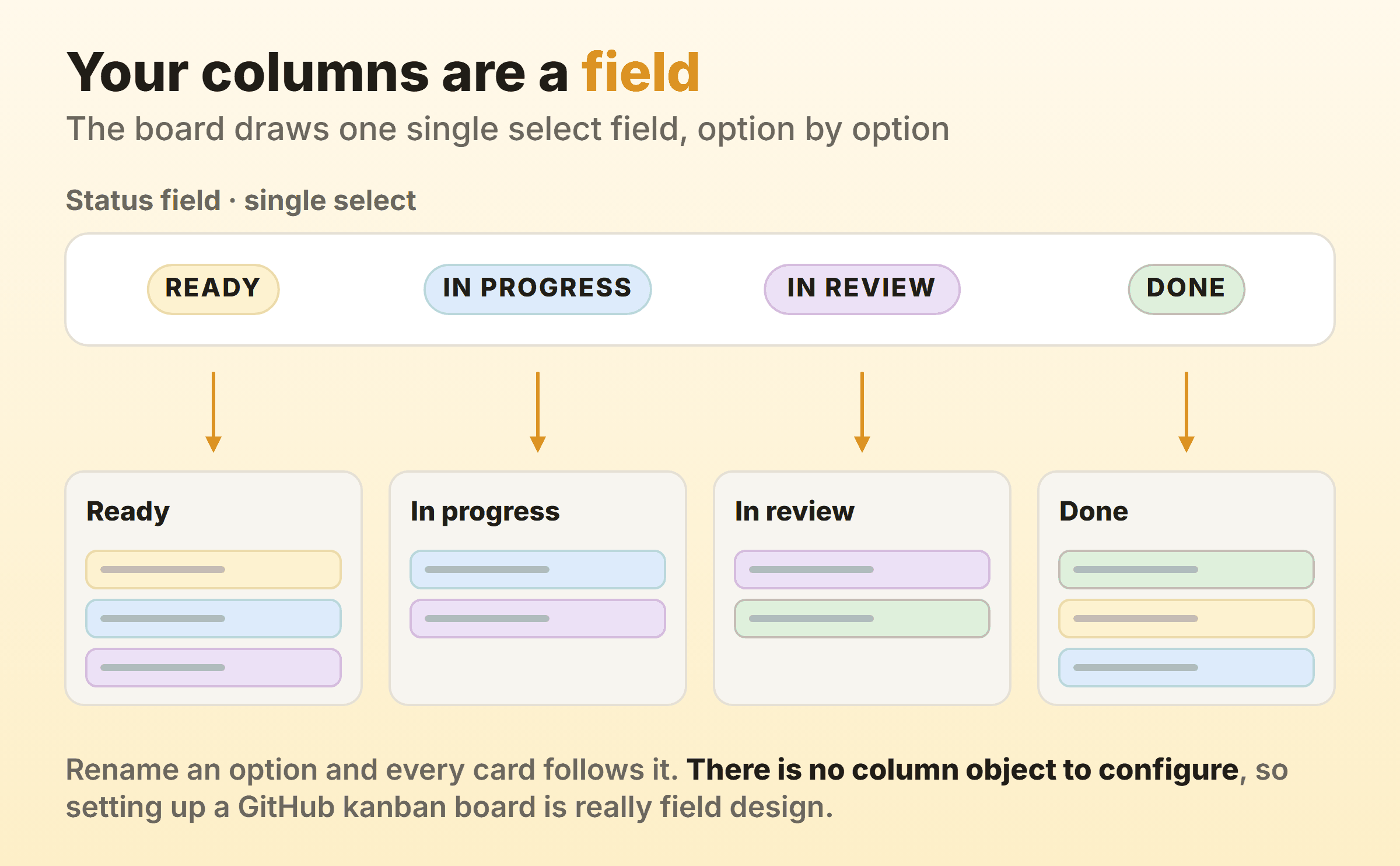
Any single select or iteration field can serve as the column field. Status is the obvious pick. An iteration field gives you a board where each column is an iteration, which makes a decent planning view and a hopeless workflow board. Set Priority as the column field and the same items become a triage board instead.
Dragging a card writes the field. Move something from In progress to Done and the Status field on that issue changes to Done, so anyone reading the issue in its repository sees the same state as the person looking at the board. The sync runs one way through the field, and there is nothing else keeping the two in step.
Todo, In Progress and Done are the defaults, and they describe almost nobody’s process. Three columns cannot show a queue, and queues are where delay hides. In review is the column I would split out first, because on every dev board I have run that is where work actually sits, waiting on a human with a spare twenty minutes. Our guide to kanban for software teams works through a full column set.
Deleting an option does not delete the cards that used it. They end up with an empty Status and collect in the No Status column, which is easy to miss if you have hidden that column on this view.
Grouping, swimlanes and hidden columns
Group by cuts the board into horizontal sections, and it is the closest GitHub gets to swimlanes. Set it to assignee and every person gets a band. Set it to a custom single select field and you can float expedited work above everything else. The docs name four exceptions outright: you cannot group by title, labels, reviewers, or linked pull requests. That rules out the label-based lanes most people reach for first, so the class-of-service lane everyone wants has to be built as its own field.
Columns can be hidden as well. Scroll past the right-hand end of your columns, click the control sitting there, and untick whatever this view does not need. Useful for a Done column holding four hundred archived items. Also a quiet hazard, because a hidden column is still a place work can pile up in, and nobody audits a column they cannot see.
Can You Set WIP Limits on a GitHub Kanban Board?
Yes. GitHub calls them column limits, they live in the column menu under Set column limit, and the current count and the limit both render at the top of the column. Go past the number and it turns red.
The limit enforces nothing at all. GitHub’s board layout documentation is unusually blunt about it, saying a limit “does not restrict anyone from adding cards that would exceed” it, and that automations ignore it too. Drag away. Nothing stops you.
That is correct behaviour for a kanban WIP limit and it is also why a silent limit does nothing. A red number nobody mentions is decoration. Somebody has to say the word out loud when the column goes over, and the number has to be small enough that going over is uncomfortable.
Two details catch people. Column limits are unique to each view, so a cap you set on the team board does not travel to a second board over the same project, and a colleague who built their own view sees no limits at all. And the limit counts items with no way to weight them, so a column holding one epic and two typo fixes reads as three.
Cap one column to start. Take the busiest in-progress one, set the number near the count of people who work in it, then change nothing else for a month. Our WIP limits guide covers how to pick that number and what to do when the board keeps banging into it.
How Do GitHub Issues Become Cards on the Board?
GitHub issues become cards by being added to a project, and the issue itself is untouched by the move. It keeps its number, its thread, its labels and its home repository. The project stores the extra fields on top and hands them back through the card.
There are three routes in. Add from the project using the add-item row, add from the issue’s own sidebar under Projects, or let an automation pull it in. Only the third one scales past a small team.
Draft issues are the useful oddity here. They live inside the project, carry a title and a body and nothing else, and convert into a real issue in a repository you choose later. Good home for the half-formed thing somebody raised in a meeting that has no business being a repository issue yet.
Pull requests sit on the same board as issues, which is either the point or the problem. One board showing both means you can see at a glance that four things are waiting on review. It also doubles the card count, and a review column mixing issues awaiting review with the pull requests implementing them is a board people stop trusting by the second week. I keep pull requests off the planning board and give them a separate view.
What Can You Automate on a GitHub Kanban Board?
GitHub ships a small set of built-in workflows and two of them are already running. When an issue or pull request in your project is closed, its status is set to Done. When a pull request is merged, the same thing happens. Both arrive enabled, which explains why cards start moving to Done on their own before anyone has configured a thing.
The two worth switching on yourself are auto-add and auto-archive. Auto-add pulls items from a repository into the project when they match a filter, so a needs-triage label becomes a feeder straight onto the board. Auto-archive removes items matching a filter, and it is how you stop the Done column growing into four figures. GitHub’s automation docs list the current set, which changes more often than the layouts do.
Past those, you are writing GitHub Actions. An action can move a card by writing project fields through the GraphQL API, which is genuine work rather than a checkbox, and it earns its keep in one situation: when a status change needs to follow a deployment instead of a merge.
Which Flow Metrics Does a GitHub Kanban Board Give You?
A GitHub kanban board gives you a burn up chart, plus whatever current and historical charts you build over the fields in the project. It does not give you cycle time, a cumulative flow diagram, throughput per week, or the age of the work sitting in progress right now.
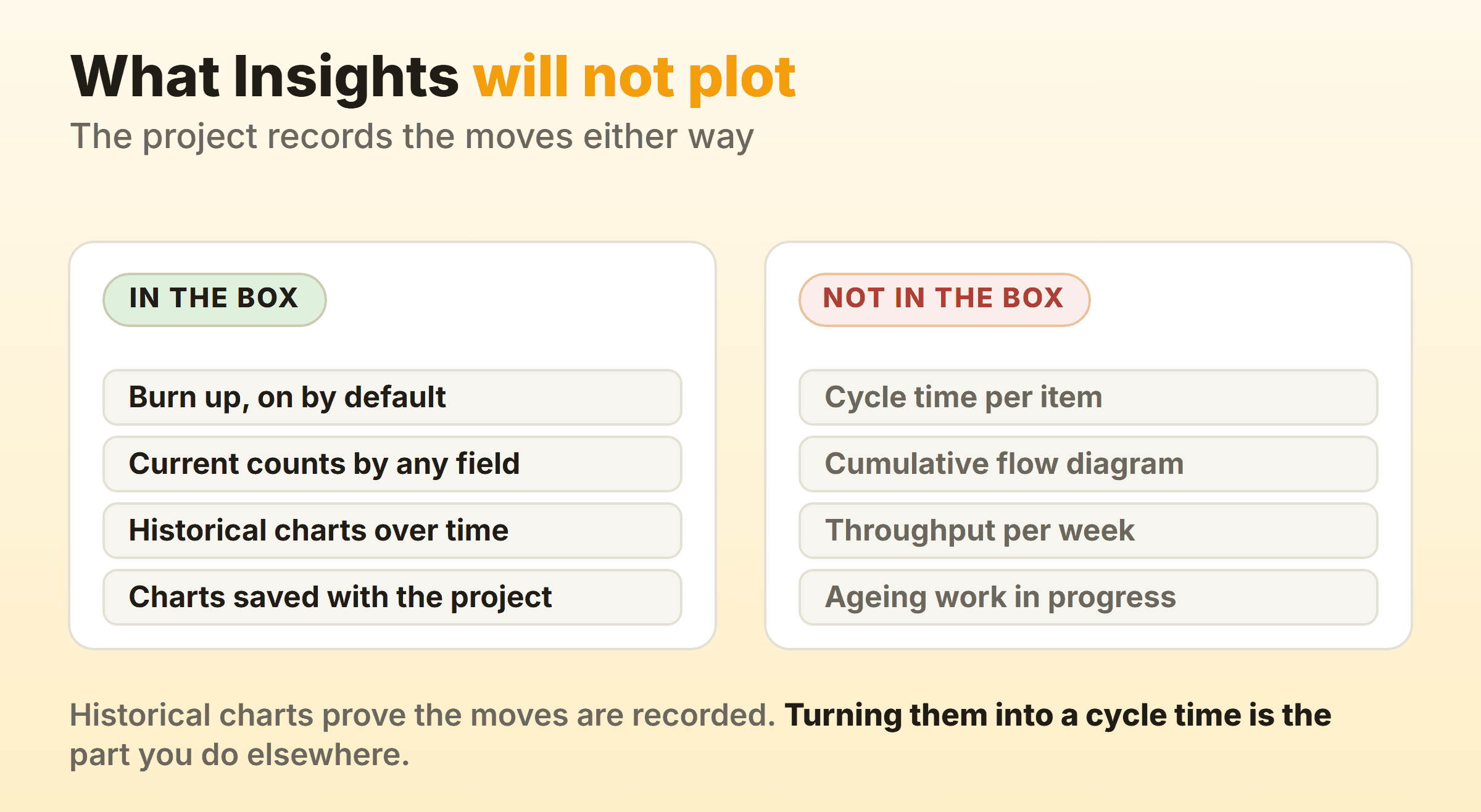
The burn up is on by default. Beyond it, Insights builds two kinds of chart. Current charts count the items in the project as they stand today. Historical charts plot those counts across a date range. Group a historical chart by status and you land somewhere in the neighbourhood of a cumulative flow diagram, which is as close as the built-in tooling goes.
Cycle time is the real gap. Nothing in the project reports how long an item spent between entering In progress and reaching Done, even though the historical charts prove the project keeps the history that would answer it. What is left is the GraphQL API and a script that reads the field-value events off each item, subtracts the timestamps and buckets the results. That is an engineering task rather than a setting, and it is why so many teams end up running the board in GitHub and the numbers in a spreadsheet.
Throughput is the cheap substitute and it is better than nothing. Count what reached Done each week. A repository’s Pulse view already shows issues opened and closed over a period, and a running weekly count forecasts perfectly well for a team that ships steadily. Cycle time percentiles tell you more, and more is not always worth a week of API work to a team of five.
Which Kanban Tools Plug Into GitHub?
Third-party kanban tools connect to GitHub in one of two ways. Either they mirror issues into their own board and sync changes back, or they run locally against the repository. A mirror buys you the board features GitHub lacks and hands you a sync you now have to trust. A local tool keeps everything on your machine and gives you nothing to send a stakeholder.
Vibe Kanban is the one people keep searching for, and it is a different animal entirely. Published by BloopAI under Apache-2.0 and started with npx vibe-kanban, it is a board for orchestrating coding agents rather than people. Each task runs in its own workspace with a branch, a terminal and a dev server behind it, and the agents it drives include Claude Code, Codex, Gemini CLI, GitHub Copilot, Cursor, Amp and Qwen Code. You review the diff and open a pull request without leaving the board. One thing to check before you install: the repository now carries a sunset notice.
Cline turns up in the same searches. It is a coding agent that runs inside VS Code rather than a board, so any kanban view of its work comes from something wrapped around it. Board tools that sync GitHub issues have existed for years and they come and go. Check the last commit date and the pricing page before wiring your process to one.
When GitHub Projects Is the Wrong Board
GitHub Projects earns its place when the work is code and the board needs to live beside it. Cards that are real issues. Status that updates itself when a pull request merges. No second tool to keep in sync and no per-seat invoice. For a team already living in pull requests, nothing else gets close.
It turns awkward the moment the board has to hold work that is not code. A designer without a GitHub account cannot see the board, and asking them to make one to move a card is a conversation you will lose. Draft issues paper over the gap for a while, and then you have forty of them with no repository, no labels and no decent search. Marketing tasks, client work and anything carrying an approval step all land badly here. I have watched a team create a repository purely to have somewhere to file issues that were not code, which is the moment to admit the tool has stopped fitting.
The second gap is measurement, and it is why I keep a separate board for our own product work. Kanbanee shows the count against the limit on the column header and turns it red over the cap, the same soft way GitHub does, and cycle time plus a cumulative flow diagram come with the paid tier at $6 a month. It has real holes: no realtime sync yet, no API, and column reordering that only works on desktop. If your work is code and your board is doing its job, stay where you are and spend the effort on the Status options instead.
FAQ
Is kanban built into GitHub?
Yes. Board is one of the three layouts a project view can take, alongside table and roadmap, and it needs no app or marketplace add-on. What is missing is the reporting layer most kanban teams expect, so cycle time and a cumulative flow diagram have to come from the API or from a third-party tool.
Which is better for kanban, Jira or GitHub?
Jira, if the reporting matters to you. A Jira kanban board gets a control chart and a cumulative flow diagram out of the box while GitHub gets a burn up. GitHub wins everything to do with the code, because the cards are the issues, status follows the merge, and there is no sync to maintain. Teams that ship software and never file a non-code ticket usually pick GitHub and live without the charts.
Is a GitHub kanban board free?
Projects is available on free accounts, for personal accounts and organisations alike, and the board is a layout rather than a paid feature. GitHub moves its limits often enough that any number quoted here would be stale within a quarter, so check the pricing page for the caps that apply to your plan.
How do I add a column to a GitHub kanban board?
Add an option to the field the board is grouped by, because a column is an option. If the column field is Status, edit the Status field and the new column appears wherever that option sits in the list. The control at the right-hand end of the board shows and hides existing columns, which is a different job entirely and catches people out when a column they expected is simply switched off.
Can one GitHub kanban board cover several repositories?
Yes, and it is the main reason to use a project instead of a repository’s issue list. A project holds items from any repository you can see, and organisation projects are built for exactly this. The catch is that fields belong to the project, so a Status option added for one team’s view shows up for everybody else using it.
Is a GitLab issue board the same as a GitHub kanban board?
Close. Cards on both are real issues, but GitLab builds its lists from labels and keeps work in progress limits per list for Premium and Ultimate. The GitLab kanban board guide covers what each tier gets.