
Jira Kanban Board: Setup, Columns, WIP Limits and Reports
Updated at
The Answer
A Jira kanban board is a saved view over a set of Jira work items, arranged in columns where each column maps to one or more workflow statuses, so dragging a card sideways changes the status of the item underneath it. Team-managed projects hand you a board with the project. In a company-managed project you build one yourself over a project or a saved filter, and everything after that happens in Board settings, where you map statuses to columns, add column constraints that act as WIP limits, set swimlanes and switch on the kanban backlog. For reporting, a Jira kanban board gets the control chart and the cumulative flow diagram. It will never show you a velocity chart or a sprint burndown, because both of those measure a sprint and a kanban board has none.
What Is a Kanban Board in Jira?
A kanban board in Jira is a view laid over work that lives somewhere else. The work items belong to projects. The board picks some of them out with a filter and lays them in columns by status. Accept that one sentence and most of the odd behaviour people hit later stops being odd.
So one project can carry several boards. A team board, a support board, a board showing a single component, all reading the same work items through different filters. A board can reach across projects too, if its filter says so. Deleting a board removes the view and nothing else.
Cards are Jira work items. Atlassian has been renaming issues to work items across the interface, so you will see both words depending on how recently your instance updated. Columns are groups of statuses, and moving a card from Doing to Review fires a workflow transition, which is why a drag sometimes throws up a screen demanding a resolution or an assignee.
The interface is plain on purpose. Columns across, cards inside them, a filter bar and quick filter buttons above, reports in a sidebar menu. Almost everything that makes a Jira kanban board work happens in settings.
Team-managed and company-managed boards
Which project type you are in decides where every setting lives, so work that out first.
Team-managed projects are run by the people using them. The board arrives with the project, the workflow editor sits inside the project, and most of what you need is under Project settings.
In a company-managed project, schemes get shared across many projects at once. Boards are created separately from projects, the workflow belongs to a scheme a Jira admin controls, and board configuration hides in Board settings behind the menu on the board itself.
Neither one is the real Jira. Team-managed changes faster, and company-managed keeps forty projects consistent, which matters enormously to whoever has to audit them and not at all to a team of six. If you are unsure which you have, Jira labels it at the bottom of the project sidebar.
How Do You Create a Kanban Board in Jira?
You create a kanban board in Jira one of two ways, and the project type decides which.
Creating one alongside a new project is the quick route. Make the project, pick the Kanban template, and the board is waiting when it opens. Right path for a team not already buried inside a large Jira estate.
The other way builds a board over something that already exists. Open the Boards menu in the top navigation, create a board, choose the kanban type, then point it at a project or at a saved filter. Pointing it at a filter is the version with teeth, because any JQL you can write becomes a board.
Then spend ten minutes on the setup, in this order.
- Name it after the team or the service. “Platform team” beats “PROJ board” the moment there are nine of them in a dropdown.
- Read the filter. Board settings shows you the JQL behind the board, and when cards turn up that nobody expected, that JQL is the answer every single time.
- Cut the columns down. The default set is fine for a week and has nothing to do with how your team works.
- Check who can see it. In company-managed projects the board inherits the filter’s sharing settings, so a board built on a private filter is invisible to everybody else.
Atlassian’s own kanban tutorial for Jira covers the same ground with current screenshots, worth a look because the menu labels move around far more often than the concepts do.
How Do Columns and Statuses Work on a Jira Kanban Board?
Columns on a Jira kanban board are containers for workflow statuses, and a card sits in whichever column its status is mapped to. The mapping lives in Board settings under Columns, where each column is a box you drag statuses into.
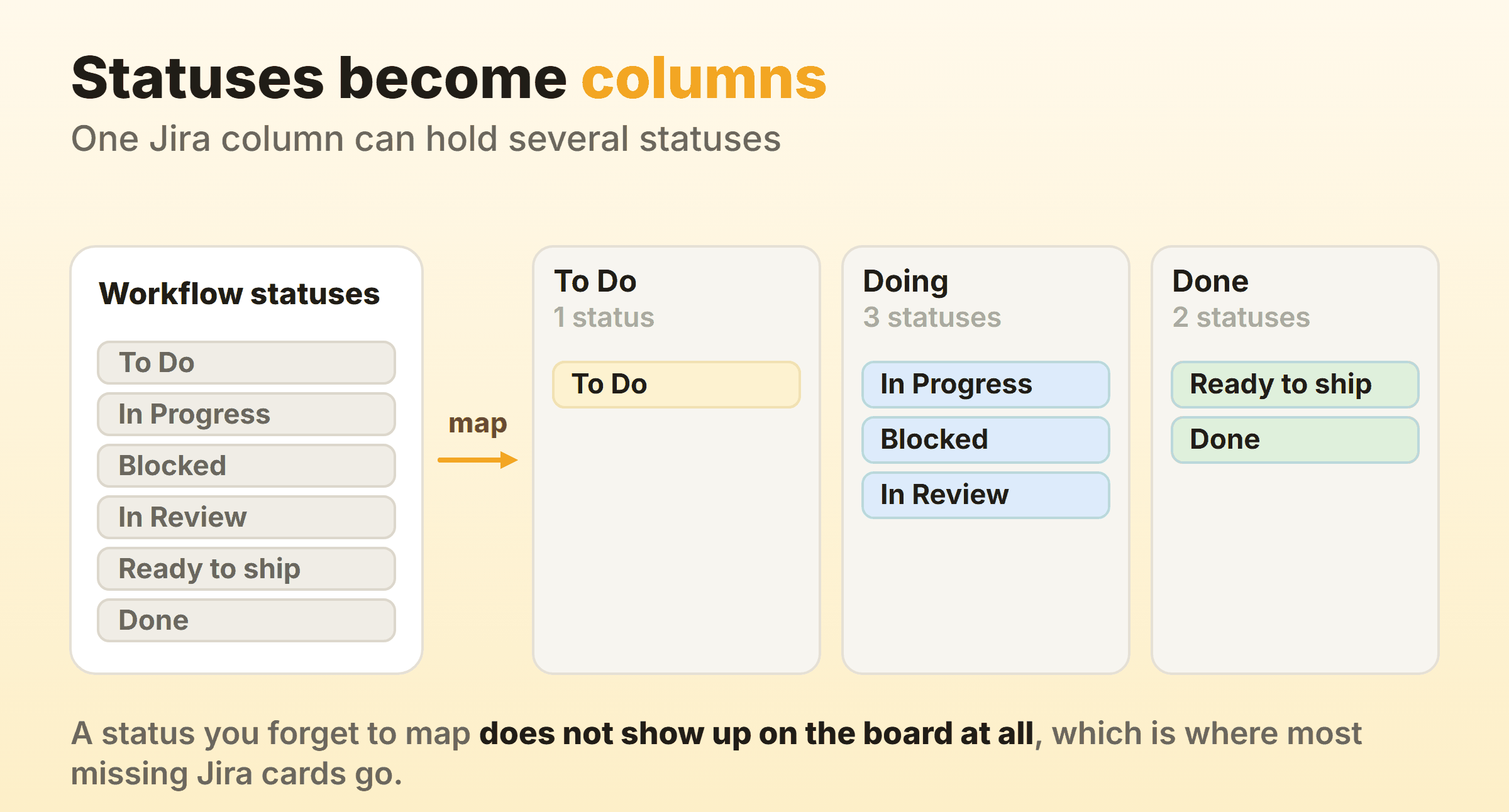
A column can hold several statuses. Handy when you want In Progress and Blocked sitting side by side on the board while they stay separate in reporting. A status mapped to no column does not appear on the board at all, and that one behaviour accounts for most of the vanished-ticket questions I have ever been asked. Adding a column does not create a status either. In a company-managed project the status has to exist in the workflow first, which usually means a conversation with a Jira admin, and only then can you map it.
Jira makes adding a column cheap, so boards drift out to nine or ten of them. Ten is not automatically wrong, but each column is a queue where work can sit and age quietly. The example in the figure above is close to where most software boards land once somebody has pruned them. Watch for columns that exist because a status exists, when no work actually waits there.
Swimlanes, subtasks and quick filters
Swimlanes cut the board into horizontal rows. Board settings has a Swimlanes section and the base can be JQL queries, stories, assignees, epics or projects. Query-based lanes are the flexible choice, and the common pattern is one lane at the top for expedited work, ordered by priority so the urgent thing sits visibly above everything else.
Subtasks are the next question. Whether they show up as cards depends on the board filter and the swimlane base, so check the filter first if they are missing entirely. Set the swimlane base to stories and each parent gets a lane holding its own sub-tasks, which is usually what people were after.
Quick filters are a separate thing from the board filter and far more useful day to day. Each is a JQL fragment that becomes a button above the board, so assignee = currentUser() gives everybody a one-click view of their own work without anyone building a second board.
How Do You Set WIP Limits on a Jira Kanban Board?
WIP limits on a Jira kanban board are column constraints, set in Board settings under Columns. Pick a constraint type at the top, either a plain item count or one that ignores sub-tasks, then type a maximum into the column you want capped. Jira highlights the column header once the count goes past it.
Jira will not stop the drag. The column changes colour, everybody carries on, and that is correct behaviour for a soft limit. It is also why a cap nobody says out loud does nothing at all, and why the number has to come up at the standup to be worth setting.
There is a minimum as well as a maximum, and hardly anyone uses it. A minimum flags a column that has run dry, which is your early warning that the stage upstream stopped feeding it.
Team-managed projects do the same job with less ceremony. The column menu has an option to set a column limit, maximum only, enforced the same visual way.
Cap one column and leave the rest alone. Pick the busiest in-progress one, set the number near the count of people who work in it, then give it a month before touching anything else. Our WIP limits guide covers how to choose that number and what to do when the board keeps banging into it.
Does a Jira Kanban Board Have a Backlog?
Yes, and on a company-managed kanban board it stays switched off until you go and switch it on. Board settings, Columns, drag the kanban backlog marker over the leftmost status or statuses. Team-managed projects put it behind a toggle under Project settings and Features.
Turn it on and the backlog becomes its own view beside the board, while the statuses behind it stop rendering as a board column, which is the reason to bother with it. Leave it off and every work item anybody has ever filed against that project piles into the first column, so a board with four live cards shows a hundred and twenty.
On our own board the split is simple. Started or committed work sits on the board, everything else waits in the backlog, and a short ready queue in between holds the handful of items that could genuinely be picked up tomorrow.
Which Reports Does a Jira Kanban Board Get?
A Jira kanban board gets the control chart, the cumulative flow diagram, created vs resolved, the average age report and time since issues. It does not get the velocity chart, the sprint report, the sprint burndown or the burnup chart, because all four are scoped to a sprint and a kanban board has no sprint to scope them to.
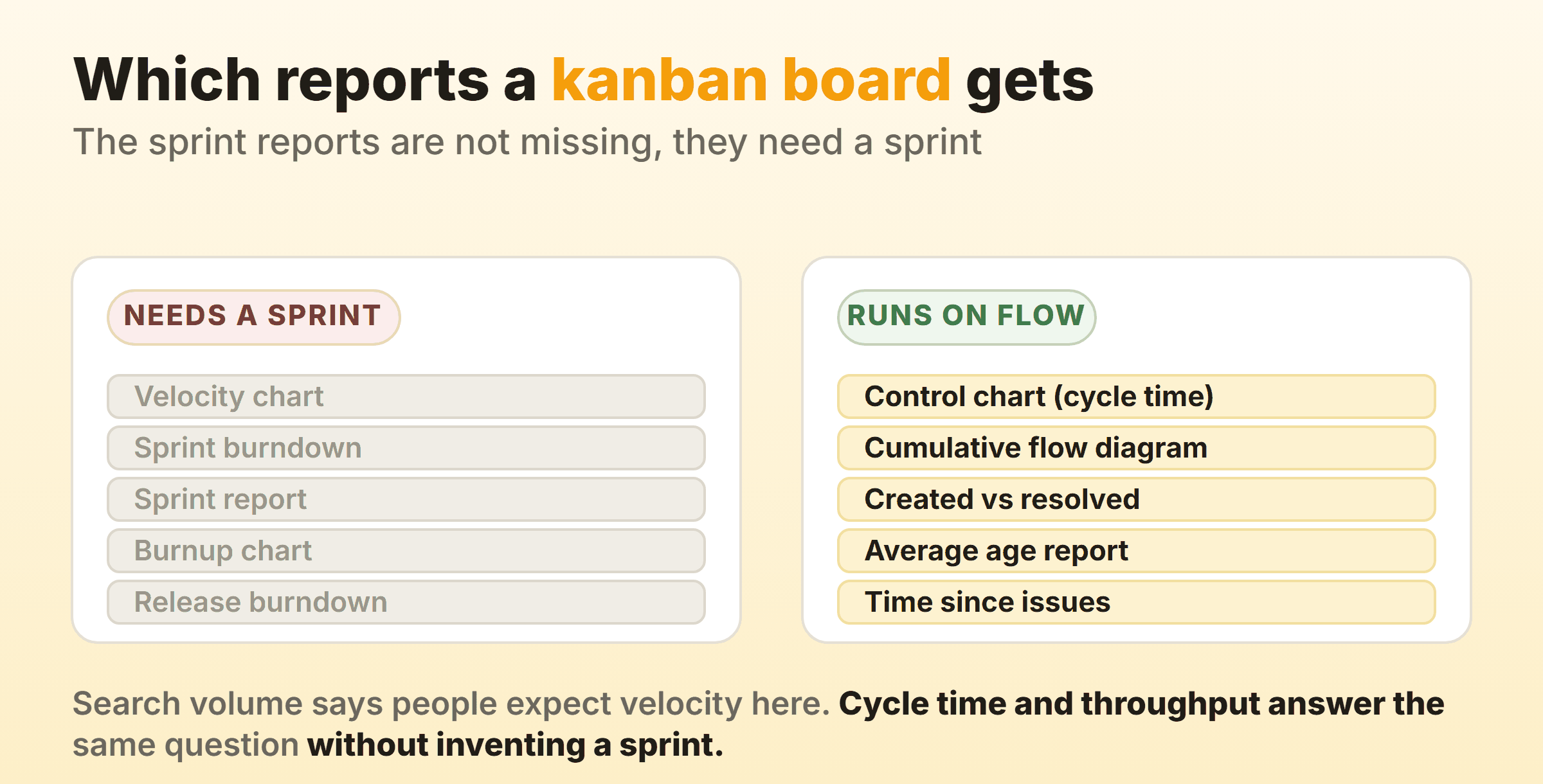
People go looking for a kanban velocity report or a kanban burndown graph in Jira, find neither, and decide their board was set up wrong. Velocity counts story points completed inside a sprint. Take the sprint away and it has nothing left to count. Every one of the missing reports has a flow equivalent that answers the same underlying question:
| What you came looking for | What a kanban board gives you instead |
|---|---|
| Velocity chart | Throughput, the count of items finished per week, readable off created vs resolved |
| Sprint burndown | Cumulative flow diagram, which shows every stage rather than remaining scope alone |
| Sprint report | Control chart across the same date range |
| Story point totals | Cycle time percentiles from the control chart |
The control chart is worth twenty minutes of your time. It plots the cycle time of every completed item across a date range with a rolling average through the middle, and the spread across that plot is the part you read. When half your work finishes in three days and the rest drags out over three weeks, a nine day average describes nobody’s experience. Read the eighty-fifth percentile instead and you have a number you can say out loud in a planning meeting. Our kanban metrics guide makes the wider argument.
Dashboards behave the same way. Jira has gadgets for created vs resolved and average age, plus a two-dimensional filter statistics gadget that counts work items by status, which is about as close to a kanban metrics dashboard as you get without a marketplace app. No kanban burndown gadget, for the same reason there is no kanban burndown report. Atlassian keeps moving reports around in Jira Cloud, so check the Reports menu on your own board rather than trusting any list, this one included.
Jira Kanban Board vs Scrum Board
A Jira kanban board runs continuously and a Jira scrum board runs in sprints. Almost every other difference between the two is downstream of that one.
| Kanban board | Scrum board | |
|---|---|---|
| Time boxes | None, work flows through | Sprints with a start and end date |
| Backlog | Optional, off by default | Always present, and where sprints get planned |
| Reset point | None, the board keeps running | The board clears at each sprint boundary |
| Limit on work | Column constraints, per column | Sprint scope, agreed at planning |
| Reports | Control chart, cumulative flow, created vs resolved | Velocity, sprint report, burndown, burnup |
| Fits | Support, ops, interrupt-heavy work, steady delivery | Fixed planning cycles and commitment-based forecasting |
Converting one into the other is not a switch in a company-managed project. Board type gets fixed when the board is created, so you build a new scrum board over the same project or filter and use that instead. Nothing is lost in the move, since the work was never inside the board to begin with. Team-managed projects genuinely do have a switch: turn the Sprints feature on under Project settings and the board grows a backlog with sprint planning attached.
Choosing between them is a delivery decision that has very little to do with Jira, and I would settle it before touching board settings. Our kanban vs scrum comparison covers the trade-off properly.
When a Jira Kanban Board Is More Than You Need
Jira earns its complexity when you need JQL, permission schemes, automation rules, release versions, and a link from a card through to the branch and the deployment. Thirty people across four squads have nothing lighter available, which is a perfectly good reason to be here.
The cost lands on smaller teams. One board’s settings are scattered across Board settings, Project settings, a workflow scheme and a filter’s permissions, and changing a status often means finding an admin with twenty spare minutes. A team of five running one board pays that tax and collects none of the benefit. That is roughly why Kanbanee exists: WIP limits are a checkbox and a number on the column menu, the badge shows count against limit and turns red when you go over, timers and a full time log live on the card, and cycle time plus a cumulative flow diagram come with the paid tier. It has real gaps too, with no realtime sync yet, no API, and column reordering on desktop only. If your delivery process runs on release versions and automation rules, stay where you are and put the effort into the column mapping instead. If the weight rather than the board is the problem, Jira alternatives covers the lighter options and what leaving Jira costs you.
FAQ
Is a Jira kanban board free?
Jira has a free tier that includes kanban boards, limited by user count and storage rather than by which board features you get. Atlassian publishes the current caps on its pricing page, and they shift often enough that any number quoted here would be stale within a quarter.
How do I delete a kanban board in Jira?
Delete it from Board settings, or from the boards list if your permissions stretch that far. Deleting removes the view and nothing more. Every work item that was on it stays in its project at the status it was in, so clearing out abandoned boards costs you the layout and nothing else.
Can you run sprints on a Jira kanban board?
No, sprints belong to scrum boards in Jira. Turn the Sprints feature on in a team-managed project and the board becomes a scrum board. In a company-managed project you create a scrum board over the same filter. Teams wanting a planning rhythm without the sprint reset usually end up running something close to scrumban, whatever the board type says.
How do I add an epic to a Jira kanban board?
Create the epic like any other work item, then link children to it through the parent field. The epic rarely needs a card of its own. To group the board by epic, set the swimlane base to epics in Board settings, or filter by epic from whichever grouping control your version of Jira puts above the board.
Can I export a Jira kanban board to Excel?
You can export the work items behind it. Open the board’s filter in the work item search view and export the results as CSV, which Excel opens directly. Columns and swimlanes do not survive the trip, since both are board configuration, so what lands in the spreadsheet is a flat list with each item’s status in a column.