
Notion Kanban Board: How to Build One and Where It Stops
Updated at
The Answer
Notion has a kanban board built in and it goes by the name board view: switch any Notion database to it and your rows sort into columns by one property you pick, usually Status. Setup takes about a minute, the free plan covers it, and every card you drag is a full Notion page underneath. Then you hit the ceiling. Notion has no WIP limit, records no cycle time, and never lets a column push back when it fills up, so a Notion kanban board shows you where the work sits and does nothing whatsoever about how much of it is open at once.
Does Notion Have a Kanban Board?
Notion has a kanban board, and the product barely admits it. The official documentation for board view carries the title “Board view (Kanban)”, and that parenthesis is doing all the work. Board view sits alongside table, calendar, timeline, list and gallery as one of the database views any Notion database can wear.
Nothing to install, then. No kanban app and no add-on, since the board is a setting on something you already have. Notion databases hold several views at once, so a database somebody built in March can become a board this afternoon and keep its table view for the days when a board is the wrong shape.
Notion boards inherit database features, which is why the cards open as proper pages with content inside them. They inherit the database limits too, and that is why nothing on the board has ever heard of a work in progress limit.
How Do You Create a Kanban Board in Notion?
To create a kanban board in Notion, type /board view on any page and hit enter, or open a database you already have and add a board view to it. The first route hands you a fresh database with three columns and some sample cards in it. Most of the time you want the second.
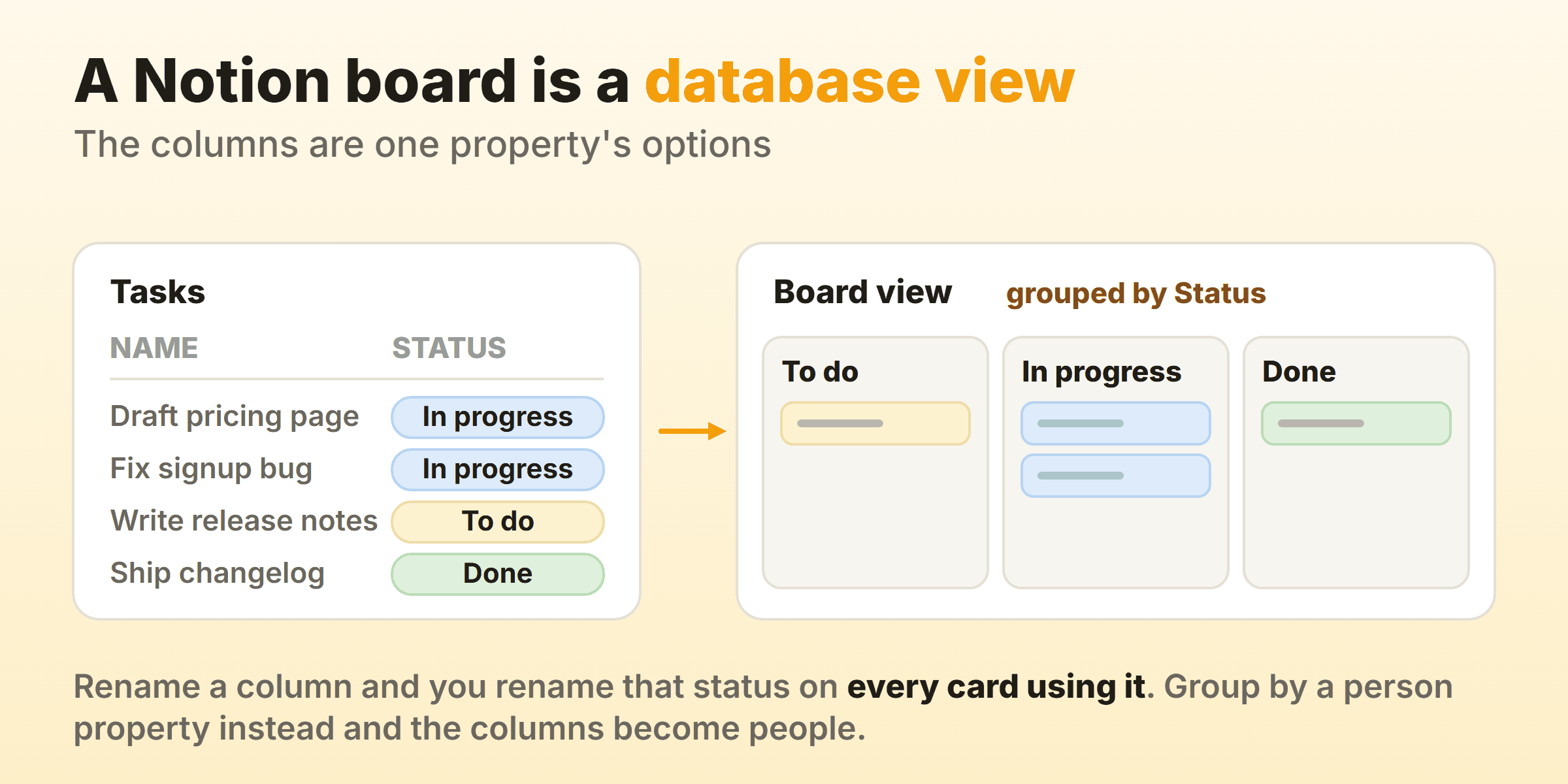
Step 1: Build the Database First
Make the tasks database first, then hang the board off it. Where a database already holds this work, add a view to that one instead of starting fresh.
I have lost count of the Notion workspaces carrying the same project twice, once as a table somebody made in January and once as a kanban board somebody else made in March. Nothing syncs them. A view is a lens over one set of rows, while a second database means a second set of rows that somebody now has to reconcile every Friday.
Step 2: Group the Board by a Status Property
Board view groups by a status property out of the box, and Notion creates one for you if the database has none. Select, person, multi-select and relation properties work as the grouping too, and picking between them matters more than it looks.
- Status or select builds a workflow board out of a plain dropdown of stages. Use this one.
- Person builds a board of people. It reads beautifully for a week or so, then buries the place where work is genuinely stuck.
- Multi-select or relation builds a board grouped by tag or by linked project. Worth having as a second view. As your only one it hides the workflow completely.
Each option on that property becomes a column, so adding a column means adding an option. Options nobody uses can be tucked away under hidden groups and left there.
Step 3: Name the Columns After States
Name each column after what is happening to the work. “In review” survives a resignation. “With our designer” stops meaning anything the day that person leaves, and every board I have inherited with a column named after a job title had two columns doing the same job by the end.
Three to five columns covers a first board, and the default set of Not started, In progress and Done is a perfectly good place to start. Add a fourth once you can point at work that genuinely waits somewhere the board hides. The argument for that, and the queue column that usually fixes it, sits in the guide to kanban board columns.
One Notion-specific warning. Renaming a column renames that option on every card using it, which is what you want. Deleting a column deletes the option itself, and every card that used it comes back ungrouped.
Step 4: Decide What Shows on the Card
Open property visibility for the view, toggle the eye icon beside each property to show or hide it on the cards, then drag the handles to set the order. Card size has three settings. Card preview can show a page cover, the page content, or an image from a files property.
Show two properties. Three at most. Due date and assignee cover almost every board, and a card carrying eight visible properties has quietly turned back into a table row, which defeats the whole reason you switched.
What Does a Notion Kanban Board Look Like in Practice?
The Notion kanban board interface is a row of soft grey columns, each with its name at the top, a small grey number beside the name, and a stack of white cards underneath. The plus at the top of a column makes a card that already carries that status.
That grey number deserves a second look. It defaults to a count of the cards in the group, and Notion lets you swap it for any calculation on that group, including a sum of an estimate property or a percentage. Nothing else on the board hands you a quantity without extra work.
Cards are where Notion earns its place. Each one opens as a full page, so the brief, the notes, the screenshots and the decision log all live inside the thing being tracked. For writing-heavy work that single property beats most dedicated kanban tools outright.
People run everything on these boards, from a personal task list to project management for a whole team. These Notion kanban board examples use column sets that hold up:
| Board | Group by | Columns |
|---|---|---|
| Team tasks | Status | Not started, In progress, In review, Done |
| Content pipeline | Status | Idea, Drafting, Editing, Scheduled, Published |
| Sales pipeline | Status | Lead, Contacted, Demo booked, Proposal, Won |
| Personal work | Status | This week, Today, Doing, Done |
One caveat about the examples you find online. The interface in every polished screenshot and tutorial is a template loaded with forty sample cards. Your own board in week one will hold about nine and look nothing like it, which is normal.
Are Notion Kanban Board Templates Worth Using?
A Notion kanban board template earns its place on the property setup and almost nothing else. Notion’s kanban template category has plenty of them, free and paid. Strip the previews away and the Notion board templates hand you the same three things: properties already defined, a board view already grouped, and a pile of sample cards.
Your workflow is the part no template can supply. Its columns came out of somebody else’s process, and its properties answer questions your team has never asked. The boards that look most impressive in a preview are usually the ones carrying machinery you will never touch.
Most people do the first of these five steps and stop there:
- Duplicate the template into your workspace.
- Delete every sample card. All of them.
- Rename the columns to the words your team already says out loud in standup.
- Delete any property you cannot explain in one sentence.
- Run it for two weeks before adding a single thing back.
The board then fills with fields nobody maintains, and a month later the whole thing feels like admin.
Can You Set WIP Limits on a Notion Kanban Board?
No. Notion has no WIP limit on board view, no per-column cap, and no mechanism for a column to react when it is holding too much. The help page for boards runs through card sizes, previews, hidden columns and calculations. Limits never come up, because there is nothing to bring up.
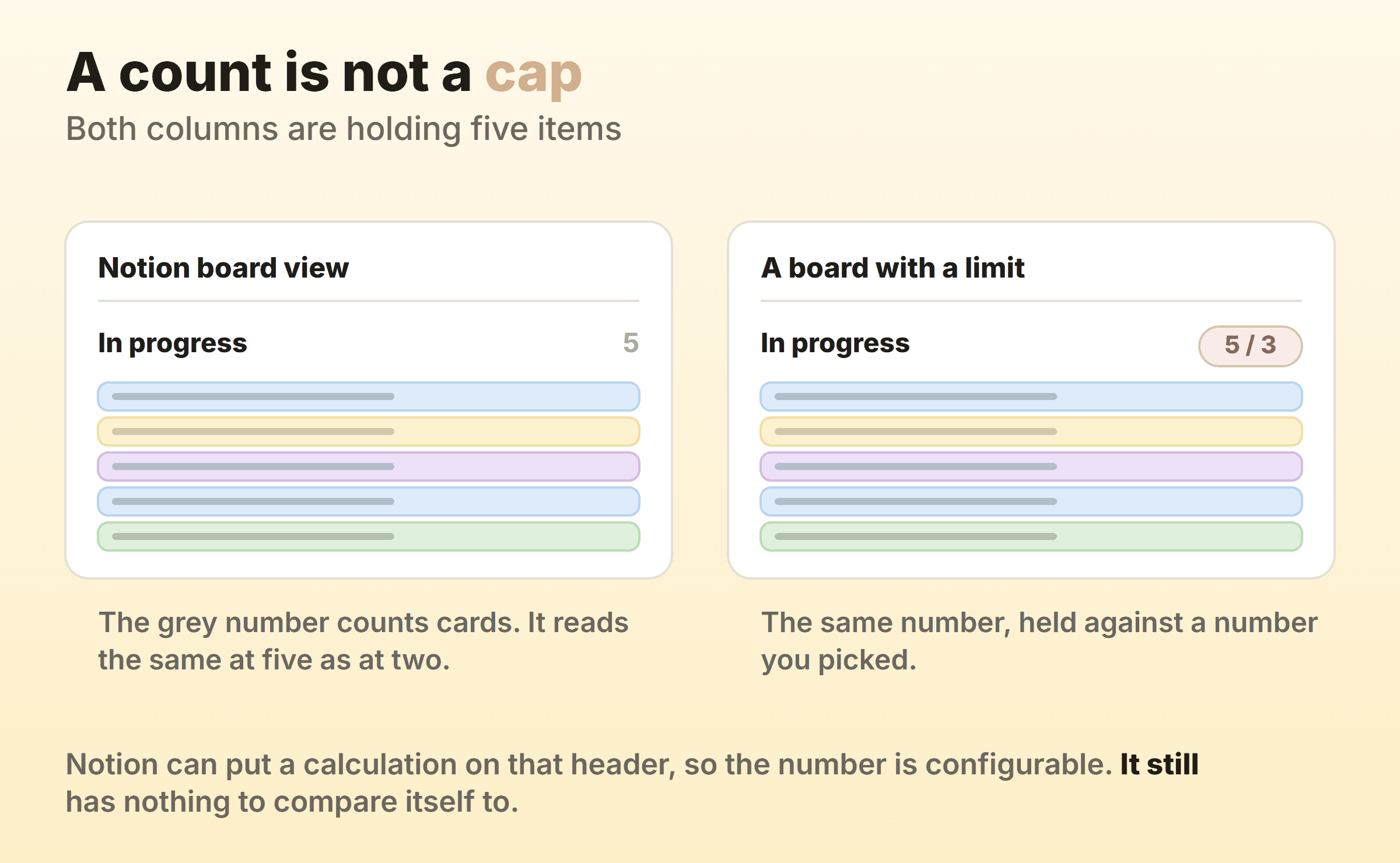
WIP limits are the mechanism that makes kanban do anything at all, and a board without one is a status display people update on Fridays. The cap is what pushes a team to finish something before starting the next thing.
Three workarounds circulate, and I would rank them like this:
- Write the cap into the column name. In progress (max 3). Costs nothing and holds up on a disciplined team of two or three. Falls apart the moment somebody is in a hurry.
- Set the group calculation to Count and agree a number out loud. Same idea, with a tidier number to point at in standup.
- Build a formula that flags an overloaded column. Notion formulas run per row, and a row has no idea how many siblings share its status without a self-relation and a rollup behind it. Doable. Brittle. I have never seen one still maintained six months later.
All three lean on the same thing. A limit does its job at the moment somebody wants to break it, and every option above leaves that decision with the person in a hurry.
Can You Measure Cycle Time on a Notion Board?
Not natively. Notion stores when a page was created and when it was last edited, and stores nothing about when a card entered or left a column, so the raw material for flow metrics is simply absent.
Teams work around it with a database automation. Automations fire when a property is edited and can edit another property in response, so you wire one up to stamp a date when the status changes, then compute the gap with a formula. Those automations sit on the paid plans.
Even fully wired, you get two dates per card and arithmetic you maintain yourself. Throughput means counting cards in Done through a filtered view. For a cumulative flow diagram you are exporting the database and drawing the thing in a spreadsheet.
For a team of three shipping a handful of things a week, none of that matters much. You can already see that review is slow. It starts to matter the week somebody senior asks how long work takes here and you want an answer with numbers in it.
How Well Does the Notion Board View Work on Mobile?
The Notion kanban board works on mobile, with roughly one column on screen at a time and a horizontal swipe between them. Cards open as full pages, and that part works well on a phone.
Dragging cards between columns on mobile is possible and fiddly. Most people open the card and change the status property from inside it, which is faster anyway. In fairness, almost every kanban tool treats column dragging as a desktop gesture.
When Is a Notion Kanban Board Not Enough?
A Notion kanban board runs out of road when you need the board to change what the team does. I have watched the same three signs show up:
- The In progress column has held nine cards for a month and nobody has mentioned it.
- Somebody asks how long work takes and the honest answer involves a CSV export.
- The database carries six views with filters only one person understands, and that person is on holiday.
None of that is a reason to leave Notion. Work that is mostly writing, with the board acting as a light index over documents, belongs in Notion, and it has an API and a template ecosystem no focused kanban app will match.
Kanbanee handles the other case. WIP limits are set per column and stay off until you switch them on, the badge shows count against limit and turns red once you go over, and the cap never blocks a drag, so the board argues with you and then lets you do it anyway. Cycle time, throughput and a cumulative flow diagram come built in rather than assembled out of automations and exports. The honest trade is a board and little else, no wiki, no docs, and no integrations yet. If you are weighing a move off Notion altogether, Notion alternatives compares the tools people switch to and what each one fixes.
Plenty of teams run both. Specs, notes and the wiki stay in Notion, and the daily board moves somewhere that can hold a cap of three.
FAQ
Is the Notion kanban board free?
Yes. Board view ships as a core database feature, so a kanban board in Notion costs nothing to build on the free plan. Paid plans are where the surrounding machinery lives, database automations in particular, which is exactly what you need to approximate cycle time.
How do you add a column to a Notion kanban board?
Add an option to the property the board groups by and the column appears. Two routes to it. The plus at the end of the columns, or the group settings for the view. Since the column is really an option on a shared property, every card in that database can now use it, including cards that never show up on this particular board.
Should you use board view or table view?
Board view answers where things stand. For a picture of everything that exists, or for editing twenty rows at once, the table wins easily. Most teams keep both on the same database and switch depending on the question, which costs nothing because the rows are shared.
Can one Notion database have two kanban boards?
Yes, and it is one of the better reasons to run this in Notion. Add a second board view grouped by a different property and you get a status board for standup plus a person board for one-to-ones, over exactly the same cards. Change a card in one and it changes in both, because both views are reading the same row.
Can the same tasks show up on a calendar too?
Yes. Notion databases handle kanban and calendar layouts over one set of rows, so add a calendar view to the same database and give the cards a date property. Drag a card to Done on the board and the calendar entry updates with it.