
The Kanban Board OneNote Never Shipped: Build One and Save It as a Template
Updated at
The Answer
There is no kanban board OneNote builds for you, so the board is one you draw yourself, from either a three column table or a row of loose note containers under three headings. The Kanban board entry under Insert then Loop components is a Microsoft Loop object that OneNote only displays, and it stays greyed out unless you are on a work or school Microsoft 365 account using OneNote on Windows desktop or the web. Build the table if you want a layout that survives every device and every sync. Build the containers if dragging a card matters more than the columns staying straight. Then save the finished page through View and Paper Size, where the option to save the current page as a template sits at the bottom of the pane, so the next project starts from your board instead of a blank sheet.
Is There a Kanban Board OneNote Ships With?
OneNote has no kanban board built in, and the Kanban board entry people keep spotting in the Insert menu is not a OneNote feature at all. It is a Microsoft Loop component that Microsoft started surfacing inside OneNote. For a large share of accounts it is visible and unclickable, which is exactly the sort of thing that sends people searching.
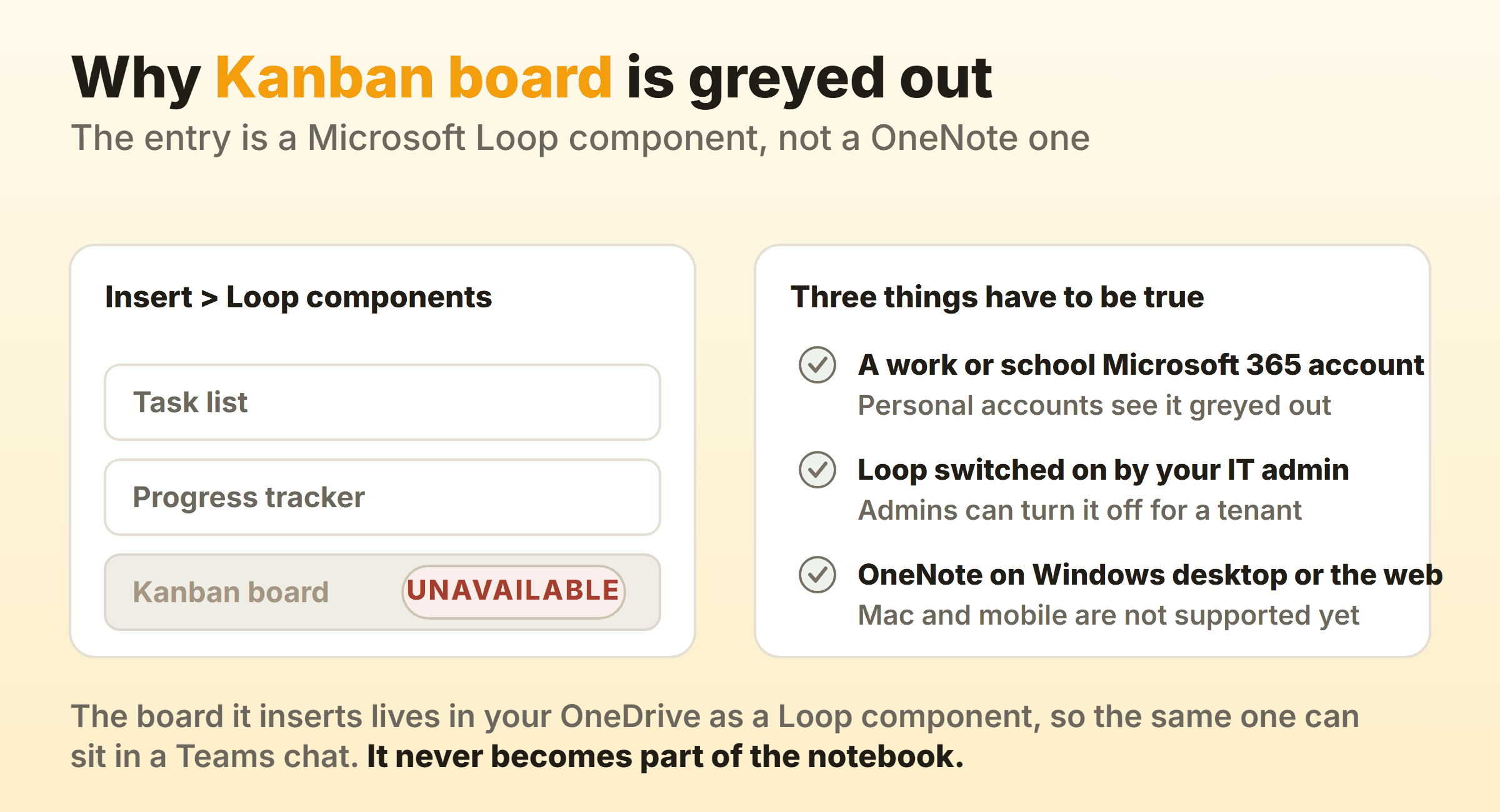
Three things have to line up. A work or school Microsoft 365 account, an IT admin who has left Loop switched on for the tenant, and OneNote on Windows desktop or on the web. Microsoft’s page on Loop components in OneNote is blunt about the platform part, saying mobile and Mac desktop are not yet supported and that components are available only to people within your organisation. A Microsoft Q&A thread covers the case most home users hit, where a personal outlook.com account sees the entry and cannot click it.
The board that entry inserts also never becomes part of the notebook. Loop components save to your OneDrive, so one board can sit in a Teams chat and on a OneNote page at the same time, two windows onto the same object. Useful when that is what you wanted. It also means somebody can tidy the page away while the board carries on living in OneDrive.
If you are still on OneNote for Windows 10, none of this applies to you anyway. That app reached end of support on 14 October 2025 and went read only, so no Loop entry is ever going to appear in it. The app Microsoft points everyone to now is OneNote on Windows.
So for most people the board is something you draw. OneNote hands you exactly two things to draw it with, and they behave nothing alike.
Which Layout Should a Kanban Board in OneNote Use?
A kanban board in OneNote uses either a table or a set of note containers, and the choice decides whether you drag a card or cut and paste it.
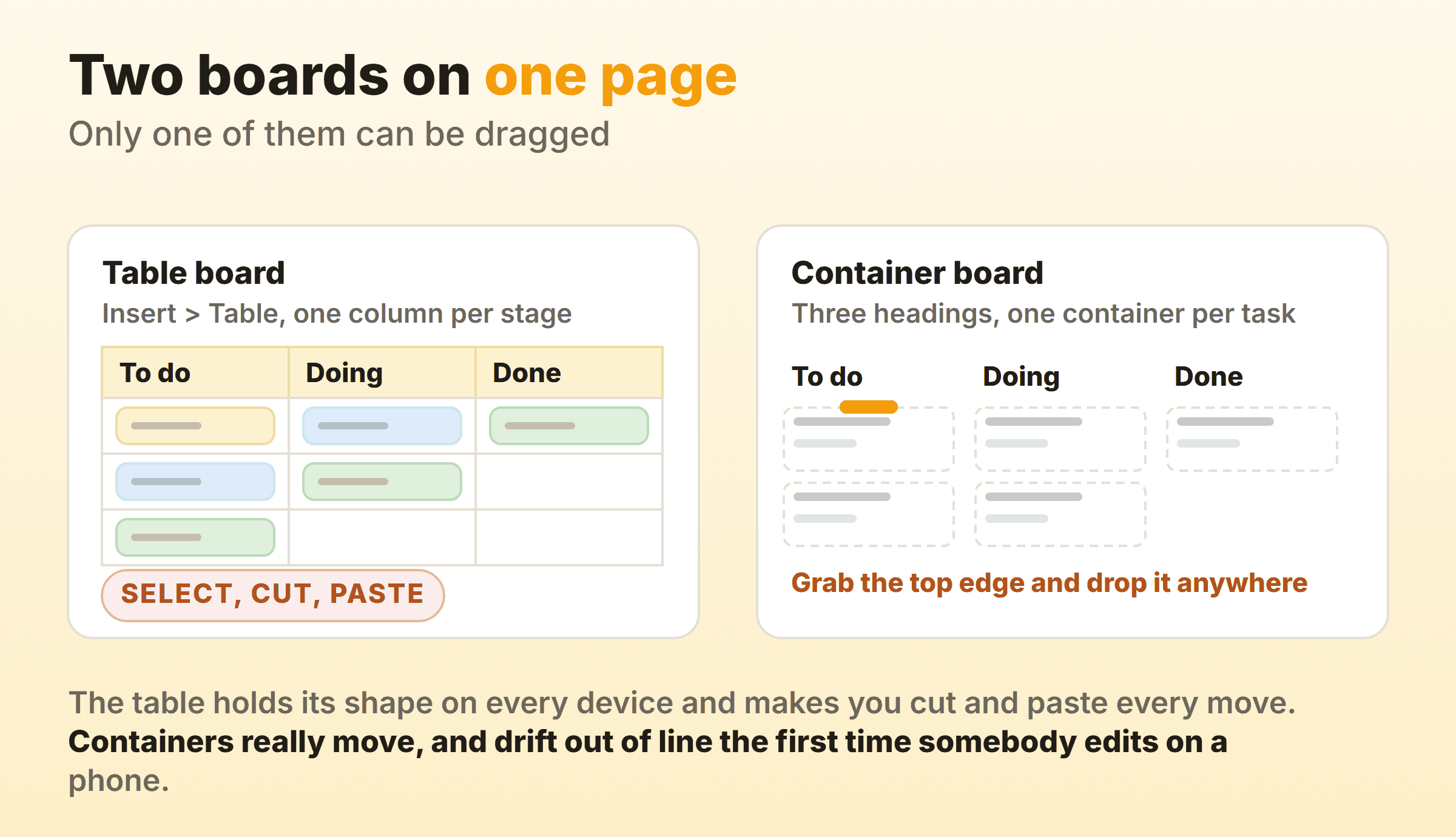
The table board. Insert, then Table, then one column per stage. Cards are lines of text inside cells. The layout holds its shape on a phone, on the web, on a colleague’s Mac, and it prints without argument. Moving a card is a select, a Ctrl+X, a click and a Ctrl+V. Four keystrokes instead of a drag, which sounds trivial and is the main reason a table board quietly stops getting updated.
The container board. Type three headings across the page, then drop a separate note container under each one. Every container carries a grab bar on its top edge, so a card really does move across the page with the mouse. It feels like a board. It also drifts, because containers hold absolute positions on the OneNote canvas and nothing keeps them in a column. Open the page on a phone, where the canvas reflows, and your tidy three column board comes back as one long list.
I run the table version for anything shared and the container version for a personal weekly board that nobody else opens. If two people touch the page, the table wins, because the table cannot be knocked out of alignment by accident.
Name the columns after the state the work is in. In OneNote a column heading is just text you typed, so nothing stops you writing With Dave, and nothing stops that column outliving Dave by two years. The column naming rules that apply to a real board apply harder here.
How Do You Make a Kanban Board in OneNote?
To create a kanban board in OneNote, give it a dedicated page, insert a three column table, write one card per cell, and move cards with cut and paste. Ten minutes, and every step below sits in the same place across OneNote versions.
Step 1: Give the Board Its Own Page
Create a section for the project and a page inside it called Board. Nothing else goes on that page. The temptation to put meeting notes underneath the board is strong and it is what kills these things, because the page becomes a scroll and the board slides off the top of the screen. Notes get their own pages in the same section, which is the one real advantage OneNote has over a dedicated tool.
Step 2: Insert a Three Column Table
Insert, then Table, then drag out three columns and two rows. Type your stage names into the top row. To Do, Doing, Done is enough to start, and adding a Blocked column before you have been blocked is a way of inventing work.
Select the header row and use the Shading button on the Table tab to fill it, so the header reads as a header when you skim the page. Pressing Tab in the last cell of a row adds a new row underneath, which is how the board grows.
Step 3: Write One Card Per Cell
Put one task per line inside a cell, written as an outcome. Draft the invoice email beats Invoicing.
Press Ctrl+1 on each line to apply the To Do tag, which puts a checkbox in front of it. The tag earns its place here. It is what makes the card findable later, and OneNote can pull every tagged line in the notebook into one place, which the next section leans on.
Keep the card to one line. A cell that runs to a paragraph makes the row taller than the screen, and the whole point of the layout is that you can see the board at a glance.
Step 4: Move Cards With Cut and Paste
Click into the cell, select the line, Ctrl+X, click the destination cell, Ctrl+V. That is the whole ritual for a table board.
Container boards skip it. Hover the top edge of the container until the grab bar appears, then drag it under the next heading. Faster, and you pay for it in alignment.
Either way the move leaves no trace. OneNote does not stamp a card with the date it changed columns, so if you ever want cycle time out of this board you will be reading page history and guessing.
Can a OneNote Kanban Board Track WIP Limits?
A OneNote kanban board cannot track WIP limits on its own, because nothing on the page counts anything. There is no badge and no red state. You can still write the cap into the column heading, so Doing becomes Doing (max 3), and then the number argues with whoever is about to start a fourth thing.
That sounds weak next to a tool that colours the column header red. It is weaker. It is also most of the value, since a WIP limit works by being visible at the moment somebody reaches for new work, and a heading is visible. On our own board I cap Doing at 2 and break it maybe once a fortnight, always deliberately. A heading gets you the same conversation, and you count the rows yourself.
For anything resembling progress tracking, use the tags. Home, then Find Tags, opens the Tags Summary pane, which gathers every tagged line across the section or notebook into one list, and clicking any entry jumps you to the page it lives on. It is a cross-project view of everything outstanding, which no single board gives you.
If you run classic Outlook on the same machine, the desktop app can also turn a selected line into an Outlook task with a due date and a reminder. A note tag will not do this on its own, because Microsoft keeps the two separate and tags never leave OneNote. Flagging the line is the only way a OneNote card ever chases you.
How Do You Save a OneNote Kanban Template?
Save a OneNote kanban template by finishing the page, then going to View, Paper Size, and choosing Save current page as a template at the bottom of the Paper Size pane. Name it Kanban Board. It then appears under My Templates, which you open through Insert, Page Templates, Page Templates whenever you start a new page.
Microsoft’s page templates guide states that the template is applied to a new, blank page, which means you cannot push a redesigned template onto boards you have already built. Template creation also lives in the desktop app, listed for OneNote for Microsoft 365, OneNote 2024, OneNote 2021 and OneNote 2016.
So the version-proof alternative is to keep one page called Board Template at the top of a section, right click its page tab, choose Copy, then paste it back whenever you need a new board. Uglier. Works everywhere, including the web app and your phone.
Downloads are the other route people take, and the search wording barely changes what comes back. Try kanban template onenote, or a kanban template for OneNote, or onenote kanban template free download, or microsoft onenote kanban template, and you land on the same handful of blog posts plus one or two add-in vendors selling a bigger notebook system. Before you import any OneNote kanban board template, check three things:
- Is it a table or floating containers? The screenshot rarely says, and the answer decides how the file behaves on a phone.
- Does it need an add-in? Several free looking OneNote kanban templates are the shop window for a paid add-in, and the board stops working when the trial does.
- Is it a .onepkg? That extension means a whole notebook package. Importing one leaves you with an extra notebook in the sidebar when all you wanted was a page in the section you already have.
Honestly, the ten minutes of building your own beats all of it, because your stage names are the part that matters and no template can guess those.
When Does a OneNote Kanban Board Stop Working?
A OneNote kanban board stops working at roughly the point where a second person starts moving cards on it. For a personal board it holds up for years, and none of what follows applies when nobody else opens the page.
Sync is the first thing to go. OneNote merges edits from different people well enough on separate paragraphs, and two people rewriting the same table row while one of them is offline produces a conflict page instead of a merge, which you then have to reconcile by hand. Nobody gets told when a card moves, and nothing on the page records who moved it. The board shows you where work sits right now and says nothing about how it got there, so the questions a board is supposed to answer, such as what has been stuck the longest, come back to memory and standup.
Kanbanee exists for the other case, where the board is the system of record and not a picture of one. WIP limits are a checkbox and a number in the column menu, the badge shows the count against the limit and turns red once you go over, and the drag is never blocked, so the board argues and then lets you through. Cycle time, weekly throughput and a cumulative flow diagram come with Pro at $6 a month or $48 a year, and the free tier is two boards you own with unlimited members. The gaps are real too. No realtime sync yet, column dragging is desktop only, and there is no API.
If you already live in OneNote, keep the notebook for everything that is genuinely notes. Research, meeting minutes, screenshots, the half formed thinking behind a task. OneNote holds all of that better than any board will. Put a link to the board page on the card and stop asking one tool to be both.
FAQ
Can I create a kanban template in OneNote?
Yes. Build the board page you want, then go to View, Paper Size and choose Save current page as a template at the bottom of that pane. It shows up under My Templates, which you open from Insert, Page Templates, Page Templates. The catch is that templates apply to new blank pages only, so changing the template later leaves existing boards untouched.
Does Microsoft have a kanban board tool?
Microsoft has several, and none of them is OneNote. Planner gives you a board view with cards, buckets and assignments inside Microsoft 365. Loop provides the Kanban board component that appears in the OneNote Insert menu. Azure DevOps carries a full board with WIP limits for engineering teams. Those are the Microsoft answers when you want a board that counts things.
Is there a free OneNote kanban template?
Free OneNote kanban templates exist, mostly as blog downloads and as demo notebooks from add-in vendors. They are worth about ten minutes of your time, which is roughly what building the table yourself costs. Check whether the download is a page, a whole .onepkg notebook, or a trial of a paid add-in before you import it.
Can you drag and drop cards on a OneNote kanban board?
Only on a container board. Note containers have a grab bar on the top edge and can be dragged anywhere on the page canvas, so cards move between headings with the mouse. Table cells do not work that way, so a card in a table moves by cut and paste instead.
What is replacing OneNote?
Nothing is replacing OneNote. OneNote for Windows 10 was retired in October 2025 and its users moved to OneNote on Windows, the desktop app that comes with Microsoft 365, which is the version Microsoft is still building. Loop is a separate app for collaborative components, and it replaces nothing.