
Slack Kanban: Building a Board Out of Slack Lists
Updated at
The Answer
Slack ships a kanban board and never calls it one. Slack lists carry two layouts, table and board, and switching to board layout while grouping by a status field gives you columns with cards you can drag between them, inside Slack, in a list that pins to the channel where the work is already being argued about. Lists want a paid plan. They hold 1,000 items on Pro and Business+, and every item arrives with a name, an assignee, a due date and a message thread of its own. A Slack kanban board cannot cap a column, and it never stamps a card with the day it moved, so the history you would want six months from now was never written down in the first place.
Does Slack Have a Kanban Board?
Slack has a kanban board hiding inside Slack lists, and no menu anywhere in the product uses the word kanban. Board layout is what it is called. Grouped by the right field it behaves like any other kanban-style board you have used.
Kanban is a visual system for limiting how much work is in flight at once. Slack handles the visual part. Nothing in the product does the limiting.
Three routes get you kanban in Slack, and one of them is a real board:
- A Slack list in board layout. Grouped by a status field, this is a working kanban board with drag and drop. Where almost everyone should start.
- A canvas with three columns. Looks like a board from across the room and holds nothing but text.
- A marketplace app. Somebody else’s board, reachable from Slack, sometimes rendered inside it.
The plan matters before anything else does. Slack’s help centre lists lists as available on paid plans, which means Pro, Business+ and Enterprise Grid. On a free workspace the whole question collapses into which app you install.
How Do You Create a Kanban Board in Slack?
To create a kanban board in Slack, make a list, give it a field for the state work is in, then switch the layout to board and group by that field. Five minutes, and most of that is deciding what the columns should be called.
Step 1: Create the List
Click the plus button in the sidebar and choose List, then take one of Slack’s templates for project tracking or request triage, or start from a blank one.
A new list arrives with four fields already in place: Completion, Name, Assignee and Due Date. Keep them. Every one of them earns its space on a board, and Assignee is what puts a face on a card.
Step 2: Add a Field for the State the Work Is In
Add your own field, name it Status, and make it the kind you pick a value from rather than type into. The values you give it become the columns of the board.
Name the values after states. To do, Doing, Done is the honest minimum and it will hold for a while. Add a fourth the first time you can point at work that is waiting somewhere the board hides, which for most teams is the gap between written and reviewed. Naming a column after a person feels efficient in week one and stops meaning anything the week that person changes team.
Step 3: Switch the Layout to Board and Group by That Field
Click the filters icon above the list. Under Layout pick Board, then set Group by to your Status field. On mobile the same controls live behind the filters icon, with Board and Group by as separate taps.
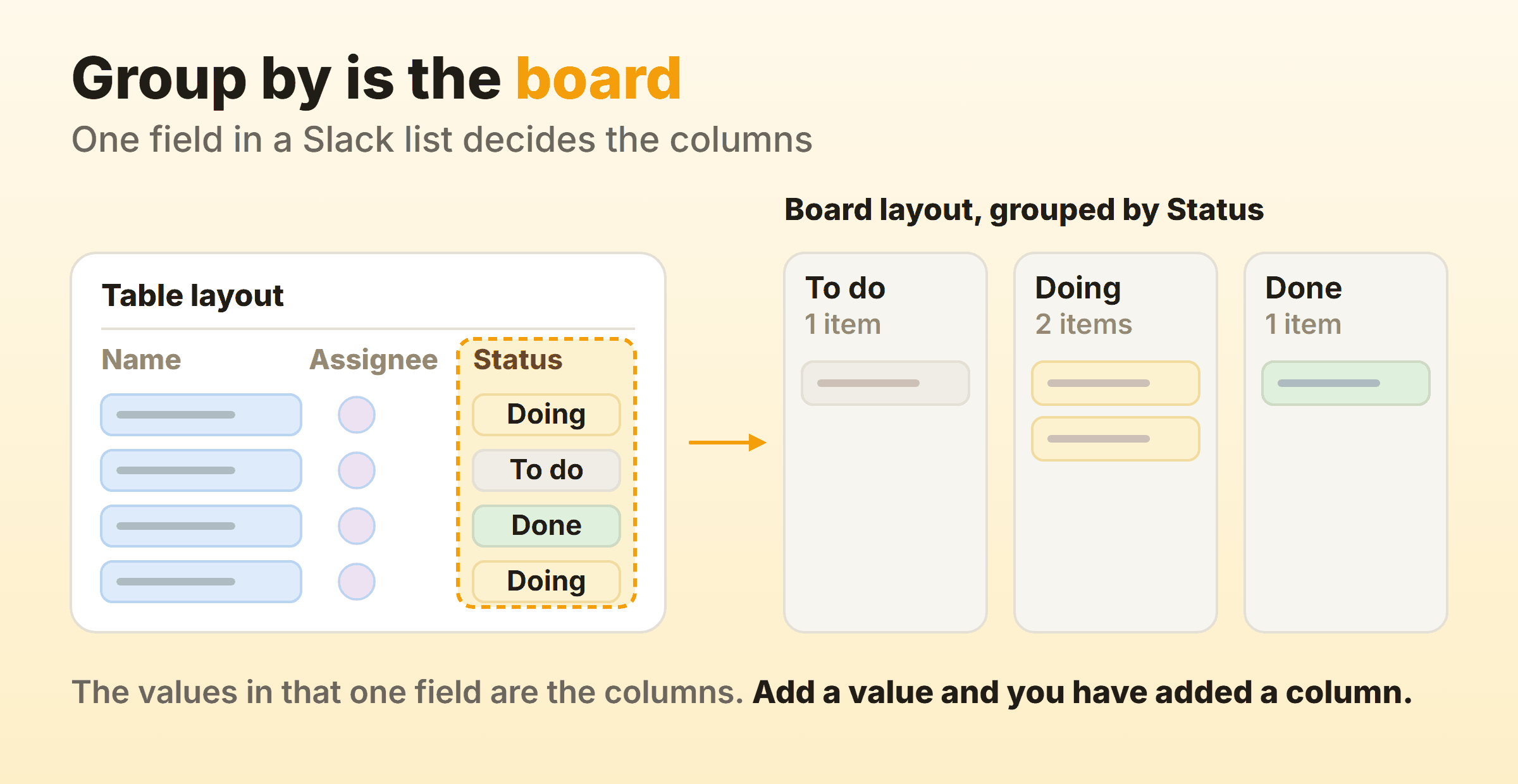
Every item is now a card. Drag a card into another column and Slack rewrites its Status field to match, because the column was only ever a way of drawing the field. Add a value and a column appears. Deleting one takes its column away with it, so think twice before tidying up a dropdown on a Friday afternoon.
How Do You Add a Kanban Board to a Slack Channel?
Add the list to the channel as a tab. Click the plus sign at the top of the conversation, pick List, and the board sits in the header next to the messages. Slack allows up to 15 tabs per channel or direct message, and they can hold canvases and lists, workflows, pinned messages, and links and files. Tabs work on every plan, including free ones, even though the list inside them does not.
This is the part that Trello and Jira cannot buy their way into. A board nobody opens is a spreadsheet with rounded corners, and most boards go stale because visiting them is a separate act of will. Here the board sits one click from the thread where somebody is already complaining that the work is stuck.
Sharing runs separately from tabs. The Share button takes names or channels, with a Can edit dropdown for permissions, and a general access control opens the list to anyone in the organisation as a viewer or an editor, which is how a private roadmap occasionally becomes company reading.
Can You Set WIP Limits on a Slack Kanban Board?
No. Slack lists have no per-column cap, no count against a limit, and nothing that notices a column has swollen to nine cards. A board with no work in progress limit is a status display, and that gap is the biggest thing standing between Slack lists and an actual kanban system.
I have run all three of these workarounds on real boards, and each one gets you partway:
- Put the number in the column name. Rename the Status value to
Doing (3). Slack does no parsing at all, so this is a note to your colleagues and nothing more. It works, for the unglamorous reason that most people respect a cap they can see. - Turn on notify when field changes. Point the Status field at a channel and every column move posts a message. A column filling up stops being invisible and becomes traffic, which is the closest Slack comes to a red badge.
- Build a workflow. Workflow Builder offers a trigger for when a list item is updated, and you can narrow it to one field. Post to a channel when Status changes to Doing and you have a running commentary on how much is being started.
Not one of them refuses a card. Which matters less than it sounds, since a cap that physically blocks a drag is rare in any tool. A limit exists to make somebody hesitate before starting a fourth thing and go help finish the second instead, and a number typed into a column heading does part of that job for anyone who wanted to be told. On a team that has already decided the cap is optional, it does nothing at all.
What Can You Measure on a Slack Kanban Board?
Throughput, by counting completed cards, and after that every number you want costs you an afternoon with a spreadsheet. A Slack list records what an item is and who owns it. When it moved is nowhere.
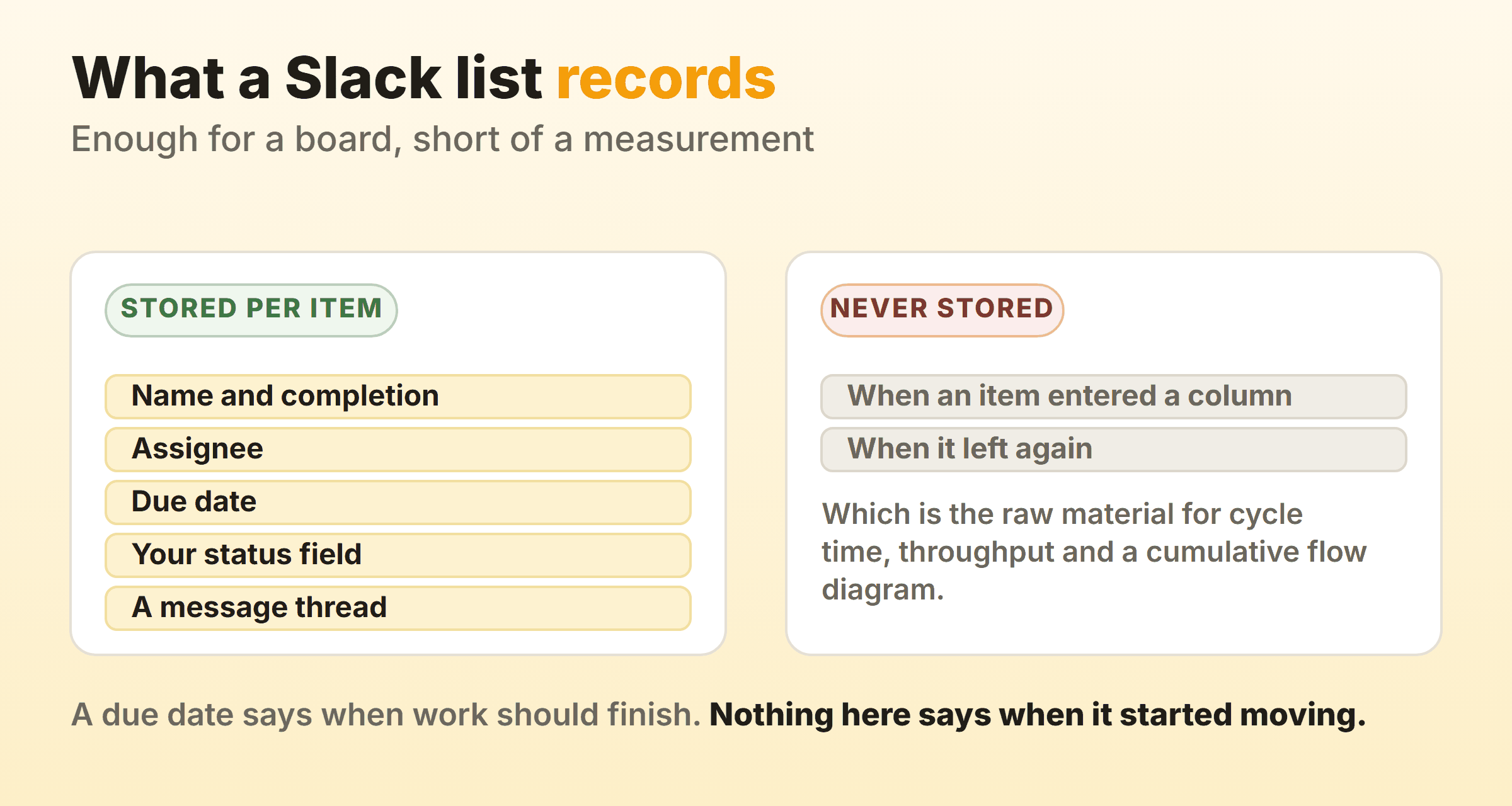
Each item carries its name, its completion, an assignee, a due date, whatever fields you added, and a message thread. Nowhere in that is a stamp saying this card entered Doing on Tuesday and left on Friday. Flow metrics are built out of exactly those two moments. No entry time means no cycle time, and a cumulative flow diagram has nothing to plot.
One workaround gets you halfway. Send those field change notifications to a dedicated channel and Slack stamps every one of them, so the channel turns into an event log of column moves. Scroll back through it and you can work out roughly how long any card sat in review. Reading it back is manual work, and the log survives exactly as long as your workspace message retention does.
Due dates confuse people here. A due date is a promise somebody made in a meeting about the future. Cycle time is a record of what your team actually did last quarter, and a Slack list will hand you the first while keeping the second permanently out of reach.
What Is a Slack Canvas Kanban Board?
A Slack canvas kanban board is three columns of text laid out inside a canvas to look like a board. Canvases support up to three columns holding text, lists and images, and the columns can be dragged to reorder them.
A canvas gives you the picture of a board without the machinery underneath it. None of the text on it is a card, so nothing carries an assignee, a due date or a thread. Grouping, filtering and automation are all absent, and moving an item between columns means cutting a line of text and pasting it lower down. Slack also retired channel canvases in favour of adding canvases to tabs, so a canvas board lives in the same tab strip a list board would.
Narrow uses do exist. A definition of done pinned above the channel works well, and so does a one-page release plan that nobody edits twice a day. Anything that moves hourly wants a list instead.
Which Kanban Apps Integrate With Slack?
Search for kanban for Slack and the marketplace is most of what comes back. Those apps arrive in two shapes, and the difference decides whether you get a board or a notification feed.
The common shape leaves the board where it is. Trello, Jira and Asana all connect to Slack and send messages about cards, and you still open the app to do anything real. A Slack Trello integration works exactly that way, with unfurled cards in the channel, a bot that can create one, and the board itself living somewhere else. Nothing wrong with it, as long as you are honest that Slack is being used as a doorbell.
The rarer shape puts the board inside Slack. The Workstreams listing on the Slack Marketplace describes a kanban board that is created automatically and reachable from Slack itself, with the app home working as the hub. If the whole point was to stop switching tabs, that is the shape to go looking for.
Two questions before you install anything. Where does the board actually live, and which channel do the notifications land in. Pipe a busy project into a general channel and it gets muted inside a week, and a muted integration still leaves everybody assuming somebody is watching it.
When Does a Slack Kanban Board Stop Being Enough?
A Slack kanban board stops being enough when it starts quietly losing its own history. Lists hold 1,000 items and subtasks on Pro and Business+, and 5,000 on Enterprise Grid, and Slack archives the oldest items automatically once a list reaches the ceiling. For a board that has been running two years that is a slow erasure of exactly the data you would want.
The other two signals show up sooner:
- Somebody senior asks how long work takes here, and the honest answer involves scrolling a notification channel with a calculator open.
- Doing has held eight cards since the start of the month and no part of the tool has mentioned it.
None of that argues for leaving Slack. Slack lists are genuinely good at the thing they were built for, which is turning a conversation into tracked work without anybody opening another tool, and the item thread on every card is an idea most dedicated boards still have not copied.
Kanbanee sits on the other side of that trade. Its WIP limits live in the column settings instead of the column name, so the badge shows count against limit and goes red once you cross it. Cycle time, weekly throughput and a cumulative flow diagram come as built-in reports on Pro, because the board journals every move a card makes between columns and Slack lists never do. The cost is that none of it sits next to the conversation. Cards take comments and @mentions of their own, which is not the same as the channel your team already lives in, and there is no Slack integration to bridge the two, since the public API does not exist yet. Free covers two boards you own with unlimited members, and Pro is $6 per month or $48 a year.
Plenty of teams run both. Conversation and quick triage stay in Slack, where the people already are, and the work somebody will ask you to explain in six months goes on a board that stamps its cards. If you are running a Slack list today, switch on field change notifications and point them at a quiet channel. From that day the history starts accumulating, and some of it will be there by the time anyone asks.
FAQ
Does Slack have a built-in kanban board?
Yes, under a different name. Slack lists have a board layout, and grouping that board by a status field produces a kanban board with columns and drag and drop. Slack never uses the word kanban in the interface, which is why so many people conclude the feature does not exist.
Is a Slack kanban board free?
No. Lists are available on paid plans, so a kanban board built from a Slack list needs Pro, Business+ or Enterprise Grid. Free workspaces can add a marketplace app instead, and the board then lives in that app rather than in Slack.
Can you drag and drop cards on a Slack kanban board?
Yes. In board layout, items become cards and you drag them between columns, which updates the field you grouped on. The drag is the field edit, so opening a card and changing its status by hand moves it just the same.
How many items can a Slack kanban board hold?
1,000 items and subtasks on Pro and Business+, and 5,000 on Enterprise Grid. When a list hits that limit, the oldest items are archived automatically, so a long-running board loses its early history rather than refusing new cards.
What is the best kanban app for Slack?
Depends entirely on where you want the board to live. To stop switching tools, look for an app that renders its board inside Slack, such as Workstreams. Teams already running Jira or Trello should reach for that tool’s integration first. And if columns and a status were all you ever needed, ten minutes in a Slack list beats any of it.
Can you run a kanban board in a Slack channel without using lists?
You can approximate one with a canvas, laid out in three columns and added to the channel as a tab. Cards are lines of text. Nothing carries an assignee or a due date, and moving one means retyping it somewhere else. As a plan it reads fine. It stops working the first time two people edit it in the same hour.