
Kanban View: What It Is, How It Works and When to Switch
Updated at
The Answer
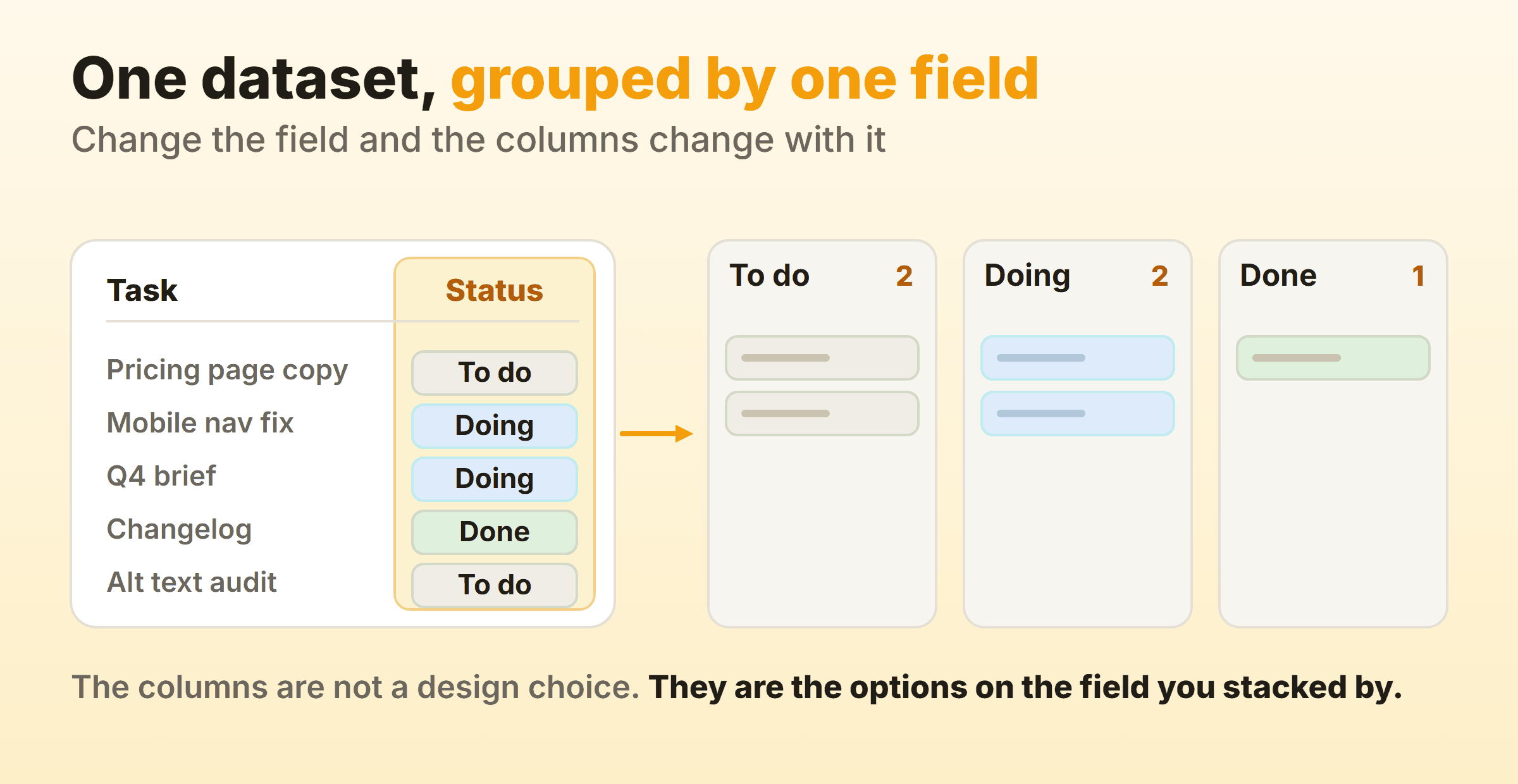
A kanban view displays a set of records as cards arranged in columns, where the columns are the options on one field you pick to group by. Choose Status and you get To do, Doing and Done. Choose Assignee and the same records regroup into a column per person. Dragging a card between columns rewrites that field on the record, so the view is a lens onto your data rather than a separate copy of it. Most work tools now ship a kanban view beside list, table, calendar, timeline and dashboard views of the same records, and the kanban view is the one that answers where work is stuck and how much is in flight. It is also the weakest of the six at anything involving dates. Run it as the working view for a team pulling items through stages, and switch to another view for the questions it cannot answer.
What Is a Kanban View?
A kanban view is a display mode that arranges records as cards in vertical columns, one column per option on a single grouping field, with drag and drop between columns writing the new value back to the record. The word view matters here. It is a rendering of a dataset you already have, not a new place to keep things.
That distinction is why the same hundred records can appear as a spreadsheet grid on Monday and a board on Tuesday without anything being copied. Tools name it differently and mean the same thing. Baserow says stacked by. Salesforce says group by. Notion says group. The kanban views you see in a CRM, a helpdesk, a database tool and a job tracker are all the same feature wearing different labels.
Is a Kanban View the Same as a Kanban Board?
Not quite, and the gap causes real confusion. A kanban board is a practice: visualise the work, cap what is in progress, pull the next item when capacity frees up. A kanban view is a software feature that arranges cards in columns.
Every kanban board is a kanban view. Plenty of kanban views are not kanban boards. If the tool gives you columns but no work in progress limit and no agreement about who pulls what, you have the shape of a board and none of the mechanism. That is fine when all you wanted was a nicer way to read a table. It stops being fine when somebody calls it a kanban system and expects flow to improve on its own.
How Does a Kanban View Work?
A kanban view works off three settings: the field it stacks by, the fields shown on the card face, and whatever filter is active. Get the first one right and the rest is decoration.
The Field You Stack By Decides the Columns
The field you stack by generates the columns, in the order that field lists its options. This is the part people miss. You do not design the columns of a kanban view. You design the field, and the columns follow.
Four consequences worth knowing before you turn one on:
- Records with the field empty get their own column. Baserow’s documentation calls it Uncategorized. Most tools do something similar, and it fills up fast on a dataset nobody has curated.
- You can only stack by one field at a time. Want the same records grouped by owner as well as by status? That is a second saved view, not a second axis. Baserow’s kanban documentation states this outright.
- Renaming a column renames the option everywhere. The column header is the field option. Change it here and every report, filter and automation touching that field changes with it.
- Dragging edits the record. Which also means permissions apply. Salesforce’s considerations for kanban views put it plainly: if you do not have edit access to a record, you cannot drag its card to a different column. The card just refuses to move.
So the honest first question is not how many columns you want. It is whether the field you are stacking by describes states people actually move work through.
What Ends Up on the Card Face
The card face is the small subset of fields the view shows without opening the record, and every kanban view lets you choose it. Baserow calls the panel Customize cards and can put an image from a file field across the top. Airtable, monday and the rest have their own version of the same control.
Three to five fields is the working range. Title, owner, one date, one label. Enough to run a standup without clicking anything. I use a simple test on our own board: if somebody has to open a card to say what is happening to it, the face is missing a field. If nobody has looked at a field on the face in a month, take it off.
What Can a Kanban View Not Show You?
A kanban view cannot show you time, duration, dependency or aggregate. Those four blind spots are structural, not a gap in any particular product, and they are the reason tools bother shipping five other views.
Time. A card sitting in Doing looks identical on day one and day forty. The column tells you the state and says nothing about how long the item has held it. Some tools add a card age badge or colour the card as it goes stale, which helps. Most do not.
Duration. Every card is the same rectangle. A twenty minute task and a six week project occupy the same space, so a column of eight cards could be two days of work or two quarters of it.
Dependency. Nothing on a board draws the arrow from the item that has to finish first. Teams work around this with blocked labels and a comment thread, and the sequence still lives in somebody’s head.
Aggregate. A kanban view gives you one number per column, the count. Sums, averages, distributions and anything measured over weeks are outside what an arrangement of cards can express.
There is a fifth limit that is practical rather than structural. A column only works as a picture while it fits on the screen, and once it needs scrolling the view has quietly turned back into a list. I treat the scrollbar as the signal on our own board: filter the column, split it, or accept that nobody is reading the bottom half.
Kanban View vs List, Calendar, Timeline and Dashboard Views
The other views exist because each one groups by something different, and what you group by decides the question the view can answer. Kanban groups by state. Calendar groups by date. Timeline groups by duration. A list barely groups at all.
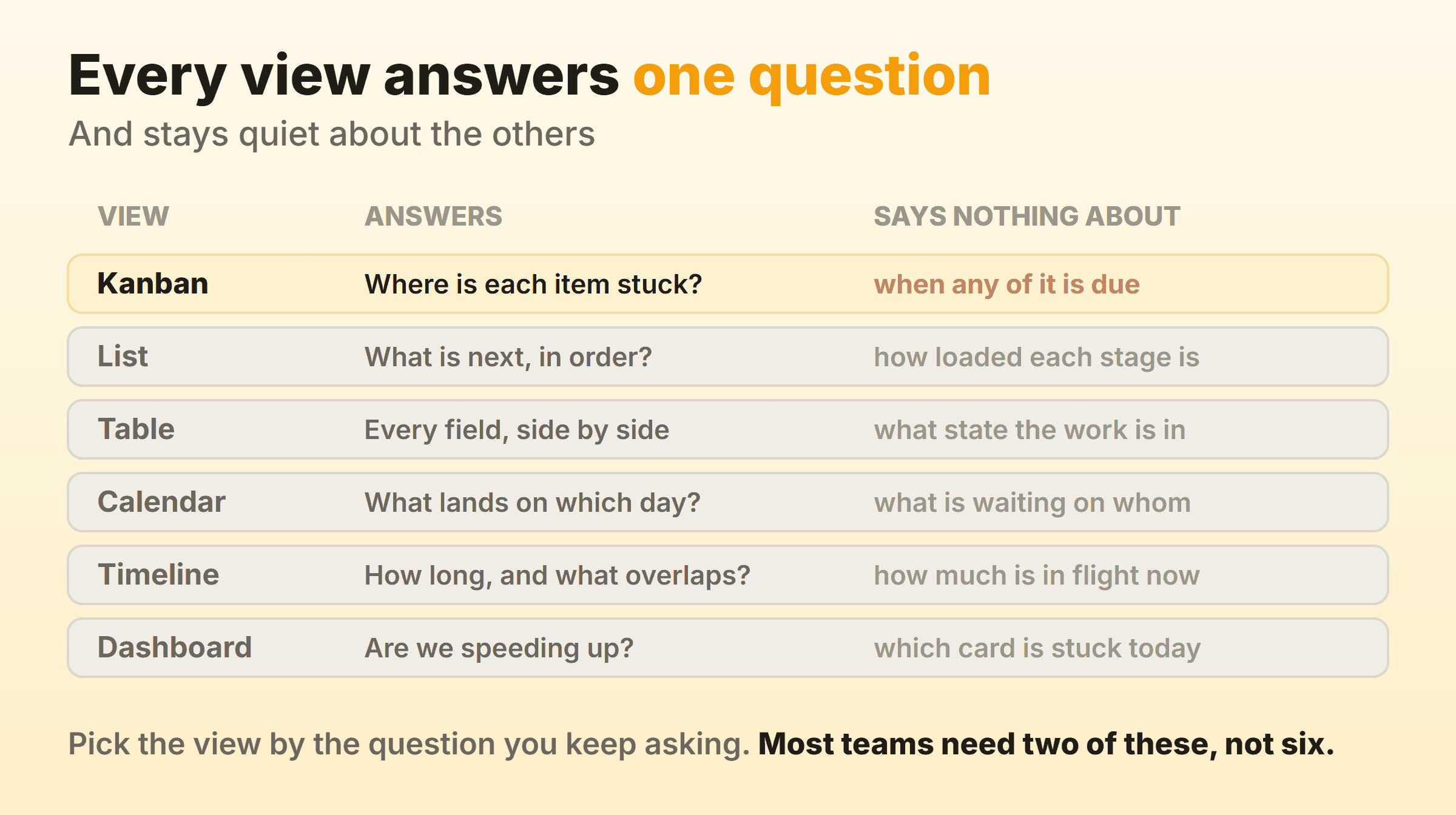
| View | Arranged by | Answers | Weak at |
|---|---|---|---|
| Kanban | a status or select field | Where is each item stuck | dates, duration, sequence |
| List | rank order | What comes next | how loaded each stage is |
| Table | rows and columns of fields | Comparing every field at once | state at a glance |
| Calendar | a date field | What lands on which day | anything with no date |
| Timeline | a start and an end date | How long, and what overlaps | day to day flow |
| Dashboard | aggregates over the whole set | Are we getting faster | which card is stuck today |
Two of these usually earn a permanent place. The rest get switched on for a specific question and switched off again.
List and Table Views
A kanban list view is the same records in one ranked column instead of several state columns, which makes it an ordering tool rather than a flow tool. That is the whole difference between a kanban board and a task list. A task list tells you what to do next. A board tells you what is where and how much of it there is.
The kanban list is the better view for a backlog, because a backlog is a queue and a queue has one dimension. Two hundred items stacked in priority order read fine in a list and are unusable as columns.
A kanban table view is a spreadsheet grid of the same records with every field visible, sortable and editable in bulk. Most teams end up using both: the table to do the tedious work of filling in fields on forty records, the kanban view to watch what happens to them afterwards. Nobody enjoys editing a card at a time when a grid would do it in one paste.
Calendar View
A kanban calendar view arranges the same cards by a date field, so each card lands on the day its due date falls. Cards without a date disappear entirely, which is the first surprise for anyone who turns it on expecting to see the whole board.
Combining kanban boards and calendars comes up constantly, and there are only two real patterns.
One tool, two views. The platforms combining kanban boards and calendars in the same product are doing the simple version: same records, second arrangement, one click between them. The card is the event. Nothing syncs because nothing left the building.
A feed out to a real calendar. The other pattern integrates kanban board events with Google Calendar or Outlook so due dates surface where people already look. Treat this as one directional. A calendar event has a start and an end, a card has a due date and a column, and two way sync between those two shapes breaks in ways that are tedious to unpick. Push out, edit in the board.
Course and class tools sit in the same bucket. Pulling a course calendar into a board gives you a card per assignment with a due date, and the board is then the place you work while the calendar stays the place dates come from.
Timeline and Roadmap Views
A kanban timeline view draws each item as a horizontal bar between a start date and an end date, so length means duration and position means when. It answers the overlap question a board cannot touch. A kanban roadmap is the same chart zoomed out, usually grouped by theme or quarter, with items as blocks rather than cards.
The catch is the input. A timeline needs two dates on every item, and most kanban cards carry one date at best. Turn on a timeline over a board that was never planned that way and you get a mostly empty chart with four bars in it. The comparison in full is kanban versus Gantt, and the short version is that they answer different questions rather than competing.
The pattern that works for a product roadmap kanban is two views with different time horizons. Roadmap for the quarter, so stakeholders can see order and rough shape. Kanban view for the week, so the team can see what is actually moving. The roadmap is a forecast and the board is the state of things, and keeping them separate stops the forecast quietly becoming a commitment.
Dashboard View
A kanban dashboard is not another arrangement of the same cards. It is the aggregate layer: throughput per week, cycle time distribution, a cumulative flow diagram, counts by assignee or label. Kanban dashboards answer whether the system is improving, which no arrangement of individual cards can.
The distinction is worth holding onto because kanban board dashboard gets used for two different things. Sometimes it means charts. Sometimes it means a portfolio screen showing several boards at once with their card counts. Only the first one tells you anything about flow. What the numbers mean and which ones to watch is covered in kanban metrics.
Kanbanee has no separate dashboard view. The board is the working view, and the Pro plan at $6 per month or $48 per year adds a reports section with weekly throughput, cycle time, a cumulative flow diagram and time logged per member or label. Free covers two boards you own with unlimited members, and there is no API yet, so a feed of card data into an external dashboard is not something I can offer you today.
Where Do You Turn On a Kanban View?
Turning on a kanban view takes the same three steps in nearly every tool. Add a single select or status field to the records if there is not one already. Switch the view type from table to kanban. Pick the field to stack by.
Baserow, Airtable, NocoDB, SeaTable, monday, Notion, Odoo, EspoCRM, Zoho and Salesforce all ship one, and the vocabulary is the only thing that really changes between them. Each of those tools has its own setup guide. Salesforce puts it under Kanban Settings on a list view, groups by a field such as Stage or Owner, and can total a numeric or currency field in each column heading. Baserow keeps it in the toolbar as Stacked by and gates it behind a paid plan. The Odoo helpdesk kanban view and the various CRM kanban views are the same feature applied to tickets and deals.
Two things are worth knowing before you go looking. Excel has no native kanban view, so anything kanban shaped in a spreadsheet is built by hand out of columns and conditional formatting. And a dedicated kanban tool has nothing to switch on, because the board is the only view it has. That is a real trade. You lose the table and the calendar, and you gain a product where work in progress limits and card ageing are first class rather than bolted onto a database.
When Should You Not Use a Kanban View?
Skip the kanban view when the records have no meaningful state, when the set is a queue rather than a flow, or when the state you care about barely changes.
- No state field worth grouping by. Stacking by a field with forty options produces forty columns and a horizontal scrollbar. If the only categorical field you have is Client or Type, a filtered table is more honest.
- A queue, not a flow. Reading lists, shopping lists, a backlog of three hundred items. One dimension, so use one column.
- One person, short items. A board earns its keep by making handoffs visible. Nothing is handed off when there is nobody to hand it to.
- Phone first teams. Columns need width. On a phone you get one column at a time with a snap, and long press to drag, which works but is nobody’s favourite way to move six cards.
- A state that changes twice a year. Contract stage, employee status, anything slow. The cards never move, and a board where nothing moves is a table with worse density.
The reverse case is easier to spot than any of these. When the recurring question in the room is where something has got to, the kanban view is the right default, and everything else is a second view you open when somebody asks about dates.
FAQ
What is a kanban view?
A kanban view is a way of displaying records as cards in columns, where each column is one option on a field you choose to group by. Moving a card to another column updates that field on the record. It sits alongside list, table, calendar and timeline views of the same data in most modern work tools.
What is the difference between a kanban board and a kanban view?
A kanban board is a working practice with columns, limits on work in progress, and rules about pulling the next item. A kanban view is the software feature that draws cards in columns. The view gives you the picture, and the board is what you get when the team also agrees on the rules that go with it.
What is the difference between a kanban board and a task list?
A task list is ordered top to bottom and answers what to do next. A kanban board is ordered left to right by state and answers where each item has got to and how much is sitting in each stage. Lists are better for long queues, boards are better for work that passes through stages.
What is the kanban view in Salesforce?
In Salesforce, the kanban view is a display option on a list view that groups records into columns by a field such as Stage or Owner, with an optional numeric or currency total in each column heading. You change the grouping and the summary under Kanban Settings, and dragging a card writes the new value to the record. Users without edit access on a record cannot drag its card.
Can a kanban board show a calendar?
Not within the board itself. Tools solve this with a separate calendar view over the same records, arranged by a date field, that you switch to from the same toolbar. Cards without a date will not appear there at all.
How many kanban views can one set of records have?
As many as you have fields worth grouping by, since each saved view stacks by one field. A common setup is two: one grouped by status for daily work, one grouped by owner or team for load. The records stay single, and only the arrangement is duplicated.