
Airtable Kanban: How to Build the View and Where It Stops
Updated at
The Answer
Airtable has a kanban board built in and files it under view types, so you add a Kanban view to a table you already have and the records stack into columns by one field you pick. Every plan includes it, the free one too, and setup runs about two minutes. The catch lives in that one field. An Airtable kanban view stacks by a single select field, a user field, or a linked record field with multiple linking switched off, it accepts no second grouping field, and nothing in it counts work in progress against a cap or remembers how long a card sat where it sat.
Does Airtable Have a Kanban View?
Airtable has a kanban view, and it is one of eight ways to look at a table. Airtable’s documentation on views puts it plainly: the default type is a grid, and the rest are form, calendar, gallery, kanban, timeline, list and gantt.
A view in Airtable is a lens over the table, and the records never get duplicated. Airtable views across grid, kanban, calendar and gallery all read the same rows, so the card you drag on the board is the record your colleague is editing in the grid two tabs over. Drag it and their grid updates under them.
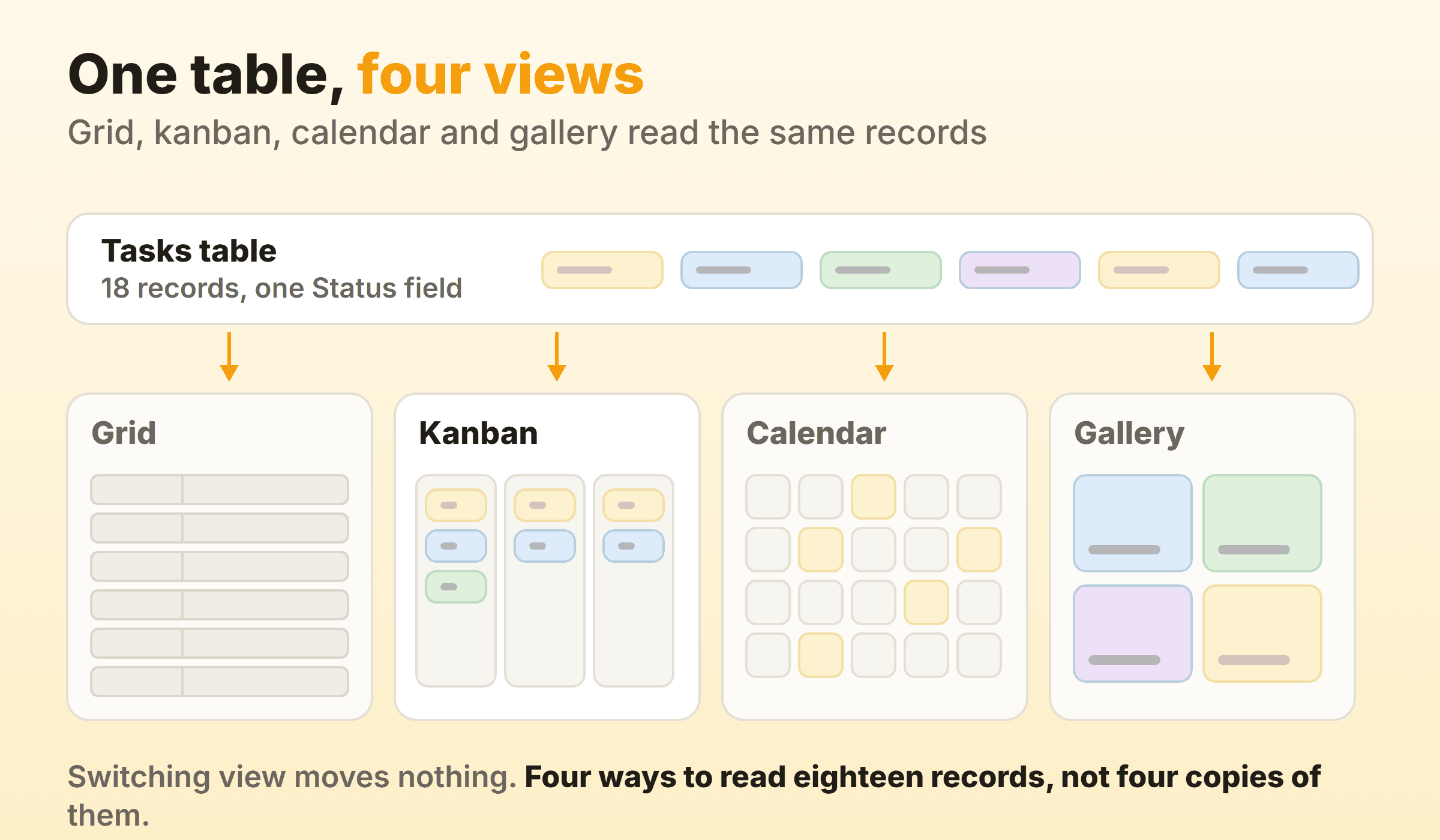
Nothing has to be migrated, then. A table somebody built in March as a spreadsheet becomes a board this afternoon and keeps its grid for the days when you want forty rows on screen at once. Running several board views over one set of records is where Airtable beats most dedicated board tools I have used.
Then you go to configure the stacking field, and the ceiling arrives early.
How Do You Create a Kanban View in Airtable?
To create a kanban view in Airtable, open the table holding the work, click + Create new… in the view sidebar, choose Kanban, name it, and pick the field to stack by. Airtable asks you to set the view as Collaborative, Personal or Locked on the way through. Locked views need a paid plan. The other two do not.
Step 1: Add the View to a Table You Already Have
Add the kanban view to the table that already holds this work rather than building a fresh one. Airtable makes starting over so easy that people do it without thinking, and then two tables track the same project.
I have inherited that mess more than once. A grid for the quarterly plan, a board for standup, and no relationship between them beyond somebody retyping things on Fridays. Views stay in sync because there is nothing to sync. Build the second table and you have signed up for a reconciliation habit that never ends.
Step 2: Pick a Field That Airtable Accepts
Airtable’s kanban view documentation lists exactly three eligible field types: single select, user, and linked record where Allow linking to multiple records is toggled off. Get this wrong and Kanban is not on the menu at all.
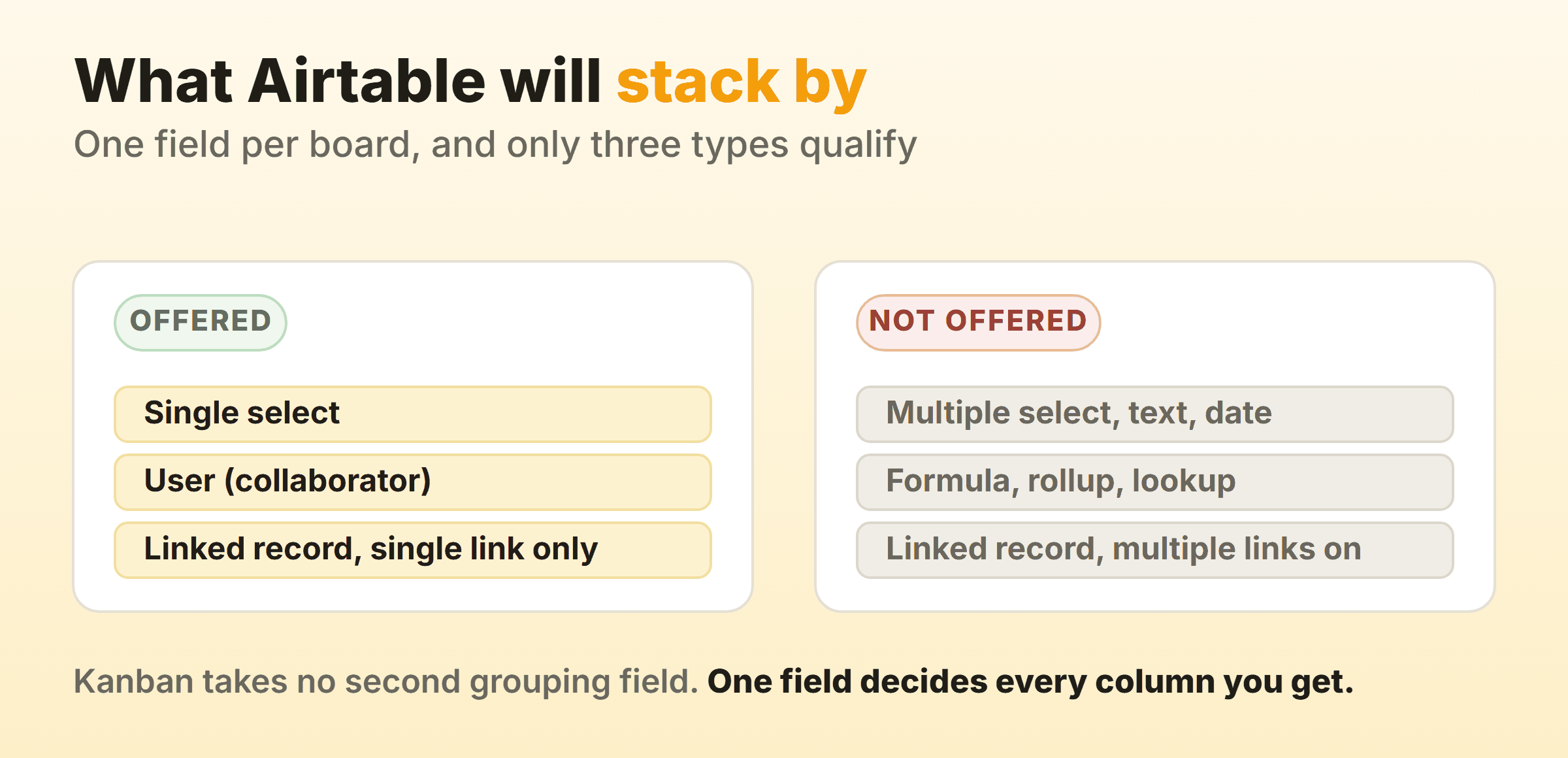
Everything else is out. Multiple select, long text, date, number, formula, rollup, lookup. A linked record field with multiple linking left on is out too, and that one catches people, because it is the default when you create the link.
So a single select field named Status is the answer nine times out of ten, with each option becoming a stack. Stacking by the user field builds a board of people instead, which reads beautifully for about a week and then hides the place work is genuinely stuck. Keep that one as a second view.
The same documentation notes that kanban views do not support secondary grouping. One field, one set of columns, no nesting. Want the board split by team as well as by stage and you are building a filtered kanban view per team, because Airtable will not draw lanes inside a board.
Step 3: Name the Stacks After States
Name each stack after the state the work is in. “In review” survives a resignation. A stack named after whoever currently does that job stops meaning anything the week they leave, and every board I have taken over with a column named that way had two columns doing the same job inside six months.
Three to five stacks covers a first board. A stack is only an option on the single select field, so adding a column means adding an option, renaming a column rewrites that option on every record using it, and deleting one deletes the option outright. Select options are table-wide, so the stack you delete here disappears from every other view reading that field.
Step 4: Decide What the Cards Show
Open Customize cards and toggle fields on or off. There is a search box for finding a field in a long table, a Hide all and Show all pair, and a Wrap long cell values setting for card titles that run past the width. Airtable kanban view cards also drop any field where the record has no data, so a half-filled record shows a shorter card rather than a row of blanks.
Two visible fields. Due date and owner cover almost every board, and I have never seen anyone thank a card carrying nine of them. A sales pipeline earns a third for deal value. Call it three at the outside, because pushing past that rebuilds the grid inside the board and undoes the whole reason you switched views in the first place.
Kanban views also take filters, sorts, conditional record colouring and sharing, configured the same way as on a grid. Colour by a due date condition and overdue work turns visible without anyone reading a card.
What Does an Airtable Kanban Board Look Like in Practice?
An Airtable kanban board is a row of stacks, each headed by one option from the stacking field, with white record cards underneath. Drag a card from one stack to the next and Airtable writes the new option into that field on the record. That is the whole mechanic. The board is a picture of one cell across every record, and every drag is a write to that cell.
Airtable keeps no memory of what the cell held before, which is where every limit further down this page comes from.
These Airtable kanban board examples hold up in real use:
| Board | Stack by | Stacks |
|---|---|---|
| Team tasks | Status (single select) | Backlog, In progress, In review, Done |
| Content pipeline | Stage (single select) | Idea, Drafting, Editing, Scheduled, Live |
| Sales pipeline | Deal stage (single select) | Lead, Contacted, Demo, Proposal, Won |
| Bug triage | Triage state (single select) | New, Reproduced, Fixing, Verified |
| Workload check | Assignee (user field) | One stack per person |
One warning about the Airtable kanban view example you meet in a template gallery. Those bases are stuffed with sample records and look organised because somebody designed them to photograph well. Your own board in week one holds a handful of cards and looks sparse beside that, which is correct and worth leaving alone.
Does the Airtable Free Plan Include Kanban View?
The Airtable free plan includes kanban view. The view type is available on all plan types, and the only thing the documentation gates behind a paid plan is the ability to lock a view.
The free-plan ceiling sits somewhere else entirely. Airtable’s plans overview puts the free plan at 1,000 records per base and 1GB of attachment storage per base, and the record count is the sum across every table in that base. Paid tiers move it:
| Plan | Records per base | Attachments | Price per collaborator |
|---|---|---|---|
| Free | 1,000 | 1GB | none |
| Team | 50,000 | 20GB | $20/month annually, $24 monthly |
| Business | 125,000 | 100GB | $45/month annually, $54 monthly |
For a task board those numbers are generous. Twenty new records a week gets you roughly a year out of the free tier, and archiving finished work into a second base resets the clock. Going over the limit stops you adding records rather than deleting anything you already have.
Pricing bites elsewhere. Airtable charges per collaborator with edit permissions, so a board eleven people drag cards on is eleven seats. Read-only collaborators, form submissions and share links cost nothing on Team and Business, which is why so many Airtable setups keep two people inside the base and give everybody else a shared view.
Can You Set WIP Limits on an Airtable Kanban Board?
No. Airtable has no work in progress limit on a kanban view, no per-stack cap, and no way for a stack to react when it is holding too much. The kanban documentation covers stacking, card customisation, filtering, sorting, colouring and sharing, and never once mentions a limit, because there is nothing to mention.
WIP limits are the part of kanban that changes behaviour. Without one you have a status display, and the honest description of an uncapped board is a place where people record what they already started. The cap is what makes somebody finish a thing before picking up the next thing.
Three workarounds circulate, and I would rank them like this:
- Write the cap into the option name. “In progress (max 3)”. Free, instant, and it holds on a small team that wanted the constraint anyway. It does nothing at the moment somebody is in a hurry, which is the only moment that counts.
- Colour records by condition and agree a number out loud. Airtable colours a card when it matches a condition on that record. It cannot colour a card by how many siblings share its status, so you get a flag on stale work rather than on a full stack.
- Build a count with a self-link and a rollup. Link every task to a Status record, roll up the count, reference it from a formula. This works. I have also never seen one still maintained a year later, because the day somebody renames a select option the chain goes quiet without erroring.
Each of those leaves the decision with the person who wants to break the limit, at the exact moment they are least inclined to respect it. A number typed into a column name has no opinion about the drag you are halfway through.
Can You Measure Cycle Time on an Airtable Kanban Board?
Not natively. There is no built-in cycle time, no throughput chart and no cumulative flow diagram anywhere in a kanban view.
Airtable does hand you the raw material, which is unusual for a tool this general. A Last modified time field can be scoped to watch specific fields instead of the whole record, so a field watching only Status tells you when the card last changed stage. Pair that with a Created time field and simple arithmetic covers total age.
For anything better you go to automations. The When record updated trigger can be limited to specific fields, so it fires when Status changes and an Update record action stamps a date into a hidden field. One automation per transition you care about, one date field each, one formula to subtract them.
You now own that plumbing. Two automations and three date fields buy you the age of a card in one column, and the built-in help ends there. Throughput means counting records in a filtered view every week. A cumulative flow diagram means an export and a spreadsheet.
None of that matters for a small team who can already see that review is slow. It matters the week somebody senior asks how long work takes here. The answer needs a number in it.
Should You Use Softr’s Kanban Block on Top of Airtable?
Consider Softr’s kanban block when the people who need to move cards should not be paying for Airtable seats. It builds a front end over your base, so the data never leaves Airtable while the board people actually touch lives on a Softr page.
Setup mirrors the native one. In the block source you choose the Airtable base, the table and the view, then pick the field to group by, and Softr’s kanban documentation notes that a field with three values gives you three columns. Switch on the drag and drop toggle under Actions and logged-in users move items between columns, which writes the new value back to the record.
People do this for access. Airtable’s per-editor pricing makes a fifteen-person board expensive, and a Softr front end lets those fifteen drag cards without ever becoming collaborators.
The constraints underneath survive the move, which is the part the tutorials skip. One grouping field. No WIP limit, no cycle time, and now a second product sitting between your team and the board. A Softr kanban block on Airtable is a licensing fix that keeps getting sold as a workflow fix.
When Is an Airtable Kanban View Not Enough?
An Airtable kanban view runs out when you need the board to change what the team does rather than record what it did. Three signs turn up together:
- In progress has been full for a month and nobody has said anything about it.
- Someone asks how long work takes and the honest answer starts with “let me export”.
- The base carries more views than people, several filtered in ways only one person understands, and that person is on annual leave.
None of that is a reason to leave Airtable. A base that also holds your clients, your inventory and your content calendar, with relationships running between all three, does something no focused board tool will touch. Airtable is a database first and a kanban board about fifth, and that ordering is correct.
Kanbanee takes the other side of the trade. Caps are per column and stay off until you switch them on, the badge shows count against limit and turns red when you go over, the drag still goes through, and cycle time, throughput and a cumulative flow diagram arrive as flow metrics rather than two automations and a CSV. What you give up is everything Airtable is good at. There are no relational tables, no interface builder, and integrations are still on the list.
Plenty of teams run both, with the database in Airtable and the daily board somewhere that can hold a cap of three.
FAQ
Where is the Airtable kanban view documentation?
Airtable keeps it in the support centre under getting started with Airtable kanban views. That page covers the eligible stacking fields, the card customisation panel, view permissions and platform support. It is short. Which is a fair reflection of how much the feature does.
Can an Airtable kanban view stack by two fields at once?
No. Kanban views take one stacking field and do not support secondary grouping, so nothing splits the stacks by a second dimension inside one board. The workaround is a filtered kanban view per team or per project, which gives you separate boards where you wanted lanes.
Can one Airtable table have two kanban views?
Yes, and it is one of the better reasons to run a board here. Stack one view by Status for standup and a second by the user field for workload conversations, both reading the same records. Change something in either and it has changed in both.
Does the Airtable kanban view work on mobile?
Partly. Airtable lists kanban views as available on web, the Mac app and the Windows app, with some basic functionality on the iOS and Android apps. Reading a board on a phone is fine, though configuring stacking fields or card layouts wants a desktop.
Who can create or edit a kanban view in Airtable?
Owners, creators and editors can create, delete and modify views in a base. Commenters are limited to their own personal views, which is a neat way to let somebody build the board they want without touching what the rest of the team sees every morning.