
Microsoft Planner Kanban Board: Buckets, Board View and Loop Sync
Updated at
The Answer
A Microsoft Planner kanban board is Planner’s Board view, where every bucket is a column and every task is a card you drag between them. Each plan opens on that board already, at no extra cost inside a Microsoft 365 subscription, so there is nothing to install or switch on. You build the workflow by renaming the starter bucket and adding the rest. Tasks carry assignees, due dates, labels, priority, checklists and comments, and a Group by control re-slices the same board by person or progress without touching the data. Planner never added a work in progress limit, and it keeps no record of how long a task sat in a bucket. That second gap is where a Planner board stops behaving like a kanban system.
Does Microsoft Planner Have a Kanban Board?
Microsoft Planner has a kanban board and calls it Board view. It is the view a new plan opens on, which is why the answer catches out people who went looking for a feature to enable. Buckets sit side by side across the screen, tasks stack inside them, and dragging a task from one bucket to the next is the whole interaction.
Board is one of four views of a plan on a basic licence. Grid shows the same tasks as a flat editable list, Schedule drops anything with a date onto a calendar, and Charts totals them by status, bucket, priority and member. Only Board shows work as a sequence of stages.
Nothing in the Planner interface uses the word kanban. The menus do not, and neither does the template gallery. So the question keeps getting asked by people scrolling past an answer already open on their screen. MS Planner and Microsoft Planner are the same app, in case the search results have you wondering which one you want.
What the Planner Interface Calls Each Kanban Part
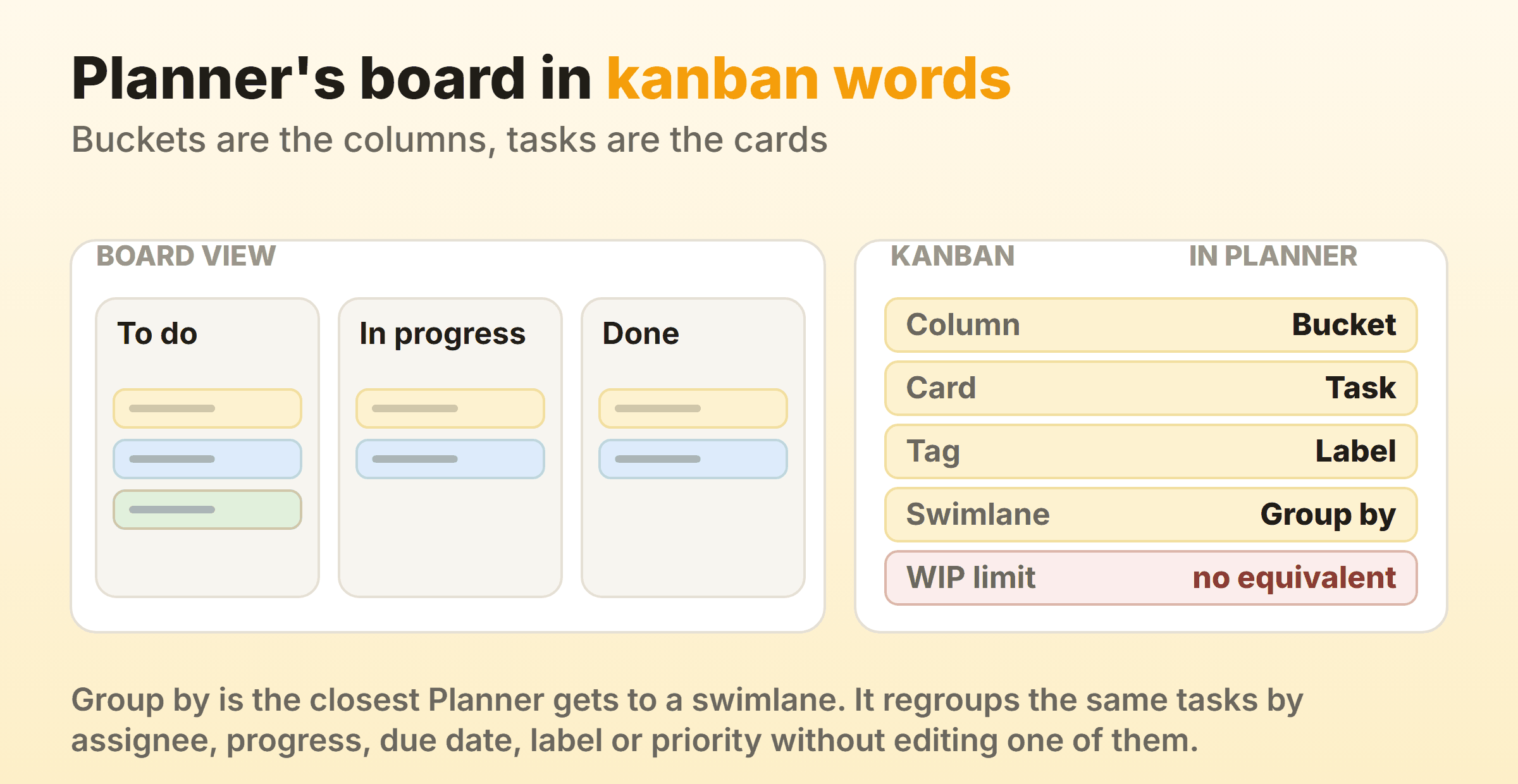
Planner renames four kanban parts and skips the fifth. Learn the four and the rest of the app stops feeling foreign.
| Kanban term | Planner name | Worth knowing |
|---|---|---|
| Column | Bucket | Made with Add new bucket, renamed from the header, reordered by dragging it |
| Card | Task | Opens as a full side pane carrying every field the task has |
| Tag | Label | Named and coloured per plan, shown as a stripe across the card front |
| Swimlane | Group by | Regroups the entire board instead of splitting it into rows |
| WIP limit | Nothing | No cap, no warning, no count against a target |
Group by earns a minute of anybody’s time. Microsoft’s guide to organising team tasks lists the options as Bucket, Assigned to, Progress, Due date, Labels and Priority. Set it to Assigned to and the columns become people, which answers who is buried in about two seconds. Switching back to Bucket restores the workflow. Nothing is edited either way.
One catch. Add bucket only appears while the board is grouped by Bucket, so anyone who leaves it grouped by assignee comes away convinced a button disappeared.
How Do You Create a Kanban Board in Microsoft Planner?
Creating a kanban board in Microsoft Planner is about four minutes of clicking, plus however long the team needs to settle on bucket names.
- Create a plan in Planner, or add a Planner tab to a Microsoft Teams channel. A plan made from a channel inherits that channel’s Microsoft 365 Group, so membership is settled before the first task exists.
- Rename the starter bucket to your first real stage, then create buckets for the others with Add new bucket. Work left to right in the order things actually happen.
- Add tasks to the leftmost bucket. Title and assignee only for now. Detail can wait until somebody picks the work up.
- Create two or three labels for the distinctions that keep surfacing in standup. Blocked is almost always one of them.
- Check that Group by is set to Bucket, since that is the only setting where the columns are your workflow.
- Drag one task the full width of the board. If a stage feels wrong on the way past, it is wrong.
The board works at that point, and anything still under discussion is a bucket name.
How Should You Name Planner Kanban Buckets?
Name Planner buckets after the state the work is in, never after the person holding it. To do, In progress and Done are fine on day one and honest about how little you know yet. The bucket worth adding next is usually a waiting state, because Waiting on client is the only way delay caused outside the team ever becomes visible.
Buckets named after people rot the week somebody changes team. Project names are the other trap, since they turn the board into a filing cabinet, and a filing cabinet cannot tell you where work is stuck. The guide covers naming columns in more depth, and every rule there carries over to buckets unchanged.
Watch the count as well. Past roughly seven buckets a laptop starts scrolling sideways, and whatever sits off the right edge goes stale inside a fortnight.
What Can a Task on a Planner Kanban Board Hold?
A task on a Planner kanban board holds a lot the card front never shows. Open one and you get assignees, a start date and a due date, a notes field, a checklist, attachments, comments, labels, a priority of Urgent, Important, Medium or Low, and the bucket it currently sits in.
There is also a Progress field, and this one deserves care. Progress carries three values of its own: Not started, In progress and Completed. So a task can sit in the Done bucket with Progress still reading Not started, and Planner will not mention the contradiction. Two status systems on one card, with no reconciliation between them.
Pick one and mean it. On a board of any size the bucket should be the truth, which leaves Progress for the completed tick and nothing else. I have never watched a team keep both accurate for longer than about a month.
The card front shows a subset of all this: label stripes, assignee avatars, the due date, a checklist count and the priority icon. That subset is what a person reads while scanning, so the distinguishing detail belongs in the task title.
What Does a Microsoft Planner Kanban Board Look Like in Practice?
Here is a Microsoft Planner kanban board example from a content team, in the shape it reached after a few months. Their first version had three buckets and none of the interesting ones.
The buckets now run Requested, Ready, Drafting, In review, Waiting on SME, Published. Two labels, Blocked and Legal check. Priority left alone.
Waiting on SME appeared once the team noticed that much of what they were calling review was actually waiting for a subject matter expert to reply, and separating the two turned an invisible delay into a visible column with names on it. Ready appeared later still, as a short queue of work that had been agreed and scoped, so that finishing something no longer meant reopening the argument about what came next.
Borrow the sequence and ignore the bucket names. Start with three, then add one only when the board is hiding something you keep having to explain out loud. A bucket added for completeness gives you a wider board and no new information.
Does the Microsoft Loop Kanban Board Sync With Planner?
The Microsoft Loop kanban board does not sync with Planner. Type /Kanban board into a Loop page and you get columns, cards, assignees and due dates, and every one of those cards stays inside that component forever. A Microsoft community moderator answered exactly this question on Microsoft Q&A, saying there is no out of the box way to get /Kanban board items into Planner.
Loop kanban tasks never appear in Planner. They do not reach the assignee’s My Tasks either, and the Teams tab the rest of the team is watching stays empty.
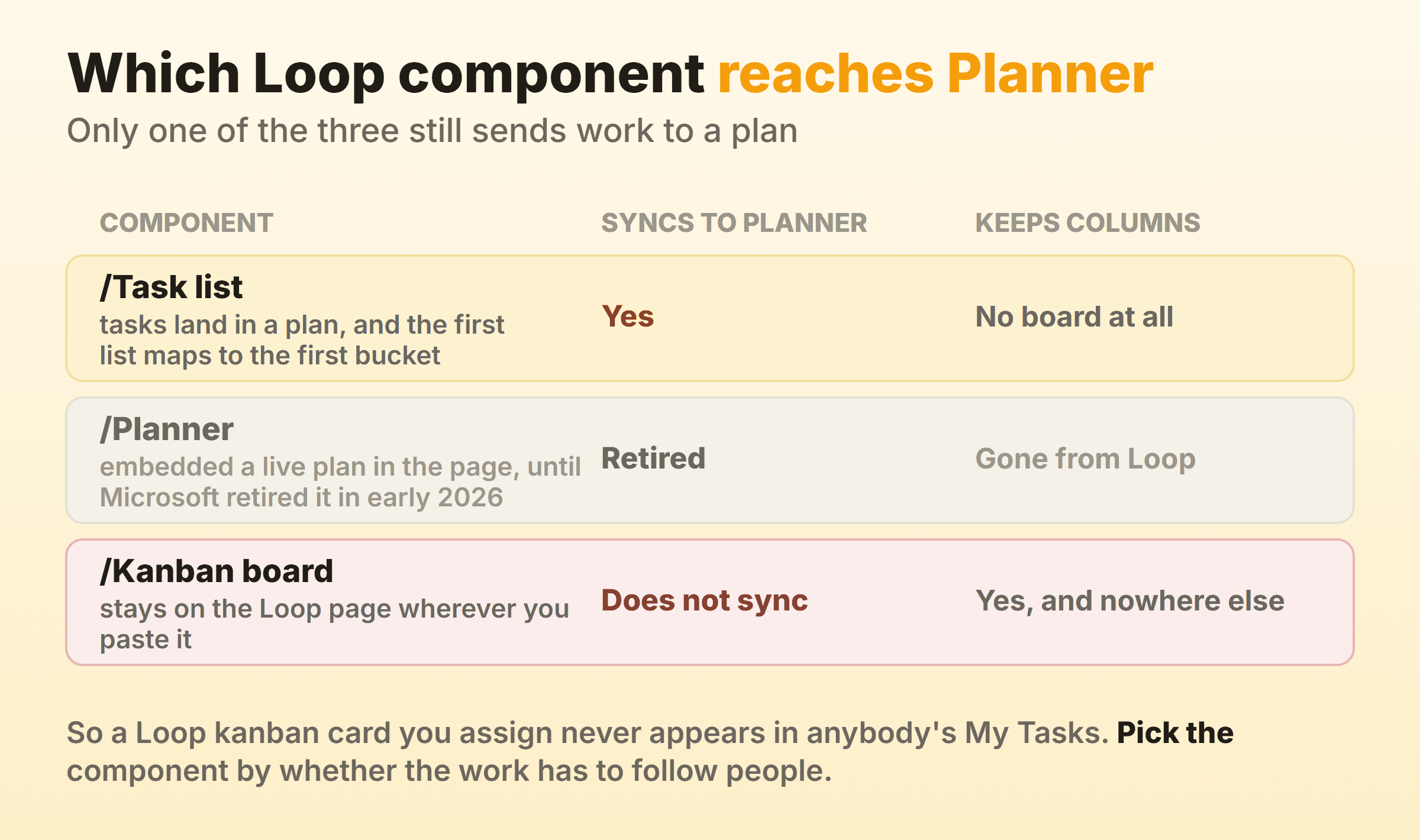
One Loop component does still reach Planner, which is where the confusion starts. A /Task list component syncs both ways, and Microsoft’s task list documentation describes a plan being created for it, with the first task list mapping to the first bucket in that plan. Task lists have no columns at all, so the Loop kanban board integration people picture is really a list that follows them around.
There used to be a second route, and this is the part most guides have not caught up with. A /Planner component embedded a live piece of an actual plan in the page, and Microsoft retired it. The message centre post announcing it, MC1193421, is quoted on Microsoft Q&A and puts the retirement between mid January and mid February 2026, after which no new component of that type can be added to a Loop workspace. So check the date on anything that tells you to type /Planner into a page.
Which Loop Component Should You Use?
Use /Task list when the work has to exist beyond the page. You give up the columns and you get a task that reaches the plan, the assignee and their My Tasks, which is the one thing a document cannot do by itself.
Save /Kanban board for something disposable that lives with its notes. A workshop, or a launch checklist nobody will look for again. The component is genuinely good at that, and its portability across chats and pages is real.
I would take the sync over the columns most weeks. A board that only exists on one page is a board somebody has to remember to open, and by Thursday nobody has.
Where Does a Planner Kanban Board Fall Short?
A Planner kanban board falls short on the two things that separate a kanban board from a task list with columns: a limit on how much work can be in a stage, and a record of how long work took to cross the board.
Planner records neither. Nothing in a plan captures when a task entered or left a bucket, and that timestamp is the raw material behind every flow measure. Cycle time is absent from Charts view because the data underneath it was never collected.
Charts gives you a snapshot instead: totals by status, bucket, priority and member. Fine for a Monday update. It cannot answer whether the team is getting faster, since that question needs history and a snapshot only holds today.
Can You Set a WIP Limit on a Planner Bucket?
You cannot set a WIP limit on a Planner bucket. No setting exists for it, and no warning fires when one column swells past anything sensible. A bucket will hold fourteen tasks in silence.
Most teams write the number into the bucket name instead. Drafting (max 3). It costs nothing and works on a disciplined team of four or five, because the number is at least visible while somebody drags a sixth card in. A Power Automate flow is the other option, counting tasks in a bucket and posting a message once the count is exceeded. Those flows work fine. They also become the property of whoever built them, and they tend to be quietly broken by the time anyone checks.
Planner never claimed to be a flow tool, and holding that against it is a little unfair. It is a task manager with a board, and a good one. Kanbanee sits at the other end of the trade, with per-column limits that stay off until you switch them on and a badge showing count against limit that turns red the moment you go over. The drag itself is never blocked, so the board objects and then lets you do it anyway. It is also a much narrower product, with no mail, no realtime sync and no integrations yet.
Do You Need Planner Premium for a Kanban Board?
You do not need Planner Premium for a kanban board. Board view, buckets, labels, checklists, attachments, comments and the Group by control all sit in the basic experience that comes with a Microsoft 365 subscription, and Microsoft’s basic versus premium comparison puts Grid, Board, Schedule and Charts views on the basic side of the line.
Premium, sold as Planner Plan 1 on top of your existing licence, adds project machinery: a timeline view with Gantt bars, task dependencies, sprints, goals, custom fields, task history and Copilot. Every one of those is worth paying for on the right project, and not one of them changes what the board does.
Premium does not add WIP limits either, which is worth saying plainly, since that is what sends people to the pricing page in the first place. The wider picture of where boards hide across the suite is covered in the guide to a Microsoft kanban board, including the one Microsoft product that does cap a column.
FAQ
Can you reorder buckets on a Planner kanban board?
Yes. Drag a bucket by its header and the whole column moves, taking its tasks with it. Boards get built in the wrong order all the time, usually because a stage nobody expected belongs in the middle, and moving it costs one drag.
How many buckets should a Planner kanban board have?
Three to seven. Three is enough to start and forces you to be honest about what you know. Beyond seven the board scrolls sideways on a laptop and the far right columns stop being read. Add a bucket when the board is hiding a real delay.
Can you use the Planner kanban board inside Microsoft Teams?
Yes, and most people meet it that way. Add a Planner tab to a channel and the board sits alongside the conversation, with the same buckets and tasks as the web app. The plan belongs to the channel’s Microsoft 365 Group, so membership follows the channel and nobody manages it twice.
Is there a Microsoft Planner kanban board template?
Planner ships templates for common plan types, and any plan you have built can be copied. Copying an existing plan is generally the better move, because your bucket names encode how the team actually works, and a stock template arrives with somebody else’s workflow already in it.
Can you move a task between two Planner kanban boards?
Yes. Open the task, select Move task, then pick the destination plan and bucket. Not everything survives the trip, and Microsoft’s copy and move documentation has the table. Labels are removed as soon as the task lands in a different plan, and if that plan belongs to a different group, only people who are members of the destination stay assigned and the comments go too. Dates are the one thing kept in every move.