
GitLab Kanban Board: Lists, Tiers, WIP Limits and Flow Metrics
Updated at
The Answer
A GitLab kanban board is an issue board whose lists are labels, and that one sentence explains most of its behaviour. You open Plan > Issue boards, create a board, add a list for each label in your workflow, and every drag between two label lists rewrites the labels on the issue underneath. Two lists arrive with every board and cannot be dragged anywhere: Open at the far left, Closed at the far right. The tier decides how far you can push the rest. GitLab Free covers multiple project issue boards, a single group board, label lists and that drag behaviour. Premium and Ultimate hold the features kanban teams ask about first, and the GitLab docs badge each one: work in progress limits on a list, board scope, assignee and milestone and iteration and status lists, epic swimlanes, scoped labels. Flow metrics sit somewhere else entirely, under Analyze > Value stream analytics, and the cycle time summary there is a Premium and Ultimate item measuring the gap between an issue first being referenced in a merge request commit and that issue closing, rather than the time a card spent crossing your board.
What Is a GitLab Kanban Board?
A GitLab kanban board is an issue board with its lists set to the stages your work passes through. GitLab’s own Kanban tutorial builds the board from labels and an issue board. Issue boards are the feature, and the issue boards documentation says they support Kanban and Scrum alike, which is honest about how general the mechanism is.
Cards are issues. Real ones, living in a repository, with their number and thread and history intact. The card face carries the issue title, labels, issue number, assignee, milestone, due date and a time tracking estimate, plus weight and iteration on Premium and Ultimate, and health status on Ultimate. Select a card and a details panel opens where the description, the comments and every field on the issue can be edited without leaving the board.
The board is a saved view rather than a container. Remove a list and the issues are untouched, because what you deleted was a filter, which is the thing to know before you experiment on a live project.
Project boards and group boards
A project issue board reads issues from one project. A group issue board reads issues from every project under that group and its descendant subgroups, which is the version a team shipping across six repositories actually wants.
GitLab’s tier table gives Free multiple project boards and exactly one group board, and multiple group boards start at Premium. One shared group board works for a single team. Two teams under the same group, both wanting their own view of the same issue tracker, is where somebody starts reading the pricing page.
How Do You Create a Kanban Board in GitLab?
You create a kanban board in GitLab by making the labels first, then pointing a board at them. Reversing that order is the usual mistake, because a board with no labels behind it has nothing to draw lists from.
- Create one label per workflow stage in the project, or in the group if the board will span several projects.
- Go to Plan > Issue boards.
- Open the dropdown showing the current board name and select Create new board.
- Name the board and create it.
- Select New list, choose the label the list should be based on, then select Add to board. Repeat for each stage.
- Drag the lists by their top bar into the order work actually flows.
Managing boards needs the Planner, Reporter, Developer, Maintainer or Owner role. GitLab lowered the minimum from Reporter to Planner in 17.7, so a guide naming Reporter as the floor was written before that change.
Version 17.5 added the option to insert a new list between two existing ones. The New list control at the right end of the board still works, and it drops the list in just before Closed. Deleting the last remaining board in a group or project became possible in 17.6, and GitLab replaces it with a fresh board named Development.
How Do Lists Work on a GitLab Kanban Board?
Lists on a GitLab kanban board are filters, and each one shows the issues matching its attribute. A label list holds every open issue carrying that label. Open and Closed come with the board, always sitting leftmost and rightmost, and you can hide them but not move them.
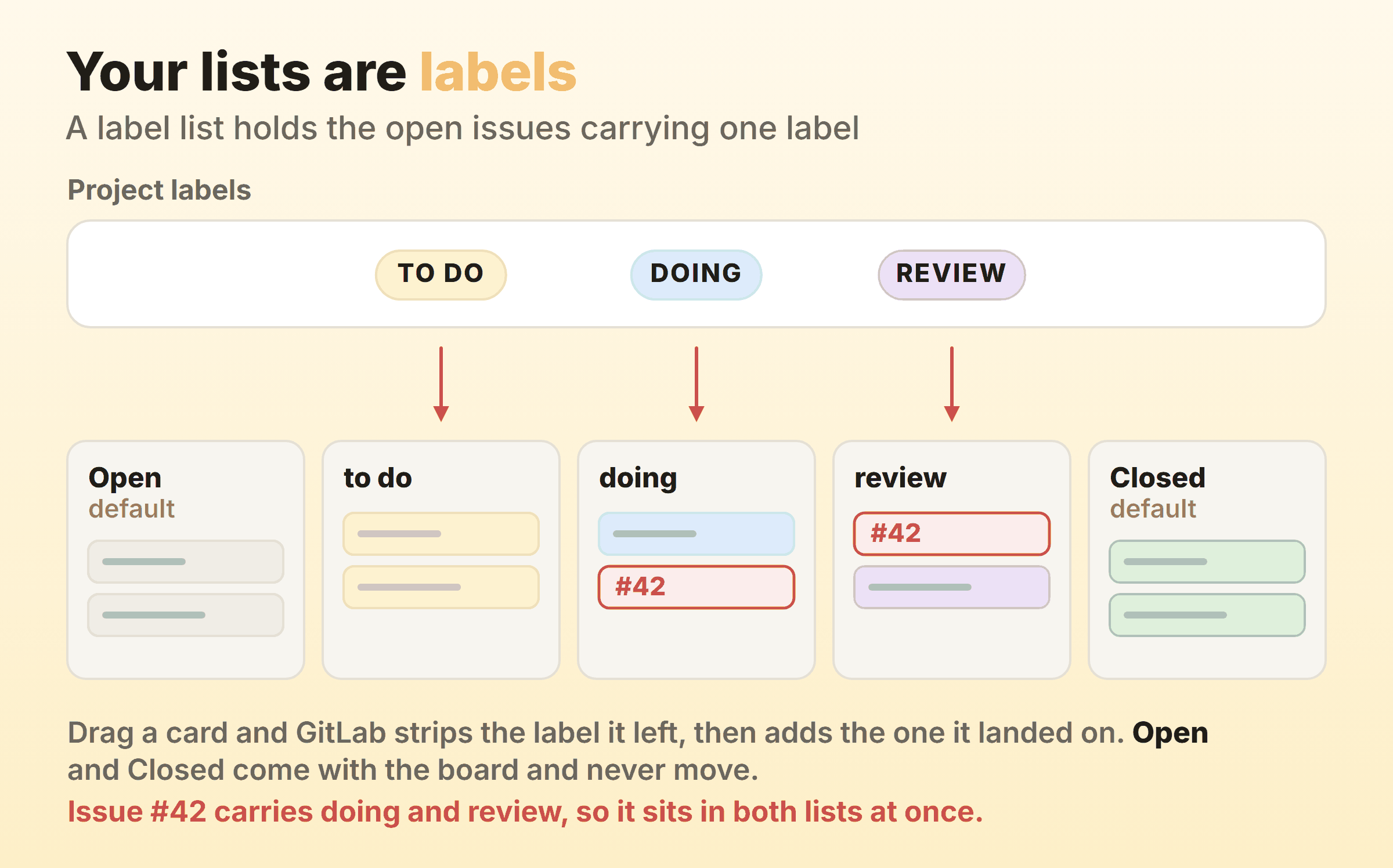
Move a card from the doing list to the review list and GitLab strips the doing label and adds the review one. The issue page updates with it. A developer who never opens the board still reads current state from the issue itself.
Plain labels are not mutually exclusive, though, so an issue carrying both doing and review sits in both lists at once, and the docs state that outright. A drag between two label lists will not cause it, since that drag swaps one label for the other. It usually happens when labels get applied away from the board: from the issue sidebar, from a /label ~review quick action in a comment, or from an automation nobody remembers configuring. You end up counting nine cards in a five-card process.
Scoped labels are GitLab’s fix, and they are Premium and Ultimate. A scoped label uses a double colon, as in workflow::review, and an issue cannot hold two labels sharing the same key. Add workflow::review to an issue already tagged workflow::development and the older one comes off by itself, whether the change came from the board or from the issue. On Free the equivalent is a rule your team agrees to and then breaks on a Thursday afternoon.
Each list loads its first 20 issues and pulls the next 20 as you scroll, so the cards on screen are not the whole queue. The number at the top of the list is, since GitLab puts the count of issues belonging to a list in its header. On Premium and Ultimate that header also carries the sum of issue weights for the issues in the list. Our guide to kanban for software teams works through a column set worth copying.
Which GitLab Kanban Board Features Are Free?
The Free tier covers the board itself and the label mechanics, and stops short of what a kanban practitioner reaches for on day two. GitLab publishes the split as a tier table plus a badge on each advanced section.
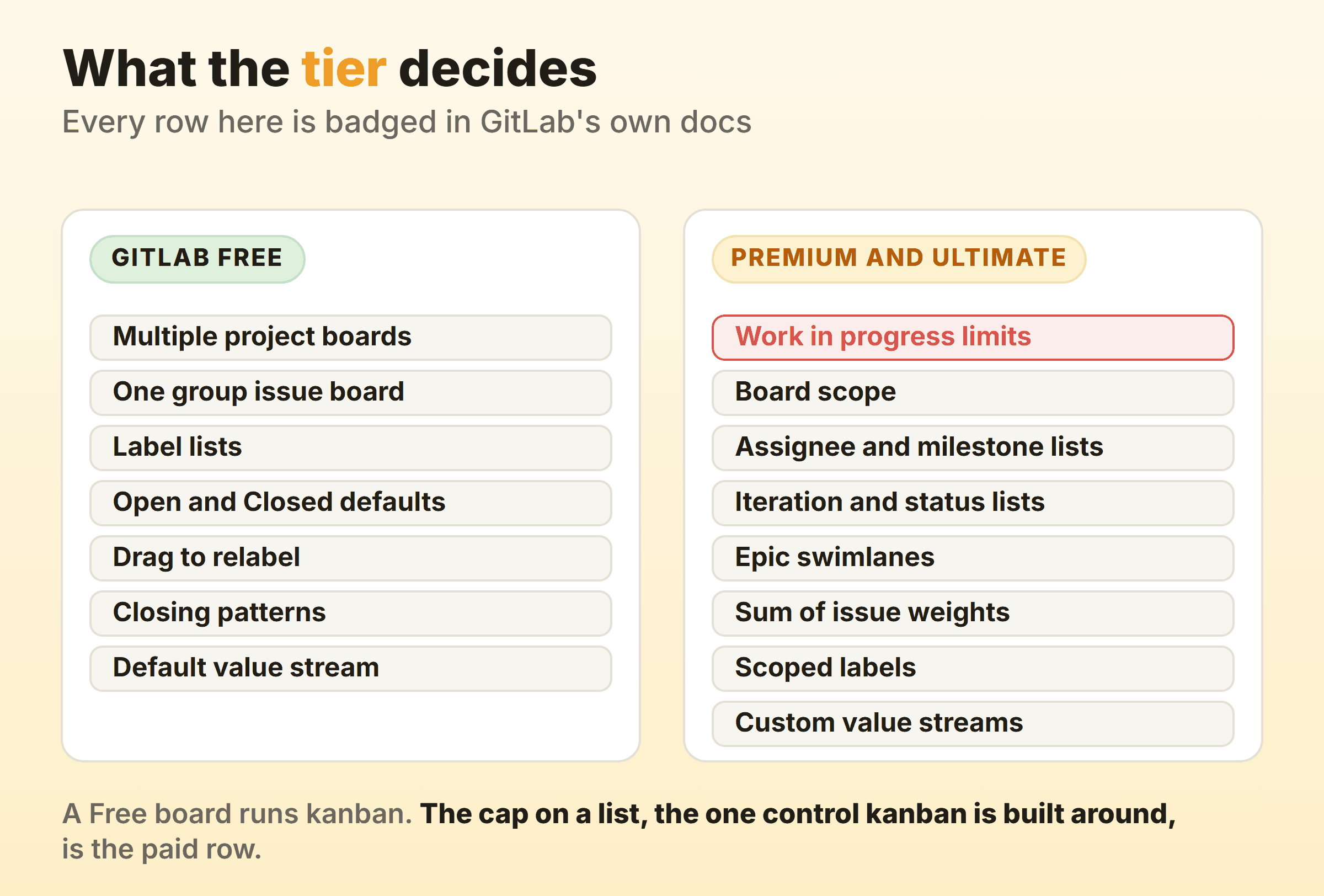
| Issue board capability | Free | Premium and Ultimate |
|---|---|---|
| Project issue boards | Multiple | Multiple |
| Group issue boards | 1 | Multiple |
| Board scope by milestone, iteration, labels, assignee or weight | No | Yes |
| Assignee, milestone, iteration and status lists | No | Yes |
| Work in progress limits per list | No | Yes |
| Epic swimlanes | No | Yes |
| Sum of issue weights on the list header | No | Yes |
| Scoped labels | No | Yes |
A scoped board filters itself to a milestone, an iteration, a set of labels, an assignee or a weight, so one project can carry a triage board and a per-team board over the same issue tracker without either one showing the other’s work. It is the paid item I would miss first. On Free you can still create several boards, and every one of them draws from the whole issue tracker.
The GitLab pricing page puts Free at $0 per user per month with no credit card and 5 users per top-level group on GitLab.com. Its FAQ narrows that cap to top-level groups with private visibility, so a public one is not counted against it. Premium is listed at $29 per user per month billed annually. Ultimate carries no listed price and sends you to sales for a custom quote.
Epic swimlanes and class-of-service lanes
Swimlanes on a GitLab issue board group issues horizontally by parent epic, and they are Premium and Ultimate. Switch them on from View options and every card drops into the lane of its epic, still draggable in both directions, including diagonally to change epic and list at once.
Epic is the only swimlane grouping the issue board docs describe. So getting the class-of-service lanes many teams want, expedite above standard above maintenance, means modelling each class as an epic or keeping those lanes somewhere else. Swimlanes in general are worth reading first.
Can You Set WIP Limits on a GitLab Kanban Board?
Yes, on Premium and Ultimate. Work in progress limits are per list, set from Edit list settings in the list header, and GitLab offers two kinds: a limit on the number of items, or a limit on the total weight of the issues in that list. Weight limits arrived in 17.11.
A list with four issues and an item limit of five shows 4/5 in its header. Go over and the count turns red, and a horizontal cut line appears after the issues that fit, dropping everything in excess of the limit below it, so the overflow shows on the board and not only in the arithmetic.
The limit does not stop you. GitLab’s own documented example walks through a list of five with a limit of five, then moves a sixth issue in and describes the header reading 6/5 with the six in red. So the drag completes. That is correct kanban behaviour. It also means a limit nobody discusses does nothing, since a red number only works when somebody says it out loud at standup, and on the boards I have run that has usually been the same person every week.
The Open and Closed lists take no limit, and since neither one is a process stage, nothing is lost there.
Free has no limit control, which leaves counting. Write the cap into the label name so the list reads Doing max 3, and hold each other to it. Crude. It still beats pretending the cap does not exist while somebody works out whether $29 a seat is worth it. Our WIP limits guide covers how to pick the number.
What Moves Cards Without Anyone Dragging Them?
Closing patterns move cards without anyone dragging them, and they run unless someone has switched them off. Put Closes #4 in a commit message or a merge request description and issue 4 closes once that commit or merge request lands on the default branch. Label lists only hold open issues, so the closed issue drops out of whichever stage list it was sitting in and turns up in Closed. Your Done column maintains itself, as long as merge request descriptions get written properly.
Quick actions handle the rest of the journey. Typing /label ~doing in a comment or an issue description applies a label, /relabel replaces the set, /unlabel removes labels. A developer picking up work can move their own card from the issue page without ever loading the board, which is how the developers I work with move most of their own cards.
Past that you are into policy tooling. GitLab’s Kanban tutorial points at the open source gitlab-triage gem for rules like closing an issue when a done label lands, or labelling every new issue into the first stage. It is built to run in GitLab pipelines, which puts it a fair distance from a checkbox on a settings page.
Where Do Flow Metrics Come From in GitLab?
Flow metrics for a GitLab kanban board come from Value stream analytics under Analyze, not from the board. The board is a control surface, and the issue board documentation describes no cycle time figure and no flow chart on the board page itself.
Value stream analytics carries a Free, Premium and Ultimate badge, but the feature table on that page gives a Free project only the default value stream, with no cycle time and lead time summary. Premium and Ultimate get both figures among the lifecycle metrics, and both definitions deserve a careful read before anyone quotes them in a retrospective. Lead time is the median time from an issue being created to closed. Cycle time is the median time between an issue first being referenced in the commit message of a merge request and that issue closing, and it needs the issue number written as #123 in the commit or no data appears at all.
That second one starts the clock at a merge request commit that references the issue, which makes it a coding-and-review duration. Kanban cycle time runs from the moment a card enters your first active stage until it reaches Done, or from the Ready queue if you count waiting as part of the job, and on a GitLab board either version means label added to label removed. A team quoting the built-in figure as its board cycle time is quietly dropping every hour a card spent waiting to be picked up.
The board version is buildable and it is a paid feature. Stage events include Issue label added, Issue label removed and Issue first added to a board, so a custom value stream can line its stages up exactly with your lists. GitLab’s Kanban tutorial walks through building that, using label added and label removed as the start and end events of each stage. Creating a value stream carries a Premium and Ultimate badge, so following the tutorial as written takes a paid plan twice over, once for the scoped labels it recommends and once for the custom stream.
Cumulative flow diagrams get the same answer. That tutorial names value stream analytics as GitLab’s route to the load-and-bottleneck picture a CFD gives you, rather than any chart on the board. I keep our own product board somewhere the reports are already built. Kanbanee puts cycle time, weekly throughput and the CFD in its $6 a month Pro tier, and it has real holes: no realtime sync, no API, and column reordering on desktop only.
When a GitLab Issue Board Is the Wrong Board
GitLab issue boards fit best when the work is code and the cards need to be the issues. There is nothing to sync and no second tool. Merge requests close issues on their own, and one group board covers every project under the group. For an engineering team already living in merge requests the case is close to unanswerable.
Everyone who moves a card needs a GitLab account with at least the Planner role, and on GitLab.com the Free tier caps a private top-level group at 5 users, which lands awkwardly for a nine-person team with three designers. The label namespace is the other drag on it. Your workflow becomes a set of labels shared across the project or group, so a marketing board and an engineering board under one group are browsing the same label list. It stays tidy for a while. Then somebody creates In Review beside the existing review and both lists are half right.
Our guides to kanban in GitHub and kanban in Azure DevOps cover the same ground for the neighbours, where the tier logic lands differently. GitLab puts work in progress limits behind Premium and gives away the board, while GitHub includes the column limit and leaves you a burn up plus whatever charts you build over project fields.
FAQ
Does GitLab have a built-in kanban board?
Yes. Issue boards ship with GitLab on Free, Premium and Ultimate, across GitLab.com, Self-Managed and Dedicated, with no extension or marketplace app involved. Configurability is what varies by tier. A Free board gives you label lists and dragging, while work in progress limits, board scope and the other list types sit in Premium and Ultimate.
Is a GitLab kanban board free?
The board is. GitLab Free includes multiple project issue boards and one group issue board, and the pricing page lists Free at $0 per user per month with a cap of 5 users per private top-level group on GitLab.com. The features most kanban teams want next carry a Premium and Ultimate badge, and Premium is listed at $29 per user per month billed annually.
How do I add a column to a GitLab kanban board?
Add a list. Select New list, choose the label the list should be based on, then select Add to board, and the list appears with every open issue carrying that label already in it. Create the label first if it does not exist. On Premium and Ultimate the same control also offers assignee, milestone, iteration and status lists.
GitLab or Jira for a kanban board?
Jira arrives with more reporting already built. In a company-managed Jira space, Reports holds a cumulative flow diagram and a control chart for the board. GitLab wins whenever the work is code, because the cards are the issues, merge requests close them automatically and no integration has to keep two systems aligned. Teams that ship software and rarely file a non-code ticket usually take the GitLab board and build reporting separately. Our kanban in Jira guide covers that side.
Can one GitLab kanban board cover several projects?
Yes, through a group issue board, which shows issues from every project in the group and its descendant subgroups. Free accounts get one per group and the paid tiers get multiple. Watch the label scope, since filtering a group board by label only reaches labels belonging to the group itself rather than those belonging to its descendant groups.