
Basecamp Kanban: How Card Tables Work and Where They Stop
Updated at
The Answer
Basecamp kanban runs on the Card Table, which Basecamp’s help centre calls “Basecamp’s take on a Kanban board”, and every plan carries it including the free one. You add it to a project from the plus button. Columns are workflow stages, three of them locked by Basecamp and the rest yours to name, and each card holds an assignee, a due date, subtasks, comments and a rich description. Card caps are where it stops. Nothing in the column menu sets a limit and the column resource in Basecamp’s public API has no limit field, so a Basecamp kanban board will show you where every piece of work sits and never once mention that nine things are open.
Does Basecamp Have a Kanban Board?
Basecamp has a kanban board and files it under the name Card Table. The Card Tables help article says so in its first line, describing card tables as Basecamp’s take on a Kanban board, built for “work that moves through stages”.
Two clicks gets you there. Open a project, click Card Table. Projects without one show a plus button that adds it.
Basecamp’s pricing page lists Card Tables among the core features in every package, next to message boards and to-dos, and the free plan carries the board alongside one project, five users and 1 GB of storage. Your plan decides the count. Free and the $25 Freelancer plan stop short of multiple tools per project. Studio at $59 a month includes it, and the note under that line names card tables as one of the tools you can add more than one of, so a second board on one project starts there.
A Basecamp to-do list stays a to-do list, which is worth settling before you build anything. Basecamp’s To-Dos article sends you elsewhere in its opening lines: “For more visual, status-based workflows, use the Card Table.” Lists are checklists with a progress pie at the top. The card table is a separate tool holding separate items, and the two never merge. Teams who assumed the board was a second view of work they already had get caught by this in week one.
Past that, the board behaves the way kanban behaves anywhere. Columns are states and cards move left to right.
How Do You Set Up a Basecamp Kanban Board?
Setting up a Basecamp kanban board takes about ten minutes. Add the Card Table to a project, learn which columns Basecamp locks, rename the middle ones after states, then start dropping work into Triage.
Add the Card Table and Read What Arrives
New card tables arrive with default columns. The help centre names Triage, In Progress and Done, and the column ordering rules in Basecamp’s API name a fourth locked type, Not Now, which sorting skips.
Triage is where new cards land. Empty it on a schedule and it works as an inbox. Leave it alone for a month and you have forty cards in a holding pen with a board attached to the side.
Learn the Three Columns You Cannot Rebuild
Triage, Not Now and Done are locked. The help centre’s restriction runs to a single sentence and is worth memorising. Those three cannot be put on hold, archived, deleted or collapsed, and Not Now and Done cannot be renamed either.
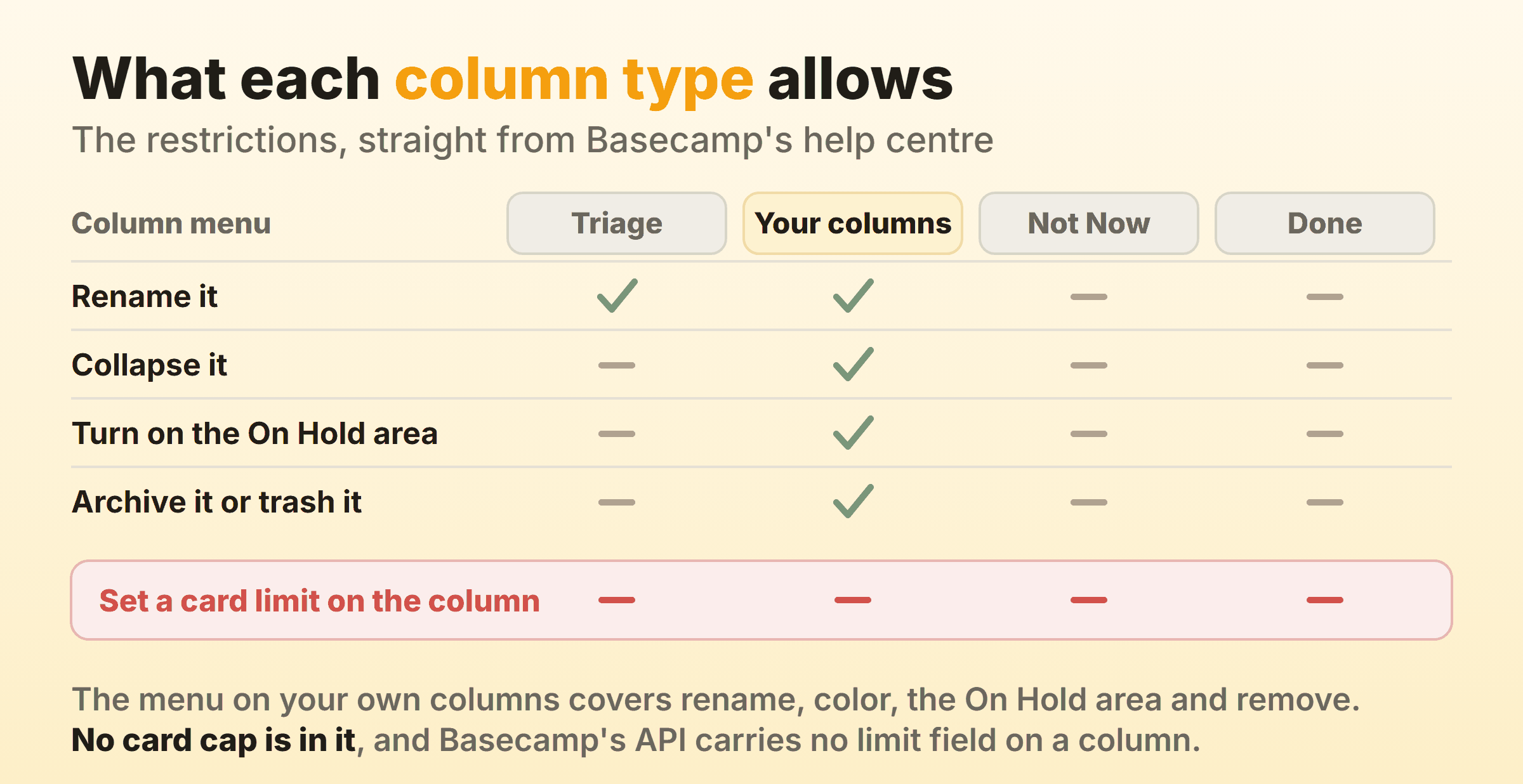
Not Now earns more attention than it gets. Most boards have nowhere to put work the team has looked at and declined for now, so those cards sit in the backlog and inflate it forever. Basecamp made the decision on your behalf and gave the answer a column nobody can delete. Once “not this quarter” has an address, a backlog starts shrinking.
Name the Middle Columns After States
Your own columns sit between Triage and Done. Basecamp’s API shows the whole of a column, which is a required title and an optional description. Two fields, which tells you how much configuration Basecamp expects here. Add a column with the plus to the right of the ones you already have.
Name each one after what is happening to the work. “In review” survives somebody leaving. “With Dana” stops meaning anything the week Dana moves teams, and every inherited board I have picked up with a person’s name on a column had two columns doing the same job by then. Three or four working columns is enough to start. Add a fifth once you can point at real work waiting somewhere the board currently hides.
The column description is the field teams skip, and it is the one worth using. A line saying what has to be true for a card to sit in this column does more for a team than a wiki page of process, because it lives on the thing it describes.
Fill the Cards, and Stop There
Click Add a card, or press Shift and M. Title, assignee, due date, and whatever detail belongs in the description. Assigned cards appear on that person’s Assignments page, dated cards land on the Calendar, and Basecamp can fire a “Due soon” notification.
Subtasks live inside the card and each one takes its own assignee and due date. Finishing a subtask does not move the card, so a card sits where you put it until a human drags it, which is the right call and also means the card face tells you nothing about progress. That shapes what these cards are good for.
Leave the rest alone for a fortnight. Colours, the On Hold area, column watchers, all of it survives the wait. Boards change shape the first two weeks they carry real work, and every setting attached to a column you later delete is work you did twice.
Do Basecamp Card Tables Have WIP Limits?
Basecamp documents no WIP limit for card table columns. The column menu Basecamp walks you through offers no card cap, and the column resource in Basecamp’s public API carries no limit attribute. Creating a column through the API takes a title and an optional description, and that is the entire payload.
I checked twice, because claims about somebody else’s software deserve it. The help centre’s “Managing columns” section walks the menu end to end, and it holds rename, colour, turn on the On Hold area, and remove a column by archiving it or moving it to the trash. Collapsing is not even in there, it is an arrow on the column header. No cap in any of it. The API section for card table columns lists get, create, update, move, watch, change on hold, and change colour. Nothing there either.
So you fall back on a convention. Put the number in the column name so it reads “In progress (max 3)”, and count by eye at standup. A real WIP limit keeps working when nobody is watching, and this one holds while somebody is paying attention then quietly stops the first busy week.
Card tables do give you an arrival signal. Open the three dot menu on a column, choose Watch this column, and Basecamp notifies you every time a new card lands there. Watchers show at the top of the column so the team can see who is on the hook. Point it at your first working column and you have a replenishment alert.
What Do Card Tables Do Better Than Most Boards?
Card tables beat most kanban tools on the parts of a workflow that happen outside a column, because Basecamp made decisions in places where other tools hand you a settings panel.
The On Hold area is the best of them. Turn it on from the column menu and a column gains a place to park work without moving it anywhere. Everywhere else, a blocked card gets dragged into a “Blocked” column, which lies about where the work actually is and wrecks any chance of reading the board at a glance. On Hold keeps the card in its real stage and flags it as stuck.
Wormholes come second. A wormhole is a portal that sends a card to a column on a different card table, including one in another project. Add up to four per board from the three dot menu, then drag a card onto one. People only see wormholes pointing at projects they can already open, which is what makes them safe across a client boundary. Handing work between two teams who each run their own board is normally a copy, a paste and a broken link, and a wormhole turns the whole exchange into a drag.
Then there is Triage, which most tools make you build yourself and then argue about. Basecamp hands you an intake column nobody can delete, so nobody has to agree on where new requests go.
Where Does the Basecamp Card Table Run Out?
The Basecamp card table runs out at flow. It is precise about where a card is right now and keeps no record of how it got there, which suits a content pipeline and hurts a team trying to get faster.
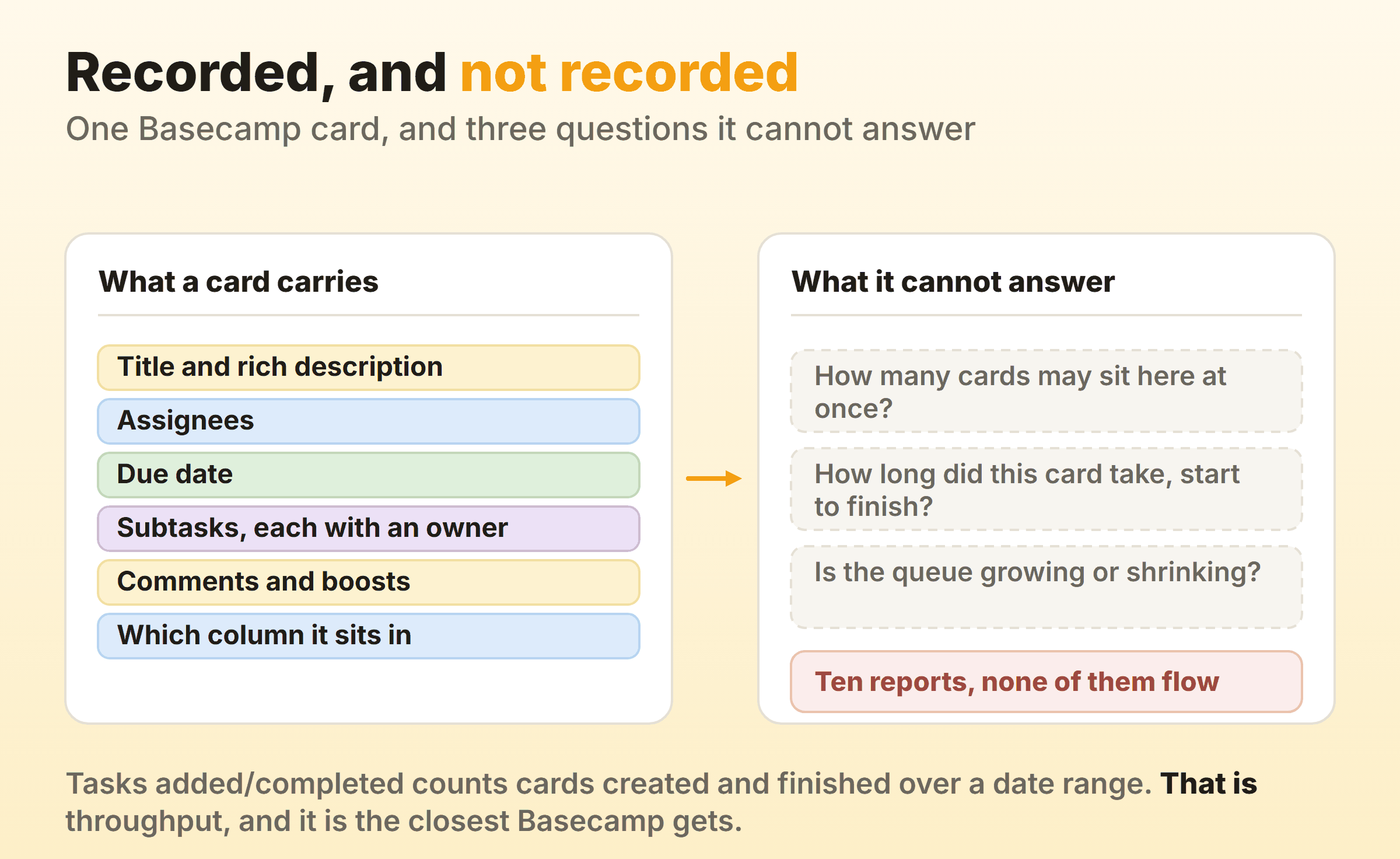
No cycle time. Basecamp’s Reports run to ten: Lineup, Mission Control, Hilltop View, Upcoming tasks, Overdue to-dos, Unassigned tasks, Tasks added/completed, Someone’s tasks, Someone’s activity, and Timesheets. Tasks added/completed counts cards created and finished across a date range, filtered to cards, and that is a genuine throughput number. None of the ten produces a cycle time distribution or a cumulative flow diagram, so “how long does work take here” has no answer anywhere on the board. Flow metrics are what a team reaches for once coordination has stopped being the problem.
No labels on cards. A card holds a title, a rich description, assignees, a due date, subtasks and comments. The card payload in Basecamp’s API has no tag or label field and the help centre’s card section never mentions one, so slicing the board by work type means giving each type its own column or agreeing a prefix convention in card titles, and prefix conventions decay within a quarter.
Columns do not travel. Basecamp’s Moving and Copying article is blunt about it. Individual cards can be copied, but columns cannot. Cards and whole to-do lists move between projects and keep their comments and history. A column structure you spent a month tuning gets rebuilt by hand in the next project, unless you are on a plan with project templates, which starts at Studio.
How Do You Get WIP Limits and Cycle Time on a Basecamp Board?
Three routes, in rising order of disruption.
The cheapest is running the convention properly. Cap written into the column name, a count read out at standup, and one person whose job is saying the number. On a small team with a standup somebody actually attends, this holds for months.
Next is layering a board on top. Browser extensions read your Basecamp data through the API and draw their own board over it. Assistant for Basecamp is one, a Chrome extension at $29 a month or $290 a year for unlimited seats, with a seven day trial of everything and seven small enhancements that stay free. Its board covers both to-do lists and card tables, and a column count can carry a shared WIP limit that turns red the moment open work goes over. You are now depending on somebody else’s release cycle, and on everyone installing the same thing.
Or you move the flow-critical work onto a board built for it. One team needing caps and cycle time while the rest of the company needs Basecamp’s messages, docs and schedules is a normal shape for a company, and running two tools is the correct answer to it. Kanbanee sits at that end. A WIP limit is a checkbox and a number in the column menu, off until you switch it on, and the badge shows count against limit and turns red over the cap without ever blocking the drag. Cycle time, weekly throughput and a cumulative flow diagram come with Pro at $6 a month or $48 a year. Free is two boards you own with unlimited members. The gaps are worth knowing before you move: no realtime sync yet, no API, and column reordering works on desktop only. If the team’s problem is coordination, the card table already sitting in the account is the cheaper answer. If you are weighing a move off Basecamp, Basecamp alternatives compares what you gain and what you give up.
Teams weighing card tables against the boards inside other general project tools usually look at Asana and Trello next. Open the column menu first in any of them, because that menu is where you find out whether the board will ever argue with you.
What Is Fizzy, and Is It Part of Basecamp?
Fizzy is a separate kanban product from 37signals, the company behind Basecamp, and it lives outside Basecamp entirely. Two boards from the same company, one of them inside Basecamp and one of them not, is worth ten seconds to keep straight before you go looking for help with the wrong one.
Fizzy is free, funded by Basecamp and HEY, and capped at 1 GB of file space. It is open source, it has webhooks and an API, and it is pitched as a fast board for bugs, issues and ideas. Jason Fried’s letter on the homepage takes a swing at what Trello, Jira, Asana and GitHub Issues have become.
The part that matters if you already run Basecamp sits in Fizzy’s own FAQ. It does not currently offer importing data from other services, and Basecamp is named in that list. Fizzy is a second product with a second board from the same people, adopted alongside Basecamp, and your card tables stay exactly where they are.
FAQ
Does Basecamp have a kanban board?
Yes. Basecamp’s kanban board is called the Card Table, and Basecamp’s help centre describes it as their take on a Kanban board. Open a project and click Card Table, or add it from the plus button if the project does not have one yet.
Is the Basecamp card table free?
Card Tables are included with every Basecamp package, and the pricing page lists them among the core features that come with all plans including the free one. The free plan gives you one project, five users and 1 GB of storage, so the board is free but the account around it is small.
Can you set a WIP limit on a Basecamp card table column?
Not through anything Basecamp documents. The column menu covers rename, colour, the On Hold area, archive and trash, and the column resource in Basecamp’s API has no limit field. Writing the cap into the column name and counting by eye is the workaround teams settle on.
How many card tables can one Basecamp project have?
One, unless you are on Studio or higher. Multiple tools per project starts at Studio, $59 a month, and Basecamp’s pricing page names card tables as one of the tools you can add more than one of at that level. Free and Freelancer do not carry that line.
What is a wormhole in a Basecamp card table?
A wormhole is a portal on your board that sends a card to a column on another card table, including one in a different project. You can add up to four per card table from the three dot menu, and people only see wormholes that lead to projects they can access.
Can you turn a Basecamp to-do list into a card table?
No. To-do lists and card tables are separate tools holding separate items, and Basecamp’s own To-Dos documentation points you at the Card Table for status-based workflows. Moving work across means creating the cards.