
Monday Kanban: How the monday.com Kanban View Works and Where It Stops
Updated at
The Answer
monday.com has a kanban board, calls it the Kanban View, and ships it on every plan of its work platform including Free. A monday kanban board owns no columns of its own, though. It borrows them from a status column already sitting on the board, one column per label, which means the board and the main table can never disagree, and that renaming a label rewrites your workflow in every view at once. You get drag between columns, swimlanes, a task limit on each column, and subitem values on the face of a card. A subitem never gets a card of its own, and nothing in the view’s documented settings records how long a card sat where it sat.
Does monday.com Have a Kanban Board?
monday.com has a kanban board, and it arrives as a view rather than as a kind of board. monday’s board views documentation lists Kanban alongside Table, Gantt, Timeline, Files Gallery, Map, Workload, Chart, Calendar, Form, Cards and Pivot Boards in the Views Center, and one board can carry up to 100 of them.
Adding the Kanban view copies nothing and creates nothing. The items underneath stay exactly where they were and only the shape on screen changes, which is why a table somebody built in March can be a monday kanban board this afternoon and a table again on Friday.
monday’s own kanban software page tells you to create a group for each stage of your workflow and move tasks from group to group. That describes the main table. The Kanban view runs on status instead, and groups only show up as horizontal lanes if you divide by them, so the marketing page will walk you into a board shape the view then ignores.
Which Plans Include the monday.com Kanban View?
Every plan on monday’s work platform includes the monday.com kanban view, Free included. monday’s plan comparison article lists the Kanban View under both Free and Basic, which puts it a full tier below Timeline, Gantt, Calendar and Map on Standard, and two tiers below Chart and Workload on Pro.
The Free plan is tight. Two seats, three boards, and a ceiling of 200 items across the entire account, with another 100 unlocked for each person you successfully refer, up to 1,000 in total. Formula and Time Tracking columns stay behind Pro, and Free has no Files column at all, so the card covers described below are out of reach.
Stepping off Free costs more than one seat’s worth of money. monday bills per seat and its pricing page says plans start from three users, so a pair outgrowing the free tier buys three seats whether or not a third person exists. Rates differ by billing country, so read the number on your own checkout rather than anybody’s blog.
Locking a view so other people cannot rearrange your setup is Pro and Enterprise only, and board owners and account admins can still edit a locked view. Board views inside the mobile apps are restricted to paying accounts, which monday attributes to App Store and Play Store policy, so a free account can use the Kanban view in a browser but not in the mobile apps.
How Do You Add a Kanban View in monday.com?
To add a Kanban view in monday.com, click the plus icon right below your board’s title and pick Kanban, or open More views to reach the Views Center and pick it there. The Kanban View article documents a second route through the three-dot menu, Board Power-Ups and Board Views, which lands in the same place.
Setup lives behind the cogwheel at the top right of the view, where four settings do the real work.
Step 1: Choose the Status Column
Open Settings and pick your status column under Kanban Column. Every other setting is cosmetic next to this one, and it is the one people click straight past.
Choose the column that already describes stages of work. If the only status column on the board tracks something else, priority or approval or delivery method, you get a board of those instead, and it looks almost right for about a week. Boards built that way tend to grow a second status column later, called something like Stage, sitting next to the original one nobody wanted to delete.
Step 2: Decide What the Card Shows
Card Columns controls which of the board’s columns appear on the face of a card, and it accepts a column from your subitems as well. Cover Columns takes a files column and puts an image at the top of each card, cropped or fitted. A Hide button on the top panel pulls columns out of the view entirely.
Show two fields. Three at the outside. Owner and due date answer most of what anybody asks while staring at a board. Put eight fields on a card and you are reading a table row again, only now the layout wastes half the screen doing it.
Step 3: Divide the Board Into Swimlanes
Divide by splits the cards into horizontal lanes. monday’s documentation names the board’s groups, a Status, or Connect Board columns as values to split on, and a Hide empty groups checkbox appears once you have chosen one, so lanes with nothing in them disappear.
Groups come back here. If the board already has a group per client or per quarter, Divide by groups turns each into a lane while the status column keeps driving the columns. Swimlanes earn their place when two streams of work genuinely need separate flow. Otherwise they cost you a lot of vertical scrolling for nothing.
monday’s Sidekick can generate board views from a prompt, and the documentation lists Table, Gantt, Calendar, Battery, Chart and Numbers as the supported widgets. Kanban is still a manual add.
Why Do monday Kanban Columns Come From a Status Column?
monday kanban columns come from a status column because the view generates one column per label and takes nothing else as a source. The Kanban View article carries a note saying it currently only generates from status column labels, with other column types filed under future hopes. The mobile documentation says the same thing from the other side, tying every card to a label from your status column.
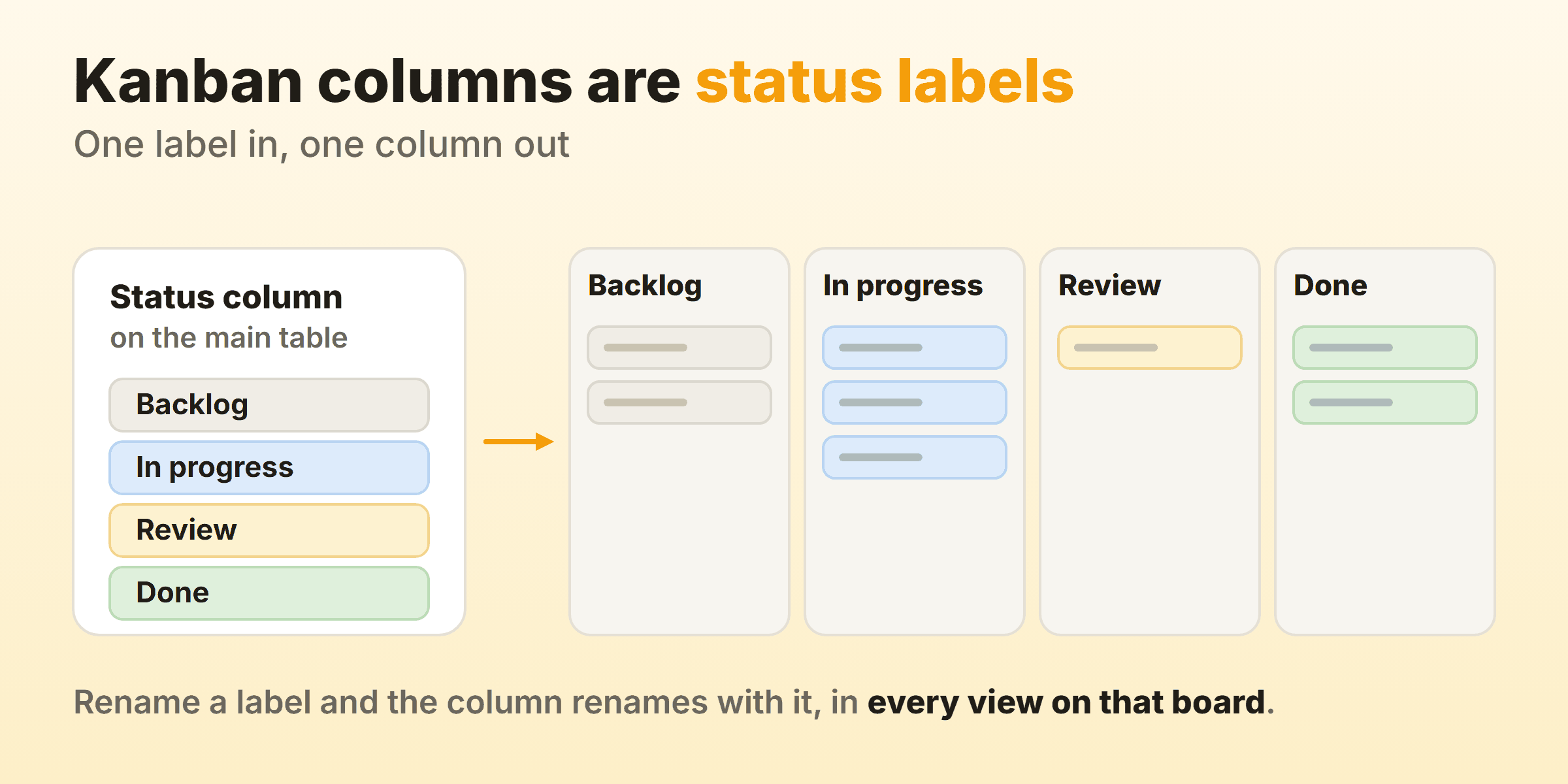
Board structure and status set are therefore one object. A new column means a new status label, and that label is available everywhere else the status column is used, from filters and automations to dashboard widgets and the board’s other views. So the workflow lives in one place, which is convenient right up to the afternoon somebody renames a label to tidy up.
Column names have to survive as status names, which quietly kills the habit of naming a column after a person. “With Priya” becomes a status that outlives Priya’s employment. Name the column after what is happening to the work and “In review” still means something two years from now. Retiring a column is less casual, too. monday will not delete a status label that items on the board still use, and offers Deactivate for stale labels instead.
You also cannot pivot the board onto anything else. Owner, dropdown, due date and connected board are all off the table as columns. Want a kanban board of people rather than states? This view will not build one, and the usual workaround is a second status column duplicating whatever you wanted to group by, which is how boards end up carrying two columns that mean the same thing.
How Do You Show Subitems on a monday.com Kanban Board?
You show subitems on a monday.com kanban board by putting a subitem column on the card, not by turning subitems into cards. Card Columns accepts a column from your subitems, so something like a subitem status rides along on the front of the parent item’s card.
Adding them is straightforward. Clicking a Kanban card opens the item popup, where subitems get added and edited, and the three-dot menu carries Add subitems directly, next to archive, delete, move and duplicate.
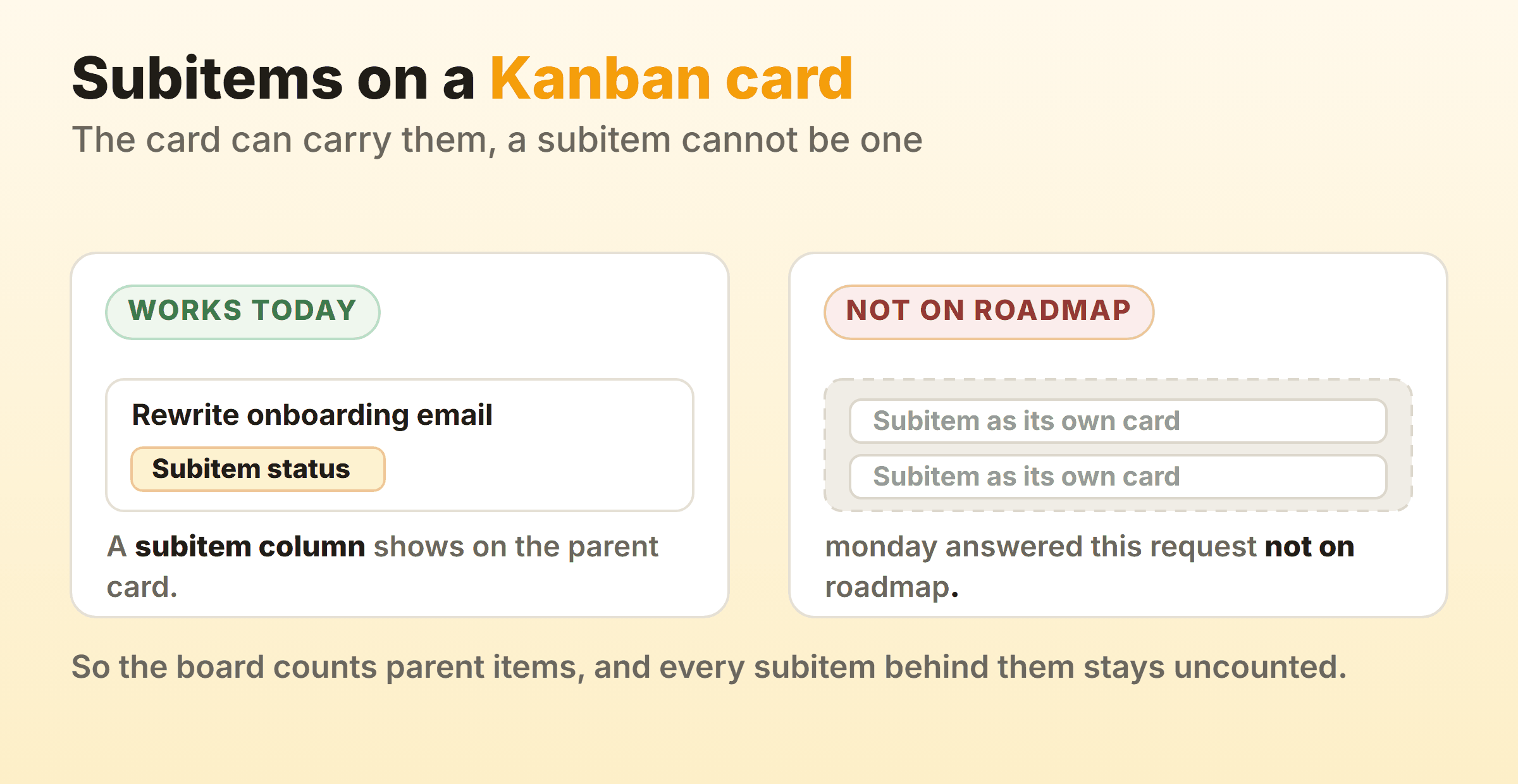
What you cannot do is give a subitem a card of its own. That request has been open on monday’s community forum for about five years, raised by a sales team whose deals were items and whose calls and follow-ups were subitems, and monday’s team has answered it with a not on roadmap status and a reply saying the feature is not on the long-term roadmap.
Sales boards run into this, and so does anything where the item is a container and the subitems are the work. A column limit is a maximum number of tasks per column, and those tasks are the cards, which subitems never become. So an In progress column holding four cards can be hiding forty open subitems and still read as healthy, which means the board is counting at the wrong altitude.
None of the view’s documented settings change that. Model the thing you actually move as items on their own board, then use a Connect Boards column to tie them back to the parent. The board then counts what you care about, and you maintain two boards instead of one.
Can You Set WIP Limits on a monday.com Kanban Board?
You can cap each column on a monday.com kanban board, though monday files it under Task and column limits rather than WIP limits. Its instructions are to open the three dots at the top right of the Kanban card, select Set column limit, and choose the maximum number of tasks. The cap lands on the column, and monday’s stated reason is to stop task counts getting out of hand.
The WIP wording belongs to a different product. monday’s list of features found only in monday dev includes a Work in Progress limit for Kanban users, and the monday dev setup article describes it in the same sentence and the same click path as the column limit above, Set column limit included. On the work platform you get the cap without the name, and searching the help centre for WIP turns up monday dev articles first.
Turn it on. monday’s Kanban View article describes setting the maximum and never says what happens once you go past it, so whether the limit warns, blocks or simply sits there is not something to take on faith. Cap a test column at four, drag a fifth card in, and watch. I would rather spend two minutes finding that out than write a team policy around a number that might do nothing.
Teams spend far too long picking the number. A cap of three on a column staffed by three people exists to trigger a conversation. It is there to make somebody deal with the card already stuck before starting a fourth, which is the whole argument for WIP limits and the reason an uncapped board drifts into being a status report.
A cap tells you when to stop starting, and the view has no documented way to tell you whether stopping helped, because that answer lives in cycle time. The documented settings cover the status column, covers, card fields, lanes and limits, with nothing about timing anywhere, so flow metrics on monday means a date column stamped by an automation, or a Chart view, which is a Pro feature. Automations start on Standard and are metered, at 250 actions a month there and 25,000 on Pro.
What Does a monday.com Kanban Board Example Look Like?
A monday.com kanban board example reads better as a build than as a screenshot, so here is one assembled from nothing but the settings above.
Take a content board. One status column called Stage, carrying the labels Idea, Writing, Editing, Scheduled and Live, which become the five columns. Divide by set to the board’s groups so each client gets a lane, with empty ones hidden. Card Columns showing Owner and Publish date and nothing else. Cover Columns pointed at the files column so the hero image sits on the card. A column limit of three on Writing and two on Editing, because there is one editor. Above the columns, the overview widget shows the distribution as a battery and jumps you to a column when you click its colour.
That board takes ten minutes to build and will want renaming twice in the first fortnight, which is normal and the reason to run it by hand before pointing an automation at it.
The inventory version of this question is a different animal. Teams do run reorder boards on monday, and the Kanban view will happily show stock items grouped by a status column called Reorder state. That is not what kanban inventory management means on a factory floor, where the card is a physical replenishment signal and the number of cards in circulation sets the stock level. A monday board can record that system, though the card on the shelf is still the thing doing the work.
When Is the monday Kanban View Not Enough?
The monday kanban view stops paying its way at the point where you want the board to change what the team does rather than report what it did. A column limit has read four since spring while the column sits on eleven cards, and nobody has said a word. Somebody asks how long work takes. The answer starts with an export. Or the work that matters on the board is subitems, and the columns only count the parent cards.
Read that as a criticism of one view. The product around it does dashboards, workload, portfolios, forms and automations, and if your company already runs on those, the board arrives free with everything else.
Judge it on kanban features alone and the gaps are specific. Columns that can come from nowhere but a status column, subitems that never become cards, a limit whose enforcement is undocumented, and no documented timing in the view.
Kanbanee is built for the narrow case where the board is the whole job. Setting a WIP limit is a checkbox and a number in the column menu, pre-filled at three, off until you turn it on. The badge reads count against limit and goes red the moment you exceed it, though it will still let you drop the card, because a cap that blocks a drag mostly teaches people to work outside the board. Cycle time, weekly throughput and a cumulative flow diagram sit behind Pro at $6 a month or $48 a year, and the free tier is two boards you own with unlimited members on them. It also goes without a few things. No realtime sync, no API, and column reordering that works on desktop only. If you are weighing a move off monday.com, monday.com alternatives compares what the other platforms charge and what they fix.
Teams weighing this up often have Asana, ClickUp and Wrike open in other tabs. Those three land in roughly the same place monday does, a broad platform where the kanban board is one view among many.
FAQ
Is the monday.com kanban view free?
Yes. monday lists the Kanban View under the Free plan, so a kanban board costs nothing to build. Free caps you at two seats, three boards and 200 items across the whole account, and the mobile apps do not serve board views to free accounts, so the practical answer is free in a browser for a very small team.
Can you group a monday kanban board by something other than a status column?
Not the columns. The Kanban view only generates columns from status column labels. Divide by splits the board horizontally instead, and monday’s documentation names groups, a status, or a Connect Boards column as options, so the lanes are the only place a second grouping can go.
How many board views can one monday board have?
Up to 100, according to monday’s board views documentation. Locking a view against other people’s edits is limited to Pro and Enterprise, and only board owners can pin views, which keeps them visible when the board opens.
Does the monday.com kanban board work on mobile?
On paid accounts. monday restricts mobile board views to paying plans and attributes that to App Store and Play Store policy. On a phone the Kanban view shows one status label at a time, and you swipe left and right to move between them. That is fine for reading. For moving work, open the item and change its status from the item card.
What is the difference between a monday group and a kanban column?
A group is a horizontal block of items on the main table. A kanban column is one label of a status column. They are different objects, which is why monday’s own kanban marketing talks about moving tasks between groups while the Kanban view moves them between statuses. Groups become lanes if you point Divide by at them, and the status column drives the columns either way.